SkedX reads your CSV or Excel file, shows you every column it found, and lets you match each one to a profile field before anything is saved.
In review: written from the product, not yet walked through live.
1Open the import screen
From the Profiles list, click Import.
2Upload your file
Drop in a .csv or .xlsx file. The first row should be your column names — “Name”, “Phone”, “City”…
3Match your columns to profile fields
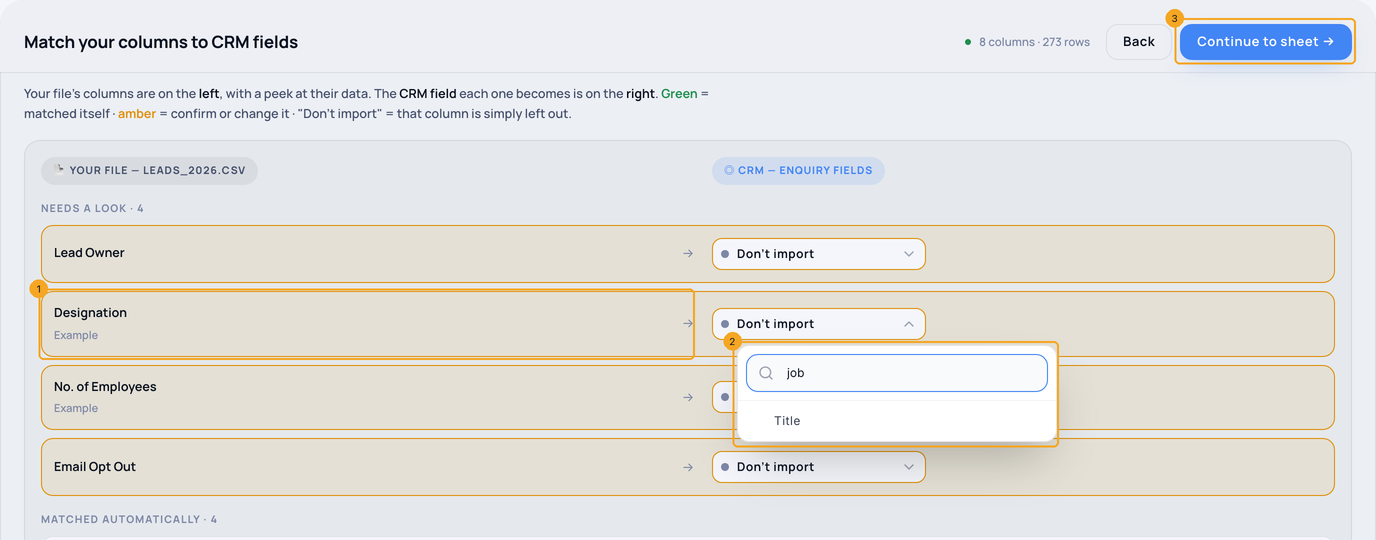
SkedX matches every column it recognises by itself (green) and lists the ones it isn’t sure about first, in amber (1), with a peek at their data. Click a row’s field and type to search (2) — a field is found by its other names too, so “job title” finds Title. Company and Tags are always in the list; a Tags column takes tag names separated by commas, and new tags are created for you. Leave a column on Don’t import to leave it out. The list uses the whole window; click Continue to sheet (3) — it stays at the top while you scroll.
4Change a column’s field on the sheet
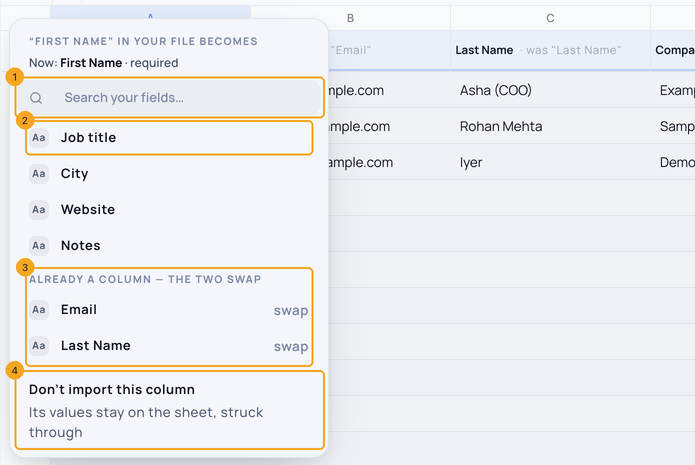
SkedX’s matching is a guess, and you can change it at any time: click a column’s heading on the sheet. Search for the field you want (1) — a field is found by its other names too — and click it (2); the column’s values move to that field. A field that is already a column swaps with it (3). Don’t import this column (4) keeps its values on the sheet, struck through, without importing them. A required field, like First name, always stays on the sheet: if you change it, it waits as an empty column for you to fill. Undo puts any change back.
5Check your dates
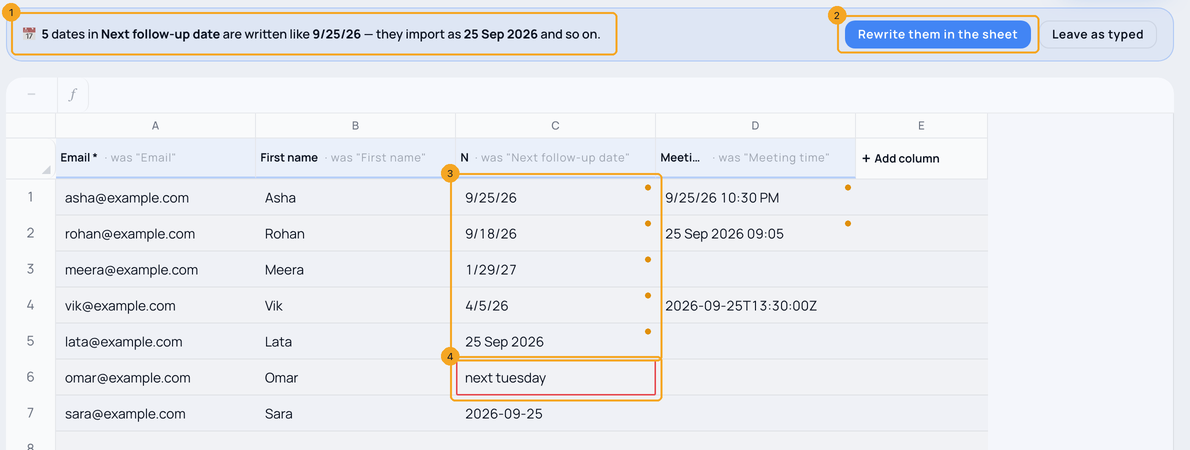
Write dates the way you already do — 9/25/26, 25/09/2026, 25 Sep 2026, Sep 25, 2026, with or without a time. SkedX reads them all and tells you above the sheet what they will be saved as (1). Click Rewrite them in the sheet (2) to see every date in that column as 2026-09-25, or Leave as typed — they import correctly either way. A small dot marks a date SkedX tidied (3); click the cell to see the date it becomes. Only a cell SkedX truly can’t read as a date is ringed red (4) — retype it like 25 Sep 2026. If a column’s dates could be day-first or month-first and nothing in the column settles it (every date is like 4/5/2026), SkedX asks you once which it is.
6Choose a date format, and deal with values that are not dates
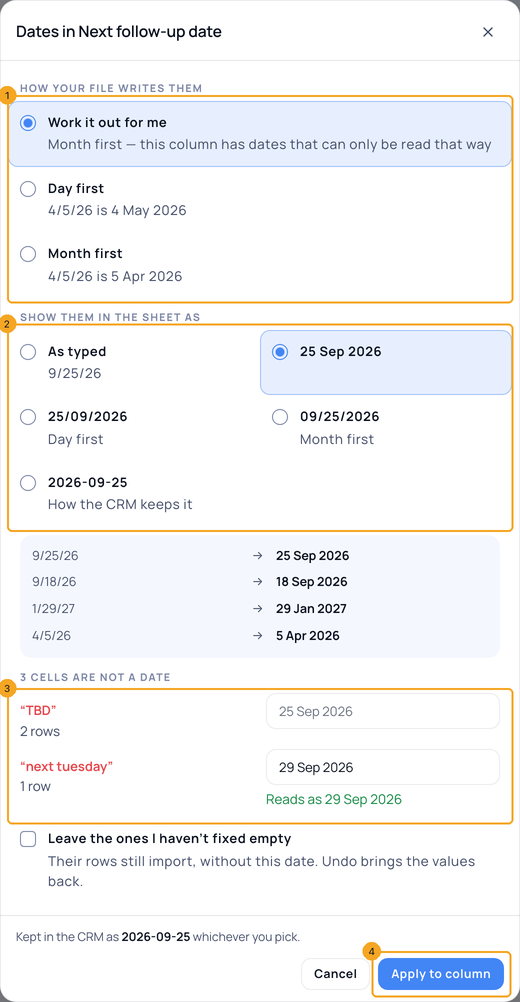
Click Date format on the date line above the sheet, or a date column’s chip under the sheet. Say how your file writes its dates (1) — Day first, Month first, or Work it out for me; each choice shows what one of your own dates becomes. Pick how the sheet should show them (2) and see the column change before you apply. If some cells are not dates at all — “TBD”, “next Tuesday” — they are listed once each with how many rows have them (3): type the right date beside a value and every one of those rows gets it, or tick Leave the ones I haven’t fixed empty so those rows still import, without the date. Click Apply to column (4). It is one step to undo.
7Fix what Verify marks
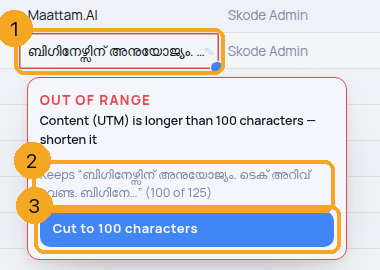
Press Verify. A cell the import would refuse gets a red ring (1). Click it: the tip says why in plain words and offers the fix — for text that is too long it shows what stays (2), then Cut to 100 characters (3), or Cut all … long rows when more than one row is long. A date it cannot read offers Set how dates are read…, a bad email in a column that is not required offers Clear it, “₹ 45,000 approx” offers Keep only the number, and anything else opens the cell for you. Undo puts a fix back.
8Repair a file that arrived garbled
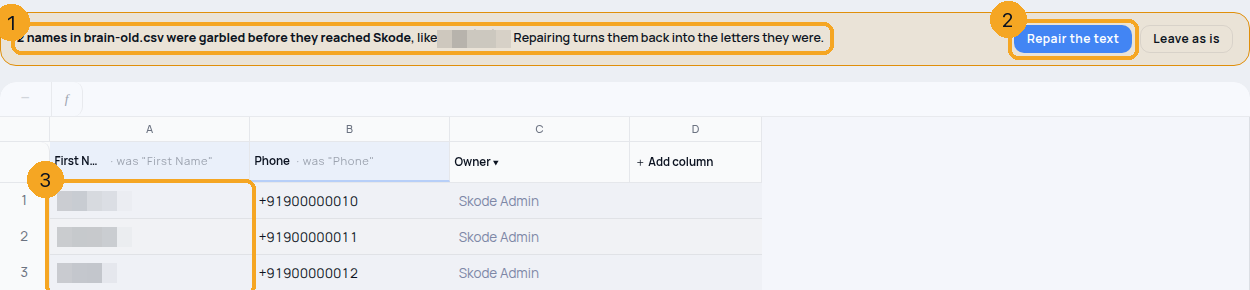
If the file was saved in the wrong format somewhere before it reached SkedX, names arrive as “raaഹി.” instead of “raaഹി.”. The sheet says so once in a banner (1): Repair the text (2) turns those cells (3) back into the letters they were, and Undo on the note that follows puts them back. A real name such as “Margão” is never touched, and nothing is repaired unless you press the button.
9Review and confirm
You’ll see how many profiles will be created and how many look like duplicates of people already in SkedX. Nothing is saved until you confirm.
© 2026 SkedX · Sample data only · Share and link freely · Copying the product or its design is not allowed · Terms
Common questions
Is everyone the import gives records to told?
Yes, once. When the import finishes, each person it assigned records to — by your owner column or your assignment rules — gets one email and one notification listing theirs, with a button that opens exactly those records.
Names or accents came out as “ഹി”, “ð…”, “ã” or “–” — what happened?
That was a file read in the wrong character set. SkedX now reads every CSV as UTF-8 first — including a Google Sheets download, which has no marker saying so — so names in Malayalam, Arabic or Hindi, emoji, and “ã”, “é” or “–” arrive exactly as written. Only a file that is not UTF-8 at all (an old Excel-on-Windows export) is read the older way. Records imported before this keep what they were saved with: undo that import and import the sheet again, or correct them on the record. If the file itself was garbled before it reached SkedX — saved in the wrong format somewhere else — the sheet says so in a banner as soon as it opens: Repair the text turns those names back into the letters they were (a real name such as “Margão” is never touched), and Undo puts them back.
Can I undo an import?
Yes, for 24 hours after it finishes: open Settings, then Bulk upload, and click Revert next to it under Recent imports. It removes the records that import created — and the contacts it made for them, when nothing else uses those contacts — into the bin, so a mistaken undo can be put back. An import that brought nothing in, or one that was never started, has no Revert.
Which files can I import?
A CSV or tab-separated file (.csv, .tsv), an Excel workbook (.xlsx, .xls), or Excel’s “Unicode Text” (.txt). Text files are read as UTF-8 first — with or without the marker Excel adds — then as UTF-16 when the file says so, and only an old Windows file is read the older way, so names in any language arrive as written. In a workbook, every column stays on its own field even when a header cell is blank.
Verify says a row will fail. Why, and what do I do?
Verify runs every row through the same checks the import uses, without saving anything — so “will fail” means the import would refuse that row. Click the cell with the red ring: it says why in plain words, and offers the fix in one click — Cut to 100 characters (it shows what stays first) or Cut all 7 long rows in that column, Set how dates are read… for a date it cannot read, Clear it for a bad email in a column that is not required, Keep only the number for “₹ 45,000 approx”, or it opens the cell for you (Type it here, Pick from the list). Verify again; the count goes down as you go. On a phone, a row that failed in a running import offers Cut to … characters under the field. A person who appears twice in the sheet — by email, or by phone however it is written — is marked as a duplicate of the first row.
Some people’s only name is their phone number. Will it import as “+91 70194 29204”?
Yes — a value that is just a number, with a + or - in front and spaces or brackets in it, is kept exactly as written in any column. Text that a spreadsheet could run as a formula (it starts with =, @, + or - and has letters or symbols after) is saved with a single quote in front, so it can never run when someone opens an export in Excel.
A phone column has words in it, like “98765 43210 (office)”. Is that a problem?
No. The number is kept and the words are dropped, in every import. A cell with no number in it at all is left empty and the row says so.
Why does the import ask for Full name instead of First name and Last name?
Because the profile shows the name as one Full name. The import asks for the name the way your layout shows it: one Full name column for a Full Name layout, First and Last for a First · Last layout. To change it, open the name on a record in Edit layout and choose its format.
My old CRM put the whole name in both First and Last — will it show twice?
No. When a row has the same whole name in First and Last (“Lucky Pandey” and “Lucky Pandey”), or Last already starts with First (“Bijoy” and “Bijoy hazra”), SkedX keeps the name once. A short name that really repeats, like “Lee Lee”, is kept as it is.
Does every row need an email?
Only if your layout says so. The import asks for exactly the fields your Field Editor marks required — if Email is optional there, a list with only names and phone numbers imports. Rows without an email are never treated as duplicates of each other. A row with nothing in any of its columns is skipped, so empty rows at the bottom of a spreadsheet never become empty records.
Which date formats can I import?
Numbers with slashes, dots or dashes (25/09/2026, 9/25/26, 25.09.2026, 2026-09-25), month names (25 Sep 2026, September 25th 2026, 25th of September 2026, Sep 25, 2026) and any of these with a time before or after the date (25/09/2026 10:30 PM, 10 pm 25 Sep 2026). Month names are also read in other languages, such as 25 septembre 2026 or 25 सितंबर 2026. Dates in an Excel file are read as the date Excel holds, whatever way your computer shows them. A date needs its day, month and year: “25 Sep”, “tomorrow” or “next Tuesday” are not guessed — the cell is ringed red so you can type the full date.
SkedX matched a column to the wrong field. How do I change it?
Click that column’s heading on the sheet and pick the field it should be. Its values move with it, and Undo puts it back. Before the sheet opens, you can also change any match on the Match your columns screen.
Some of my dates are right and some are wrong. Do I lose the whole file?
No. Every cell is read on its own: the dates SkedX can read import, and the ones it can’t are ringed red and counted. Open Date format for that column to fix each wrong value once for all its rows, or leave those cells empty so the rows still import without that date.
How does SkedX know whether 4/5/2026 is 4 May or 5 April?
It looks at the rest of the column. One date that only makes sense one way — 25/4/2026 can only be day-first — settles every date in that column. If nothing settles it, SkedX asks you once before anything is imported — answer on the date line above the sheet, or in Date format.
I am moving from another CRM. Can each person keep the date they were created?
Yes. Map your sheet’s created column (for example Zoho’s Created Time) to Created Date — or to Created date when you import inside a profile — and each person the import creates keeps that date instead of today’s. A time with no time zone is read as India time. A blank cell or a date in the future keeps the import time, and someone who is already in SkedX is never back-dated.
Two rows in my sheet have the same email. What happens?
It follows your duplicate rules. If they match people by email, the first row is imported and the second is listed as a duplicate. If they don’t (or you have none), each row becomes its own record, exactly as your sheet says.
Can deals keep their dates when I import them?
Yes. On Deals, open the arrow beside + New deal, click Import and map Created date, Expected close date, Loss reason and Closed date alongside the amount and stage. Each deal lands on the person it belongs to (found by email, then phone) and shows on their Revenue tab and on the Deals board. The expected close date is saved on the person and may be in the future. Closed date is when a won or lost deal closed: it becomes the deal’s won or lost date, so past wins don’t count as this month’s. A deal imported at a later stage moves its person to that stage too.
My sheet has an Owner column. Who owns each person?
The person the column names, when they are a member of your workspace — matched by email or name. SkedX picks Owner → From a column: Owner for you when the file has one; open the Owner column’s menu to choose one teammate for every row, or Me, instead. A name SkedX can’t match leaves that row to your assignment rules. When you import inside a profile, the Owner column is the profile’s own Owner field: a name or email that isn’t a member of your workspace is ringed red and that row stays out until you fix it.
A value isn’t one of the field’s options. What happens to the row?
It is not imported until you fix it — on the Enquiries sheet and when you import inside a profile alike. The cell is ringed red with the reason, for example “Course: “Plumbing” is not one of its options”. Change it to one of the field’s options (you can type the option’s name in any capitals), or change the field’s options in the Field Editor first. The same goes for a number, date, rating or yes/no SkedX can’t read, a required field left empty, and a value outside the field’s rules. The other rows import. Forms, Zapier and SkedX Flow still bring people in with that value left out.
A cell is ringed red because its value isn’t one of the field’s options. How do I fix it?
Click the cell — or select it and press Alt+↓ — to open its fix. Change to takes the closest option; Change all fixes every row with the same value at once; Pick from the list lets you choose. In a multi-choice cell such as “Webinar, Expoo”, only the wrong item changes, and the rest of the cell stays as it is. With the keyboard, Tab moves between the choices and Esc takes you back to the sheet.
Can I undo an import?
Yes, for 24 hours after it finishes. Click Undo import on the result screen: it removes the records that import created, and the button counts as it goes (“Removing 120 of 273…”). Records that were merged into someone already in SkedX are not un-merged, and skipped rows were never added. If you re-imported the failed rows, one undo removes both parts. After an undo, Import these rows again starts a fresh import of the same sheet.
A deal row has no email or phone. Where does it go?
The deals import finds each deal’s person by email, then by phone. A row with neither can’t be matched, so it creates a new person with the row’s name. Add the person’s email or phone to the row first, or add that deal by hand on the person’s Revenue tab.
I opened Import from a profile and it says the sheet can’t import into it right now. What do I do?
Nothing has been imported. The sheet could not confirm it may put people in that profile — the profile is switched off, holds a different kind of record, you don’t work in it, or SkedX could not check just then. Click Try again; if it says the same, check the profile is switched on in Settings → Profiles. Choose Import into Enquiries instead only if you want the rows in Enquiries — an import never lands in Enquiries without you choosing it.
Next in ProfilesFill any field in the import sheet →
Previous: Create a profile · All Profiles guides
Did this guide help?
Still stuck?Chat with support →


