When someone leaves, remove them once here and they leave every SkedX app for your company.
In review: written from the product, not yet walked through live.
1Open Access and find the person
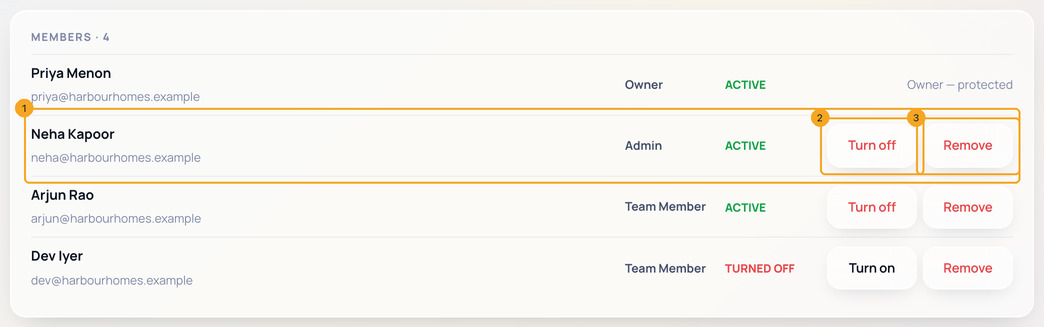
Click Access in the left menu. Find the person under Members (1). Next to Turn off (2), click Remove (3).
2Confirm
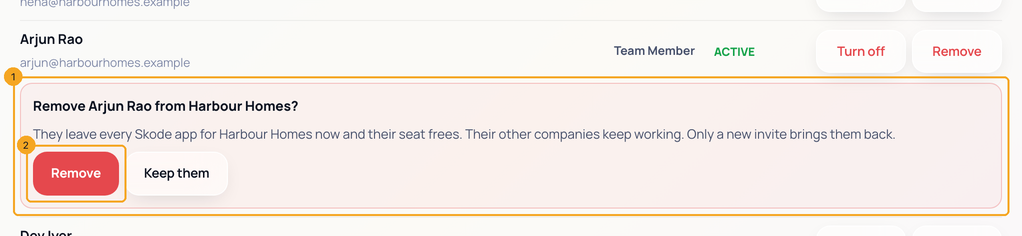
The confirm (1) opens under their row: they leave every SkedX app for your company, their seat frees, and their other companies keep working. Click Remove (2).
3They are removed, and the seat is free
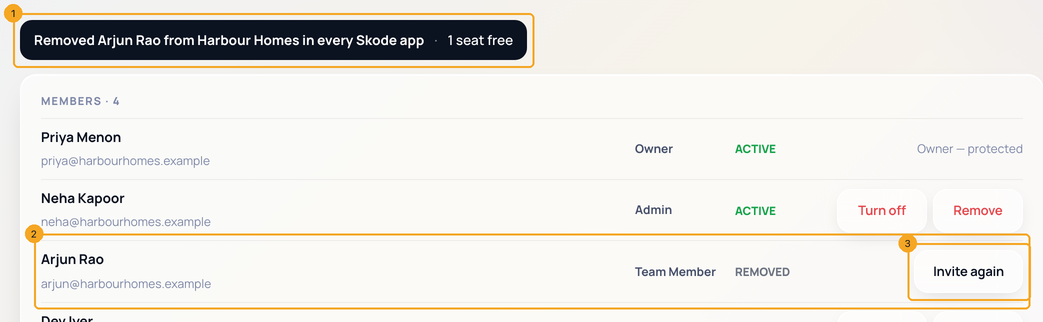
A line (1) confirms it, with one seat free. They stay on the list as REMOVED (2). To bring them back later, click Invite again (3).
4What they see
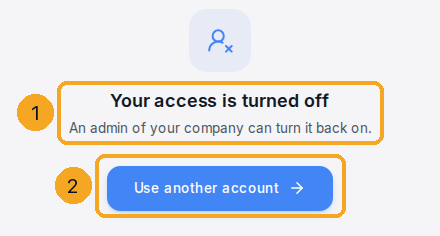
If they open SkedX CRM — and work in no other company there — they see Your access is turned off · An admin of your company can turn it back on. (1), with Use another account (2). It never names your company or anyone in it. For someone removed, coming back means a new invite (Invite again).
© 2026 SkedX · Sample data only · Share and link freely · Copying the product or its design is not allowed · Terms
Common questions
What is the difference between Turn off and Remove?
Turn off switches them off everywhere and Turn on brings them back with the same role. Remove takes them out of your company for good, frees their seat, and only a new invite brings them back. See Turn someone off in every SkedX app.
It says “SkedX sign-in didn’t answer”.
Nobody was removed. Click Try again in a minute.
Can I remove the owner?
No. The owner is marked Owner — protected.
Do they lose other companies they work in?
No. Only your company. They are signed out once and can sign back in to the others.
Can I remove someone from inside an app instead?
Yes — the CRM, Flow, Forms and Automate each have Remove from company, and it does the same thing.
Next in Your organizationTurn someone off in every SkedX app →
Did this guide help?
Still stuck?Chat with support →


