Add a condition and it only takes the enquiries that match — so a campaign’s leads go to the person running it, and everything else carries on to the next rule.
In review: written from the product, not yet walked through live.
1Open the profile’s assignment rules
Open the profile (for example Enquiries) and click the ⚙ beside its name to open Profile settings (1), then Enquiry assignment (2). The rules are listed in their bands (3) — High, Medium, Low.
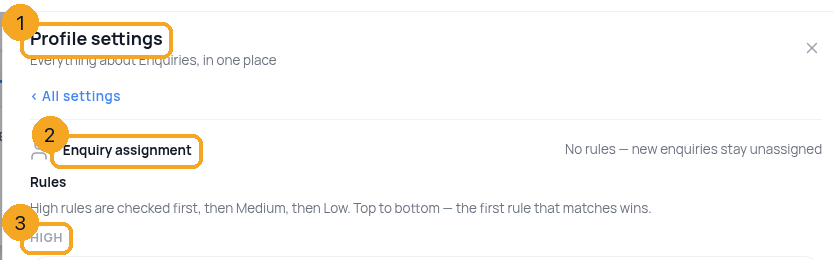
2Edit a rule, or make a new one
Click Edit on a rule, or + New rule under the list. Choose who it sends enquiries to under Assignees. The ✕ beside a person (1) only takes that person off this rule — it does not delete the rule.

3Add a condition
Under Conditions click Edit conditions, then the field box. Search (1), or pick from your page’s own fields — grouped the way the page is laid out (2), then Not on the page and Set by Skode (created at, tags, lead score…). Medium (UTM) (3) is in Marketing Tracking. Then choose how to compare it (contains, is any of, is empty…) and the value — the value list shows what your enquiries really have, with a count.
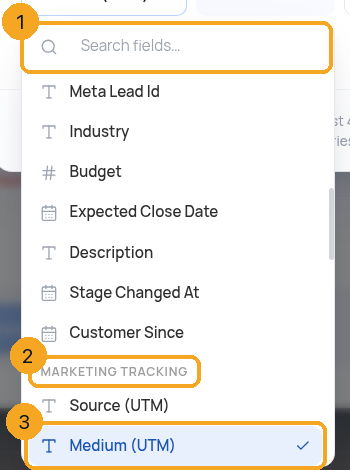
4It counts as you build
The editor asks the rule’s own question (1). With a field (2) and a value set, it counts the latest enquiries this would have taken (3) — Would have matched 3 of the last 4 enquiries. Click Use these conditions (4). A row left without a value can’t be used: it says what is missing.
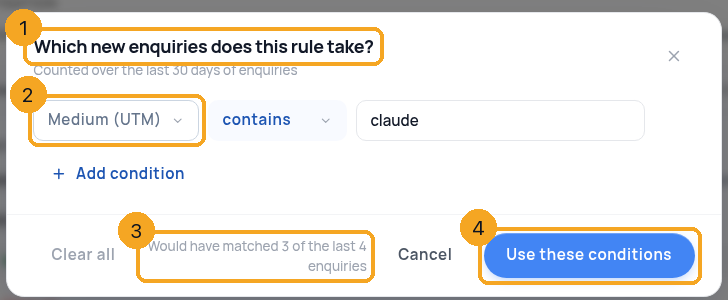
5Choose ALL or ANY
With more than one condition, Match ALL needs every condition to be true; Match ANY needs one. Save the rule.
6Put it in the right order
High rules are checked first, then Medium, then Low; inside a band, top to bottom. The first rule that matches wins, so a rule with a condition must sit above a rule that takes everyone. Use the arrows (1) to move it.
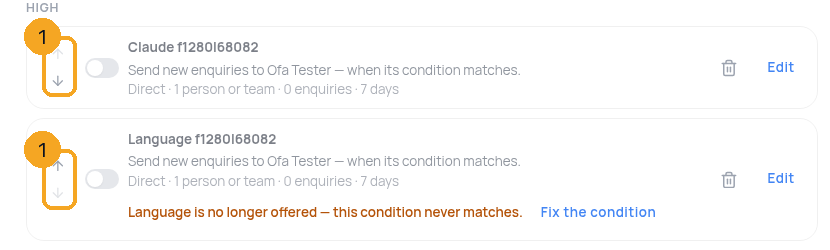
7See what it would catch — before you save
Under the condition (1), a line counts the newest enquiries the way the rule will — for example Would have matched 6 of the last 7 enquiries (2). It counts up to 200 enquiries from the last 30 days and recounts each time you change a condition. Nothing is assigned by it.

8If it would catch none, look at the real values
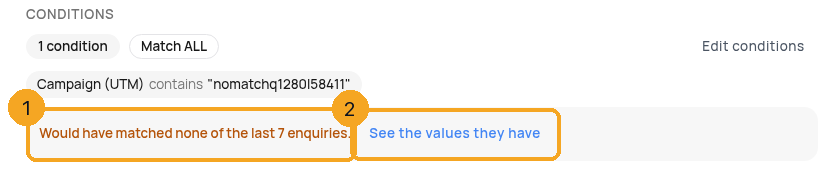
An amber Would have matched none of the last 7 enquiries (1) usually means the value is spelled differently from what your enquiries carry. Click See the values they have (2) to open the condition and pick a real value.
9A rule that took nothing says so
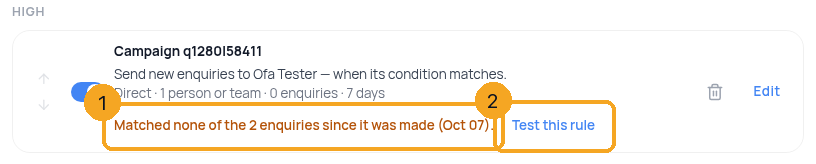
On the list, a rule that is on, has a condition and took none of the enquiries that arrived since it was made shows Matched none of the 2 enquiries since it was made (1) on its row. Click Test this rule (2).
10A condition that can never match says so
A rule whose condition can never match says why on its row (1) — a field that is no longer offered, a field that no longer exists, or a value left empty. The rule keeps running as it is; click Fix the condition (2) to choose a field or a value.

11See which condition said no
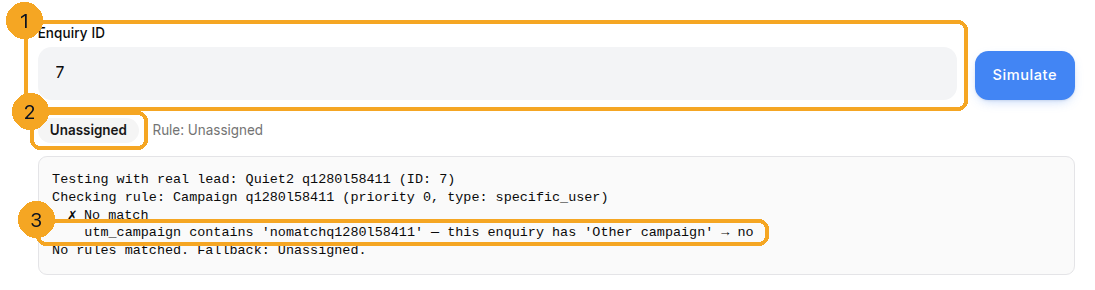
Test this rule opens Test the rules on the newest enquiry the rule missed (1) and runs it. The result says who it would go to (2) and, under each rule, which condition said no and the value the enquiry had (3). You can also open Test the rules from the card and type any enquiry’s ID.
12Turn a rule off, or delete it
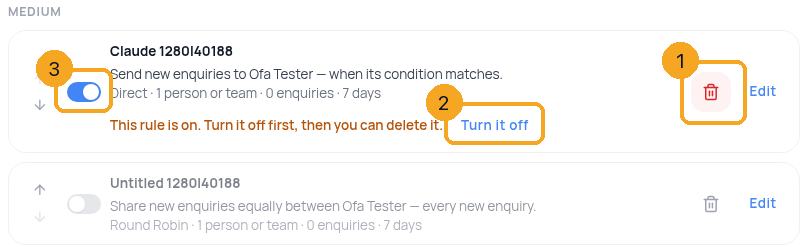
Click the bin (1) on the rule’s row. A rule that is on is never deleted straight away: the row says This rule is on. Turn it off first, then you can delete it. Click Turn it off (2) — or its switch (3) — and click the bin again. Turned off, a rule stops taking enquiries and keeps its settings.
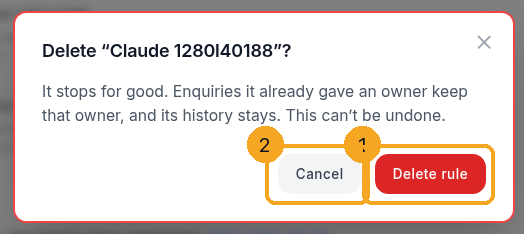
13Confirm the delete
Click Delete rule (1) to remove it for good, or Cancel (2) to keep it. Enquiries it already gave an owner keep that owner, and its history stays.
© 2026 SkedX · Sample data only · Share and link freely · Copying the product or its design is not allowed · Terms
Common questions
Do capital letters matter in a condition?
No. claude, Claude and CLAUDE all match the same enquiries, and spaces at the start or end are ignored.
My rule on Medium (UTM) never assigned anyone — why?
Before 5 October 2026 a condition on a Marketing Tracking field (Medium, Campaign, Source, Term, Content (UTM), Referrer, Landing page) and a few other built-in fields was read from the wrong place, so it never matched. It is fixed; enquiries that arrived before the fix are not re-assigned — give them an owner by hand.
An enquiry matched no rule. What happens?
It stays unassigned. Add a rule with no conditions at the bottom of the Low band to catch everyone the other rules do not take.
Why does my rule say “Matched none of the … enquiries”?
It is on, it has a condition, and none of the enquiries that arrived since it was made (looking back up to 7 days) matched it. Most often the value is spelled differently from what your enquiries carry. Click Test this rule to see the value one of them really has, then fix the condition. The line goes away as soon as the rule takes an enquiry.
Why can’t I find Language, Product / Service or Company size?
Nothing ever filled them, so a condition on them could never match. They are no longer offered. A rule that still uses one keeps running and says so on its row — click Fix the condition and choose the field you meant.
Do I type numbers with commas?
Either way. A number field compares as a number, so 1,25,000, 125000 and ₹ 1,25,000 are the same, and 5000.00 equals 5000.
How do I check a Yes/No field?
Choose Yes or No from its list. A value saved as true, Yes or 1 all count as yes.
A phone number is written differently on some enquiries — will the rule still find it?
Yes. A phone condition compares the digits only, the same way the list filter does: +91 98765 00001 and +919876500001 are the same number.
Can a rule use a field that isn’t on the page?
Yes. Fields you made in the Field Editor but did not place on the page are under Not on the page — imports and the API can still fill them. Fields SkedX keeps itself (created at, tags, lead score, first call at…) are under Set by Skode.
Does “does not equal” match an enquiry where the field is empty?
Yes — an enquiry with no value is “not equal” to anything. Add is not empty as a second condition if you only want enquiries that have a value.
Next in ProfilesReminders and follow-ups →
Previous: Assign profiles to your team · All Profiles guides
Did this guide help?
Still stuck?Chat with support →


