Their records go where you choose, they stay out, and their seat is free for the next person.
In review: written from the product, not yet walked through live.
1Open Users and find the person
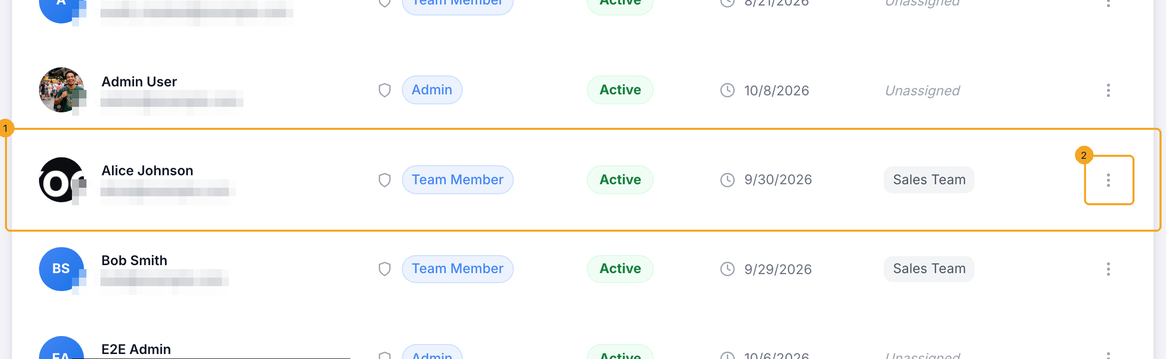
In SkedX CRM, open Settings → Users. Find the person’s row (1) and click its ⋮ menu (2).
2Choose Delete User
Choose Delete User (1). Nothing happens yet — a dialog asks about their records first.

3Choose who takes over their records
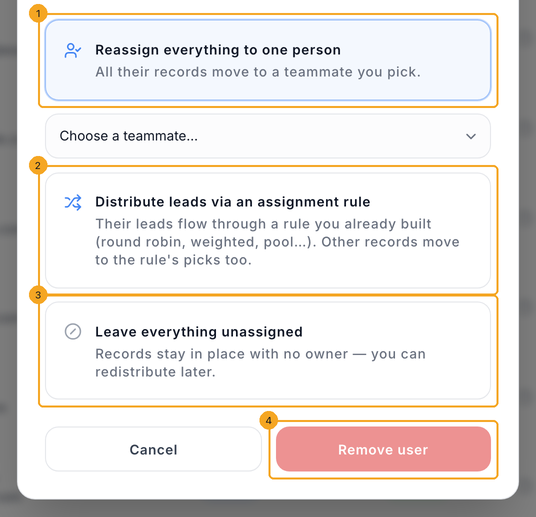
Pick what happens to everything they own: give it all to one teammate (1), share their enquiries out through an assignment rule you already use (2), or leave everything unassigned (3). Then click Remove user (4).
4Their seat is free
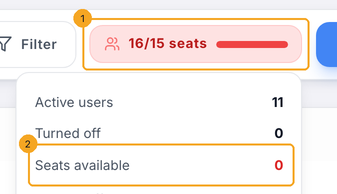
They leave your company at once and stay out — only a new invite brings them back. Their seat is free straight away: within a minute the seat count (1) drops by one and Seats available (2) goes up, ready for the next person.
© 2026 SkedX · Sample data only · Share and link freely · Copying the product or its design is not allowed · Terms
Common questions
Are the people who receive the work told?
Yes. When you remove someone and hand their work to a teammate or a rule, each person who receives it gets one email and one notification listing what they got — never one per record.
Will they come back on their own?
No. Removing someone also takes them out of SkedX sign-in, so nothing adds them back. Before 13 Oct 2026 the hourly roster sync could; if that happened to you, remove them once more. To bring someone back on purpose, invite them again.
When is their seat free?
Straight away. The seat count on Users updates within a minute. Need more seats? See Buy a plan or add seats.
It says “SkedX sign-in didn’t answer”. What now?
Nobody was removed and nothing changed. Try again in a minute.
It says they are the owner. What now?
The company’s owner can’t be removed. Make someone else the owner first, then remove them.
Do they lose other companies they work in?
No. Only this company. They are signed out once and can sign back in to the others.
What about Flow, Forms and Automate?
This removes them from the CRM’s company. To lock someone out of every SkedX app at once, see Remove someone’s access to every SkedX app.
Next in Your teamWhat you’re told when work is assigned or moved →
Previous: If SkedX CRM stays on “Signing you in” · All Your team guides
Did this guide help?
Still stuck?Chat with support →


