Every SkedX app’s plan and seats are bought in one place: Accounts.
3 min readFor adminsUpdated 6 Nov 2026In review
Each seat is one person who can use that app. Only an owner or admin of your organization can buy or change a plan.
In review: written from the product, not yet walked through live.
Transcript · 1:39
Add users to any SkedX app, or keep fewer, in one place: your SkedX account. Every app shows the change at once. Open Overview. Each app shows its plan and how many seats are in use, like three of three, with Add seats. Click Buy seats. Pick the app's tab, then Monthly or Yearly. In your plan's card, set the seats with minus and plus. The bar shows what you pay every month, and what you pay now. For a GST invoice in your company's name, add your GSTIN under Invoice to. Pay now is only the days until your bill date. Click Pay and subscribe. One approval pays today and sets the monthly amount, and the seats are live at once. In any SkedX app, Buy seats on the Users page opens your SkedX account with one more user filled in. After you pay, Back to CRM takes you to where you were, and every app shows the new seats. To keep fewer users, open Billing and click Users on the plan. Set how many to keep: the lower number starts on your bill date. Tick who to turn off, then click Use two users from that date. Nobody is deleted, and an admin can turn them back on. When an app has more people than users paid, its admins see four people, three paid, with Add a user. Nobody is cut off: add a user, or turn someone off. If someone else pays your bills, the page for one app, like a yearly plan, has Send the request to finance. They get a link to pay.
1See what you have
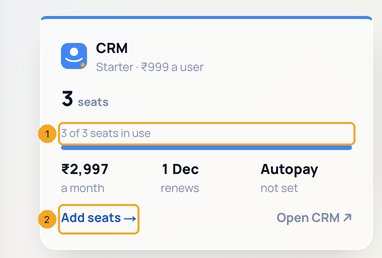
Open Overview. Each app shows its plan and how many seats are in use, for example 3 of 3 seats in use (1), with Add seats → (2) or See plans →.
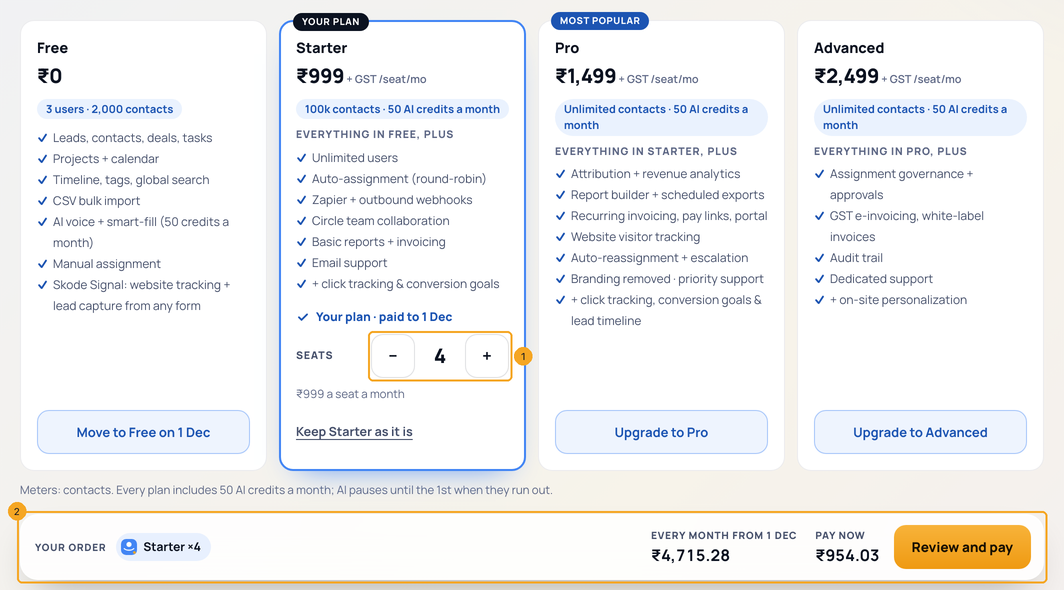
Click Buy seats in the left menu. Choose the app’s tab (1), then Monthly or Yearly (2). What you pick joins one order — see Buy several SkedX products on one bill.
In your plan’s card, set Seats with − and + (1). The bar (2) shows Every month and Pay now as you go; Review and pay takes you to the order.
4Add your GSTIN (India, optional)
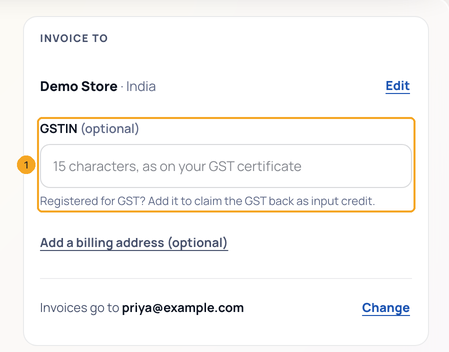
For a GST invoice in your company’s name, fill in GSTIN (optional) (1) under Invoice to — see Add your invoice details.
5Pay
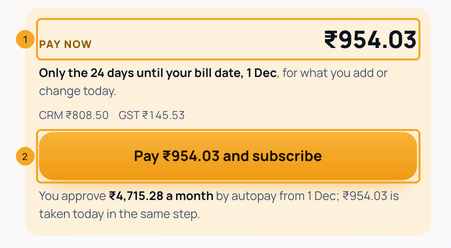
Pay now (1) is only the days until your bill date, for what you add or change today. Click Pay … and subscribe (2): one approval pays today and sets the monthly amount. Seats are live the moment it succeeds, and the invoice is in Billing.
6See it in your app
In any SkedX app, Buy seats (1) on the Users page opens Buy with one more user filled in. After you pay, Back to the app — Back to CRM, for example — takes you to where you were. The new seats show in every SkedX app — CRM, Flow, Form and Automate — the moment the payment lands.
7Keep fewer users
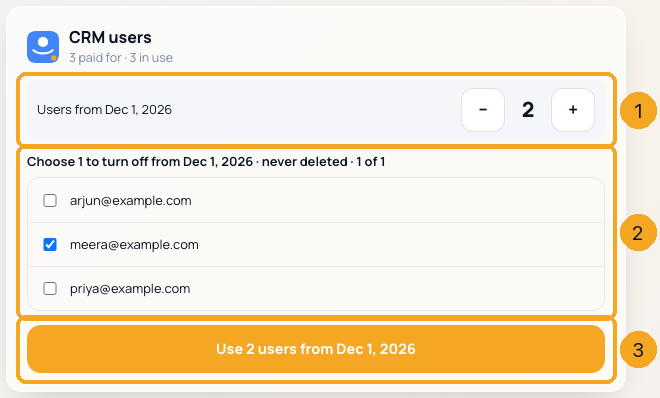
Open Billing and press Users on the plan. Set how many users to keep with − and + (1). You have paid for this month, so the lower number starts on your bill date. If more people use the app than you keep, tick who to turn off (2), then press Use … users from your bill date (3). On that day each app turns them off — nobody is deleted, and an admin can turn them back on after adding a user. What they see: Turn someone off in every SkedX app.
When an app has more people than users paid — for example after a plan’s month ended — its admins see 4 people · 3 paid (1) and Add a user (2) on the Users page. Nobody is cut off: add a user, or turn someone off on that page.
9Or send it to your finance team
Someone else pays the bills? The page for one app — a yearly plan, for example — has Someone else paying? Send the request to finance (1). Enter their email and phone and click Send request. They get a link to pay.
Yes. Open Billing, press Manage on the plan, then Cancel. It takes a code we email you, and you keep access until the end of the month you paid for — see Cancel a plan.
I paid, but my app still says the seats are full.
The app is told the moment the payment lands. Switch back to the app’s tab — it reads the count again. Still full? The new seat may already be taken: open Users in the app to see who has one.
Will lowering users delete anyone?
No. On your bill date the people you chose are turned off in that app. Their records and history stay, and an admin can turn them back on once there is a free user.
What does someone who was turned off see?
In SkedX CRM: Your access is turned off — an admin of your company can turn it back on — with Use another account. It never names your company. See Turn someone off in every SkedX app.
Why can’t I see the Pay button?
Only an owner or admin of your organization can buy or change a plan. Ask one of them, or ask them to make you an admin.
I pressed “Upgrade to Pro” in another SkedX app. Which plan does Buy open?
The plan the button names, already chosen in your order. A higher plan than yours starts today. Check the users, then pay — or pick another plan card first.