Each team works in its own profile — its own steps, its own page, its own notes — over the same people.
Sync is how you connect exactly what you want, and nothing else.
In review: written from the product, not yet walked through live.
1Create the profile and choose where people come from
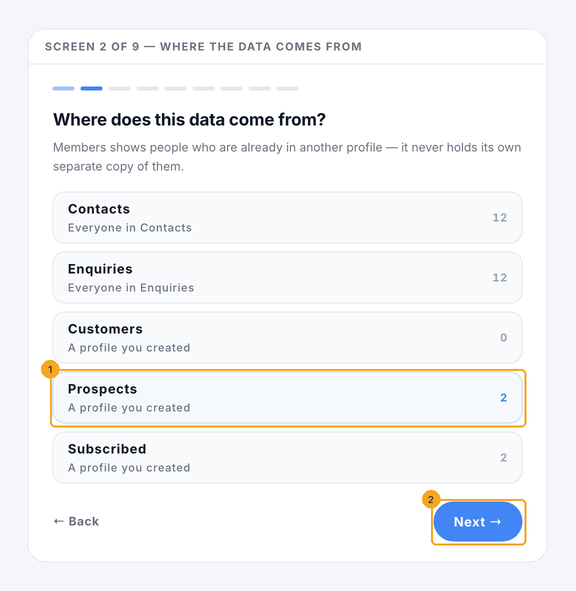
In Settings › Module Registry click New profile… and give it a name. Then choose where its people come from — Enquiries, or any profile you made, such as Prospects (1) — and click Next (2). Every later question names that profile.
2Say what happens when someone enters
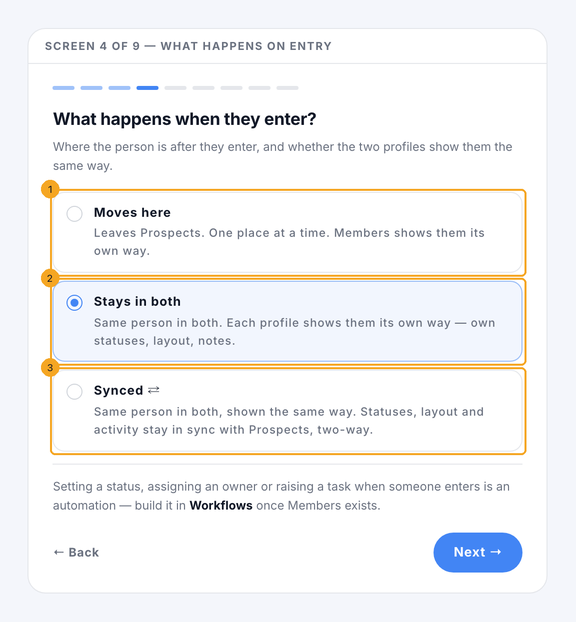
Moves here (1): they leave the profile they came from. Stays in both (2): they are in both, and each profile shows them its own way. Synced (3): they are in both, shown the same way — statuses, layout and activity stay in sync.
3Give it its own statuses — or share them
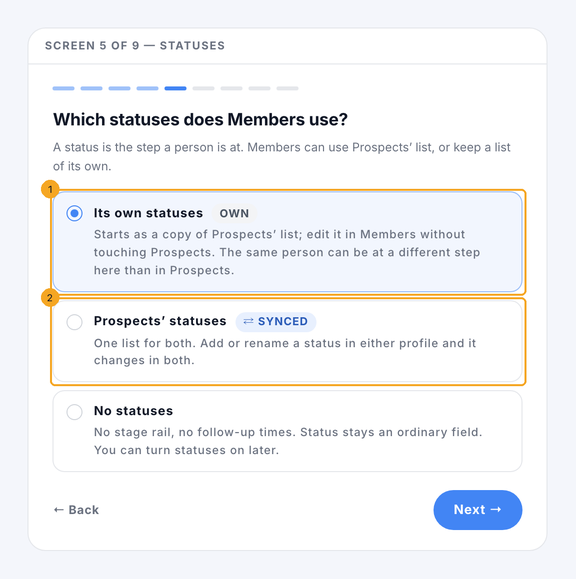
Its own statuses (1) starts as a copy of the source's list that you change without touching it — the same person can be at a different step here. Prospects' statuses (2) keeps one list for both. The next screens ask the same about the layout, who sees its notes, calls, emails and tasks, and who works in it — each starts at its own.
4Check every answer and create it
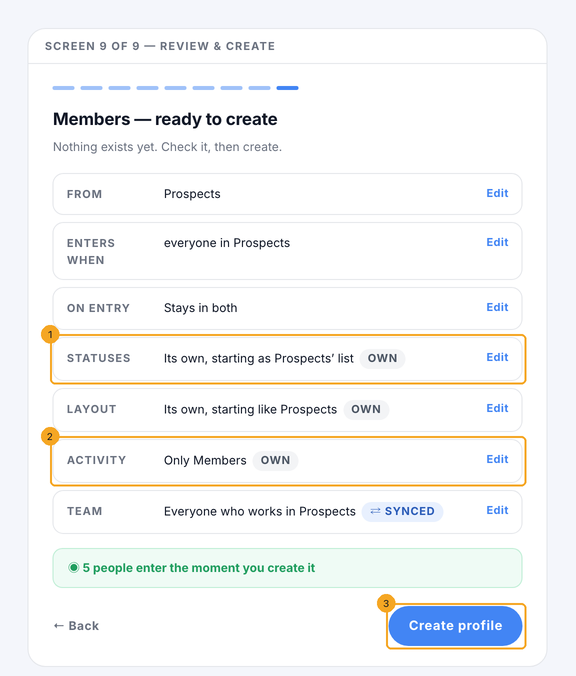
The last screen lists each answer with OWN or SYNCED — statuses (1), activity (2) and the rest — and Edit beside each. Nothing exists until you click Create profile (3); the line above it says how many people enter the moment you do.
5See each person's step in every profile
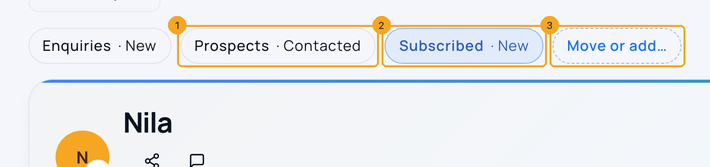
Open a person from a profile. The chips above their name show every profile they are in, each with their step there — here Prospects · Contacted (1) and Subscribed · New (2), the profile it was opened from. Tap a chip to see them there. Move or add… (3) sends them to another profile.
6Move or add people to another profile
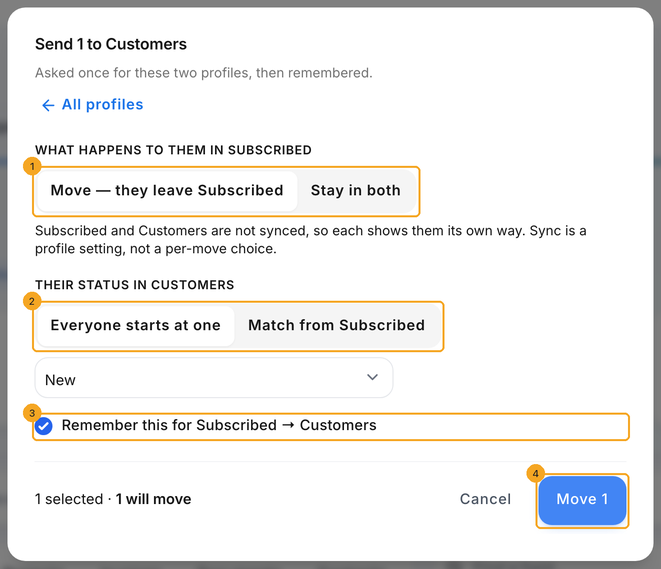
From Move or add… on a record, or with people selected in a list, pick where to send them. The first time, SkedX asks whether they leave the profile they are in or stay in both (1), and their status there (2). Remember (3) keeps the answers for that pair, so next time it is one line and the button (4). Undo puts a move back.
7Sync one section or field
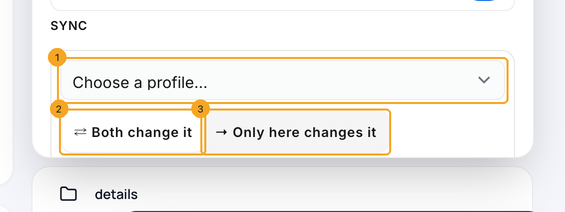
On a record, click Edit layout and open a section's or field's pencil. Under Sync click + Sync with another profile…, choose the profile (1) and how: Both change it (2) or Only here changes it (3). Stop syncing leaves a copy in each.
8Import a sheet into a profile
A profile's Import opens the import sheet with it chosen under Import into (1); arrivals with no Status start at the step shown beside it (2). Status takes that profile's own list. After Verify, a line says what your duplicate rule will do with people already in your CRM (3) — then Import (4). Undo import takes people back out of the profile.

9Change any of it later
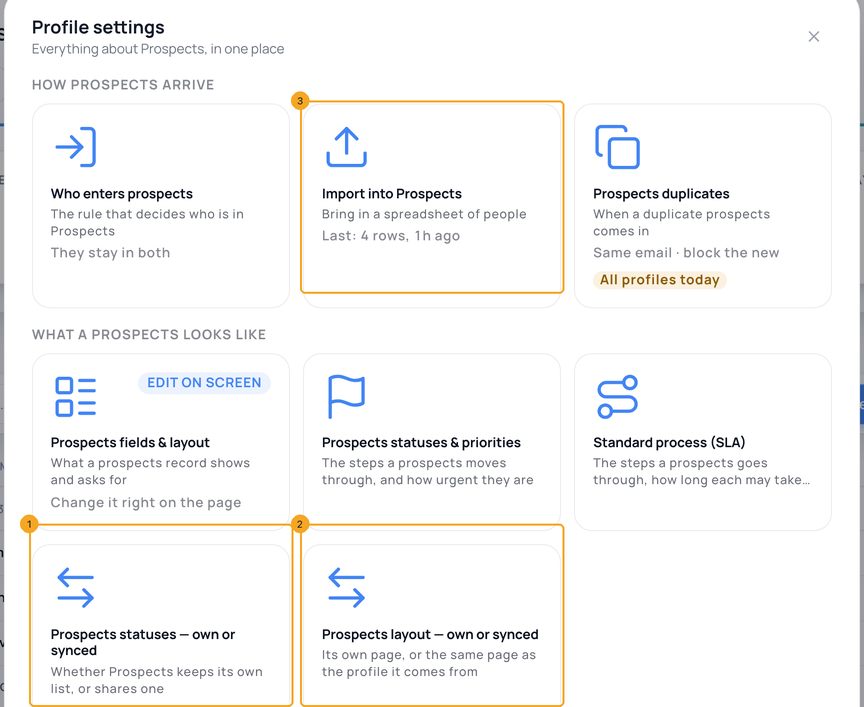
Open the profile's Profile settings. Each card shows its answer — statuses (1), layout (2) — and Import into (3) shows the last import. Change says what it does to the people already there before you save, and History can undo it.
© 2026 SkedX · Sample data only · Share and link freely · Copying the product or its design is not allowed · Terms
Common questions
Can the same person have a different status in two profiles?
Yes, when the profile uses its own statuses. Their status in Enquiries does not change when they move on in Subscribed — each profile keeps its own step.
What does one-way sync mean?
Only the profile it is synced from can change it; the other profile shows it read-only and says where it is changed.
What happens to someone already in my CRM when I import into a profile?
Your duplicate rule decides, and Verify says which before anything is saved: a blocking rule adds them to the profile and leaves what they have; an updating rule updates them and adds them; an accept-and-flag rule imports a flagged copy, which lands in the profile.
Can I undo an import into a profile?
Yes, for 24 hours, with Undo import. The people it created are removed, the people it added leave the profile again, and the steps it set there go back — unless someone has changed them since.
Does a note written in one profile show in the others?
Only if that profile's activity is shared. A single note can be shown to every profile from the note itself.
Next in ProfilesChange the statuses of a profile →
Previous: What is a profile? · All Profiles guides
Did this guide help?
Still stuck?Chat with support →


