Everything the old one has is kept unless you move it.
In review: written from the product, not yet walked through live.
1Compare the two lists
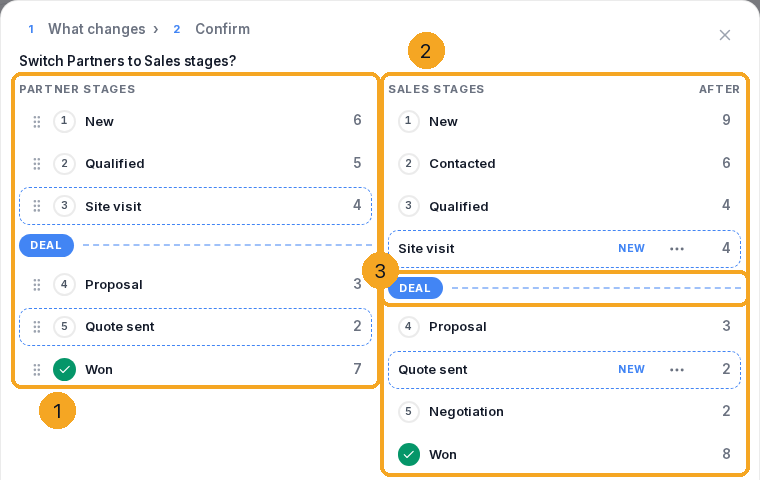
Pick another list in Stages this profile uses. The window shows the profile’s list (1) and the new one (2) side by side, each stage with its records, and the DEAL line (3).
2Keep a stage only the old list has
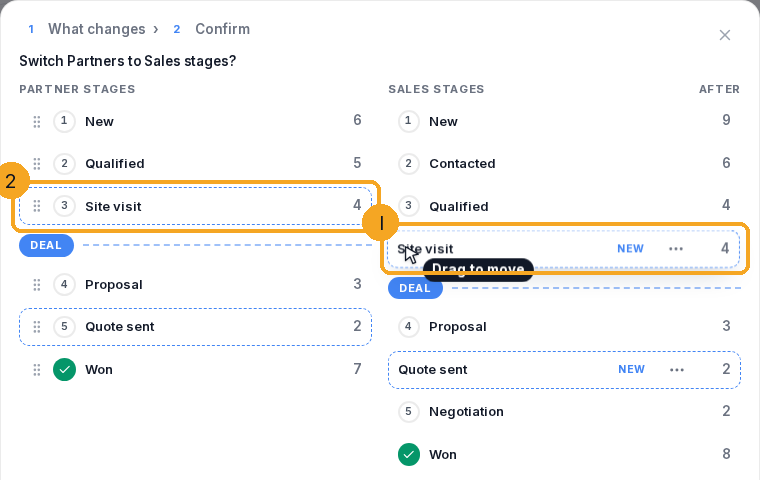
It already sits in a dashed slot on the new list, marked New (1). To place it elsewhere, drag its row on the left by the grip (2) and drop it between two stages.
3Or move its records onto a stage
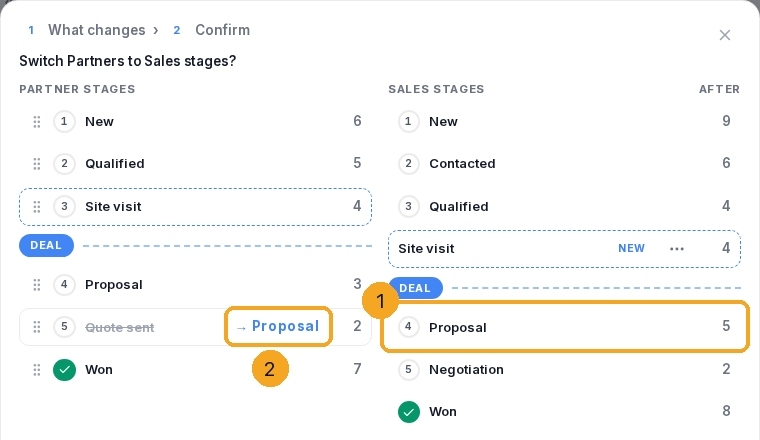
Drop the row onto a stage of the new list (1). The row on the left is struck through and says where its records go (2); click that to put it back.
4Without a mouse
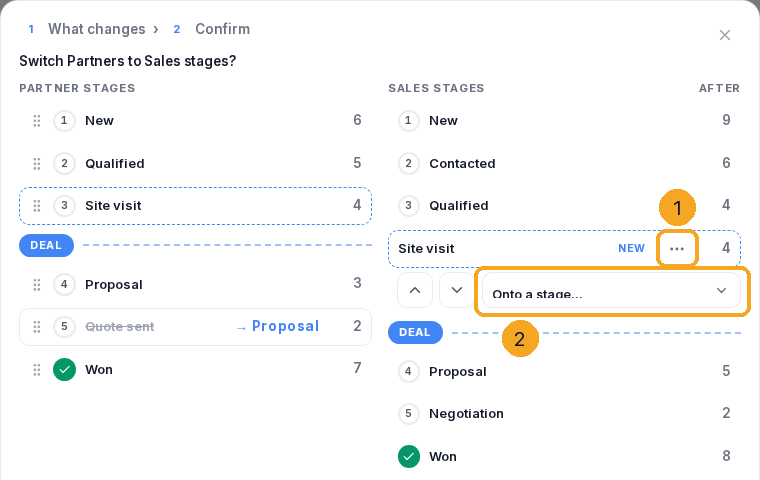
⋯ on a slot (1) moves it up or down, or moves its records onto a stage (2).
5Keep or move a status
A status only the old list has (1) is kept unless you pick Move to a status of the new list.

6Show a hidden status again
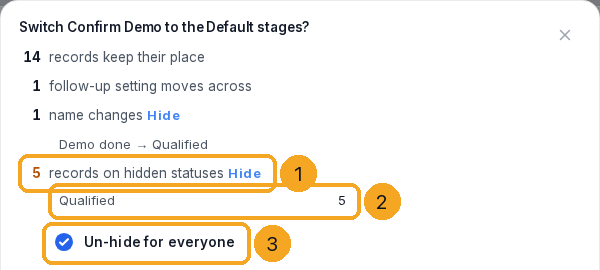
If the new list hides a status your records use, the window counts them (1) and names each status (2). Un-hide for everyone (3) is ticked, so your team can still pick it; untick it to keep it hidden.
7Check the numbers and switch
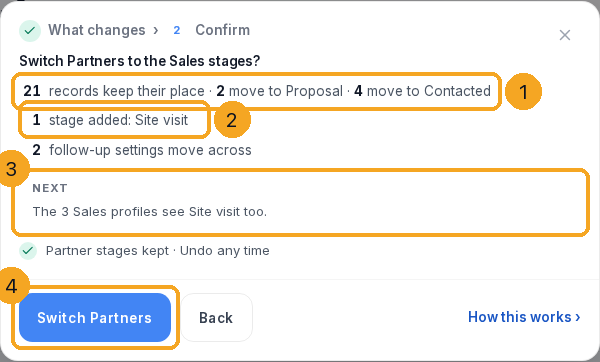
Click Next. Step 2 says how many records keep their place and move (1), what is added (2), and who else sees it (3). Click Switch (4).
8Undo it
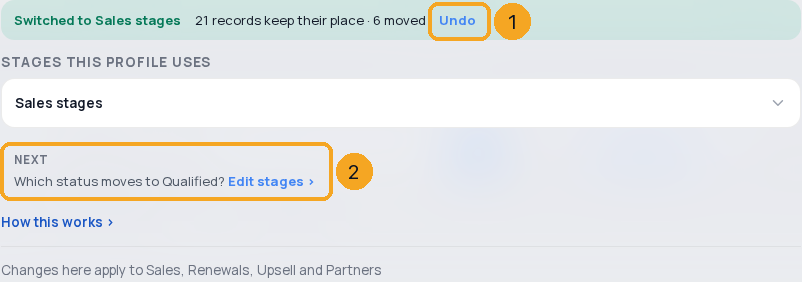
The card says Switched to … with Undo (1), and the next step (2). Later, Undo the last switch is in the list picker.
© 2026 SkedX · Sample data only · Share and link freely · Copying the product or its design is not allowed · Terms
Common questions
Is anything deleted?
No. The old list is kept, every change is recorded with the value before, and Undo puts records, lists and the profile back.
What if the two lists match?
The window confirms in one step: how many records keep their place, and which names change.
How many stages can a list hold?
20. If keeping every stage would pass that, the window says how many to move onto a stage instead.
Who else sees a stage I keep?
Every profile on the new list. Step 2 names them.
Can I undo later?
Yes, until the next switch: Undo the last switch, in the list picker.
Why does the window talk about hidden statuses?
A profile on another list uses that list’s statuses. One the list hides could not be picked any more, so the window offers to show it again for every profile on the list. Undo hides it again.
Next in ProfilesChoose where deals start on your stages →
Previous: Share stages between profiles, or give one profile its own · All Profiles guides
Did this guide help?
Still stuck?Chat with support →


