Keep it. Put SkedX Signal on your website once and SkedX Form picks up what people send through it — no rebuild, no second script.
1Start from New form
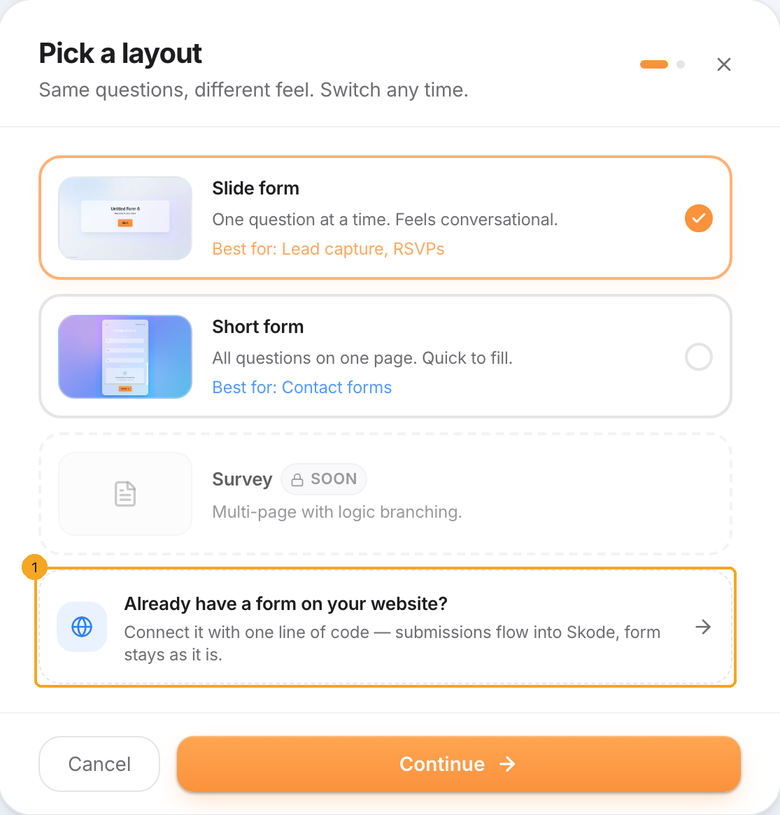
In SkedX Form, click New form, then Already have a form on your website? (1).
2Set up SkedX Signal
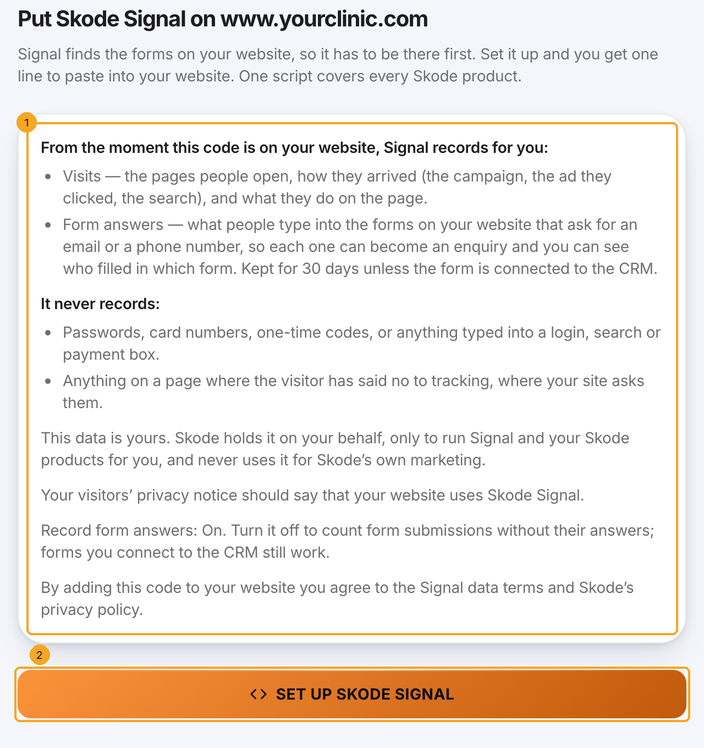
Read what Signal records (1) — and what it never records — then click Set up Skode Signal (2). An owner or admin of the workspace does this. If your company already has Signal, you get that same script; it never makes a second one.
3Paste the line on your website
Click Copy the script (1), or Email it to my developer (2), and paste it just before
</head> on every page. Then open a page of your website and click Check again (3).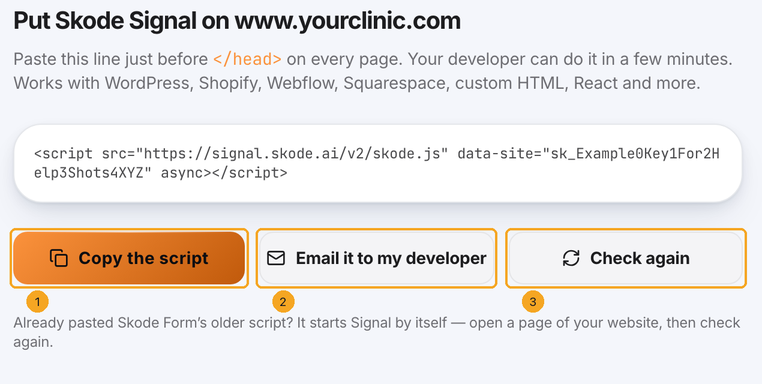
4Pick your forms
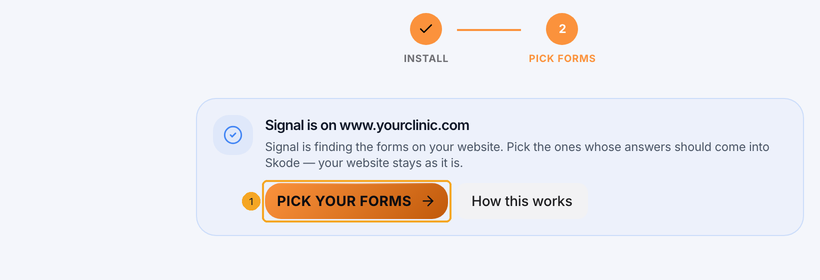
When Signal sees the script, click Pick your forms (1).
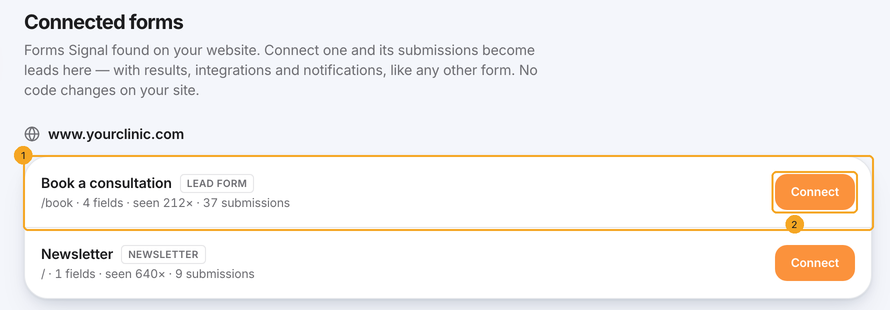
5Connect a form
Connected Forms lists every form Signal found on your website (1). Click Connect (2) on the one whose answers should come in. It becomes a SkedX form with results, notifications and integrations; its submissions land in Leads. Forms appear as visitors use them, so a new form can take a visit or two.
© 2026 SkedX · Sample data only · Share and link freely · Copying the product or its design is not allowed · Terms
Common questions
I pasted SkedX Form’s older script (form.skode.ai/spy.js). Do I need to change it?
No, if your company has SkedX Signal. The older script starts your Signal script on the same page by itself. For a new page, paste the Signal line from this screen.
Is this a different script from the one the CRM gives me?
No. It is the same SkedX Signal line the CRM’s Website forms page and your account’s Signal page show. One script covers every SkedX product.
Why can’t I click Set up SkedX Signal?
Putting a script on your company’s website is for an owner or admin of the workspace. Ask one of them to open this page.
Does my website change?
No. Your forms stay as they are; Signal reads what people send through them. Passwords, card numbers and one-time codes are never recorded.
Did this guide help?
Still stuck?Chat with support →


