So that a message from any channel lands in one inbox, becomes a record only when you say so, and shows the right facts beside the chat.
In review: written from the product, not yet walked through live.
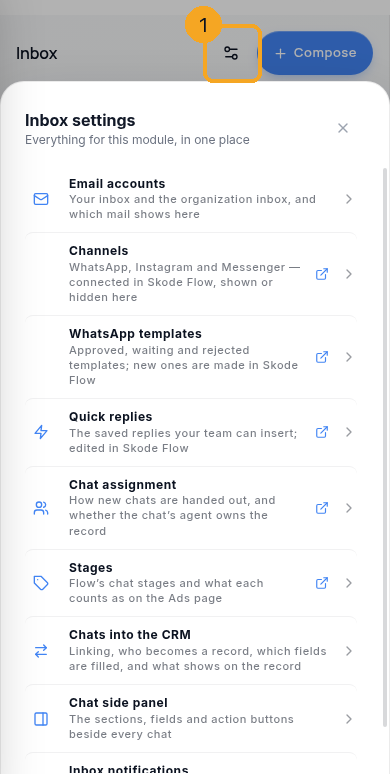
1Open Inbox settings
Go to Inbox. Click the gear (1) in the Inbox header, beside Compose. The pop-up shows nine cards; each card’s line says how your company is set up, and each says whether a change reaches everyone or only you. A greyed card says why and offers one fix.
2Connect email
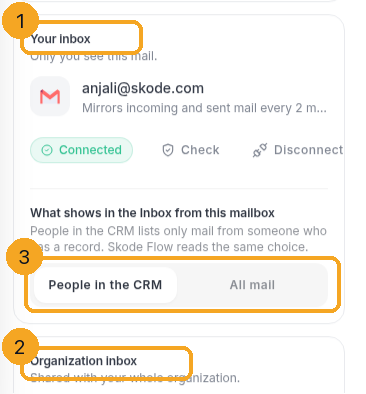
Open Email accounts. Your inbox (1) is yours; the Organization inbox (2) is the shared mailbox the whole team reads. Under your own inbox choose People in the CRM or All mail (3): the default shows only mail from people who already have a record, so personal mail never appears here. SkedX Flow follows the same choice. The Organization inbox has the same switch once it is connected: one choice for everyone who reads it, changed by an admin; until someone chooses, it says “Not chosen yet” and the Inbox shows all its mail. A Gmail or Outlook mailbox wears its own logo; a custom (IMAP) mailbox — Zoho, Titan, your company’s own server — shows its provider’s logo once SkedX has fetched it, or a plain envelope if it has none.
3Choose what a new mailbox is for
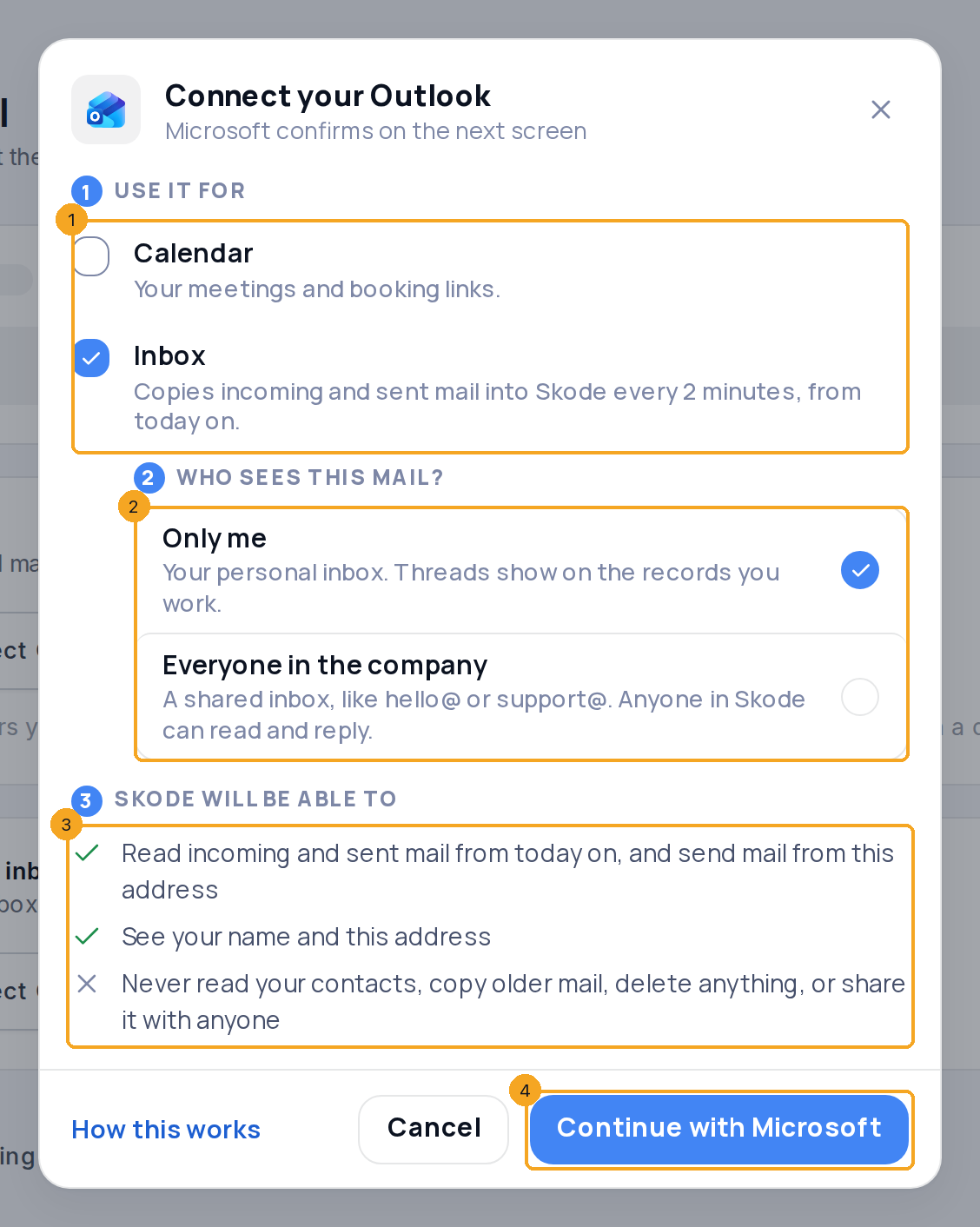
Connect Outlook or Connect Gmail, in Email accounts or on the Inbox’s connect panel, opens one step before Microsoft’s or Google’s own screen. Use it for (1): Inbox is ticked — for Outlook, SkedX copies incoming and sent mail from today on, every 2 minutes, and sends from this address; for Gmail it sends from this address, and copying its mail is one more step in Email accounts (a Google app password, about two minutes); Calendar is one tap away. Who sees this mail? (2): Only me, or Everyone in the company — a shared inbox like hello@, which only an admin can choose (anyone else sees it greyed with Ask ‹name› ›), and which is never anyone’s calendar. Skode will be able to (3) follows your ticks. Continue with Microsoft (4) — or Google — asks for exactly what is ticked.
4See what each mailbox is used for
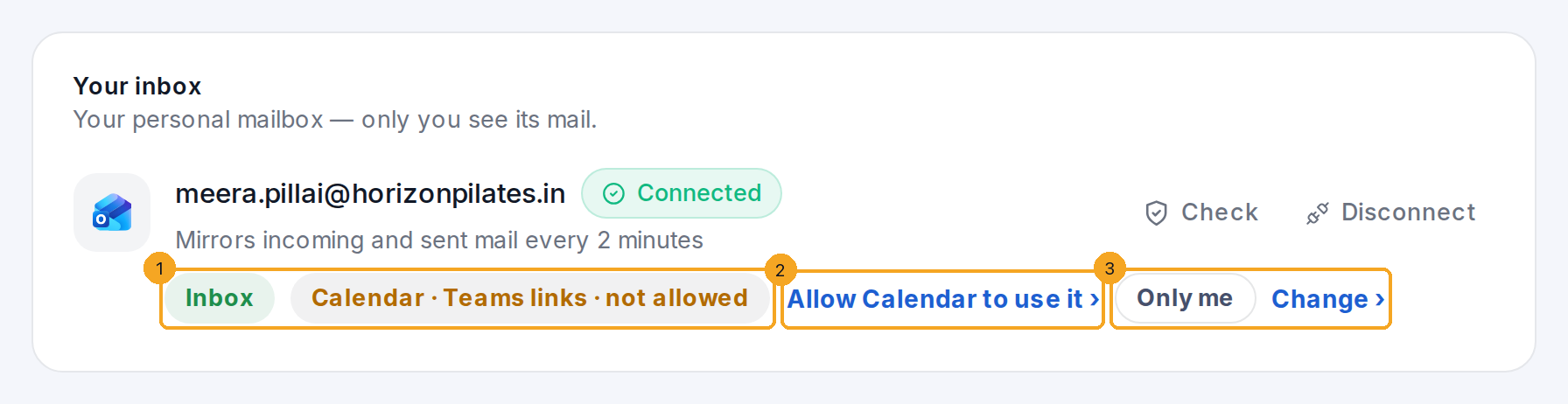
Under each Outlook or Gmail mailbox, Inbox and Calendar (1) are green when allowed; the Calendar chip names its link — Teams links for a work or school Outlook, Meet links for Gmail, and just Calendar for a personal outlook.com, which Microsoft gives no Teams links. A use that is not allowed says not allowed with its door: Allow Calendar to use it › (2) opens Calendar’s Connected accounts and brings you back once it is allowed; Allow Inbox to use it › asks here for the mail only. Only me and Change › (3) say and change who sees it.
5Change who sees a mailbox
Change › opens Who sees this mail?. Pick Everyone in the company (1). Before you save, it says what changes (2): Calendar stops using the address, and everyone in SkedX can read and reply to its mail, including the mail already copied. Save (3). Only an admin shares an inbox, within your plan’s shared inboxes; an admin with no inbox of their own can make the shared one theirs.
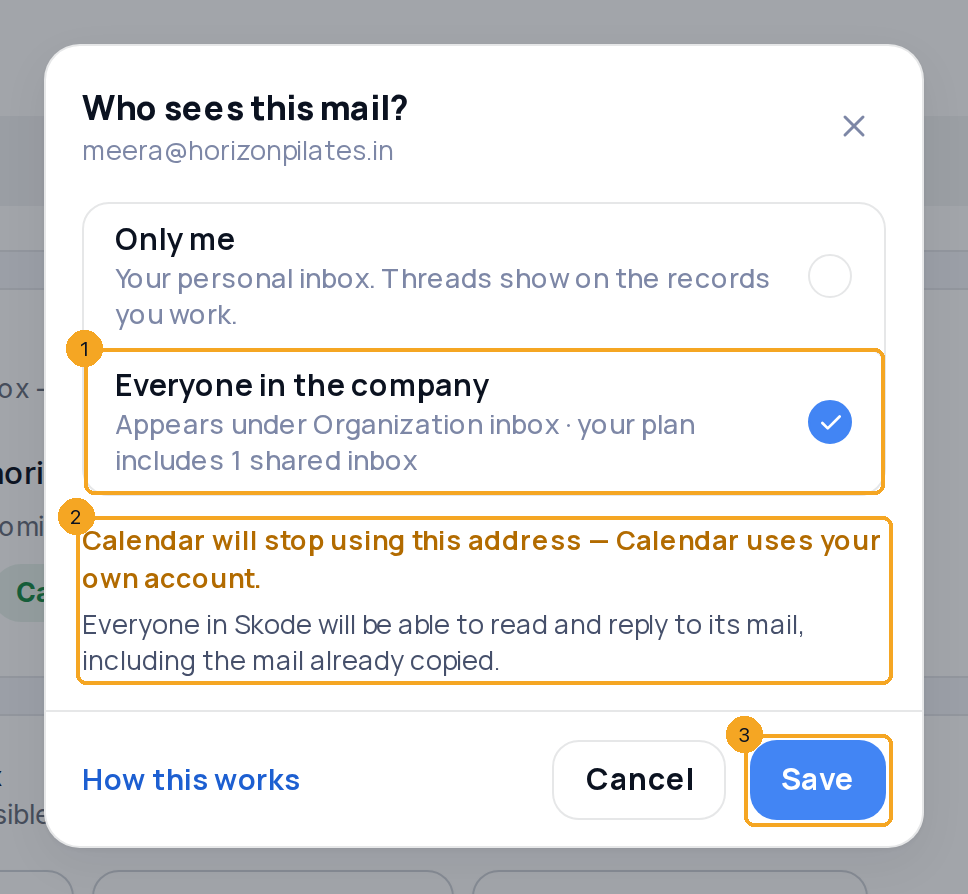
6Copy a Calendar mailbox’s mail into the Inbox
Connected for Calendar only? The Inbox and Email accounts say so: Your Outlook is connected for Calendar. Allow Inbox to use your Outlook (1) opens Microsoft’s window on that address and asks only for the mail — only you see it. Not now (2) puts it away; the door stays in Email accounts. Right after you connect a mailbox for the Inbox, the Inbox asks once: Also use it for Calendar? — Yes, add Calendar or Not now.

7Allow it from any screen
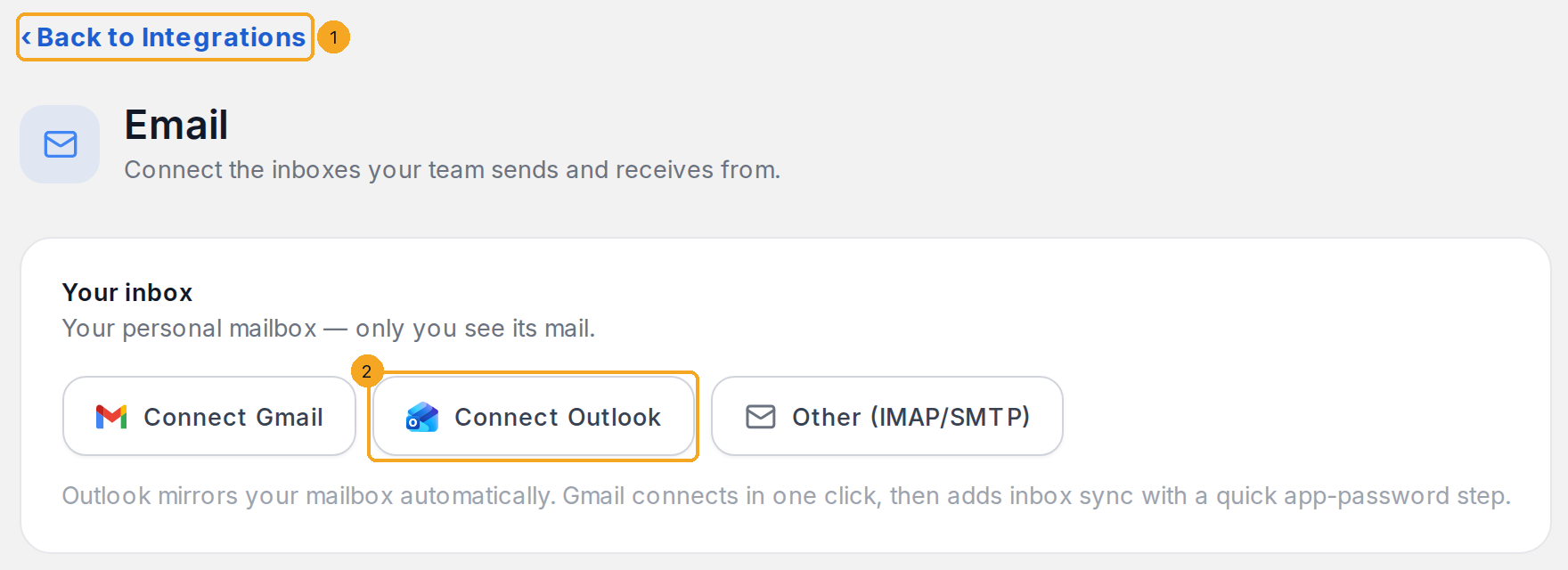
Mail is allowed in one place — Settings › Email. A screen that needs your mailbox — the email composer’s From, a meeting’s answers, a company’s colleague suggestions, the Outlook or Gmail card in Settings → Integrations — says why and offers Allow in Inbox ›. Settings › Email then opens with ‹ Back to … (1) where the way back to Settings usually is; connect your Outlook or Gmail (2) and you are taken back by yourself. Changed your mind? ‹ Back to … returns without connecting anything.
8Connect and show chat channels
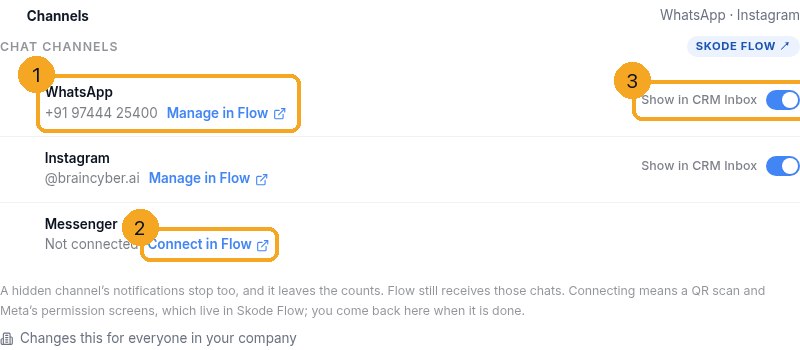
Open Channels. Each chat channel shows its state (1). Connect in Flow (2) takes you to SkedX Flow for the QR scan and Meta’s permissions, then you come back here. Show in CRM Inbox (3) hides a channel from this inbox only — its chats leave the list, the counts and the notifications; Flow still receives them.
9See your WhatsApp templates
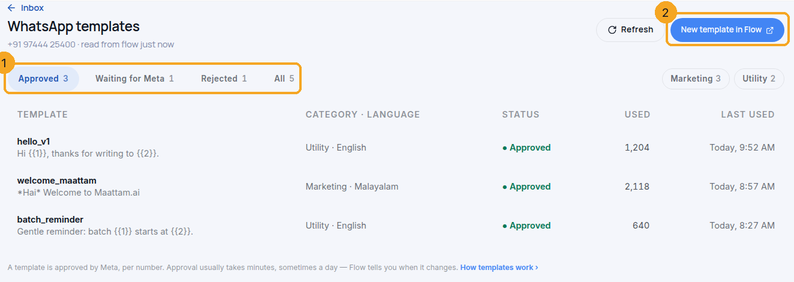
Open WhatsApp templates. The tabs (1) show approved, waiting and rejected templates, each with how many were sent in the last 30 days and when it was last used; a rejected one carries Meta’s reason when Flow has it. New template in Flow (2) opens the editor in SkedX Flow; the list refreshes when you return.
10Decide who becomes a record
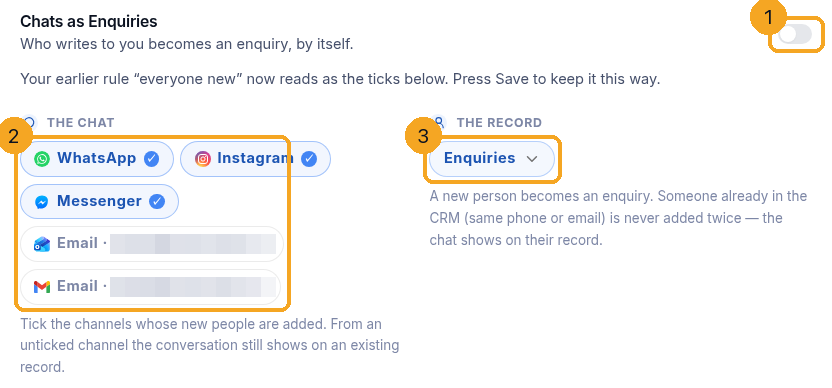
Open Chats as your profile — the tile carries your profile’s word. The switch in the title (1) turns it on; tick (2) each channel and mailbox whose new people are added, and pick the profile (3) they become. People already in the CRM (same phone or email) are linked, never added twice, and their chats show on their record. Rules for only some chats, who is waiting and what to do when it cannot run: Turn chats into records with “Chats as <profile>”.
11Choose which fields are filled
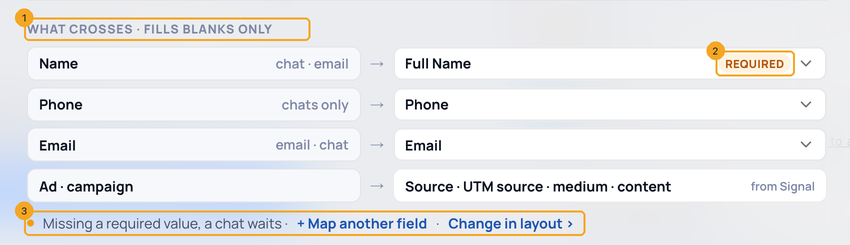
What crosses (1): name, phone and email each land in the profile field shown, and the ad and campaign come from Signal. Blanks are filled, never overwritten. A field your profile’s layout requires is tagged Required (2) — a chat without it waits on the card instead of becoming half a record — and Change in layout (3) is where Required is set, or where a field can let chats skip it.
12Shape the side panel
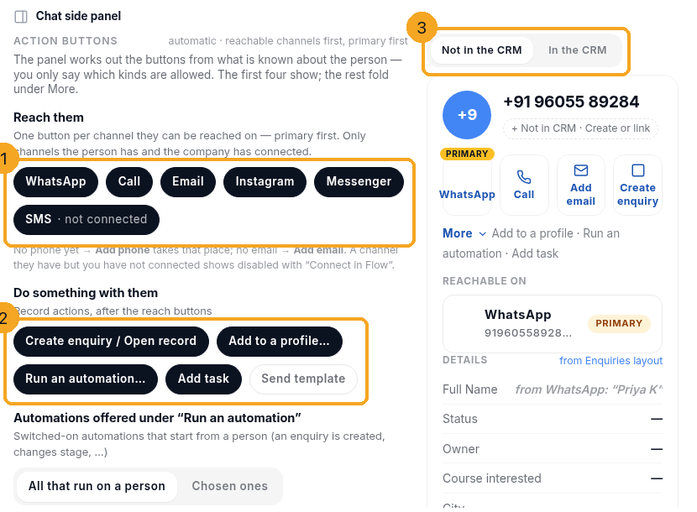
Open Chat side panel. Under Reach them (1) and Do something with them (2), choose which kinds of button are allowed: the buttons themselves are worked out per person — the chat you are in first, then the other channels they can be reached on, then what you can do with the record; four show and the rest fold under More. Add to call list… is off until you switch it on; then it puts the person on one of your active call lists. Further down, switch sections on or off and drag them into order by their handle (or focus the handle, press Space, use the arrow keys, press Space), and pick up to eight fields from each profile’s layout for Details. Where they came from shows how the person first found you, as SkedX Signal recorded it — an ad chat, a campaign link or a website visit — marked “from SkedX Signal”; when Signal does not know them yet, it shows what SkedX Flow knows about this chat. The panel on the right is a live preview; switch it between Not in the CRM and In the CRM (3). Save, and every chat’s panel follows.
13Work the list
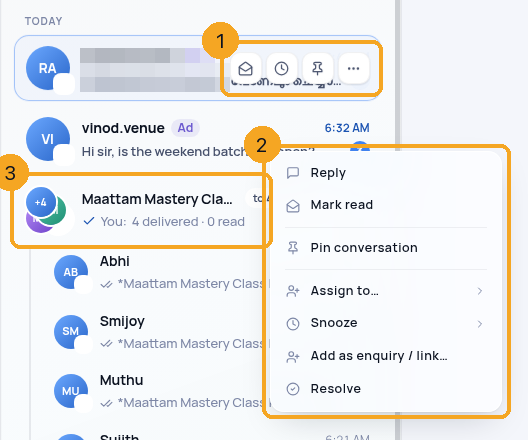
Hover a conversation: a tray (1) offers Mark read/unread, Snooze, Pin and More. Right-click for the full menu (2). A broadcast you sent to many people is one row (3); open it to see who replied. On a phone, swipe right to mark read or unread, swipe left to snooze, long-press for the menu.
14Switch between Chats and Email
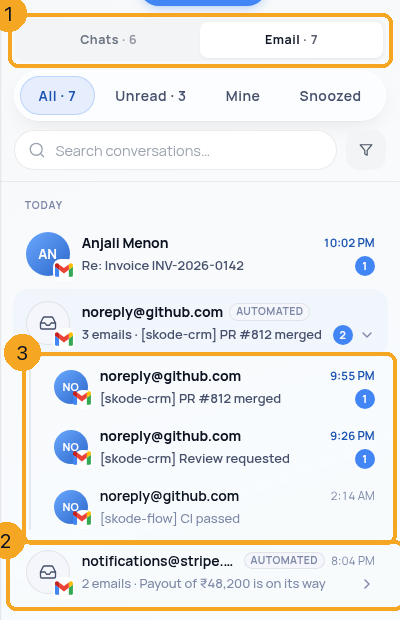
Above the list, Chats and Email (1) split the Inbox in two: WhatsApp, Instagram and Messenger on one side, your email on the other. Each tab shows its count once it has loaded, and the Inbox remembers the side you were last on. On the Email side, two or more emails from one automated sender — noreply@, notifications@, alerts@ and the like — fold into one row marked Automated (2), with how many emails, the newest subject and how many are unread. Click it and they open in place beneath it (3); click again to fold them. Mail from people (including info@ or sales@ addresses) never folds, and a pinned email always stays its own row. If the Chats side is empty, it says so and offers Open Email.
15See the same rules in SkedX Flow
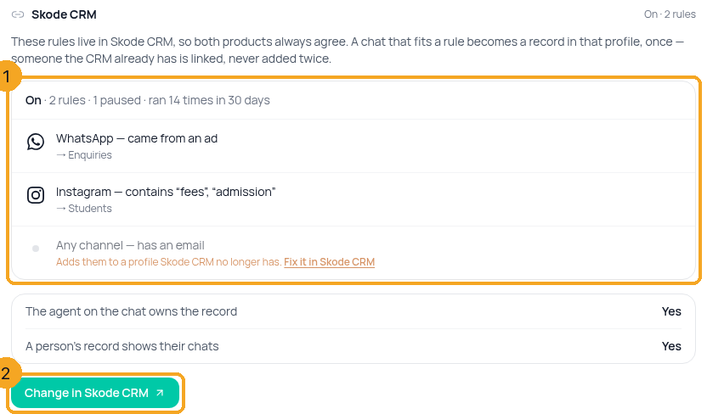
In SkedX Flow, open Inbox → the gear → Skode CRM. The card lists the CRM’s rules (1) in the same words: the channel, the condition and the profile each one adds people to, and how often they ran. The rules live in SkedX CRM, so both products always agree; Change in Skode CRM (2) opens the CRM’s own card. A rule pointing at a profile the CRM no longer has says so, with Fix it in Skode CRM.
16Add an uploaded list to a profile
In SkedX Flow, Contacts → Import (or Audiences → Import a sheet). Next to Verify, tick Also add these people to (1) and pick the profile (2). The tick is off every time you open the sheet: without it, an upload never creates anyone in the CRM. Someone your company’s CRM does not know, or whose role cannot import, sees why and who to ask instead of the tick.

17Check what reached the CRM
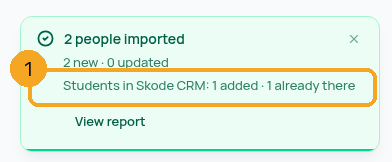
When the import finishes, the notice in the corner says what the CRM did (1): how many were added to the profile and how many it already had. Someone already in the CRM is linked to their record, never added twice. If the CRM refused or did not answer, the notice says why, your contacts stay in Flow, and Try again sends them once more.
© 2026 SkedX · Sample data only · Share and link freely · Copying the product or its design is not allowed · Terms
Common questions
A card is grey
The card says why and offers one fix. Needs a Skode Flow seat: ask an admin for one. No WhatsApp number connected: connect it in SkedX Flow. Read only: ask an admin for Manage Inbox in Settings → Users.
What does a lead from a chat look like?
Its Source is the channel by name — WhatsApp, Instagram or Facebook. In step 3 you choose where the rest lands: name, phone and email; Campaign · source (the channel, or “meta” for a rule that only takes ad chats) and Campaign · ad headline (the ad they tapped — Meta sends its headline, not the ad’s name). A chat with no email or no name still becomes a lead; the empty field is simply left blank.
Whose name is on the leads it creates?
Your company’s owner’s — the longest-standing owner of your SkedX workspace — with their permissions, whoever saved the rules. The CRM never writes a chat as someone who is not a member of your company: if the rules were last saved before 14 Oct 2026 by someone outside it, chats stop being added until an admin saves the rules again.
Do I need a SkedX Flow seat to set Chats into the CRM?
No. Chats into the CRM is a company rule saved through the CRM, so it needs only Manage Inbox (owners and admins have it). The cards that live in SkedX Flow — channels, templates, quick replies, assignment, stages — still need a Flow seat.
Will a list I upload for a broadcast be added to the CRM?
Only if you tick Also add these people to a profile on the import, which is off by default. Without the tick, a bulk upload or broadcast list never creates CRM records; people on it who are already in the CRM are linked, and their record’s Activity shows one line under Chat: Received the campaign “…”, with Open the campaign in Flow. A resend adds no second line.
Can I change the CRM rules from SkedX Flow?
You see them there; you change them in SkedX CRM. Change in Skode CRM on Flow’s SkedX CRM card opens the CRM’s own card, so the rules have one home and both products always show the same thing.
An Instagram chat has no phone number — can it still become a record?
Yes. A rule with has a phone number or has an email fires the moment the person shares one, even days into the chat.
I turned a rule off — what happens to the people it already added?
They stay. Turning a rule off only stops new records; nothing is deleted.
Who owns a record that a chat creates?
The profile’s assignment rules, as for any new record. In Chat assignment, switch on The chat’s agent becomes the record’s owner and the person the chat is assigned to in SkedX Flow owns it instead. They are found by email — you sign in to both products with the same SkedX account, so there is nothing to match. If nobody is on the chat, or that email has no user in SkedX CRM, the assignment rules decide. An owner you pick in the form is never replaced.
How do I snooze an email I have open?
Use the actions beside the subject: click the clock and pick 30 minutes, 1 hour, 3 hours, Tomorrow · 9:00 or Next Monday · 9:00. The email leaves your Inbox until then; the Snoozed tab lists it meanwhile. Open it there and the same menu offers Wake now to bring it back early.
Where do stages, SLA and quick replies live?
In SkedX Flow. The CRM shows them so your team can see them; editing opens Flow and brings you back.
Why is “Everyone in the company” greyed?
Only an admin adds a shared inbox; Ask ‹name› › beside it emails your admin. For an admin it is greyed when all your plan’s shared inboxes are in use — Contact our team › to add one.
I shared my inbox — why did Calendar stop using it?
A shared inbox is nobody’s calendar, so Calendar stops using it the moment it is shared; SkedX says so before you save. Connect your own account for Calendar in Calendar settings › Connected accounts.
Does sharing show the mail already in SkedX?
Yes — everyone in SkedX can read and reply to all of it, including the mail already copied. SkedX says so before you save.
What does “Calendar · not allowed” mean?
The mailbox is connected for mail only. Allow Calendar to use it › opens Calendar’s Connected accounts, which asks for the calendar on the same account — nothing changes in the inbox — and brings you back here. Teams and Meet links need nothing more.
Why does Settings → Integrations send me to Settings › Email?
Gmail and Outlook are connected in one place, Settings › Email, where you also choose who sees the mail. The Integrations card says Allow in Inbox › and brings you back when you are done.
Did this guide help?
Still stuck?Chat with support →


