The contact form, the sign-up form, the partner application on your website: connect them and every person who fills one in lands in your CRM, in the profile you choose, with the campaign they came from.
Nobody copies anything by hand. About four minutes per form, and you need the <b>Manage integrations</b> permission.
In review: written from the product, not yet walked through live.
1Open Website forms
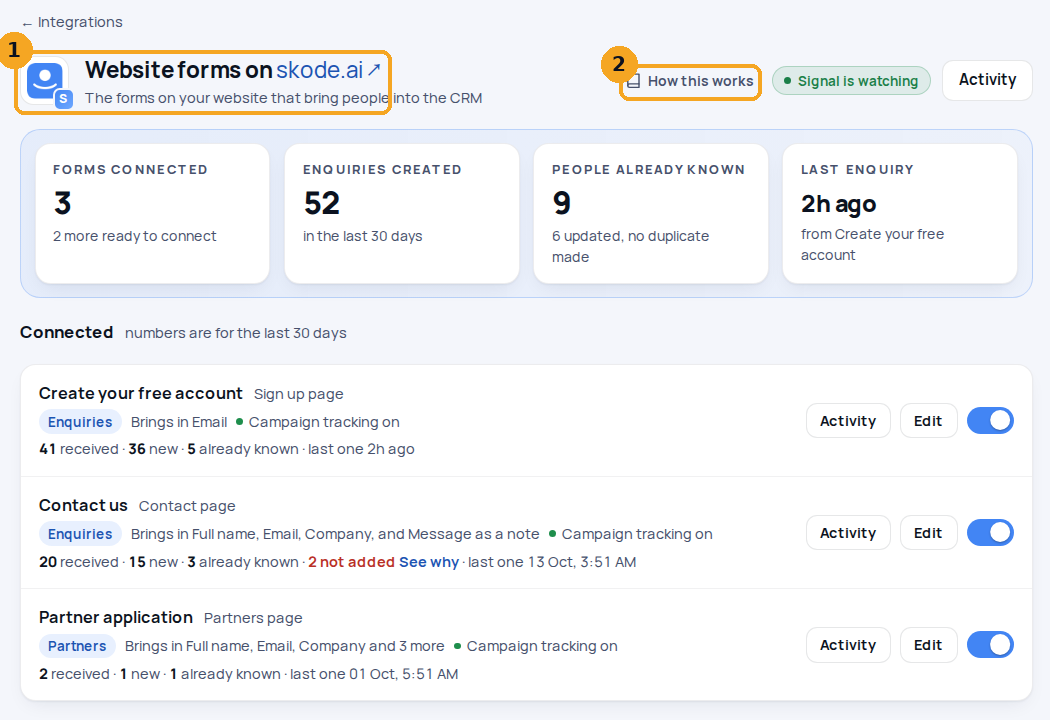
Go to Settings → Integrations → Website forms. The page wears your website’s logo and name (1). Four boxes show how your website is doing; connected forms come first, then the forms that look like ways to reach you. How this works (2) brings you back to this guide.
2If Signal isn’t on your website yet
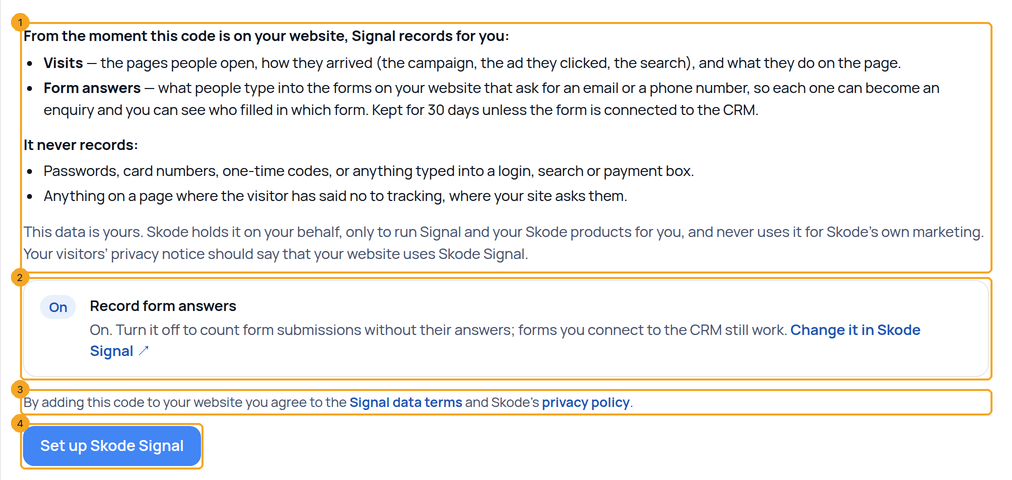
SkedX Signal finds the forms on your website, so it has to be there first. If the page shows Set up Skode Signal, read what Signal records (1): the visits and the answers people type into your enquiry forms, what it never records, and that the data is yours, held on your behalf. Record form answers (2) is on; change it in SkedX Signal on accounts.skode.ai. Adding the code to your website is agreeing to the Signal data terms and SkedX’s privacy policy (3). Click Set up Skode Signal (4).
3Paste the script on your website
Your own one-line script appears. Click Copy the script (1) and paste it just before
</head> on every page, or click Email it to my developer. Then click Check again. Forms appear after someone opens a page that has one.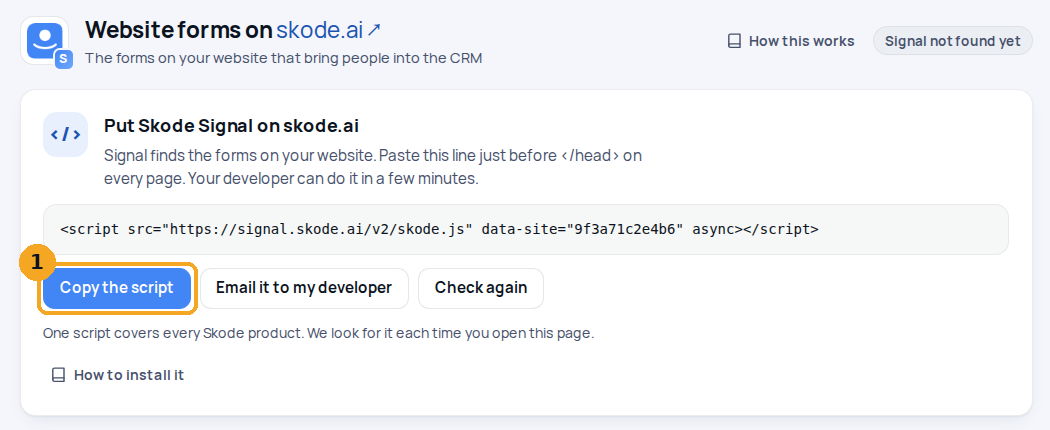
4Find the form and press Connect this form
Under Ready to connect, each form is named by where it is: its own heading, or its page and what it is, such as About · Enquiry form, never its button. Every page it is on is a link (1): it opens your website scrolled to that form, outlined for a few seconds, so you know which one it is. Each form shows what it asks for and how often it was filled in during the last 30 days. Click Connect this form (2). Newsletter and feedback boxes are folded under other forms found.

5See who filled a form in
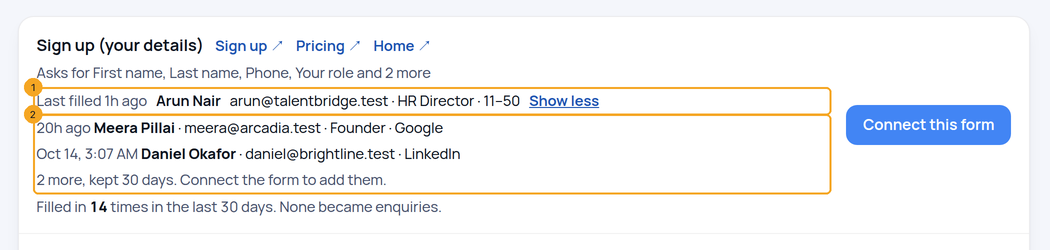
A form you have not connected yet shows who filled it in (1): the last person, when, and their answers. Click and N more and the others open below it (2). SkedX Signal keeps these answers for 30 days, then deletes them; connect the form to keep them as enquiries. If Record form answers is off in SkedX Signal, the form shows only how often it was filled in.
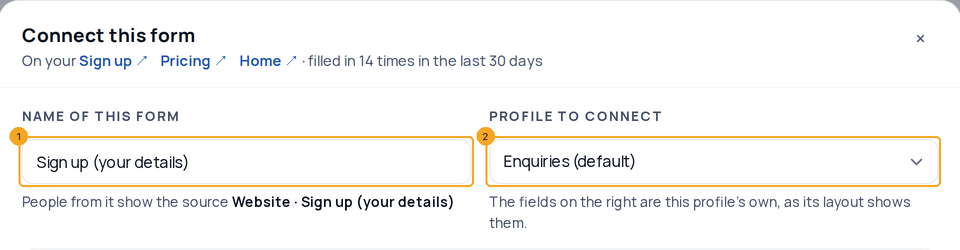
6Name the form and choose the profile
Give the form a name your team will recognise (1); people from it show the source Website · <name>. Under Profile to connect (2), pick the profile they join. Enquiries is the default.
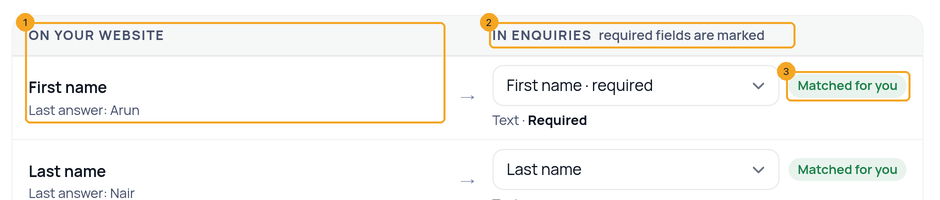
7Match the fields
The left column (1) is your website, in your visitors’ own words; under each field is its latest answer, so a box with no label on your website is still easy to recognise. A list with no label is named by its choices. The right column (2) is the chosen profile’s own fields, exactly as its layout shows them, each with its type and Required where the layout says so. Most rows are Matched for you (3). A field nothing is matched to is kept as a note on the record; you can also pick Don’t bring in, any other field, or + Add a … field to make one. When a website choice list only partly matches the field’s choices, click Match the rest and pair each one.
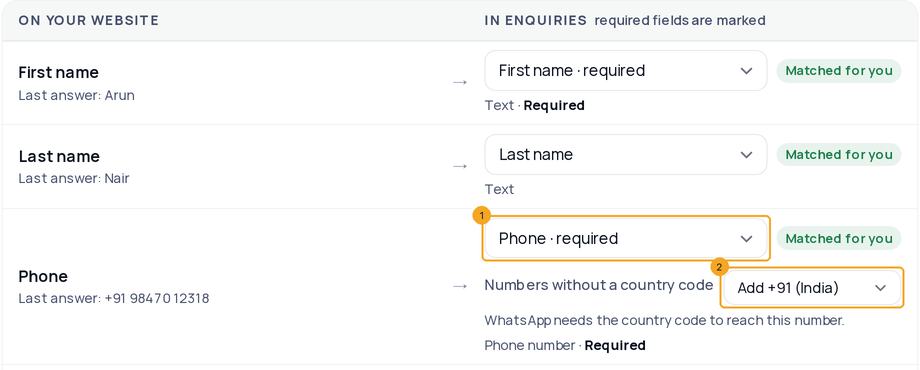
8Numbers without a country code
Under the field you matched to Phone (1), Numbers without a country code (2) says which code a number typed without one gets. It starts on your company’s country; pick another country if your visitors are elsewhere, or Leave as typed. A number typed with its code is always read as typed. WhatsApp needs the country code to reach a number, so ask for it on your form if your visitors come from many countries.
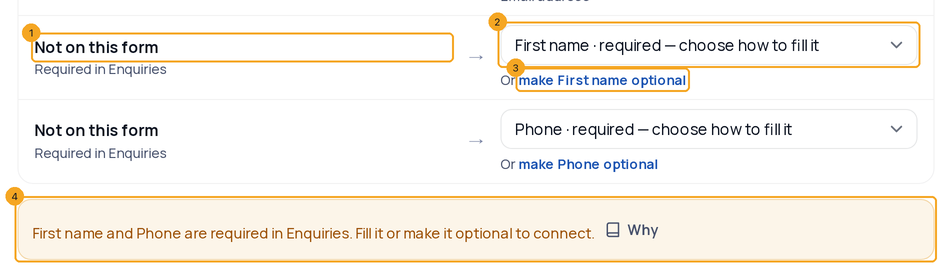
9Fill every required field
Connect form stays off until the popup has a phone or email and an answer for every field your profile requires. A required field your form doesn’t ask for shows as Not on this form (1): choose Always fill with… (2) and type the value every person gets, or click make … optional (3) to open the profile’s Layout Editor. The line above the button (4) names what is missing; with no phone or email matched it offers to match the one your form has in one click.
10Marketing tracking, connected for you
Below the fields, Marketing tracking is Connected for you: there is nothing to set up, and each person arrives with the campaign that brought them. Each value from the visit (Source, Medium, Campaign, Term and Content from your links, plus Referrer URL and Landing Page) fills its own field (1), with what SkedX Signal has seen on your website in the last 30 days. To send a value somewhere else, pick another field, Keep as a note or Don’t bring in; Reset puts it back. To track a parameter from your own links, such as
promo or ref, click Add a tracking parameter, type it or pick it from the ones Signal has seen (2), and choose its field. Attribution Source, ad click ids and the First-Touch and Last-Touch Campaign are filled for you.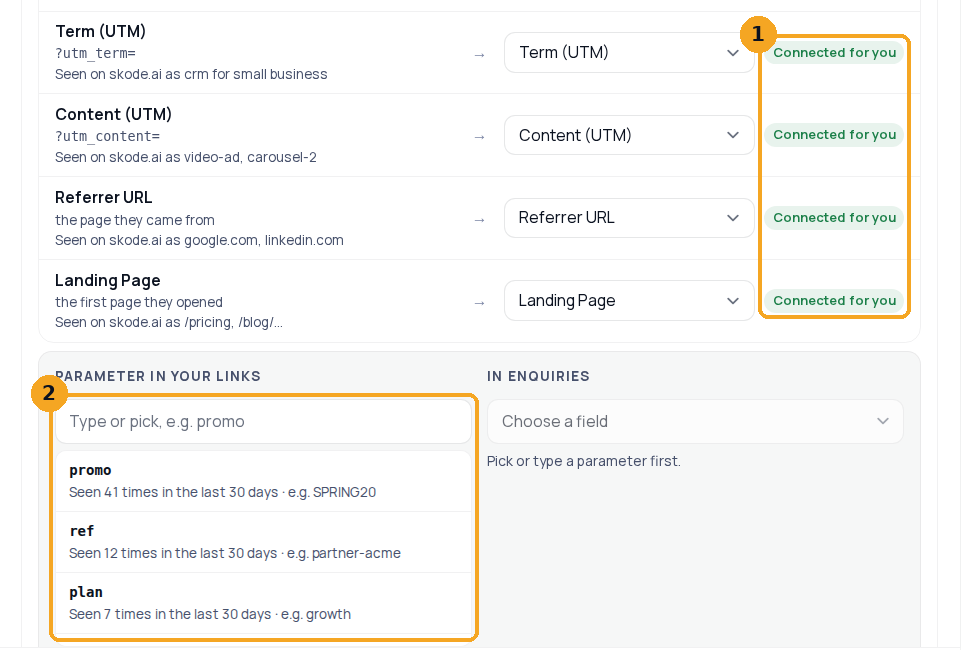
11Click Connect form
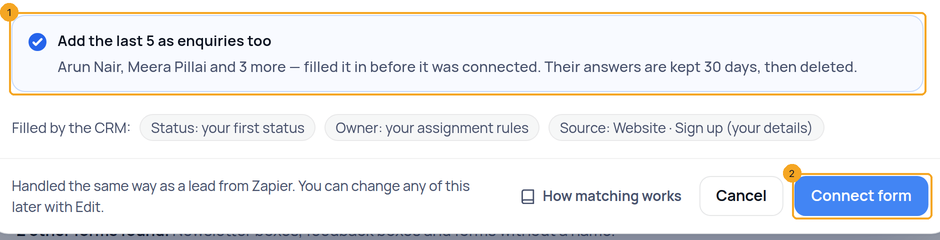
If people filled the form in before you connected it, Add the last 5 as enquiries too (1) is ticked: they arrive with the campaign that brought them, and Signal then deletes what it kept. Untick it to bring in only new submissions. Click Connect form (2). The form moves up to Connected and Send a test opens; change anything later with Edit.
12Send a test
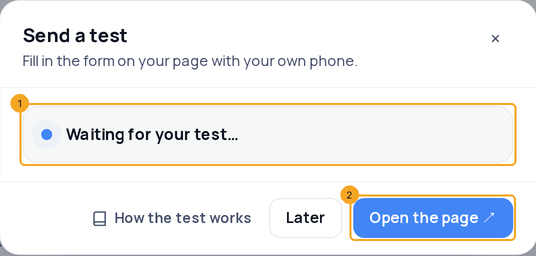
Right after Connect form, Send a test waits for your own submission (1). Click Open the page ↗ (2), fill the form in with your own phone and send it. Later closes it; nothing waits on you.
13See what the test became
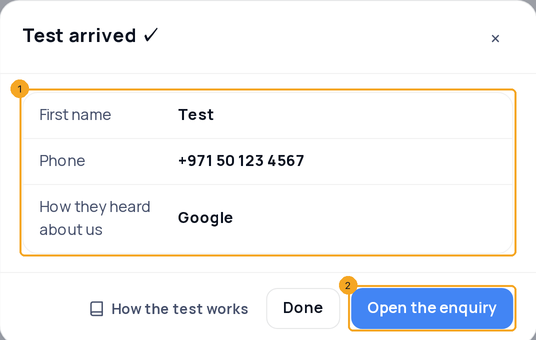
Test arrived ✓ shows the record your test became, field by field (1), and Open the enquiry (2) opens it. If it says Test not added, the line on top names the one reason, such as a phone number that isn’t valid, and the answer at fault is marked; Edit matches reopens the form and Try again ↗ opens your page for another test.
14When a new form appears on your website
When Signal finds a new form that asks for an email or a phone number, your company’s owners and admins get one notification, A new form on your website, in the bell and by email. It opens this page with the form named (1). Click Connect this form (2), or Not a lead form (3): the form moves under other forms and Signal deletes the answers it kept for it. Nothing connects by itself.

15See every send
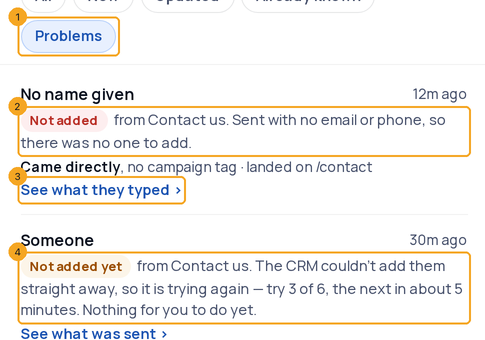
Click Activity on the page or on a form. Every send a form makes is a line: New enquiry, Updated, Already known, or not added with the reason and one next step. Problems (1) shows only the sends that didn’t become enquiries. Each line says why (2) — sent with no email or phone, sent while the form was off, from a form that isn’t connected, typed and left, or still being tried — and offers what to do next (3). Each line also says where the person came from: the source, the campaign and the page they landed on. Find out why a website form sent no enquiry walks each line.
16Turn a form off
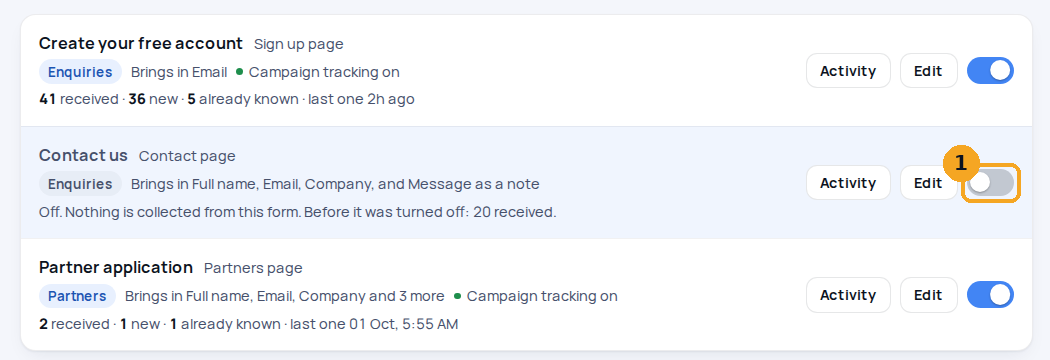
Use the switch on a connected form (1). An off form keeps its history, and nothing new is collected from it until you turn it back on.
17On a phone
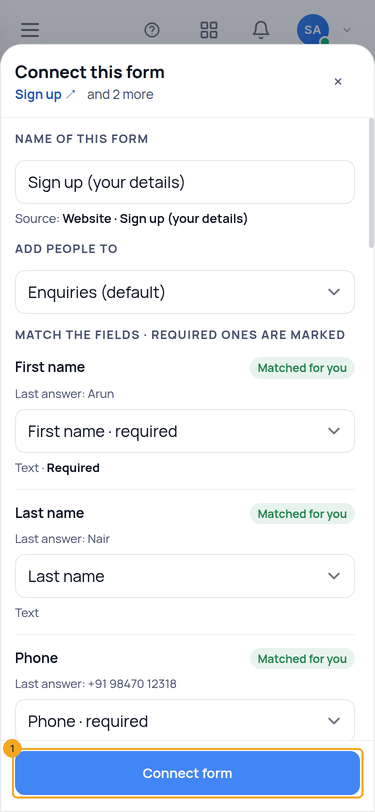
The same page works on a phone. Connect, Edit and Activity open as sheets from the bottom, with the main button always in reach (1).
© 2026 SkedX · Sample data only · Share and link freely · Copying the product or its design is not allowed · Terms
Common questions
A form field I did not match to anything — is it lost?
No. Every answer reaches the enquiry: a field you matched fills that field, and a field you matched to nothing is kept on the enquiry as a note (Treatment: Melasma Treatment). A choice from a list is written as the option the visitor picked, never the code behind it. Only passwords, card numbers and one-time codes are never kept.
My form has a separate country-code picker (+971). Do enquiries still have a phone?
Yes. A number typed without its country code gets the code chosen under Numbers without a country code when you connect the form — your company’s own country to begin with — so 501234567 on a Dubai company’s form becomes +971 50 123 4567. A number typed with its code is read as typed. Pick another country for a form whose visitors are elsewhere, or Leave as typed. WhatsApp needs the code to reach a number.
Why is Connect form greyed out?
Something the profile needs has no answer yet, and the line above the button names it. Match a phone or email (the line offers the one your form has), and give every required field an answer: match it, choose Always fill with…, or make it optional in the profile’s Layout Editor. Forms connected before 28 Oct 2026 keep working; the check applies when you next edit them.
My form has no <form> tag — when does Signal count a send?
When someone clicks a button that comes after a group of boxes asking for an email or phone, with something typed in them. A button in your menu, header or footer never sends those boxes, and neither does a button that opens a menu or panel — a newsletter box in your footer is still sent by its own button. To leave a group out, your developer adds data-skode-ignore to it.
Is Signal on my landing page?
Click Check a page in the page head and paste its address. Signal is watching answers for the whole website, so a landing page made separately can still be missing the script — see Check whether SkedX Signal is on a page.
Will the same person become two records?
That is up to your duplicate rules, the same as for a lead from Zapier. When they check email or phone, a repeat is refreshed, tagged, marked as a duplicate or kept out, whichever your rules say, and the popup tells you which. When they don’t check email or phone yet, the popup says so and offers Set duplicate rules.
Someone shows as Not added. Can I see what they sent?
Yes. A line sent with no email or phone offers See what they typed, read from SkedX Signal and shown in the line. Other lines offer See what was sent, which opens Integration history, where every website-form submission is kept, the same as a Zapier lead. An empty submission says there is nothing to follow up.
People say they filled in our form, but nothing arrives.
Open the form’s card. If people start it and nobody sends it, the card says so and offers Open it on your website and Email it to my developer: a common cause is a security check whose script never loads, so the button stays greyed out. Find out why a website form sent no enquiry has the other causes.
Does a website lead go through my assignment rules?
Yes. A website lead is handled exactly like a lead from Zapier: your assignment rules give it an owner, it starts on your first status, and your notifications and automations run as usual.
What if a form doesn’t ask for a field my profile requires?
The popup shows it as Not on this form. Choose Always fill with… and the value every person from this form gets, or make the field optional in the profile’s Layout Editor. Until then Connect form stays off, so no test ends up “Not added” for a field nobody could fill.
Why don’t I see my login or search box?
They are never collected, so they are not listed.
I changed a form on my website and it now shows as new.
A changed form looks new to Signal. The page spots it and offers Connect it the same way, which copies the old form’s settings in one click.
I archived a field a form was matched to.
Its answers go into a note so nothing is lost, and the form says so. Click Match it again to pick another field.
Where does the logo on the page come from?
From your brand kit in accounts.skode.ai. If it has no logo yet, the page offers Add your logo.
Can I track my own link parameters?
Yes. If your links carry parameters of your own, such as
promo or ref, open the form (Connect or Edit) and, under Marketing tracking, click Add a tracking parameter. Pick it from the parameters SkedX Signal has already seen on your website (each shows how often it was seen and an example), or type a new one, then choose the field it goes to. If no field fits, add one in the profile’s Layout Editor first. Signal keeps the value from the next visit on; people who came before don’t have it.Why is my form called “About · Enquiry form”?
A form is named by where it is. Its own heading comes first; a form with no heading is named by its page and what it is, and a form on several pages says so (Enquiry form · on 3 pages). It is never named by its button, so a form whose button says Continue is not called Continue. You can change the name when you connect it.
How long are answers kept before I connect a form?
30 days, encrypted, then deleted. They are deleted sooner if you click Not a lead form or turn Record form answers off. When you connect the form, Add the last N brings them in as enquiries.
Can I stop Signal keeping form answers?
Yes. In SkedX Signal on accounts.skode.ai, turn Record form answers off. Signal then counts submissions without their answers, and forms you connect still work. Passwords, card numbers, one-time codes and login, search or payment boxes are never recorded either way.
My website runs on two domains. Does the campaign carry across?
Yes, between the domains listed for your site in SkedX Signal. A visitor who arrives on one from an ad and fills a form in on the other is one person, with the ad that brought them.
Which visit counts?
Both visits are kept. Source, Medium, Campaign, Term and Content (UTM), Referrer URL and Landing Page come from the person’s first visit. Last-Touch Campaign is the campaign on the visit that sent the form, and First-Touch Campaign the one on their first visit. A field is filled only when it is blank, so nothing you or your ad connections already set is overwritten. Ad click ids, such as gclid and fbclid, are always kept with the enquiry. The person’s Signal tab shows every visit in between.
Next in IntegrationsFind out why a website form sent no enquiry →
Useful links
- Website forms in SkedX
- Brand kit (your logo) — The logo this page shows
Previous: Send CRM conversions to Facebook (Meta Conversions API) · All Integrations guides
Did this guide help?
Still stuck?Chat with support →


