Tell it which of those people actually became customers and it stops optimising for form-fills and starts finding you more people who buy. SkedX CRM sends that back for you, from the conversion events you choose, for the profiles you choose. About six minutes, and you’ll need the Facebook account that runs your ads.
In review: written from the product, not yet walked through live.
1Open Meta Conversions API in SkedX
Go to Settings → Integrations, find the Meta Conversions API card and click Connect. You need the Manage integrations permission.
2Open Facebook’s Events Manager
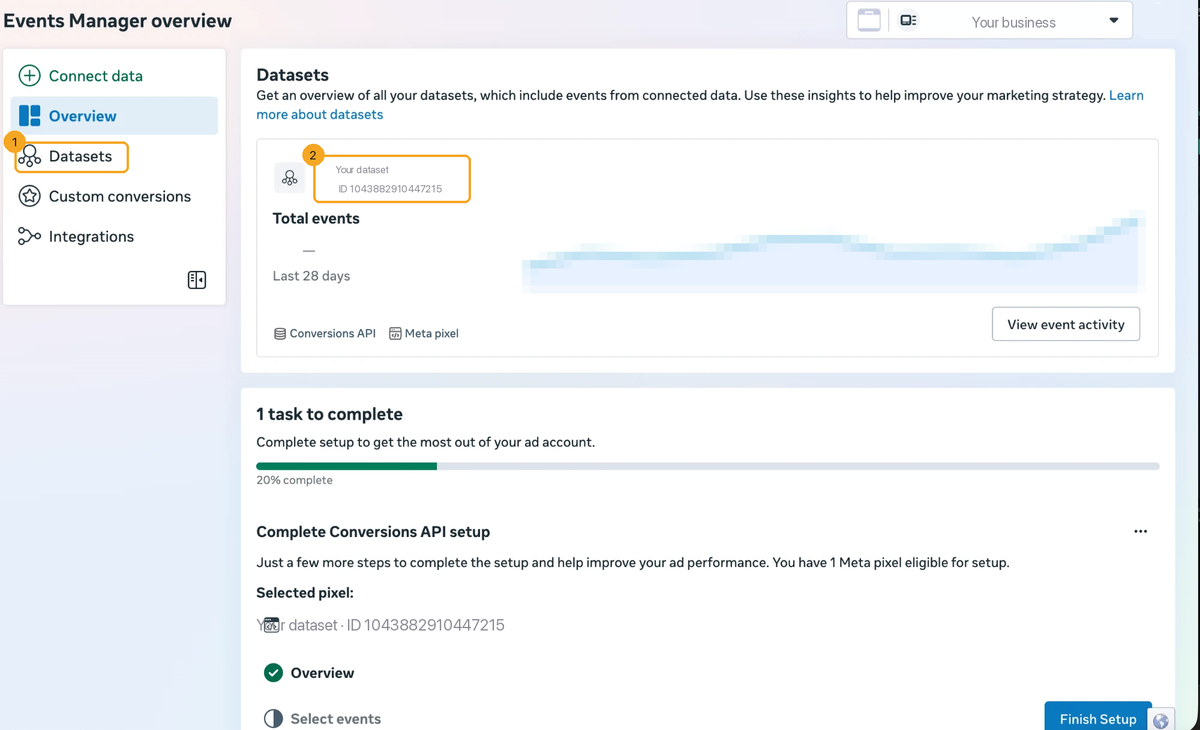
Click Open Events Manager on the page (or go to business.facebook.com/events_manager). Sign in with the Facebook account that runs your ads. In the left menu, open Datasets (1). That is Facebook’s name for your Pixel now; older accounts still say Data Sources.
3Copy your Pixel ID
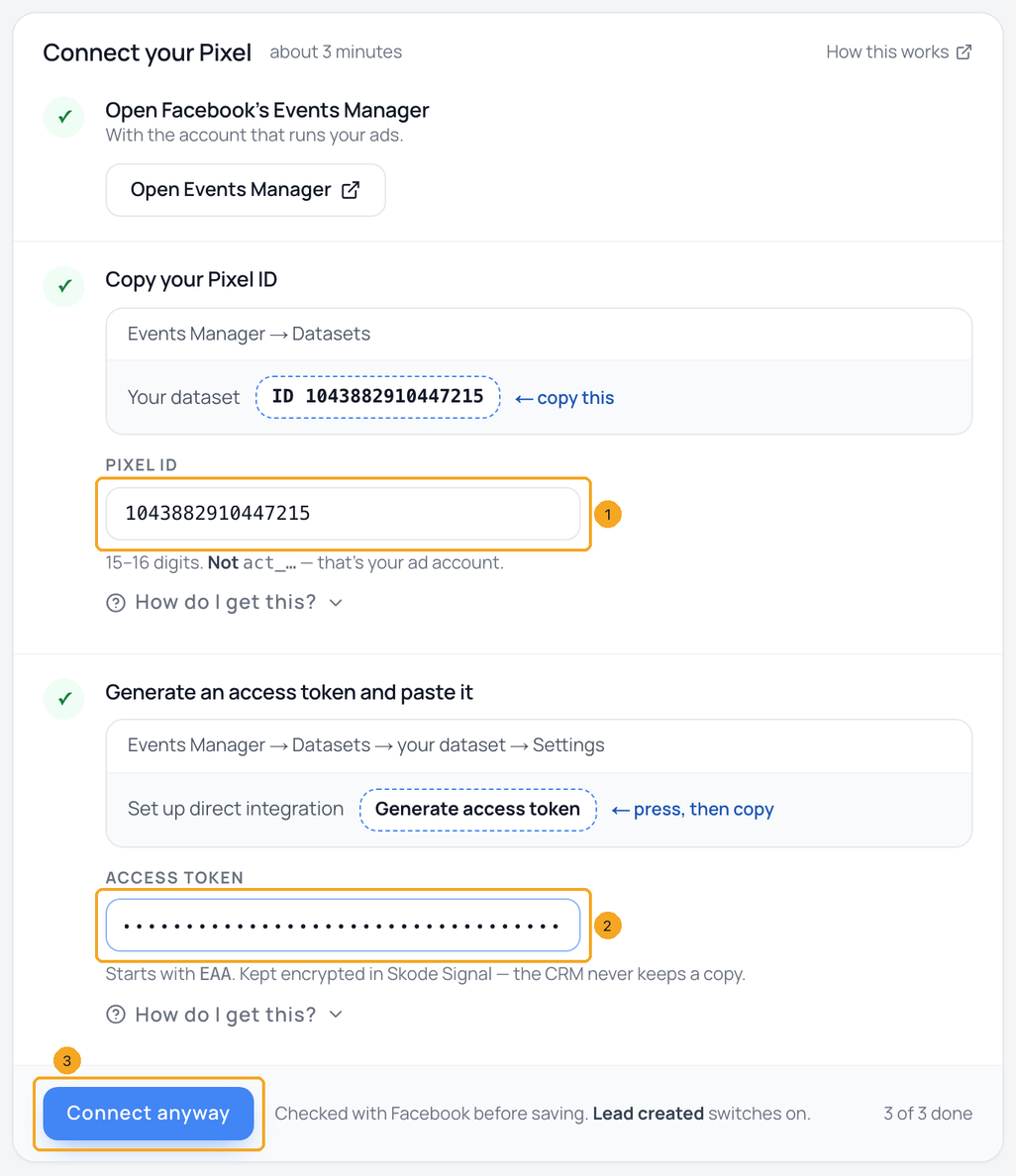
The number labelled ID under your dataset’s name is your Pixel ID, 15 or 16 digits. Copy it and paste it into the Pixel ID box (1) in SkedX. It is not your ad account number (that one starts with act_).
4Generate an access token
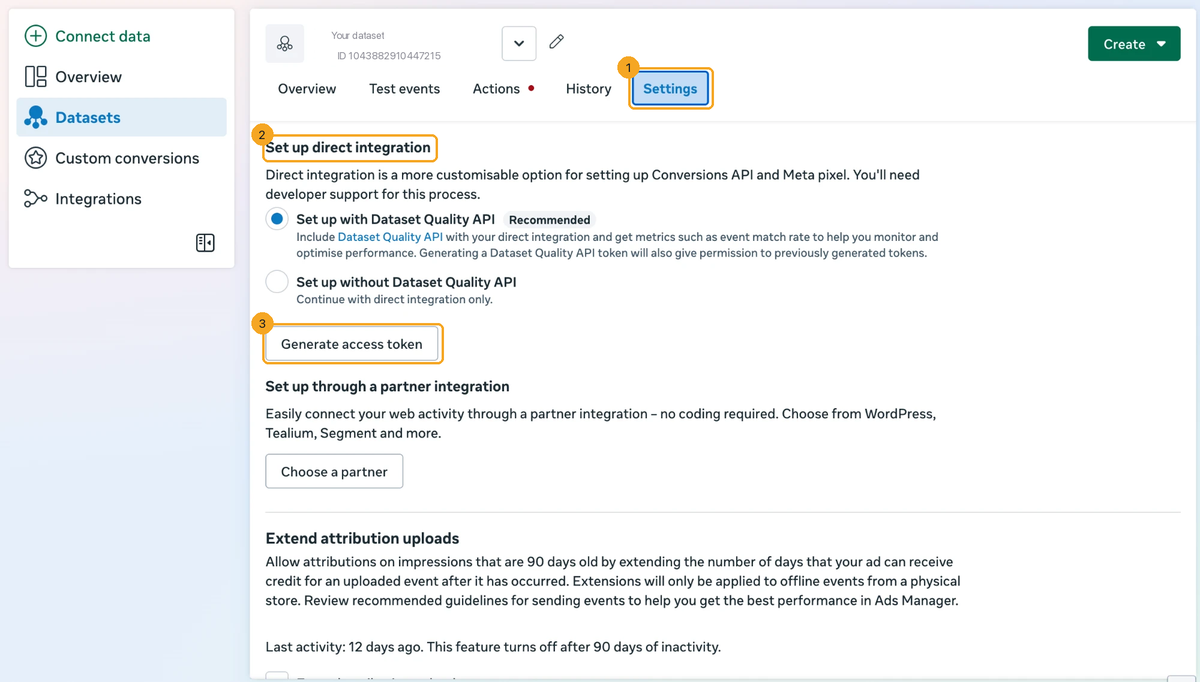
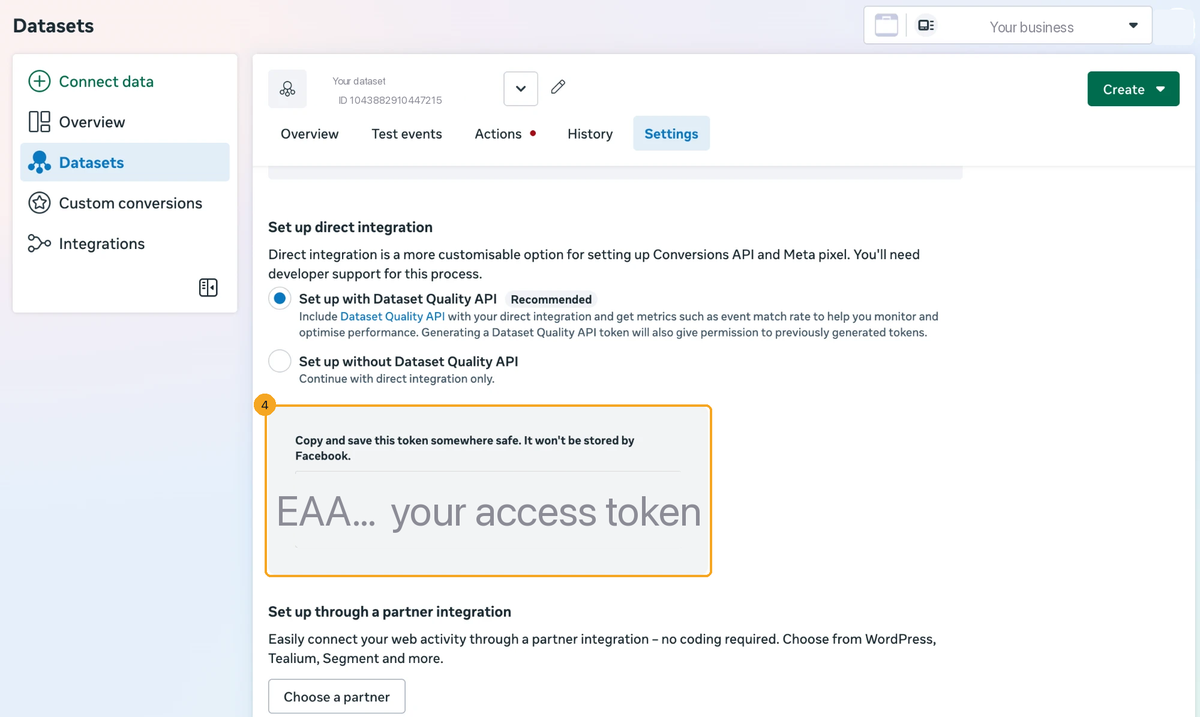
Click your dataset, open its Settings tab (1) and scroll to Set up direct integration (2). Leave the “Dataset Quality API” choice as it is and click Generate access token (3). If a “Select datasets” dialog appears, keep your dataset selected and confirm.
5Copy the token
Facebook shows the token once, in a grey box: “Copy and save this token somewhere safe.” Select all of it. It starts with EAA and runs to about 200 characters. You won’t need to save it anywhere yourself; SkedX keeps it encrypted.
6Paste the token and connect
Paste the token into the Access token box (2) in SkedX and click Connect (3). SkedX checks it with Facebook before saving, then opens your Pixel with Lead created switched on. The button reads Connect anyway when one of Facebook’s requirements is not met yet. It still connects. The token is encrypted and never shown again; if you ever need to change it, use Replace access token.
7Choose what CRM sends
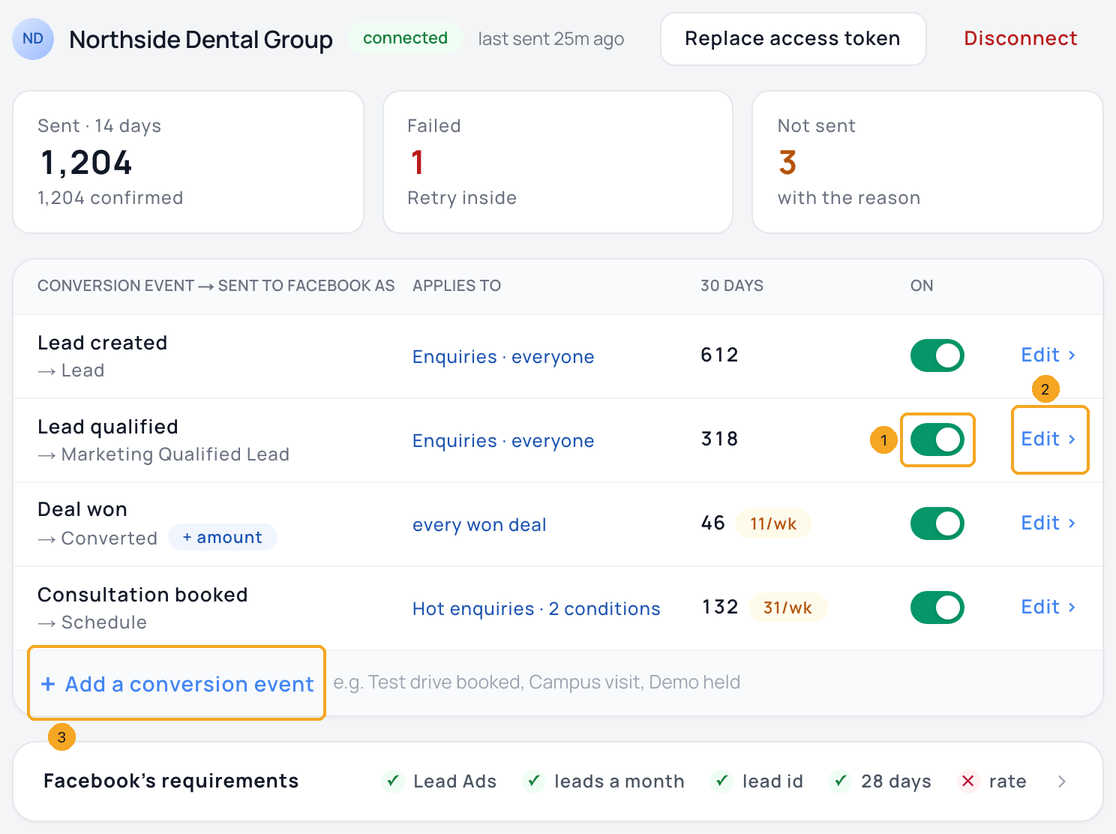
Use the switch (1) to turn on each conversion event Facebook should learn from: Lead created, Lead qualified, Deal won (sent with the deal amount) or one of your own. Each event sends once per person, when they enter it. The 30 days column shows how many people it would have sent in the last 30 days. Edit (2) changes an event, and Add a conversion event (3) adds your own.
8Say which people an event counts
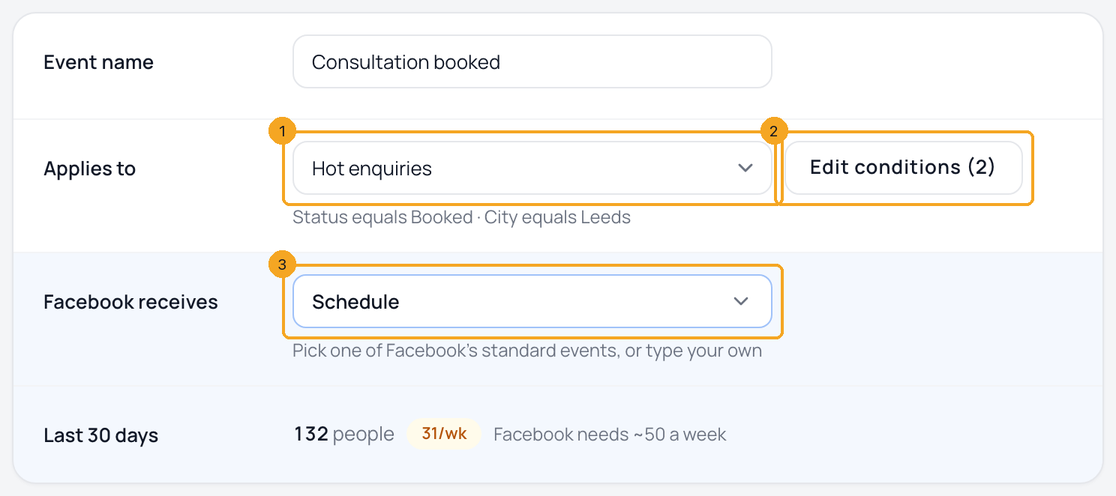
Click Edit on an event. Applies to (1) sets the profile it counts people from, and every event can use a different one. Add conditions (2) opens the filter window. Facebook receives (3) is a dropdown of Facebook’s standard events, and you can type your own name there too. The event shows how many people it counted in the last 30 days.
9Pick a profile and filter on its fields
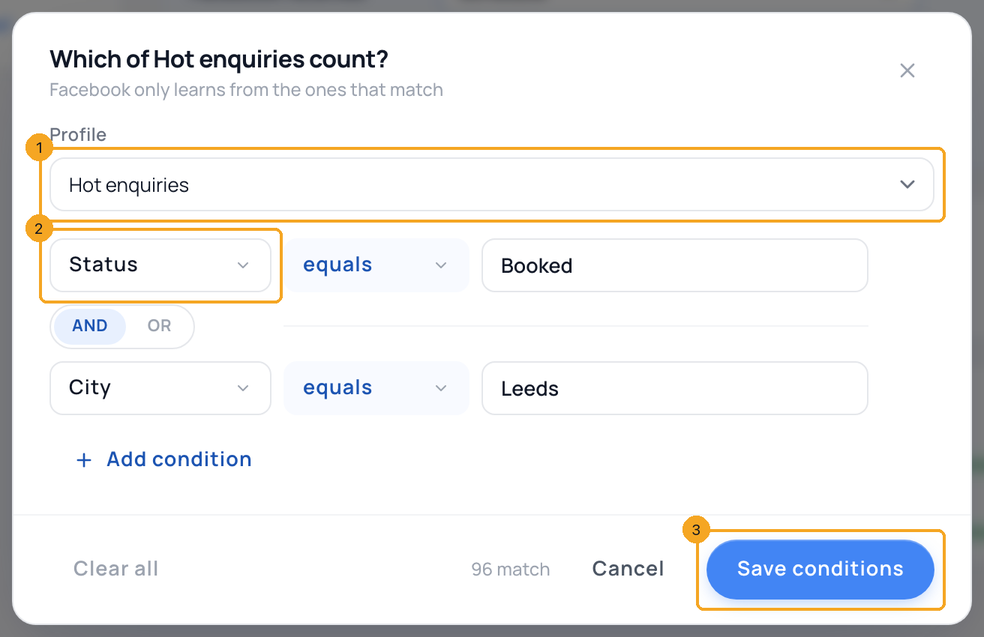
In the filter window, pick the Profile (1). The fields (2) change to that profile’s own, so you can filter on anything it holds. Save conditions (3) saves the profile and its filters together. If a filter uses a field the new profile doesn’t have, the save is refused and nothing changes.
10Add a conversion event of your own
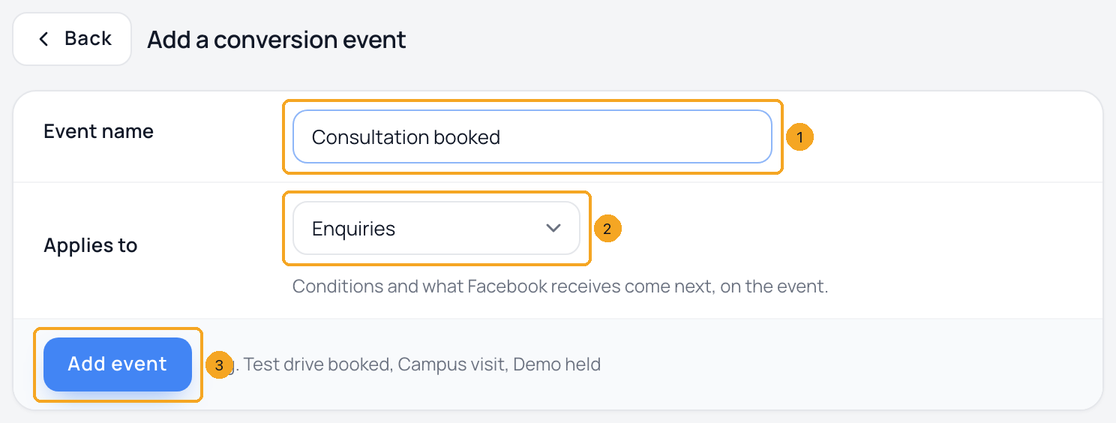
Click Add a conversion event for a moment that matters to your business, such as a site visit booked or a quote accepted. Give it an Event name (1), choose what it Applies to (2) and click Add event (3). Conditions and what Facebook receives come next, on the event. Deal won can’t be narrowed: it also feeds your revenue reports.
11Check Facebook’s requirements
Facebook’s requirements (1) checks your setup against what Facebook asks for: Lead Ads, leads a month, the Facebook lead id, sending within 28 days and the rate of leads that become customers. Click it to see each one with your own number.

12See what reached Facebook
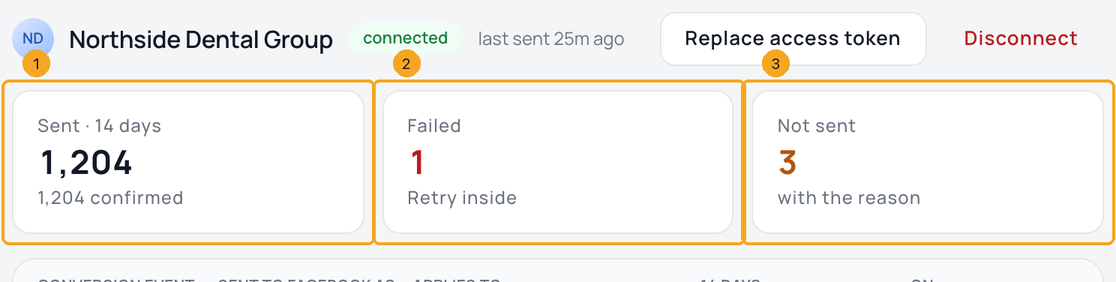
Each Pixel shows Sent (1), Failed (2) and Not sent (3) for the last 14 days. Click a number to open Activity, one row per person. See what reached Facebook explains each row and how to send a failed one again.
13Use it on a phone
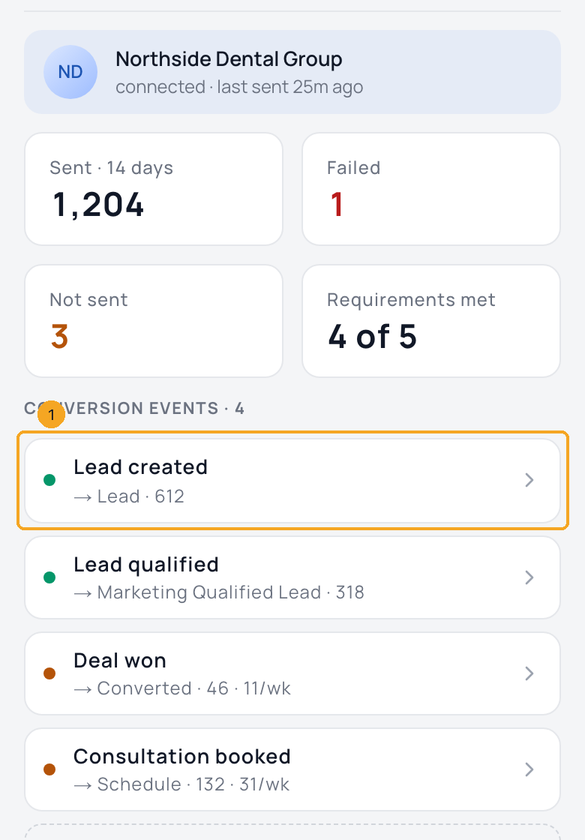
On a phone, the page shows your Pixel’s numbers, then its conversion events with each one’s count. Tap an event (1) to turn it on or off, or to change who it applies to. Requirements met shows how many of Facebook’s requirements you meet.
© 2026 SkedX · Sample data only · Share and link freely · Copying the product or its design is not allowed · Terms
Common questions
Can I send from any profile?
Your own events can count people from any profile. Lead created and Lead qualified can use any profile built on Enquiries, because they fire on an enquiry. To send from Contacts, add your own event. Deal won always counts every won deal.
My event has a filter but sends nobody. Why?
Enquiries hides people who have moved into another profile, so a filter on Enquiries cannot find them. Set the event to the profile those people are in now. If the page shows a number in another profile, click its button to move the event there.
Are the people already in a profile sent when I switch to it?
No. They count as history, and only people who enter after the switch are sent.
My Lead Ads come in through Zapier or the API — can Facebook still match them?
Yes, when your connection sends Meta’s lead ID as meta_lead_id. SkedX keeps it on the enquiry and sends it with each conversion, and it is the identifier Facebook matches best. Lead Ads connected to SkedX directly already send it. Before 8 October 2026 an ID sent this way was put aside and not used.
Next in IntegrationsTurn your website forms into enquiries →
Previous: Send conversions to more than one Facebook Pixel · All Integrations guides
Did this guide help?
Still stuck?Chat with support →


