People who fill in your Facebook or Instagram lead form can arrive in the CRM the moment they press Submit — as enquiries, or any profile you choose, with their answers in the right fields and the campaign, ad set and ad they came from.
One page holds every Page on your Meta account and all of their forms, and you can prove it works with a test lead before any customer does.
In review: written from the product, not yet walked through live.
1Open Facebook Lead Ads and press Continue with Facebook
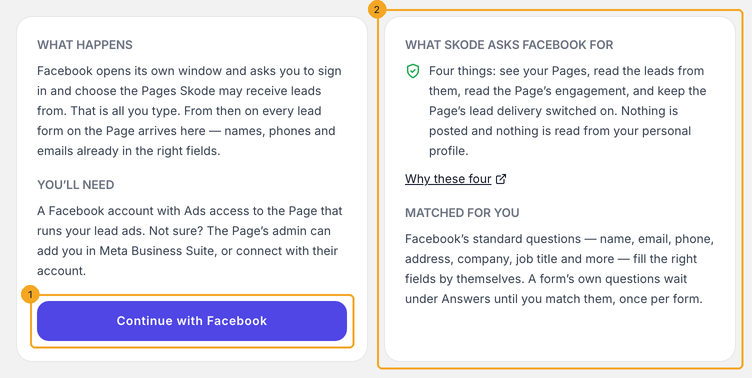
Go to Settings → Integrations and click the Facebook Lead Ads card — it opens its own page. Read what happens, then click Continue with Facebook (1). The box beside it lists the four things SkedX asks Facebook for (2): nothing is posted, and nothing is read from your personal profile. Once connected, the page is called Meta Lead Ads.
2Let Facebook ask its question
Facebook opens its own window. Sign in with an account that has Ads access to the Page running your lead ads, tick the Pages SkedX may receive leads from, and click Continue. That is all you type; Facebook sends you back to the page. If the page later says Meta has not switched on lead delivery yet, your business limits who may receive its leads: in Meta Business Suite open Settings → Integrations → Leads access, allow SkedX, then click Connect again.
3Connect the Page that runs your lead ads
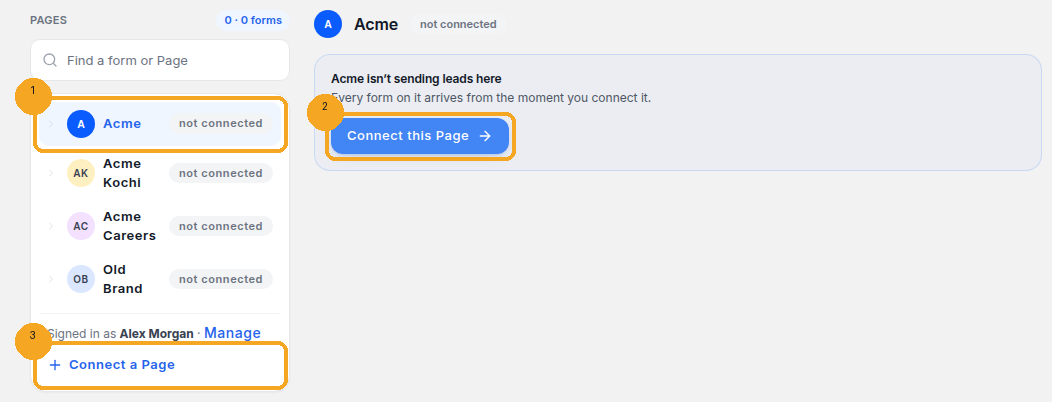
Back on the page, every Page on the Meta account is listed on the left. Click the Page (1) and click Connect this Page (2): every form on it sends its leads here from that moment. A Page missing from the list wasn’t ticked in Facebook’s window — + Connect a Page (3) opens it again so you can tick more. A Page already connected in another SkedX organisation says so instead: its leads can’t go to two places, so disconnect it there first.
4How this works: your Pages on the left, their forms under them
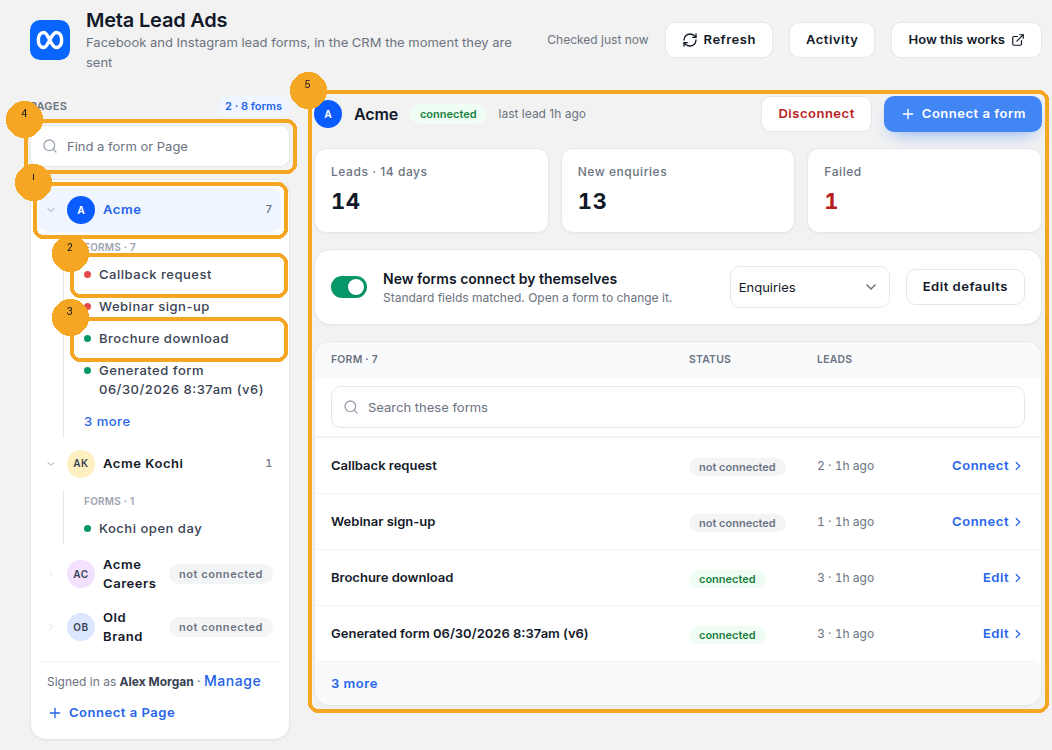
Every Page on the connected Meta account is in the list on the left (1), with its forms under it. A red dot (2) means a form is not connected: its leads wait in Activity until you connect it. A green dot (3) means it is connected and its leads arrive. One search box (4) finds any form or Page. Click a Page or a form and it opens on the right (5). A Page shows its photo once it is available; until then it shows its initials.
5Click a Page: its numbers, and what new forms do
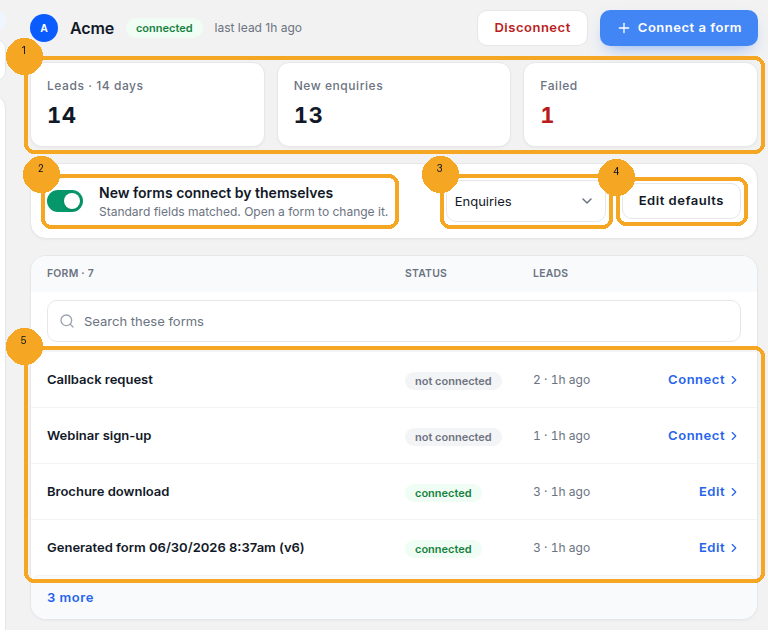
Three numbers cover the last 14 days (1): the Page’s leads, the new records they added, and the ones that failed. Click a number to see those leads in Activity. The switch New forms connect by themselves (2) decides what a form you make later does: on, it connects with its standard questions matched; off, it arrives not connected and its leads wait in Activity until you connect it. Choose where new forms’ leads go (3), such as Enquiries or another profile. Edit defaults (4) sets the matching every new form on the Page starts with. Below that, each form is listed (5) with Connect or Edit.
6Click a form: send each answer to a field
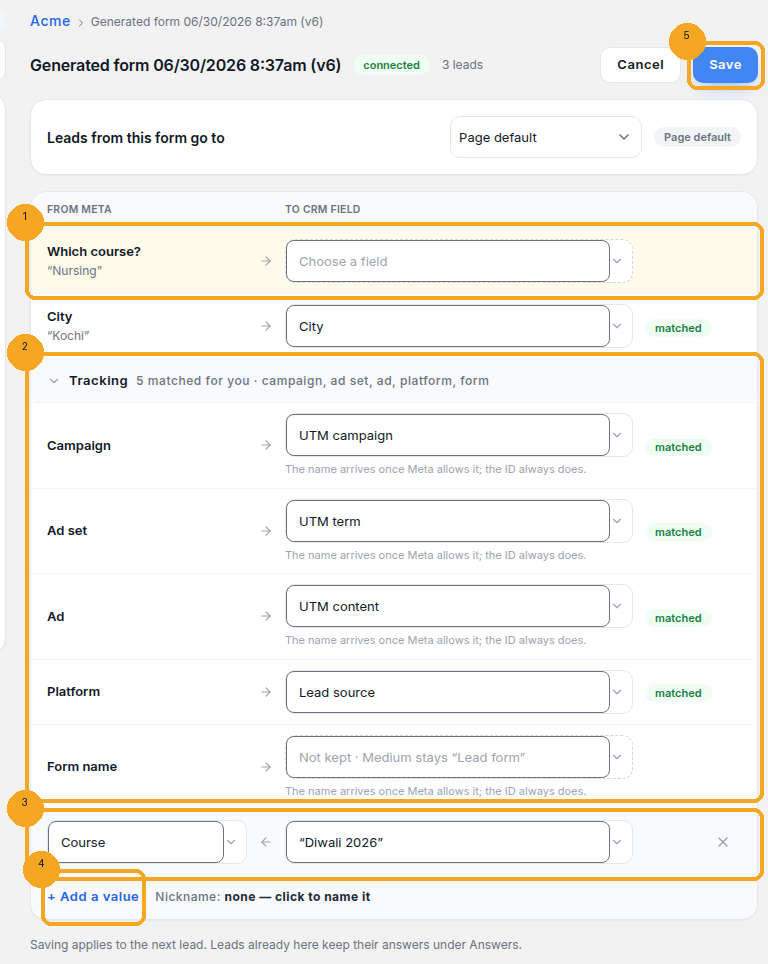
Each question the form asks goes to a CRM field. A question not matched yet comes first, with the answer a lead last sent (1): choose a field for it, or Not kept. Facebook’s standard questions, such as name, email and phone, are already matched. Tracking (2) is matched for you as well: Campaign → UTM campaign, Ad set → UTM term, Ad → UTM content, and Platform (Facebook or Instagram) → Lead source and UTM source. The Medium stays “Lead form”. + Add a value (4) adds a row (3) that makes a field always get the same text you type, or a value from Meta such as the ad set or the Page name. To send this form’s leads somewhere other than the Page’s default, change Leads from this form go to. Click Save (5). The change applies to the next lead, and leads already in the CRM keep their answers.
7Connect a form
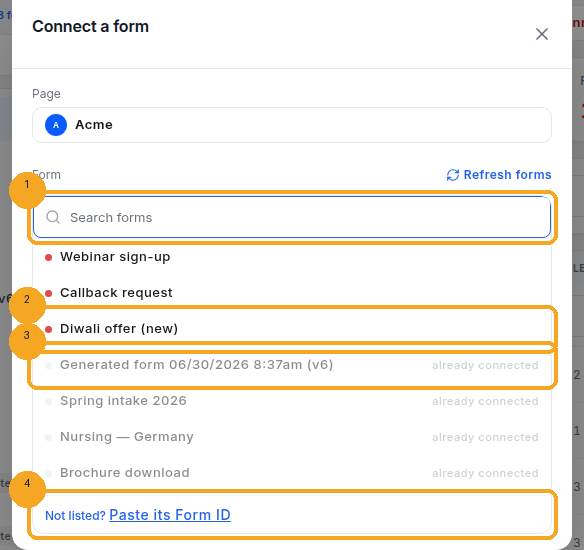
On a Page, click + Connect a form. It lists the Page’s forms from Meta, and you can search them (1). Forms that are not connected come first, with a red dot (2); click one to connect it, and its matching opens. Forms that are already connected are greyed out (3). If a form isn’t there, click Not listed? Paste its Form ID (4).
8Not listed? Paste its Form ID
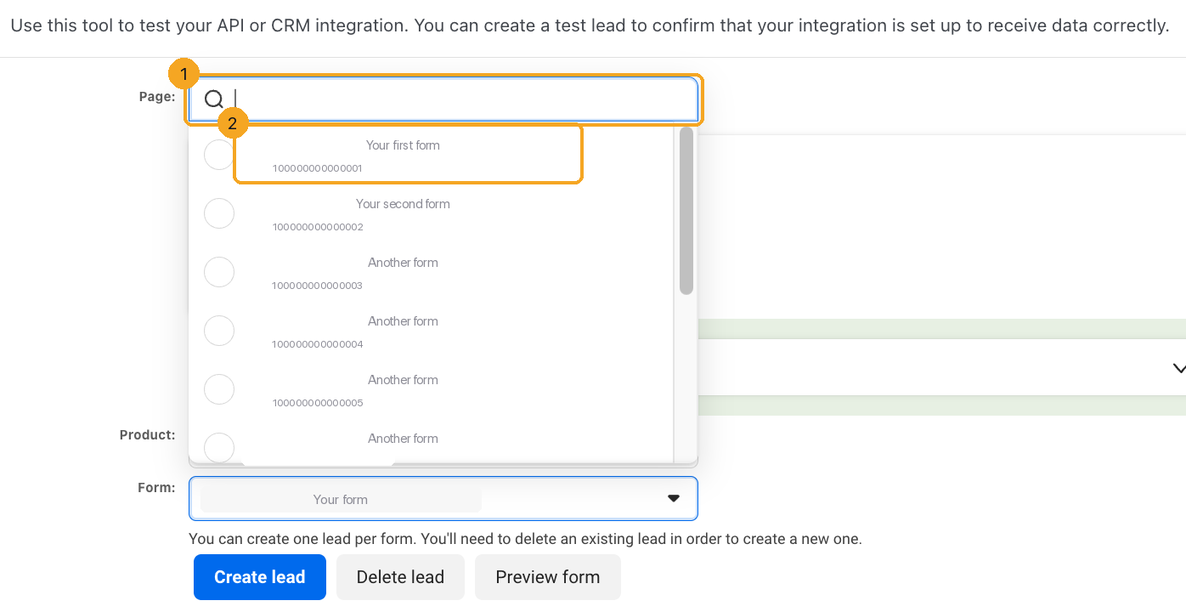
Paste the form’s number in the box and click Add form. Meta lists forms by name only once it lets SkedX read them; until then, add a form by its ID. To find the ID, open the Form list (1) in Meta’s test tool: the number under each form’s name is its Form ID (2). Where is the Form ID? in the pop-up shows the same thing. A form also appears in the list by itself when it sends its first lead.
9Prove it works with a test lead
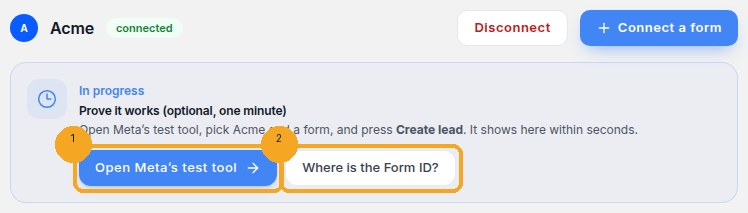
Until a Page’s first lead arrives, the Page offers a check. Click Open Meta’s test tool (1), and the page shows the lead within seconds. Not sure which form is which? Where is the Form ID? (2) shows where Meta’s tool keeps it.
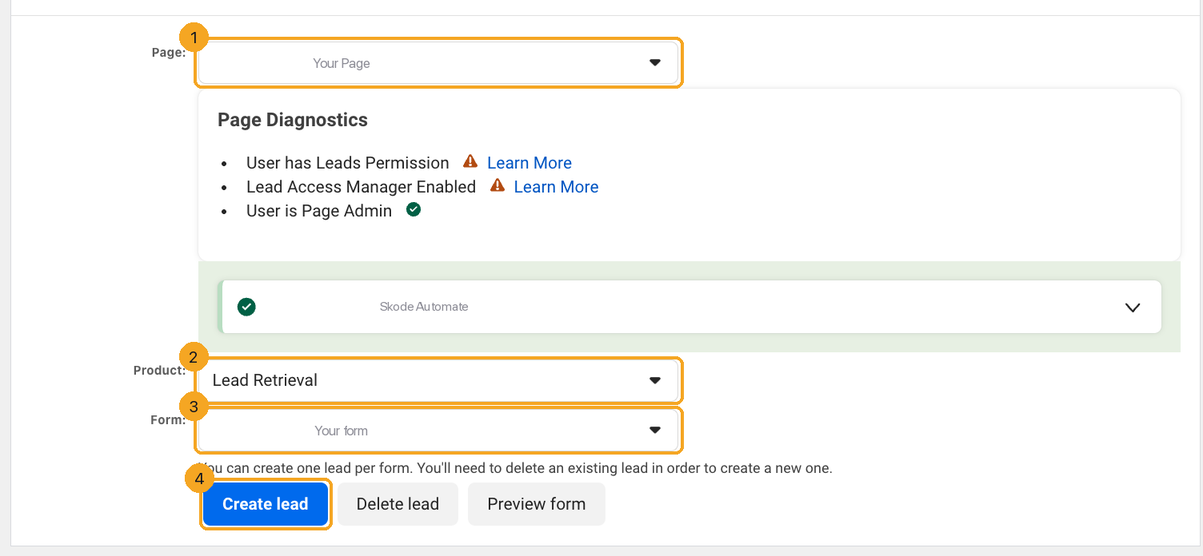
10In Meta’s tool: Page, Lead Retrieval, form, Create lead
This is Meta’s Lead Ads Testing Tool, signed in to the same Facebook account. Choose the Page (1). Under Product, choose Lead Retrieval (2), not Continued Flow. Pick any Form (3) and click Create lead (4). The lead lands in the CRM within seconds, and its form joins the Page’s list.
11Check on it any time: Activity, 14 days
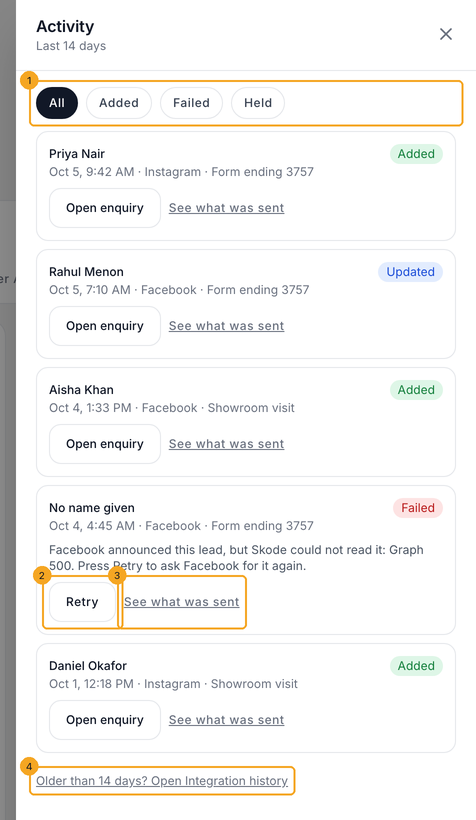
Click Activity at the top of the page, or a Page’s numbers to see only that Page’s leads. Every lead from the last 14 days is listed, and you can filter by All, Added, Failed or Held (1). Held leads came from a form that isn’t connected. A lead Facebook didn’t hand over shows Retry (2), which asks Facebook for it again. See what was sent (3) shows the answers as they arrived. For anything older, open Integration history (4).
12Disconnect a Page
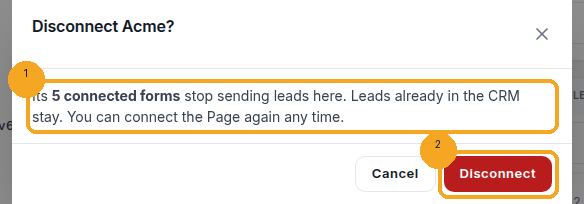
On a Page, click Disconnect. The pop-up says how many connected forms will stop sending leads (1). Leads already in the CRM stay. Click Disconnect (2). You can connect the Page again at any time.
13On a phone: Pages, then a Page, then a form
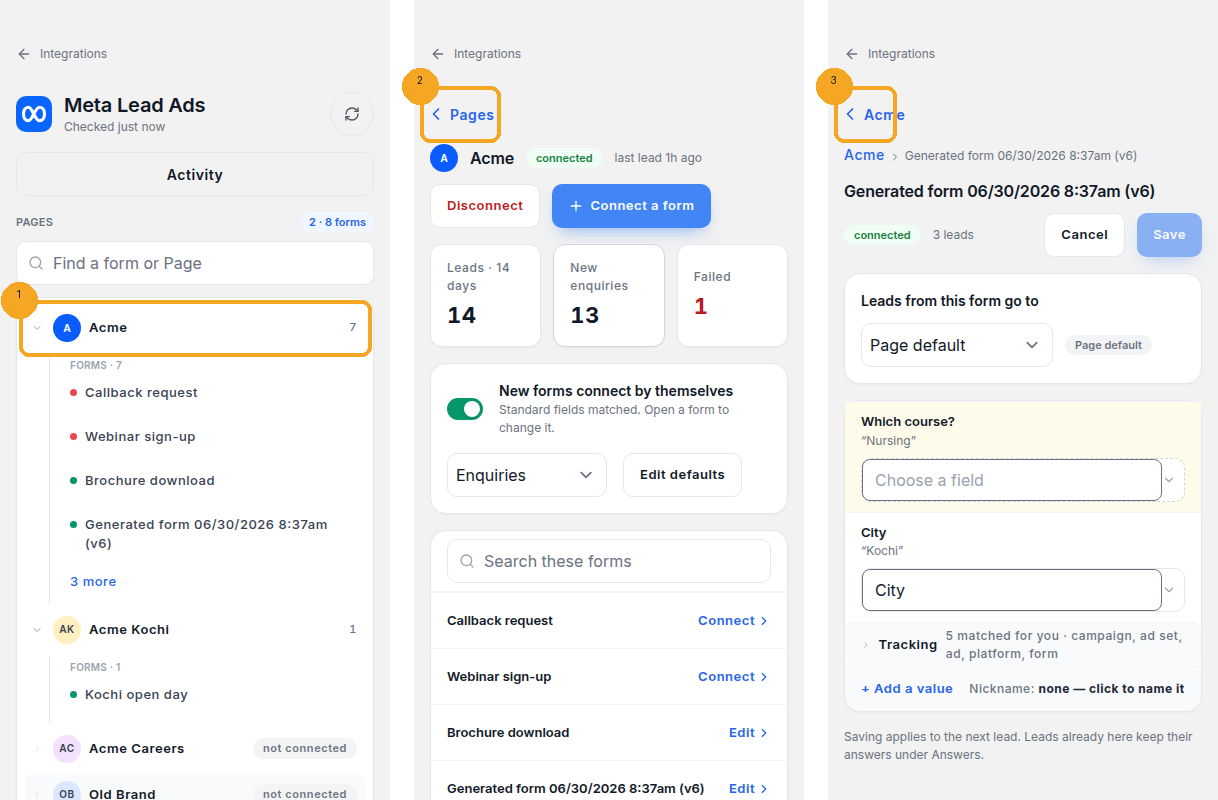
A phone shows one screen at a time. Tap a Page in the list (1) to open it, then tap Edit or Connect on a form to open its matching. Each screen has a back bar at the top: Pages (2) on a Page, and the Page’s name (3) on a form.
© 2026 SkedX · Sample data only · Share and link freely · Copying the product or its design is not allowed · Terms
Common questions
Facebook says no Page on my account.
The account you signed in with doesn’t manage any Page, or the Page wasn’t ticked. Click + Connect a Page and tick the Page that runs your ads, or connect with the account of the Page’s admin. The admin can also give you Ads access to the Page in Meta Business Suite.
The page says Meta has not switched on lead delivery yet.
Meta refused to send that Page’s leads to SkedX, usually because your business limits who may receive leads. In Meta Business Suite, open Settings → Integrations → Leads access and allow SkedX, then click Connect again.
The page says Meta needs you to sign in again.
The Facebook sign-in has expired. Click Reconnect. Leads sent in the meantime are kept for 90 days and arrive once you reconnect.
What happens when I make a new form on my Page?
It depends on the Page’s switch New forms connect by themselves. When it is on, the form connects with its standard questions matched, and its leads go where that Page sends new forms. When it is off, the form appears with a red dot and its leads wait in Activity. Connect the form, then press Retry in Activity for the leads that waited.
Which questions are matched by themselves?
Facebook’s standard ones: full name, first and last name, email, phone; street address, city, state or province, post code, country; company and job title; work email and work phone when there is no personal one; date of birth and gender go to your own fields of that name when you have them. Marital, relationship and military status, and a form’s own questions, are kept under Answers until you match them — once per form.
Why do forms show as “Form ending 3757” instead of a name?
A lead carries only the form’s ID, and Meta hasn’t yet allowed SkedX to read form names. Click the form and give it a Nickname under the table. Only your team sees that name. Meta’s own names fill in by themselves once allowed, and a nickname you gave stays.
Where do the campaign, ad set and ad names come from?
Each lead records the campaign, ad set and ad IDs now. Their names need a Meta permission that SkedX has asked for. Once Meta allows it, new leads carry the campaign name in UTM campaign, the ad set in UTM term and the ad in UTM content, unless you changed that under Tracking.
A Page shows letters instead of its photo.
Page photos appear once they are available. Until then a Page shows its initials. The connection is not affected.
The test lead never arrived.
In Meta’s tool, press Track status: it says whether the lead reached SkedX. Check the Page in the tool is one you connected, and that the form has a green dot. Meta allows one test lead per form at a time, so press Delete lead there to send another. A failure shows in Activity with Retry.
Will the same person become two records?
It depends on your duplicate setting in Settings → Duplicates, the same as your other forms. Accept & flag adds a new record marked as a duplicate. Flag for review adds it for someone to check. Tag the existing lead and Refresh the existing lead update the record you already have. Block the new lead adds nothing, and Activity shows it as blocked. With no fields chosen in that setting, only an exact copy is skipped. The status stays as it was unless your duplicate setting itself sets one. One lead delivered twice by Facebook is always one record.
Does it cost anything?
Meta Lead Ads is part of CRM Pro and above.
Previous: Find out why a website form sent no enquiry · All Integrations guides
Did this guide help?
Still stuck?Chat with support →


