Drag its edge.
In review: written from the product, not yet walked through live.
1Point at the column’s edge
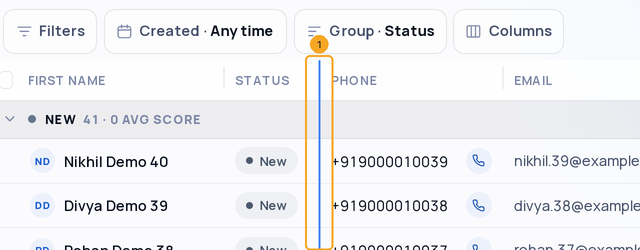
Point at the line on the right edge of a column (1): it turns blue. It runs the whole height of the list, so you can grab it between any two rows.
2Drag it
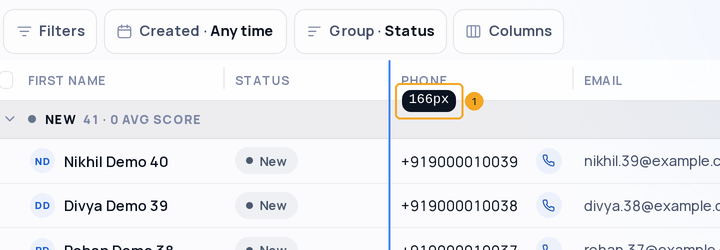
Drag the line right to widen the column, left to narrow it. The label (1) shows the width; it snaps to the width that fits the column. Double-click the line to fit it at once.
3The last column: drag the table’s right edge
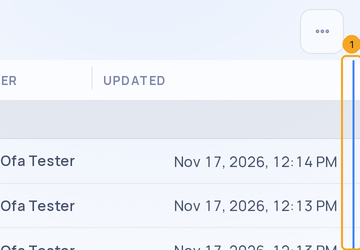
The last column’s line is the table’s right edge (1). Drag it right — and hold it past the edge: the column keeps widening and the table scrolls along with it.
© 2026 SkedX · Sample data only · Share and link freely · Copying the product or its design is not allowed · Terms
Common questions
Does my width stay?
Yes. Widths are kept on your account with your columns, so they are the same on any computer. A saved view keeps its own when you update it.
Can I do it without a mouse?
Yes. Tab to a column’s edge and press ← or → to change it by 16 px; Home fits it to its contents.
On a phone?
On a phone the columns size themselves; dragging edges is for a computer.
Next in ProfilesPin a column to the left →
Previous: Choose the columns a list shows, and their order · All Profiles guides
Did this guide help?
Still stuck?Chat with support →