Pick them from every section at once, put them in the order you read them, and drop the empty ones — once, and they stay that way for you.
In review: written from the product, not yet walked through live.
1Open the picker
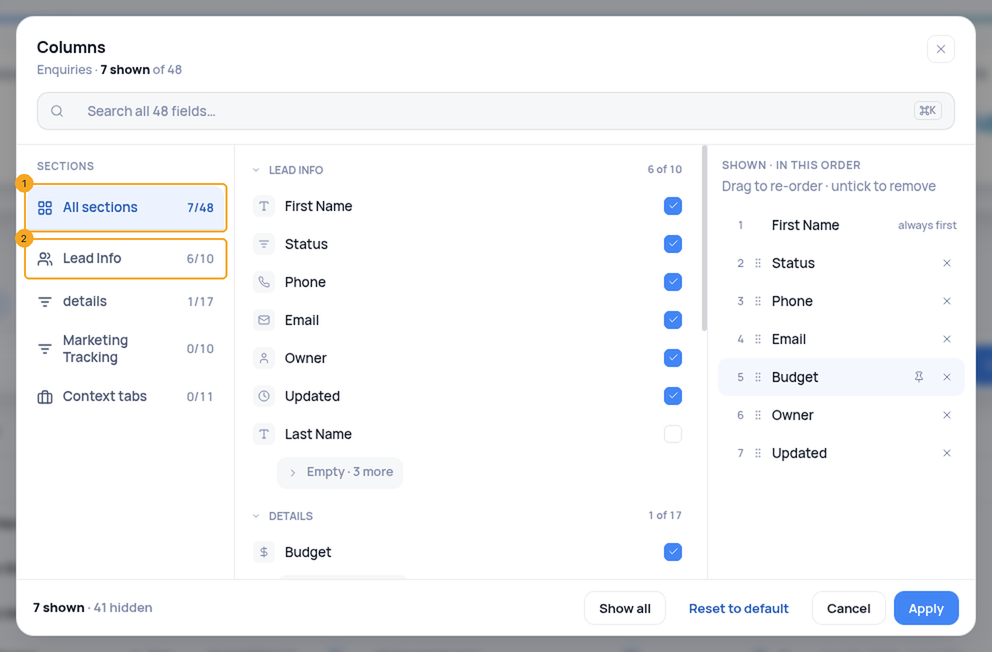
Click Columns on the list’s toolbar. The picker opens on All sections (1) — every section of the record as a group, in the record’s own order. Click a section (2) to see only its fields; type in the search box to find any field.
2Put them in order
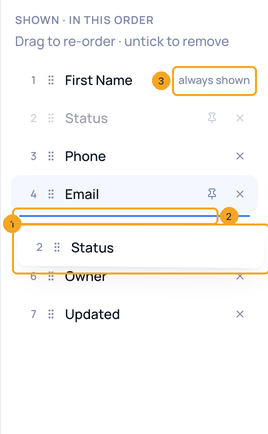
Tick a field to show it. The right pane, Shown · in this order, is the list’s columns as they will read: drag a row (1) up or down — a blue bar (2) marks where it lands. ✕ takes a column off. The name moves the same way, but it has no ✕: it is always shown (3).
3Hide the empty ones
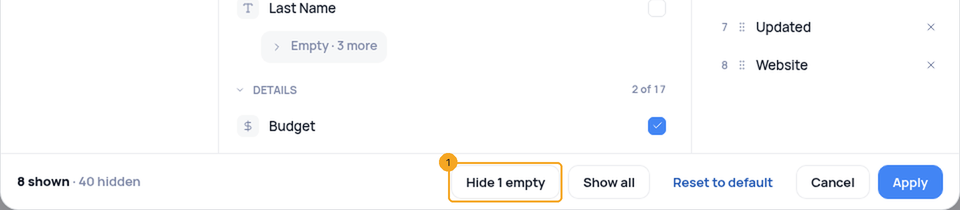
Hide N empty (1) hides the columns you show that have nothing in them on this page — the number is what the click hides. When none are empty, the button is not there.
4Apply
Apply writes the columns and their order in one go; Cancel leaves the list as it was. On a saved view, Update view keeps them with the view.
5They stay yours
Your columns, their order and your pinned columns are kept on your account — for each list, in each workspace. Open the list on another computer, on your phone’s browser, or after you sign out and back in, and it reads the way you left it. A saved view has its own columns: opening one never changes yours, and going back to All brings yours back.
6Or use the side panel
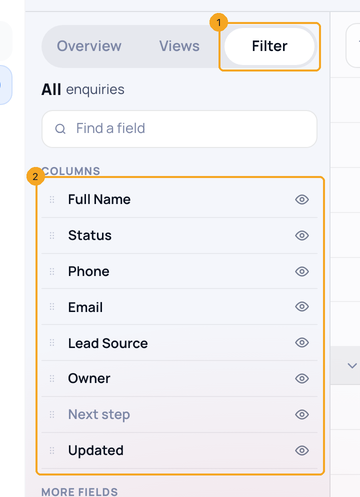
On Enquiries, open Filter in the side panel (1). Under Columns (2), the eye shows or hides a column and the grip moves it, in the same order as the table.
© 2026 SkedX · Sample data only · Share and link freely · Copying the product or its design is not allowed · Terms
Common questions
Why can’t I squeeze a column narrower?
Every column keeps the width it needs to be read — a name, a person, a date. When the columns no longer fit, the list scrolls sideways instead, and “+N more columns” above the header says so. Double-click a column’s divider to fit it to what it holds again.
Can I move the name column?
Yes, on every list — drag it like any other column. It cannot be taken off, so every row still says who it is. On Tasks your own fields can sit between the built-in columns too.
A field I want is not in the picker.
The picker shows the fields your workspace’s layout shows for this list. An admin adds or shows a field in Edit layout, and it appears here.
Does Contacts have the same picker?
Yes — Contacts, Deals and the profiles drawn from them open the same picker, with the order beside the ticks. Pinning a column is on Enquiries for now.
Do my columns follow me to another computer?
Yes: which columns show, their order and (on Enquiries) your pinned columns are kept on your account, for each list and each workspace — Enquiries, every profile, Contacts, Deals, Tasks, Companies, Products, Campaigns and Recurring invoices.
I opened a saved view and my columns changed.
A view shows its own columns. If you change them while it is open, the bar says Columns changed: Update view saves that in the view, Reset discards it. If you do neither, the view stays as saved and your own list keeps the change.
Does another person see my order?
No. Your columns are yours; each person in the workspace keeps their own. A saved view shared with your team is the way to give everyone the same columns.
Next in ProfilesPin a column to the left →
Previous: Sort a list by any column · All Profiles guides
Did this guide help?
Still stuck?Chat with support →


