Pin the columns you read by, and they stay put beside the name while the rest moves.
In review: written from the product, not yet walked through live.
1Pin from the column’s menu
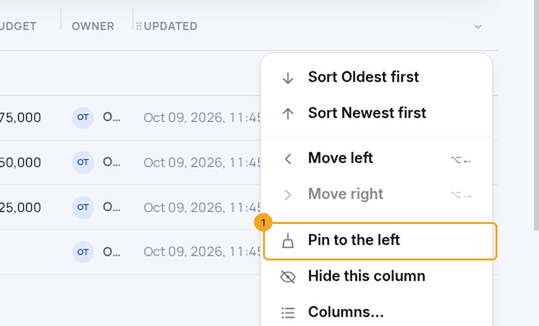
Point at a column and open its ▾. Pin to the left (1) moves it next to the name and keeps it there. On a pinned column the same item reads Unpin.
2Or pin in the Columns picker
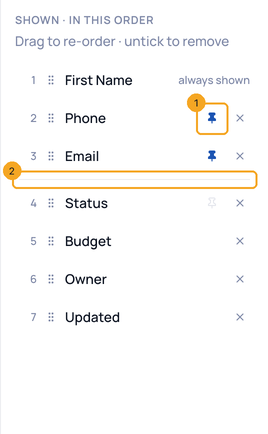
In Columns, point at a row in Shown · in this order and click its pin (1). Pinned rows sit right under the name, with a line (2) under the last one. Apply.
3Scroll sideways — they stay
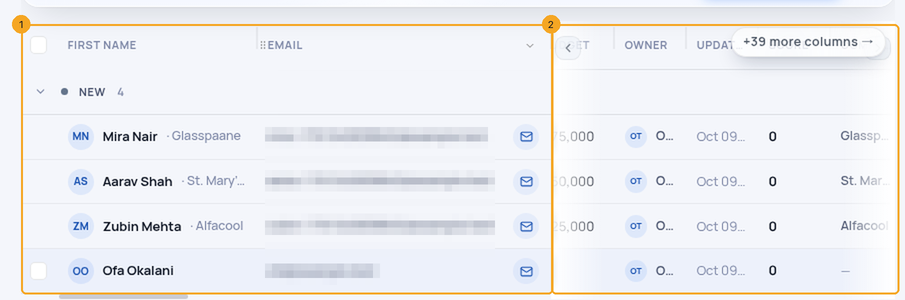
The name and the pinned columns (1) hold still while the rest of the list slides under them (2). With nothing pinned, the list scrolls as it always has.
© 2026 SkedX · Sample data only · Share and link freely · Copying the product or its design is not allowed · Terms
Common questions
What is the “+N more columns” line above the list?
When the columns are wider than the screen, it says how many are to the right. Click it, or the arrow at the end of the header, to see them.
Can I pin the name?
While the name is the first column it stays on screen by itself once you pin any column next to it. You can move the name; anywhere else in the list it can be pinned like any column.
How many columns can I pin?
As many as you like — they make one block from the left. Pin only what you read by, so the rest has room.
Does my pin follow me?
On Enquiries and its profiles your pins are kept on your account with your columns, so they are the same on any computer. A saved view keeps its own pins when you save or update it.
Next in ProfilesUpdate a saved view — for everyone, or just for you →
Previous: Choose the columns a list shows, and their order · All Profiles guides
Did this guide help?
Still stuck?Chat with support →


