A task opens right where you are — the list or the record stays in view — and holds everything about it, from the call to the last note.
In review: written from the product, not yet walked through live.
1Open a task
Click a task in Tasks or on a record’s Tasks tab. The row stays lit (1) and the task slides in on the right; the list or the record stays usable behind it. ‹ › (2) walk the list — 4 of 10 in My tasks — and × (3) or Esc closes it. On a phone or a tablet it rises as a sheet instead (last step).
2Change the title, mark it done
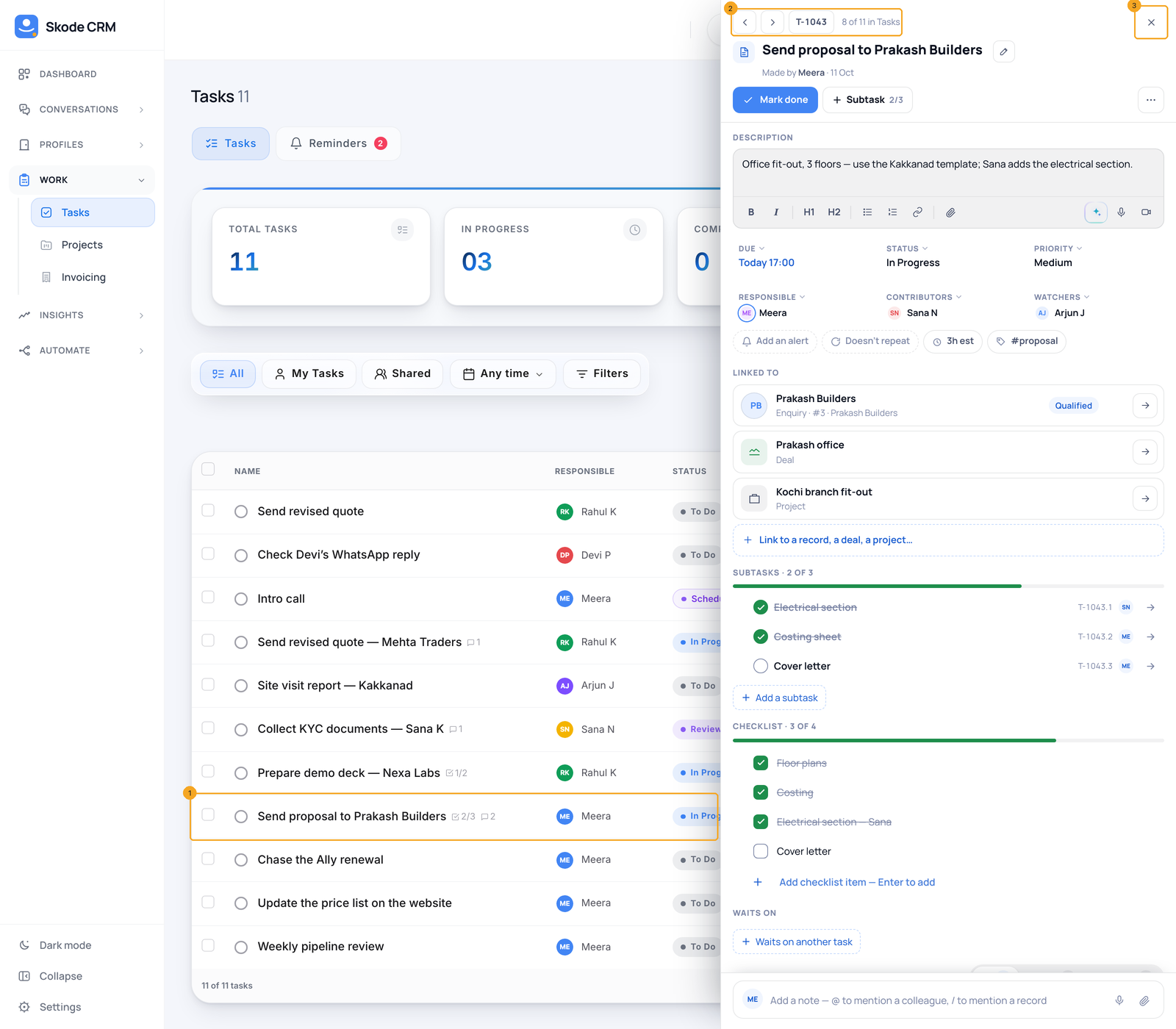
Click the title (1) to change it — Enter saves, Esc puts it back. Made by (2) says who or which rule made it. Mark done (3) finishes the task; press it again to reopen. + Subtask (4) jumps to Subtasks with the cursor ready. The number beside ‹ › copies itself when you click it — type it in search to find the task again. ··· (5) holds Copy link, Share with people…, Share to a conversation, Voice update, Start a Circle thread, Duplicate, Repeat… and Delete, which sends the task to the bin with its subtasks, notes and files.
3A call task: call from the strip
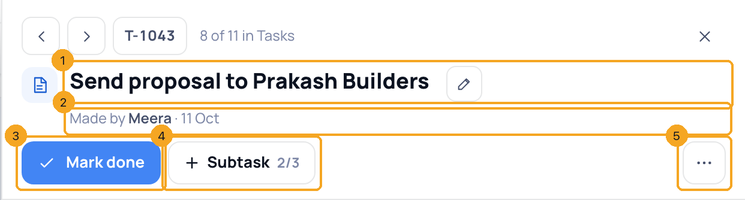
A call task has a strip under its title. With no call yet it says No call logged yet and offers Call and the person’s name; while it rings or you talk it shows the call with End. Afterwards it reads the call (1) — Called Rohan Mehta · 2:04 PM · 3:12 · Reached — with Open the call (2), and Call again when nobody answered. Mark done then takes the outcome from the call and asks nothing. Called from your own phone? Mark done asks How did the call go? — Reached, No answer, Call back tomorrow (which also makes tomorrow’s call task at 10:00) or Skip. When SkedX AI suggestions are on, a follow-up the call named shows as the row it would become (3): a call-back with a time is booked as one 15-minute call on the caller’s calendar; anything else is a to-do. The tick makes it and the row stays, saying what was made, and the task’s own Activity notes it — Task made on Rohan Mehta, or Call booked for a call-back; the cross drops it.
4Write the description
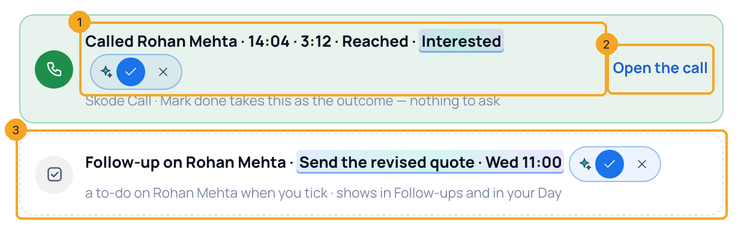
The description saves as you type (Saved ✓). Its toolbar (1) is always there: bold, italic, headings, lists, a link and a file. At its end, the SkedX AI mark (2) rewrites it with the task’s record as the context; the mic (3) records a voice note of up to 3 minutes and the camera (4) a video note of up to one minute. Both are kept on the task, never sent to a customer, and show in its Activity.
5Set the due date, status, priority and people
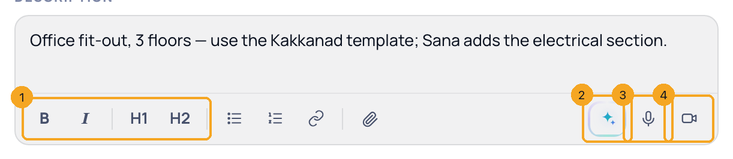
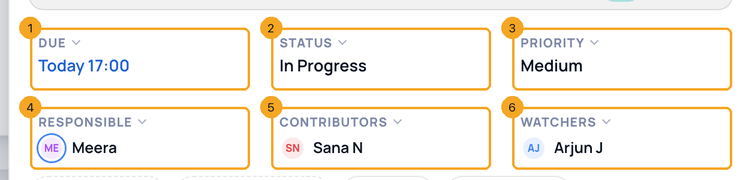
Click any of these to change it: Due (1), Status (2) and Priority (3) — the statuses and priorities are your company’s, from the Field Editor — then Responsible (4), Contributors (5) and Watchers (6). The people use the same picker as @ in a note: type a name and pick it. Responsible is one person; contributors can edit the task; watchers follow it. In Watchers you can type an email address to add someone outside SkedX — they get the changes and the result by email, with no login.
6Pick a day and a time
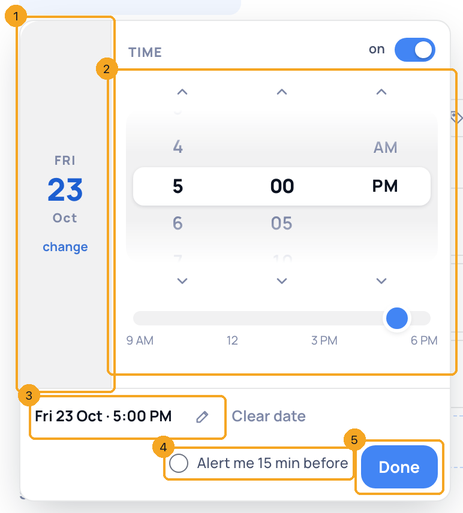
Due opens the date-and-time picker. Pick a day — Today, Tomorrow, This Fri, Next Mon or one in the month — and the calendar folds into a strip (1) while the time (2) opens; tap the strip to change the day. The readout (3) shows your choice; its pencil lets you type it instead — tomorrow 3pm, fri 10am, no time. Tick Alert me 15 min before (4) for a nudge, then Done (5).
7Alerts, repeat, hours and tags
Alerts (1): when — at the due time, or 5 minutes, 15 minutes, 1 hour or 1 day before, or a time you pick — and who gets it: you, everyone on the task, the contributors, the watchers, or an email. A to-do with a day but no time counts back from 9:00 AM. Repeat (2): every day, every weekday, every week or month, or your own rule. Hours (3): the estimate, the hours logged, and Start a timer — Stop the timer logs the time. Tags (4).

8See what it is linked to
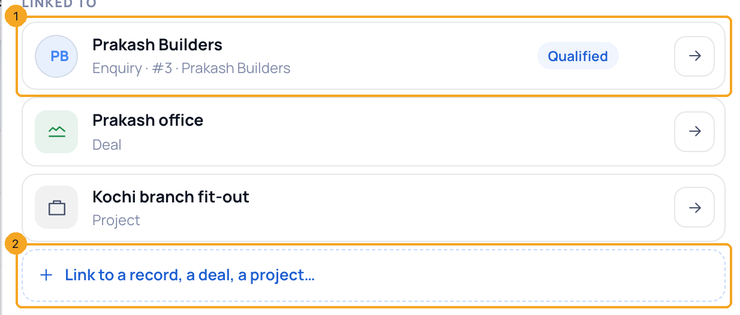
Linked to lists what the task is on (1) — a person, a deal, a contact, a project, an invoice — with → to open it and × to unlink it. Link to a record, a deal, a project… (2) adds one; a task holds one of each kind.
9Subtasks, checklist, waits on and more fields
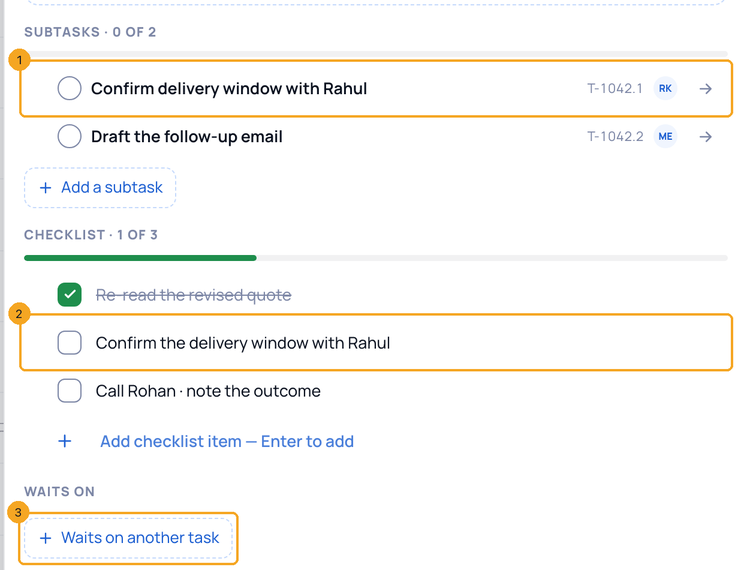
A subtask (1) is a task of its own, with its own person and date: tick it to finish it, or → to open it in the same panel, where the parent’s name above the title takes you back. Add one in a line — Call the bank @Sana fri — and the person and the day are read from your words. A checklist item (2) ticks off in place; Make it a subtask turns it into a subtask. Waits on (3) names the tasks this one waits for. Below it, More fields shows your company’s own task fields, when it has some.
10Talk about it in its Activity
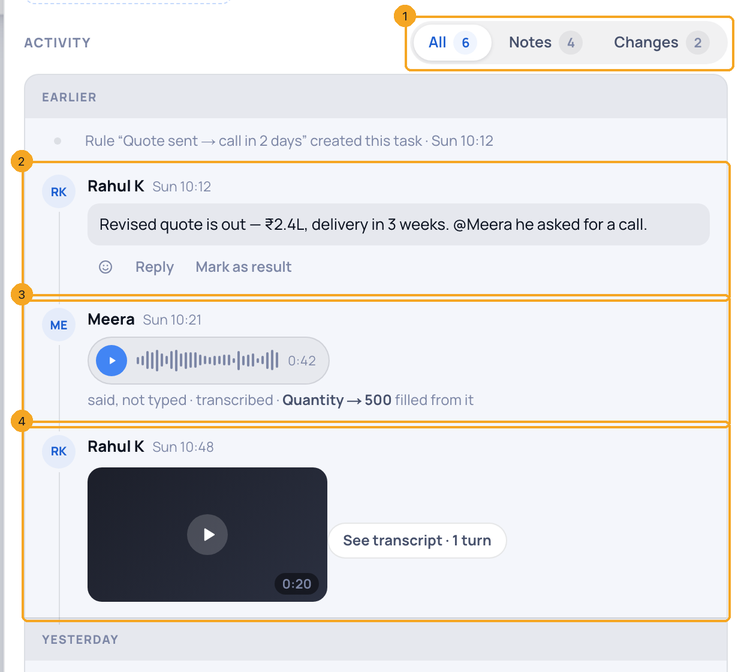
All · Notes · Changes (1) filter the task’s log. Point at a note (on a phone, tap it) and its actions unfold (2): React, Reply, Mark as result, and Edit or Delete on your own. A voice note (3) plays in the row and a video note (4) shows its picture and length, each with See transcript once it is written. On a change, Add a note threads under it.
11Add a note to the task
The box at the foot (1) works like a record’s note box: @ to tell a colleague, / to link a record, a file, the SkedX AI mark. The mic (2) records a voice note and the camera (3) a video note of up to one minute — it stays on the task. Send (4) posts it.

12On a phone or a tablet
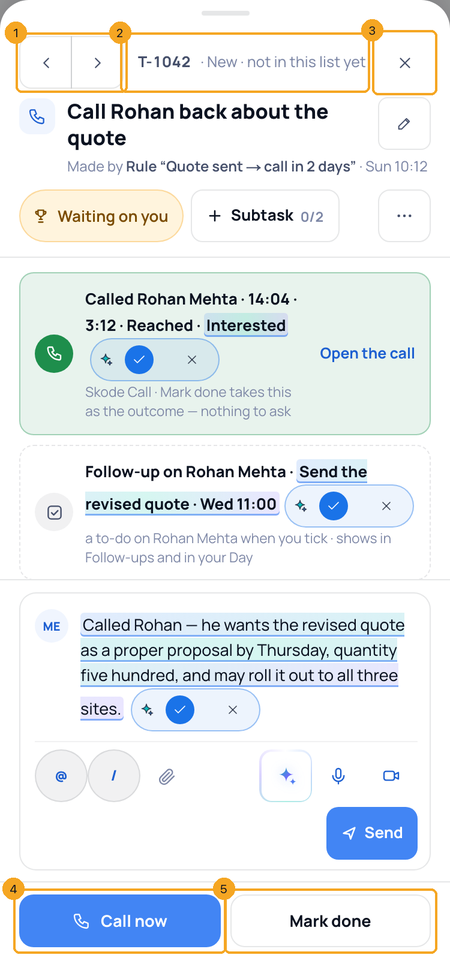
The task rises as a sheet. ‹ › (1) walk the list, the number and 3 of 10 (2) sit beside them, and × (3) closes it — or drag the sheet down. Call now (4) on a call task and Mark done (5) wait in the bar at the bottom. The note box stays one line until you tap it.
© 2026 SkedX · Sample data only · Share and link freely · Copying the product or its design is not allowed · Terms
Common questions
Mark done is grey.
The task is someone else’s and your role can’t change it: only they or a manager can mark it done. You can still comment and watch it — use Ask … to change it in the grey bar.
It says “End the call first”.
You pressed Mark done during a live call. End the call; its outcome then becomes the task’s.
Who is told when I change a task?
Never you. The person you make responsible gets a bell and a push; a colleague you mention too. People you add as contributors or watchers, and replies to your notes, bring a bell; reactions, a call outcome and a voice or video note on your task bring a quiet one. Each person gets one notice per task for the same kind of change within an hour, and their own settings and quiet hours win. An outside watcher gets email only.
What happens to the call’s outcome?
It is saved once, on the call, and the task points to it. When a task on a person’s record is done, SkedX Signal records the outcome on that person once.
Does a video note go to my customer?
No. It stays on the task. Only its words are written out; the AI never sees the picture.
Previous: What Today's agenda shows on your dashboard · All Tasks and your day guides
Did this guide help?
Still stuck?Chat with support →


