Everything that happened with one person — calls, chats, email, notes, tasks, deal moves and the visits that brought them — newest first, in one card, with the box to add your own.
In review: written from the product, not yet walked through live.
1Find the Activity card
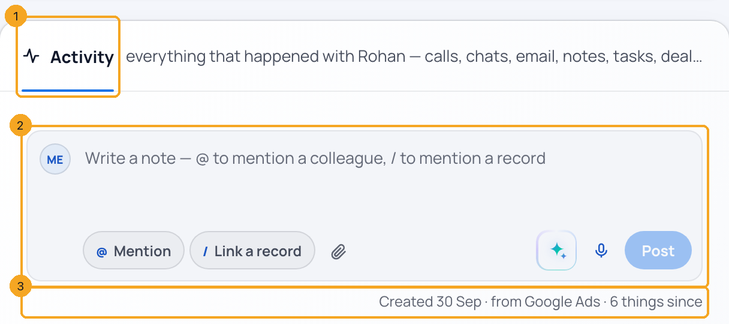
Open an enquiry or any other profile record. Under the record’s tabs is the Activity card (1). It opens on the note box (2), ready to write in. Under it, one quiet line (3) says when the record was made, where it came from and how many things happened since; then the tabs and everything that happened, newest first. On a phone, choose the Activity tab.
2Choose what to see
All (1) shows everything; Notes, Email, Calls and Chats show one kind each, with a count. An amber dot (2) means something there waits on you — an email with no reply, a missed call. Signal (3) shows how the person found you: the ads, visits, chats and calls that brought them, in order. It moved here from the record’s tabs. A row marked Signal ↗ in All opens its touch in this tab.

3Search with its context
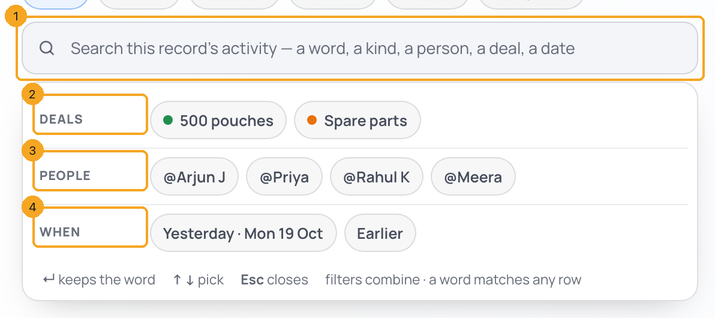
Click the search box (1). Under it are this record’s Deals (2), the People on it (3) and days (When, 4) — a person in more than one profile also gets Profiles. Pick one and it becomes a token in the box; type a word and the rows narrow as you type. Tokens, a tab and a word combine — Calls + @Rahul K + quote — and the box shows how many rows match. Nothing matches? Show everything clears it all.
4Write a note
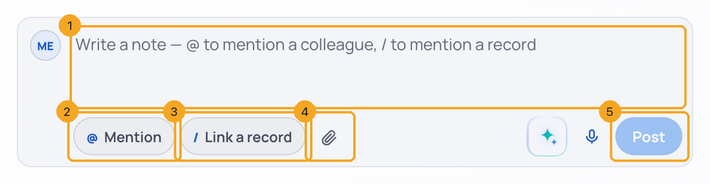
Type in the box (1). @ Mention (2) tells a colleague, / Link a record (3) puts the note on another record too, and the clip (4) attaches files. Post (5) adds it to the log.
5Tell a colleague with @, show it on another record with /
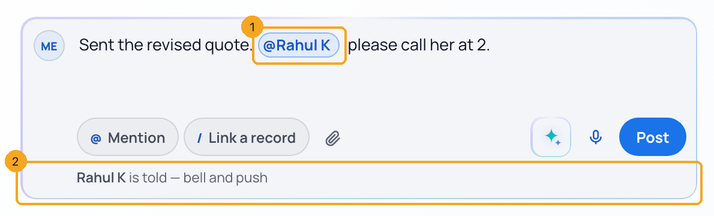
Type @ and the first letters of a name: a list opens under the text (↑ ↓ to choose, Enter to insert, Esc to close) and the name becomes a pill (1). The line under the box (2) says what will happen — Rahul K is told — bell and push. Type / to pick a record the same way; the note then shows on that record’s Activity too. Someone outside SkedX? Add them as a watcher on a task, by email.
6Let SkedX AI rewrite it
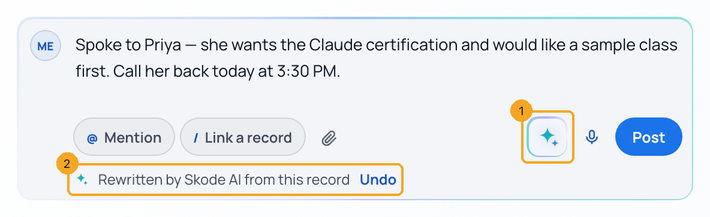
Press the SkedX AI mark (1) beside the mic. SkedX rewrites what you wrote, with this record as the context, and the new words type in. Rewritten by SkedX AI from this record (2) — press Undo to get yours back. With an empty box it drafts a note from the record. It uses your company’s AI credits.
7Leave a voice note
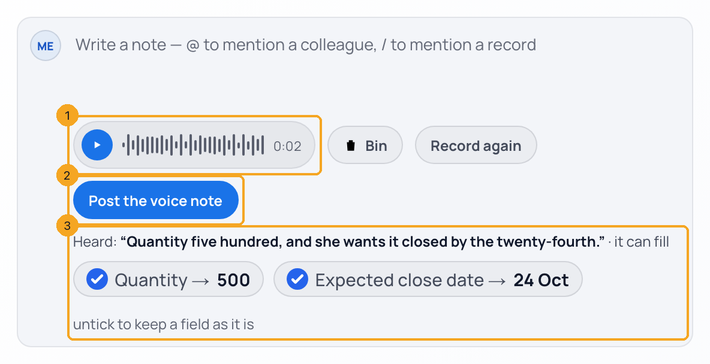
Press the mic, speak for up to 3 minutes and press Stop — nothing is posted yet. Listen to it (1), bin it or record again, then Post the voice note (2). Under it is what SkedX heard and the fields it can fill (3), such as Quantity → 500; untick a field to keep it as it is. The log shows the voice note with its player, the words and the fields it filled.
8React, reply, edit or delete
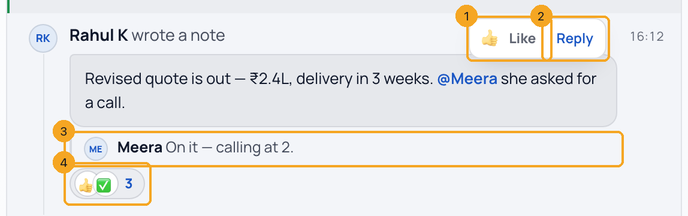
Point at a row (on a phone, tap it). React (1) opens six reactions — 👍 ✅ ❤️ 🎉 👀 🙏 (long-press on a phone); a plain click is a Like, and the button then shows yours. Each person has one reaction: another one replaces it, the same one again takes it back. Reply (2) answers a note in a thread (3); on a call, an email or a change it is Add a note, which threads under that row. The row shows the reactions and a count (4) — point at them to see who. Your own notes also have Edit and Delete.
9Read a call
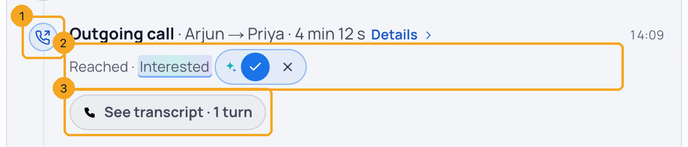
A call row starts with its direction (1) — incoming, outgoing or missed. The second line (2) says how it went, such as Reached · Interested; an outcome SkedX suggested carries a tick and a cross until someone keeps it. See transcript (3) shows the conversation with each speaker told apart, and when the call was recorded the recording plays in the row, with a speed button. A missed call nobody returned is amber, with Return the call. Details holds the rest.
10Answer “When should we follow up?”
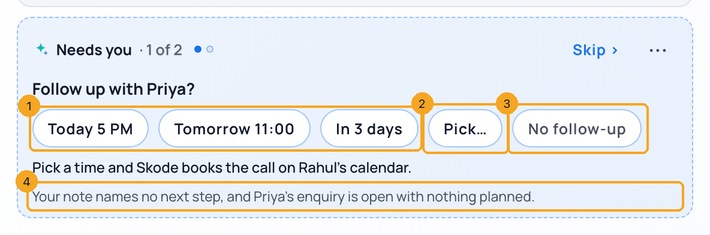
When SkedX AI suggestions are on and something needs your answer — a note that names no time on an open enquiry with nothing planned, or a follow-up the call named — Needs you asks it under the note box: Follow up with Priya about the sample class? Pick a time (1) and SkedX books the call on your calendar; it shows in Follow-ups, and a green Saved line offers Undo for 10 minutes. Pick… (2) opens the date-and-time picker. No follow-up (3) is an answer too. The line under it (4) says why it asked. When SkedX has more than one question, they come one at a time, with Skip › and a ··· menu to stop a kind of suggestion or see why.
© 2026 SkedX · Sample data only · Share and link freely · Copying the product or its design is not allowed · Terms
Common questions
What is a “Call booked” row?
When SkedX AI suggestions are on and someone keeps a call-back with a time that SkedX suggested from a call, it is booked as one 15-minute call on the caller’s calendar. The row says when, on whose calendar, and SkedX AI Suggestion · you confirmed. A follow-up with no time, or one that is not a call, is made as a to-do instead and reads Task made.
What is the amber dot on a call row?
SkedX heard a big moment on that call — for example Says it’s already paid, a company deal or a partner — and asks you to confirm it. Keep notes it on the call (for already paid, it also makes one Check the payment to-do); Clear removes it. The status never changes from here. Hover the words to see what was said and when. More in Keep or dismiss what SkedX suggests.
Where did the Signal tab go?
Into the Activity card, next to Chats. It is the same view as before — the touches that brought the person, in order — so the record’s whole history is in one place.
Who sees a note I write?
Everyone who can open the record. A colleague you mention with @ is told by bell and push; a record you link with / shows the note in its own Activity too.
Does the AI rewrite send my customer’s phone number or email to the AI?
No. Phone numbers and email addresses — in the record and in your own words — are held back before anything reaches the AI. If a rewrite would lose one, SkedX keeps your words.
It says my AI credits are used up.
Rewriting uses your company’s AI credits. Use Top up in the message to add more, or keep your own words.
The mic says my browser blocked the microphone.
Allow the microphone from the address bar and tap the mic again — or type the note.
Why is a day of WhatsApp messages one row?
So the log stays readable: a chat is one row a day, a person’s edits within five minutes are one row, and quiet system updates fold into one line. Open the row, or Details, to see every part.
Can I react more than once?
No — one reaction per person on each row. Pick another to change it, or the same one to take it back.
Previous: Call, email or WhatsApp someone from the list · All Profiles guides
Did this guide help?
Still stuck?Chat with support →


