Here is exactly what it shows — and why a task you made might not be there yet.
In review: written from the product, not yet walked through live.
1Open your dashboard
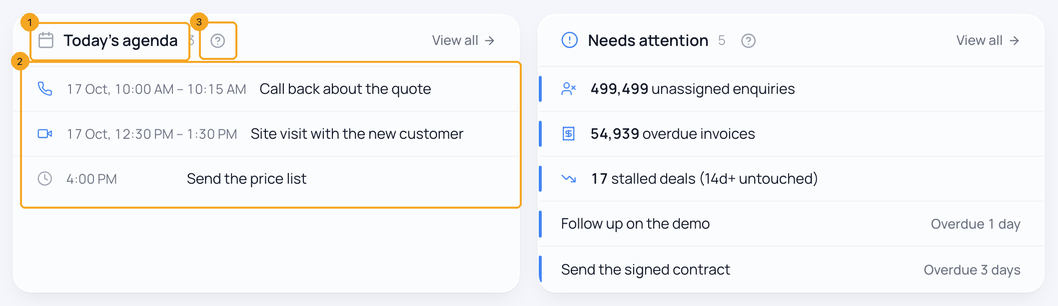
The dashboard opens with Today's agenda (1): your tasks, meetings and calls due today, earliest first (2). Click one to open it. The ? beside the title (3) opens this guide.
2What counts as yours
A task is on your agenda when you are assigned to it, you created it, or you contribute to it — and it is not completed, cancelled or ignored. A task you only watch stays off.
3Why a task you made is not there
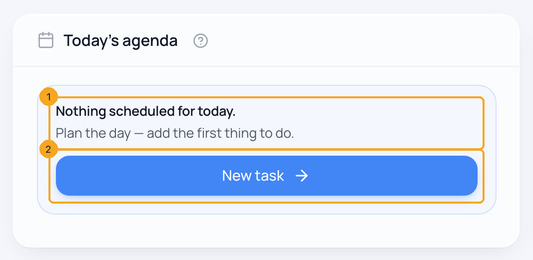
It shows on the day it is due. A task with no due date never appears on the agenda; one due later appears on its day. When nothing is due today the agenda says Nothing scheduled for today (1) — press New task (2) to add one, or give an existing task today's date.
4What you missed
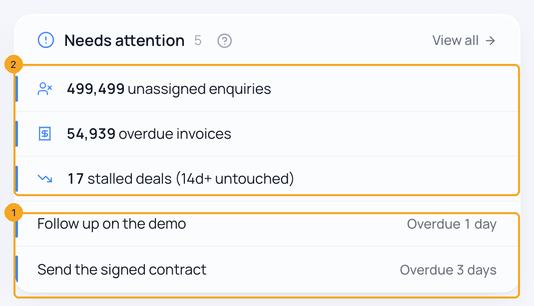
An open task whose day has passed moves to Needs attention (1), most recently missed first, with how long it is overdue — until you finish it or give it a new date. If you look after a team or the whole company, you also see counts at the top (2): enquiries nobody is assigned to, overdue invoices and stalled deals.
5The setup card
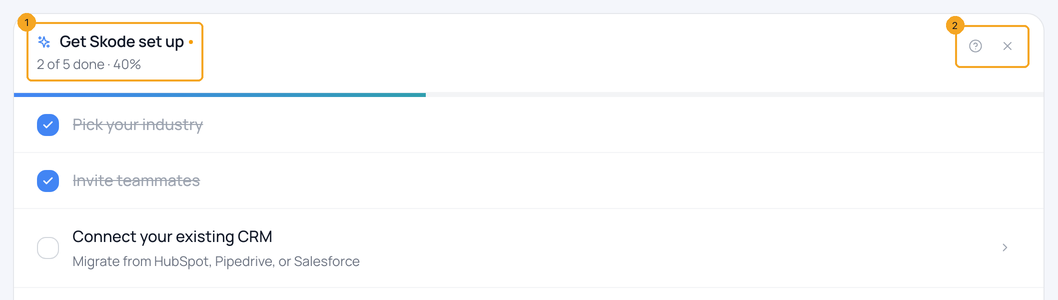
Get Skode set up (1) helps a new company start. At its top right (2), ? opens this step and ✕ closes the card. It goes away when you close it, finish its five steps, or once your company is a week old and in real use — a real enquiry or a task. Sample data from Pick your industry does not count.
© 2026 SkedX · Sample data only · Share and link freely · Copying the product or its design is not allowed · Terms
Common questions
I created a task but it is not on Today's agenda.
Check its due date: the agenda shows tasks due today. With no due date, or a later one, it waits — open Tasks to see every task.
Does the agenda show my team's tasks?
No — only yours. Tasks shows your team's work, by the filters your role allows.
Can I bring the setup card back?
Its steps are all on Settings: invite teammates in Users, change fields in the Field Editor, import from your old CRM. The card itself is for the first week.
Next in Tasks and your dayOpen a task and work on it →
Did this guide help?
Still stuck?Chat with support →


