The buttons in SkedX’s emails and notifications now know which company their record is in, and take you there.
In review: written from the product, not yet walked through live.
1In the company it belongs to
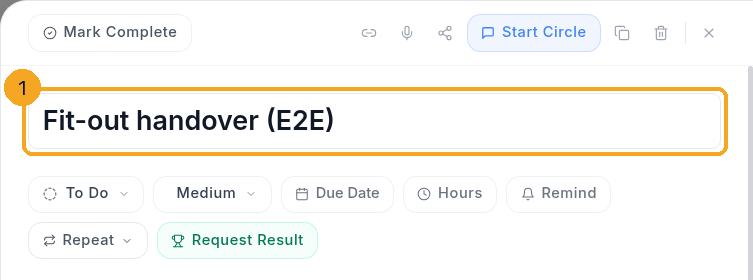
Signed in to that company, the link opens the record straight away — here the task’s own panel (1). Nothing to choose.
2In another company you belong to
Signed in to your other company, SkedX holds the page and says Opening this in … with the company’s name (1), switches you, and opens the record there. It never loads the record in the wrong company, so you never see “not found” or someone else.

3It opens, and says where you are
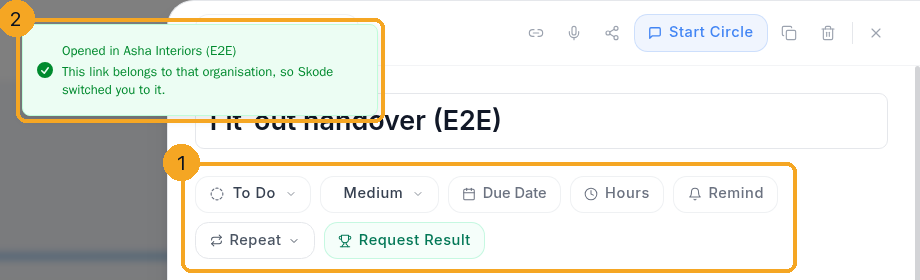
The record opens (1) and a line at the top says Opened in … (2). You stay in that company until you switch back from your name.
4A company you are not in
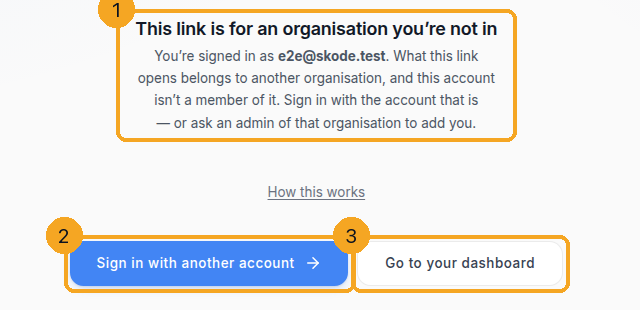
If the record belongs to a company this account is not in, SkedX says so (1) and gives you two ways on: Sign in with another account (2) — you come back to the same link — or Go to your dashboard (3). To be added, ask an admin of that company.
5A task link that names no company
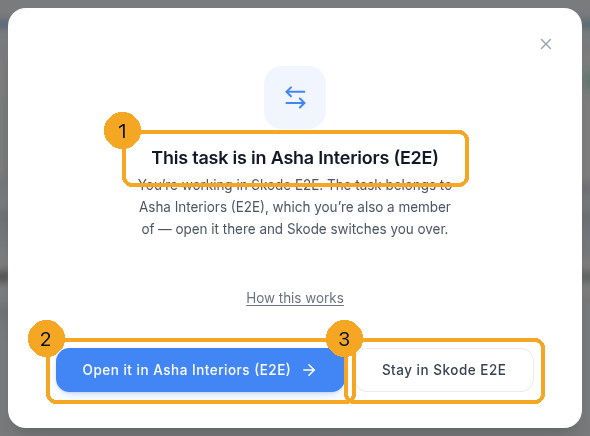
An older link, or one pasted by hand, may not say which company its task is in. If the task is in another company you belong to, SkedX says This task is in … with its name (1). Open it in … (2) switches you and opens the task there; Stay in … (3) keeps you where you are.
6A task that is not there
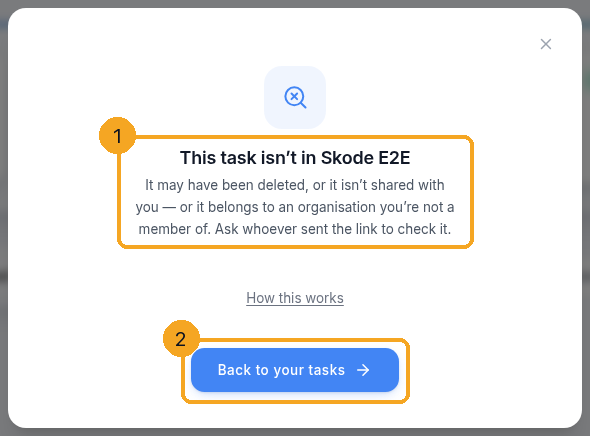
If the task is in no company where you can open it — deleted, not shared with you, or in a company you are not in — SkedX says so (1) and offers Back to your tasks (2). It never names another company you are not in. If SkedX could not reach the server, it offers Try again instead.
7Signed out
Signed out, the link takes you to sign in and keeps the whole link, company included. After signing in you land on the record, in its company.
© 2026 SkedX · Sample data only · Share and link freely · Copying the product or its design is not allowed · Terms
Common questions
A link used to open “Task not found”. Why?
Links did not say which company their record was in, so they opened in whichever company you were signed in to. From 16 Oct 2026 every link names its company and SkedX switches you to it first.
Which links work this way?
Every button in SkedX CRM’s emails to you (assignments, reminders, tasks, mentions, daily summary, invoice and quote events), every bell notification, every phone and browser push, and the record links the AI assistant gives you.
An older email still opens the wrong company.
Emails sent before 16 Oct 2026 do not name a company. Switch company from your name in the top corner, then open the link again.
Does a task link I copy open in the right company?
Yes. Copy task link — in the task’s panel and on its card — names the task’s company, so it opens there for you and your teammates, even when the reader is working in another company. Links copied before 17 Oct 2026 do not, but SkedX still finds the task and offers to open it there.
I switched company with a task open, and saw the task list.
A task belongs to one company, so after a switch SkedX opens the new company’s task list instead of asking it for the old task. Switch back from your name to see that task again.
It said “Couldn’t open this in …”.
The switch did not go through — usually a connection blip. Press Try again; if it keeps happening, switch company from your name and open the link again.
Previous: What you’re told when work is assigned or moved · All Your team guides
Did this guide help?
Still stuck?Chat with support →


