So that a 3–20-person team can build its own WhatsApp, Instagram and Messenger automations — every message drawn as the customer will see it, every reply wired — without a consultant.
1Start a new automation
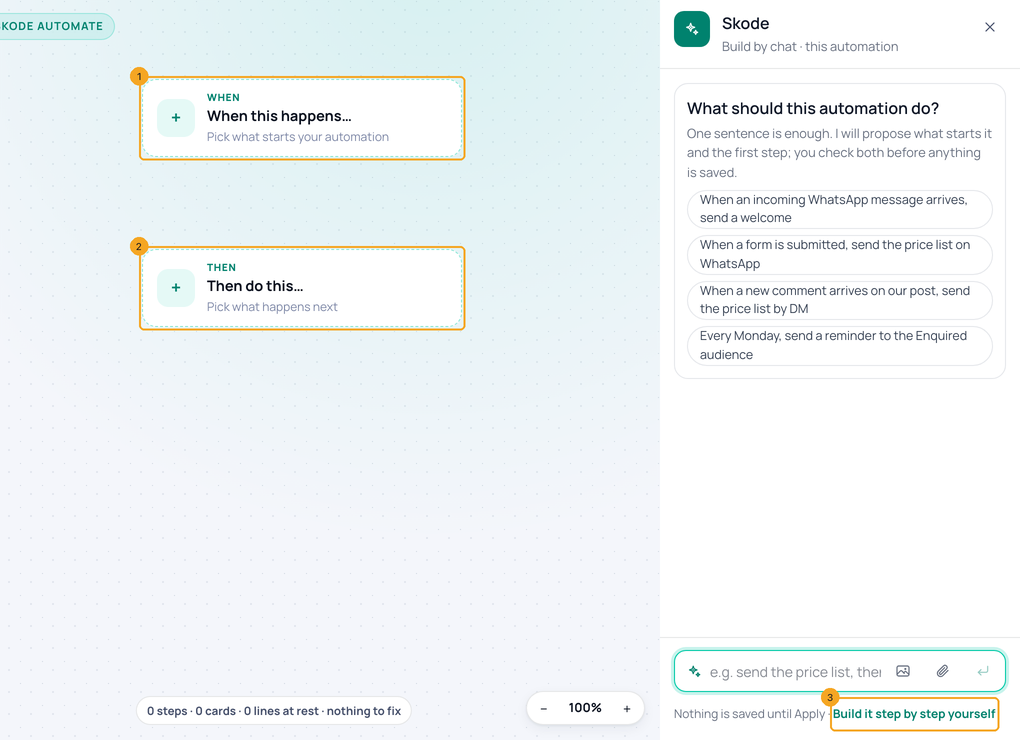
Go to Automation → Workflows and click New Workflow. The canvas shows When this happens… (1) and Then do this… (2). Ask opens beside them; to build it yourself click Build it step by step yourself (3).
2Pick what starts it
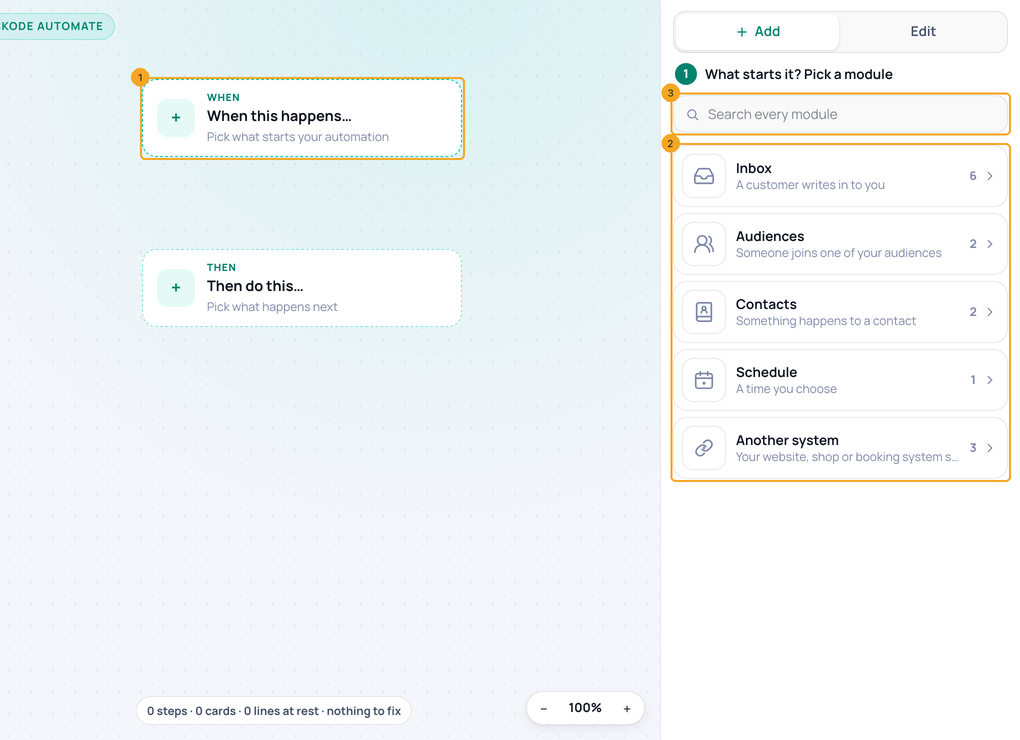
Click When this happens… (1). The panel lists the modules that can start an automation (2) — Inbox, Audiences, Contacts, Schedule, Another system. Open one and pick the moment, or search every module (3). Picking it saves the automation as a draft — from then on it is in Workflows and keeps saving as you change.
3Add a step
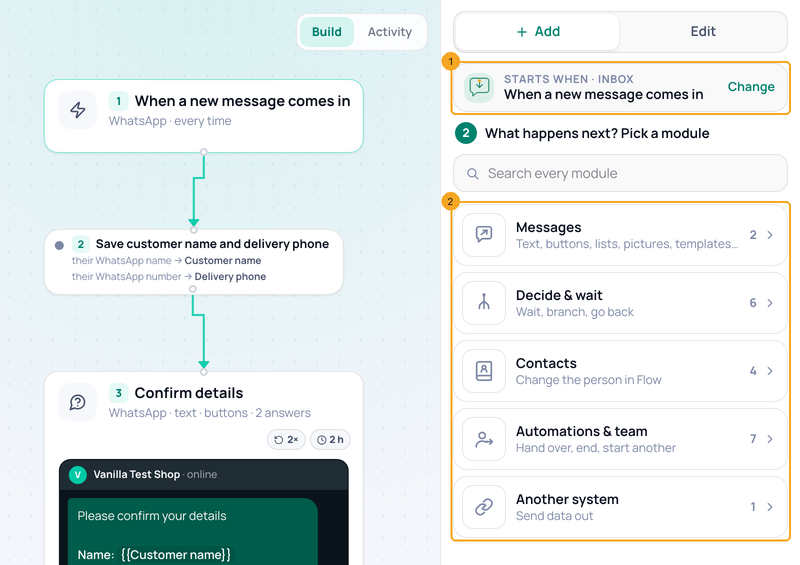
Click a + — on a line, on a reply under a message, or on Then do this…. The panel shows where the step goes (1) and What happens next? Pick a module (2): Messages, Decide & wait, Contacts, Automations & team, Another system. Pick a module, then the step.
4Read a card
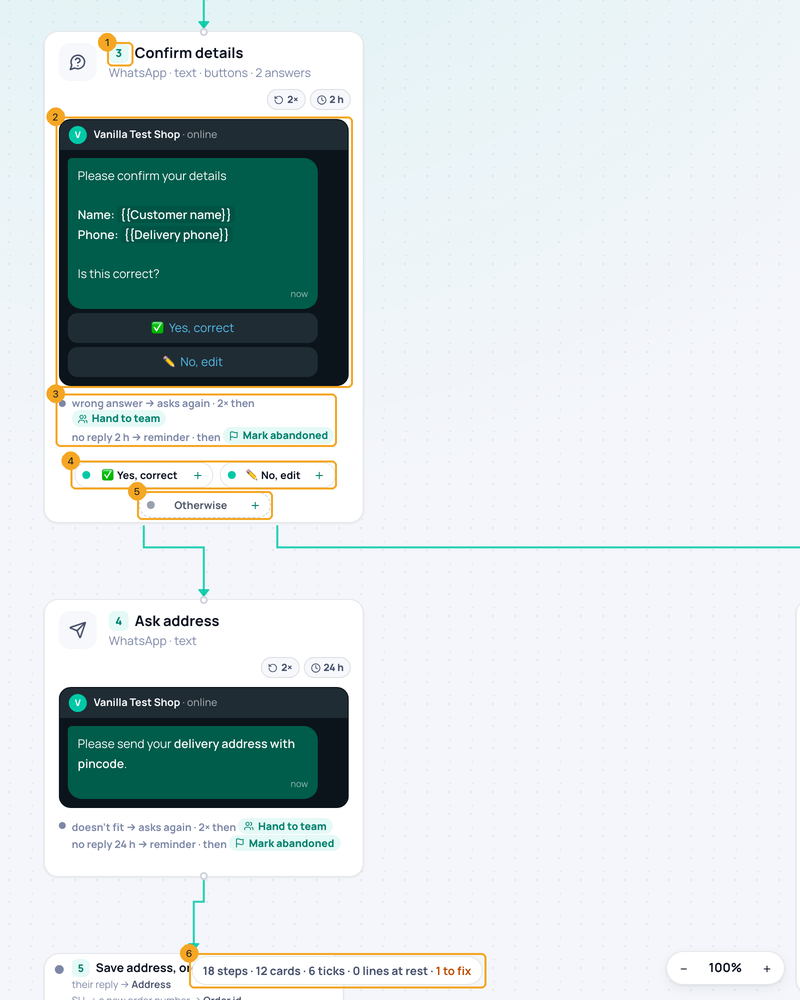
Every step has a number (1); a branch’s steps are lettered, A1, A2. A message card shows the message as the customer sees it (2), its safety nets (3) — asks again, a reminder, then who takes over — and a row for each reply (4) with Otherwise (5) for anything else they type. The count line (6) says how many steps and cards there are, and how many things are left to fix.
5Test a step
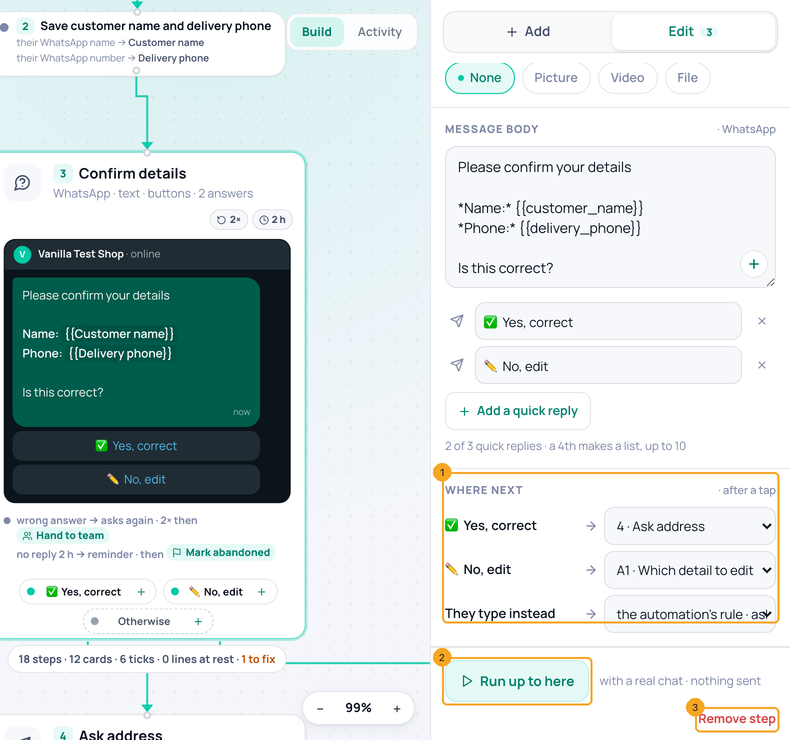
Open a step and click Run up to here (2): it runs with a real chat up to that step and sends nothing. Where next (1) shows where each reply goes; Remove step (3) takes the step out.
6Turn it on
Click Turn on (1). The bar says Live (2) and the next customer who reaches it gets it. If nothing starts it yet, Turn on says Pick what starts this automation first and opens the list.

7When it says “Not on yet”
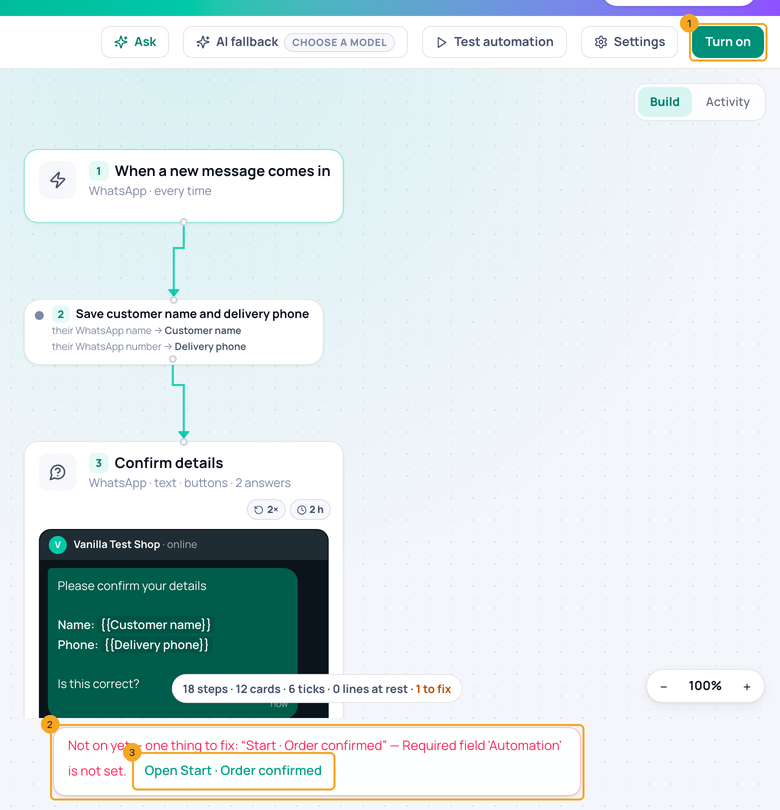
If something is missing, Turn on (1) does not turn it on. The note says how many things are left and the first one (2); click Open … (3) to go to that step and fill it, then turn it on again.
8Change it while it is live
Edit any step while it is live — your changes save as you go, and the bar says Live · changes not published (1). The customers keep getting the published version until you click Publish (2).

9Turn it off
Click Turn off (1). Nobody new enters it; those inside finish. The bar says Draft (2) and the button is Turn on again.

© 2026 SkedX · Sample data only · Share and link freely · Copying the product or its design is not allowed · Terms
Common questions
A message step says Instagram and Messenger only let automations message someone within 24 hours. Why?
The step comes after a wait of a day or more, or starts from a quiet or closed chat, so the person may have last written more than 24 hours earlier. Instagram and Messenger refuse an automation’s message then. Move the step before the wait, or send it on WhatsApp with a template. On WhatsApp the step asks you to pick a template for after 24 hours. In Runs, a message that did not go out shows Not sent with the reason.
Do my changes reach customers as I type?
No. While an automation is live your edits are saved, but customers keep getting the published version until you click Publish. A half-finished change never reaches anyone.
What does the count line mean?
How many steps the automation has, how many are drawn as cards (saves and endings are drawn as small ticks), and how many things are left to fix. “0 lines at rest” means no line crosses a card.
How do I zoom?
Pinch on a trackpad, or use the − 100% + pill at the bottom right; click 100% to go back. ⌘ + and ⌘ − work over the canvas.
Can I still describe a step instead?
Yes — click Ask in the top bar and say what the step should do. See Set up an automation by asking.
Is there a Save button?
No. A new automation is saved as a draft the moment it has a start — picked from the list or placed by Ask — and from then on it is in Workflows and saves as you change. Before it has a start there is nothing to save yet; Turn on asks you to pick one.
Does Turn off stop people who are halfway?
No. Nobody new enters it; people already inside finish the steps they are on.
Can an automation start when my team sends a message?
Yes. Under Inbox, pick Message sent. It starts when someone on your team sends from the WhatsApp Business app or the Skode inbox; tick Automation under Sent from only if an automation’s own sends should count too. Under Only when, add Message · contains and the words — for example “Your order has been dispatched” — then add Change the chat → Set the stage → Purchased. To mark a sale without an automation, list the line under your stages instead: see Set a customer’s stage.
Next in AutomationSet up a message step and its buttons →
Useful links
- Workflows in SkedX Flow — where every automation is built
Did this guide help?
Still stuck?Chat with support →


