A stage tells your whole team where each customer is — just asked, ready to buy, bought, or lost — right on the contact, wherever you open them.
The stage belongs to their chat, so the contact always shows the stage of their latest one.
In review: written from the product, not yet walked through live.
1Change the stage in the inbox
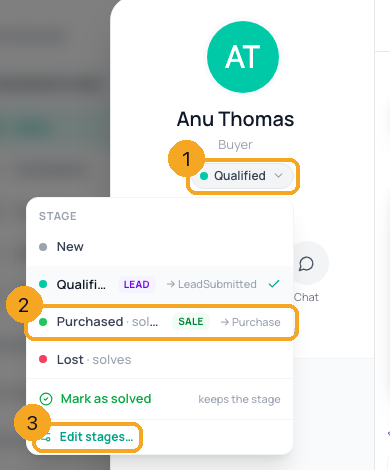
Open a chat and the contact’s panel. Click the stage under their name (1) and pick another — for example Purchased (2). A stage marked solves also solves the chat; Mark as solved solves it and keeps the stage. Edit stages… (3) opens your stage list in Settings.
2Choosing Lost asks why — in one tap
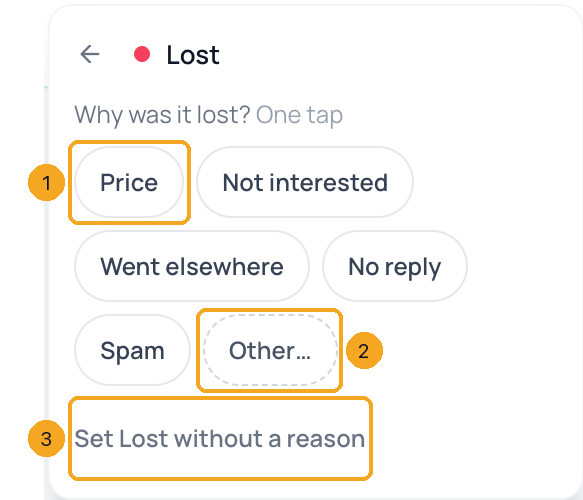
Pick Lost and the menu asks why: tap a reason like Price (1), or Other… (2) to write a short line. Set Lost without a reason (3) is still one tap. On a chat that is already Lost, the same menu adds or changes the reason. The chat shows it — set the stage to Lost · Price — and the Team scorecard in Analytics counts Lost chats by reason. The reasons are your own: edit them under Settings → Contacts → Stages, below the stage list. They stay on the chat’s record and are not sent to Meta.
3Or from the Conversation card
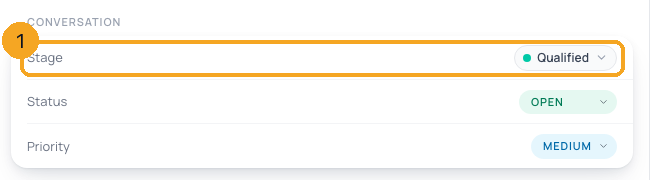
On the panel’s Activity tab, the Conversation card has a Stage row (1) beside Status and Priority — the same stage, changed the same way. On a phone, the stage shows as a badge in the contact’s header.
4Change it on the Contacts page
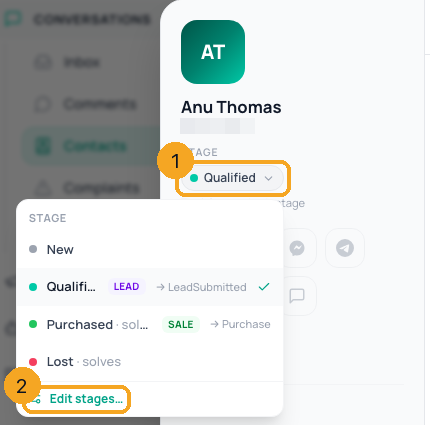
On Contacts, open a contact. Under their name, Stage (1) shows the stage of their latest chat; click it to pick another. Edit stages… (2) opens Settings.
5A contact with no chat yet
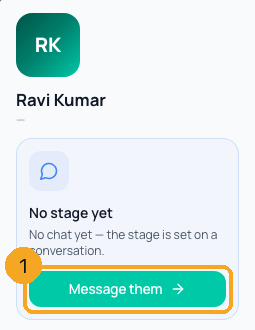
A stage is set on a conversation, so a contact you have never chatted with shows No chat yet — the stage is set on a conversation. Click Message them (1) to start one; the stage can be set as soon as the chat exists.
6Edit your stages
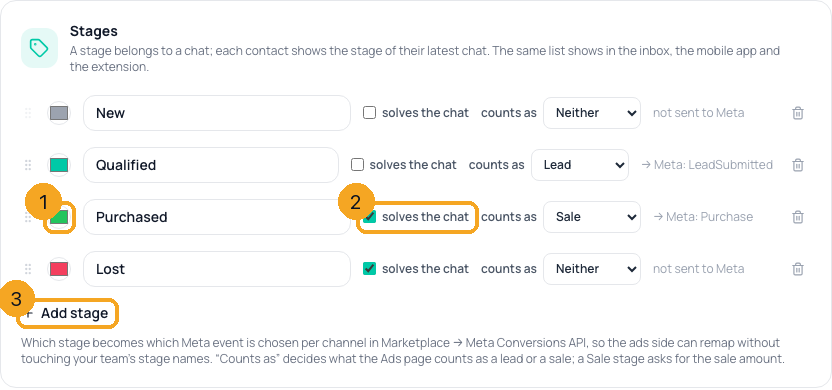
Go to Settings → Contacts → Stages (the same list as Settings → Conversation Lifecycle). Each stage has a colour (1) and a name; tick solves the chat (2) for a stage that ends the conversation, like Purchased or Lost. + Add stage (3) adds one — up to 12. Drag the handle to reorder. You start with New, Qualified, Purchased and Lost. Saving needs the settings permission; without it you see the list read-only.
© 2026 SkedX · Sample data only · Share and link freely · Copying the product or its design is not allowed · Terms
Common questions
Why does the stage belong to a chat, not the contact?
Because one person can buy today and ask about something new next month. Each chat keeps its own stage; the contact shows the stage of their most recent chat.
What does “solves the chat” do?
Moving a chat to that stage also marks it solved, in one click. Mark as solved does the opposite job: it solves the chat and leaves the stage as it is.
Where did the lifecycle on my contacts go?
Where stages are switched on for your account, the stage takes the lifecycle’s place on the contact. Where they are not, the contact keeps its lifecycle as before.
I can’t save changes to the stage list
Saving the list needs the permission to change settings. Ask an admin of your workspace; until then you see it read-only.
Can an automation set the stage?
Yes — with the Set Stage step, and another automation can start when the stage changes. See Set a stage from an automation.
Can a message we send mark the chat as a sale?
Yes. Your account can list a few lines — for example the first line of your order confirmation. Any message your team, an automation or your website sends that contains one of them moves that chat to your sale stage (Purchased), once. Case, emoji and spacing don’t matter, so an edited confirmation that keeps the line still counts; a message the customer sends never does. If the chat began from a Meta ad and the Meta Conversions API app is on for that stage, Facebook is told about the sale. To set your lines, ask SkedX support.
Where do I change the reasons a chat can be lost for?
In Settings → Contacts → Stages, under the stage list: add a reason, remove one (at least one stays), then Save reasons. You start with Price, Not interested, Went elsewhere, No reply and Spam; Other is always offered. See how each team’s chats ended on the Team scorecard.
Useful links
- Inbox in SkedX Flow — the stage on the contact panel
- Settings in SkedX Flow — Contacts → Stages
Previous: See what is waiting on your team, and filter the inbox by team · All Inbox guides
Did this guide help?
Still stuck?Chat with support →


