One line tells your team what is waiting on them, and on everyone, and how long the oldest has waited — and one tap shows those chats, oldest first.
In review: written from the product, not yet walked through live.
1Read the waiting line
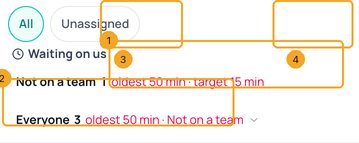
Above the chat list, your team comes first (1): how many chats wait for a reply and the oldest wait — red once it is past your reply target. Everyone (2) is the whole workspace. Tap your team to see those chats, oldest first. To filter the list, use My team (3) or pick any teams with Team (4).
2See which teams are behind
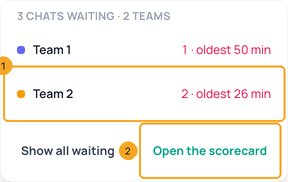
Tap Everyone. The teams with chats waiting are listed worst first (1) — tap one to see its chats. Open the scorecard (2) goes to the Team scorecard in Analytics.
3Pick any teams
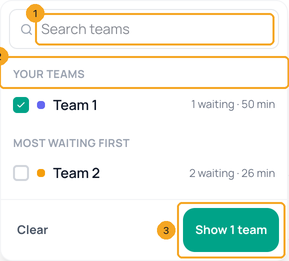
Click Team. Search for a team (1); your own teams are pinned at the top (2) and the rest are sorted by the longest wait. Tick the teams and click Show (3).
4Each chat says how long, and who has it
A chat row shows how long the customer has waited (1) and who has it with which team (2). Click it to open the chat; to hand it to someone else, see Hand a chat to someone or another team.

© 2026 SkedX · Sample data only · Share and link freely · Copying the product or its design is not allowed · Terms
Common questions
What counts as waiting?
An open chat whose newest message is from the customer. It has waited since their first message after your last reply. A reply from your team, the AI or an automation ends the wait; a team note does not.
Where does the target come from?
From your SLA first-response target in Settings → SLA Policies. With no policy, waiting times show without colour.
Old chats we imported show as waiting?
No. History brought in from Instagram, Facebook and WhatsApp never counts as waiting.
We have no teams.
Then there are no team filters, and the line shows one count with the oldest wait.
Why does a colleague see different numbers?
Each person counts only the chats they can see in the inbox.
I tapped a team and the list is empty.
Then nothing is waiting on that team: every customer has had a reply. The screen says so, and Show Team 2’s open chats opens all of that team’s open chats instead. Show all chats leaves the waiting view.
Where are the team filters on a phone?
Under the waiting line: Team ▾ first, then the filter chips, Mine and My team among them, on one line. Swipe the chips sideways to see the rest. Tap All to clear a team filter.
Useful links
Previous: Hand a chat to someone or another team, and say why · All Inbox guides
Did this guide help?
Still stuck?Chat with support →


