One rule makes new chats take turns between your teams, and each team picks its own person — the way you already set it up.
In review: written from the product, not yet walked through live.
1Pick the teams that take turns
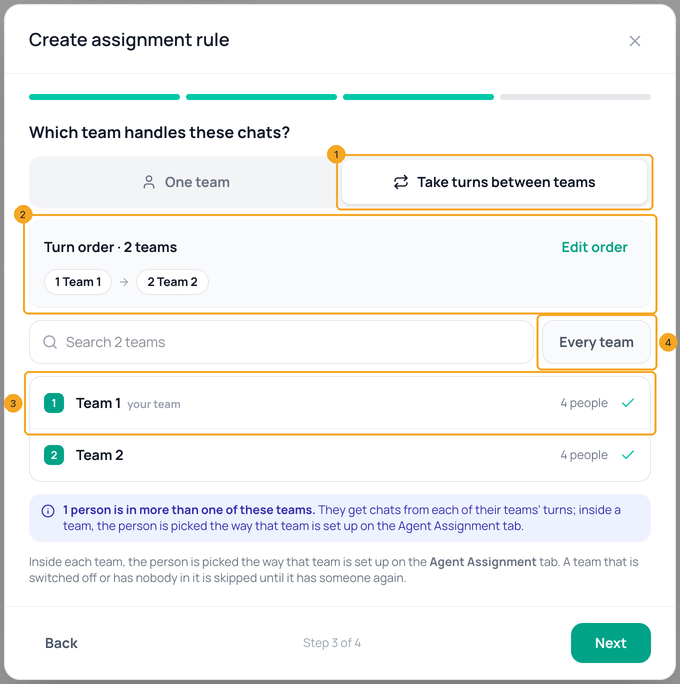
Go to Settings → Chat Assignment and click Add Rule. Choose Catch-all to split every new chat (or a keyword or channel to split only some), then Next. On Which team handles these chats? choose Take turns between teams (1). Tick the teams (3) in the order they should take turns — the order shows above (2) — or click Every team (4). With many teams, type a name in the search box.
2Change the turn order
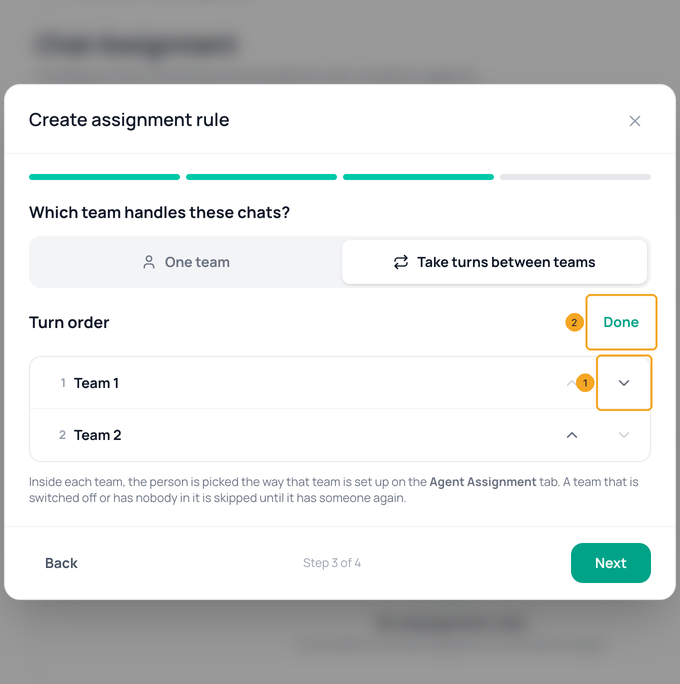
Click Edit order. Move a team up or down with its arrows (1) and click Done (2). The next new chat goes to the team after the one that had the last turn.
3Publish — only new chats take turns
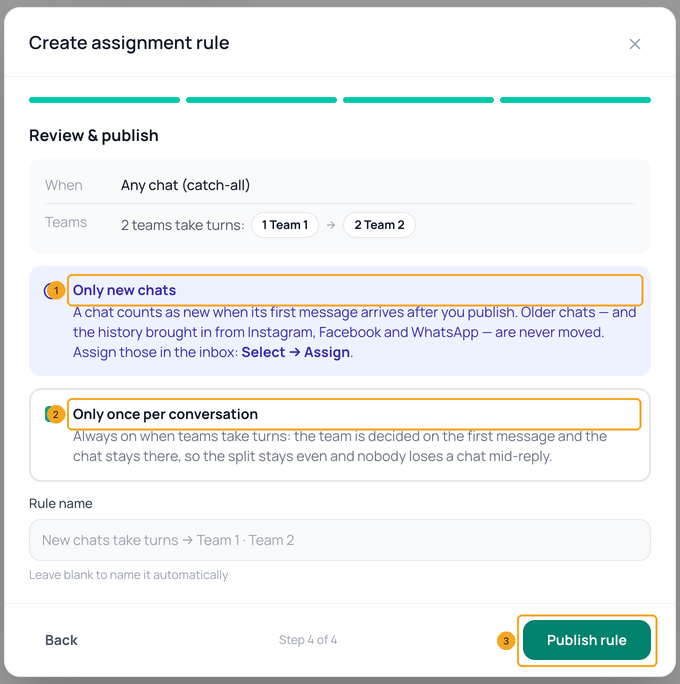
Click Next to review. Only new chats (1): a chat counts as new when its first message arrives after you publish, so older chats and the history brought in from Instagram, Facebook and WhatsApp stay where they are. Only once per conversation (2) is always on: the team is decided on the first message and the chat stays there. Click Publish rule (3).
4Check the split
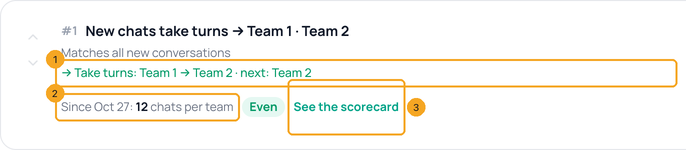
The rule in the list shows the turn order and whose turn is next (1), and since it started, how many new chats each team has had, with Even or Uneven (2). See the scorecard (3) opens the Team scorecard in Analytics.
© 2026 SkedX · Sample data only · Share and link freely · Copying the product or its design is not allowed · Terms
Common questions
What happens to the chats we already have?
Nothing. Only chats whose first message arrives after you publish take a turn. Assign older chats — and the history imported from Instagram, Facebook and WhatsApp — in the inbox: tick them with Select, then Assign. See Hand a chat to someone or another team.
An old customer writes again. Does their chat take a turn?
No. The chat began before the rule, so it stays as it is and nothing assigns it automatically. Assign it by hand.
Who inside the team gets the chat?
Whoever the team’s own setting picks, on Settings → Chat Assignment → Agent Assignment: turn by turn, by weight, or least busy, with online only and opening hours if you set them — or nobody yet, with Anyone.
Can the whole team see a new chat, and whoever replies first take it?
Yes. On Settings → Chat Assignment → Agent Assignment, set the team’s Distribution to Anyone (First reply takes it). The chat still takes its team’s turn, waits for the team with nobody on it, and becomes yours when you reply first; a later reply from a teammate never takes it from you.
What if nobody in a team is available?
A team switched off on the Agent Assignment tab, or with nobody active in it, is skipped until it has someone again. A team whose people are offline or after hours keeps its turn and follows its own after-hours setting, so one team’s hours never tilt the split.
Someone is in both teams. What happens?
They get chats from both teams’ turns. The editor says how many people are in more than one of the chosen teams.
Two chats arrive at the same moment. Can both go to one team?
No. Each takes its own turn.
I switch the rule off and on again.
The turns continue from where they stopped. Chats that arrived while it was off are left for you, like older chats.
Can I move a chat to the other team later?
Yes, by hand — see Hand a chat to someone or another team. The rule itself never moves a chat once its team is decided.
Next in Your teamLet each team see only its own chats →
Useful links
- Chat Assignment in SkedX Flow — Team Assignment → Add Rule
- Analytics in SkedX Flow — the Team scorecard
Previous: Invite teammates to SkedX Flow — and see what became of each invite · All Your team guides
Did this guide help?
Still stuck?Chat with support →


