Invite teammates to SkedX Flow — and see what became of each invite
Your team answers customers from one inbox, each with their own login.
3 min readFor adminsUpdated 3 Nov 2026In review
Invite them by email from Users & Teams; until they join, their card tells you whether the invite reached them — so a wrong address is caught in minutes, not days.
In review: written from the product, not yet walked through live.
Transcript · 0:34
To invite a teammate to SkedX Flow, go to Settings, Users and Teams, and click Invite Member. Type their full name and their work email, then choose their role. Admin can do everything except transfer ownership. Agent works the conversations. Viewer only reads reports. Click Send Invite. Flow emails them a link to join. Their card then says what became of the email: delivered, bounced, or still on its way. If it bounced, click the card and invite the right address.
1Open Users & Teams
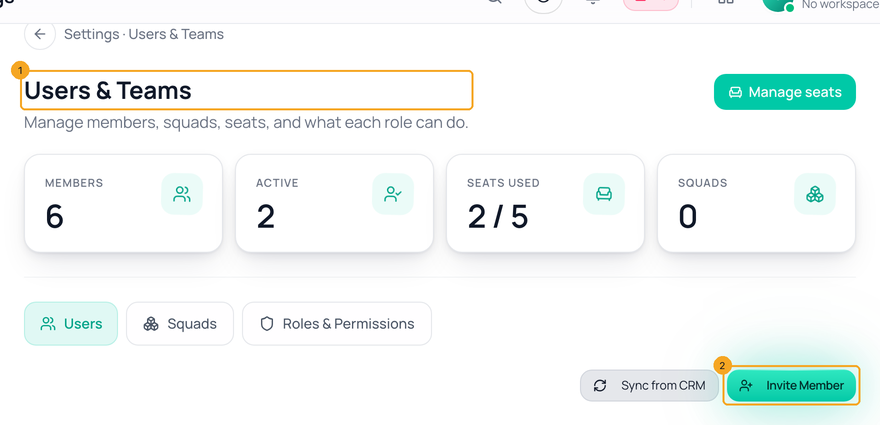
In Flow open Settings → Users & Teams (1) and click Invite Member (2). You need to be the owner or an admin — without that, the button is not there.
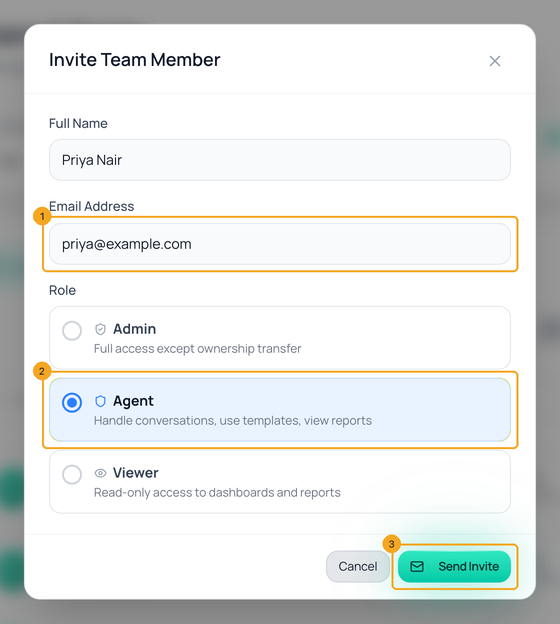
Type their full name and their work email (1), and choose what they can do (2): Admin — everything except transferring ownership; Agent — conversations, templates and reports; Viewer — dashboards and reports, read-only. Click Send Invite (3). Flow emails them a link to join, and their card appears at once.
3Read what their card says
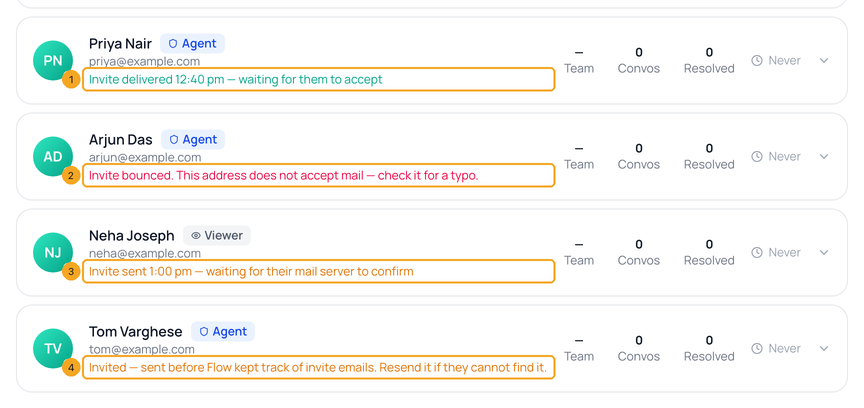
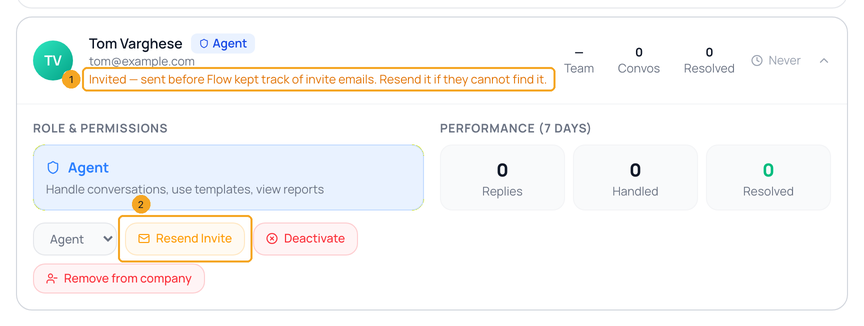
Under the address of someone who has not joined yet, one line says what became of the email: delivered, and when (1); bounced, and why (2); sent and waiting for their mail server to confirm (3) — usually a matter of seconds; or, for an invite sent before Flow kept track, that it cannot tell (4). Green is fine, amber is waiting, red needs you.
4Bounced? Invite the right address
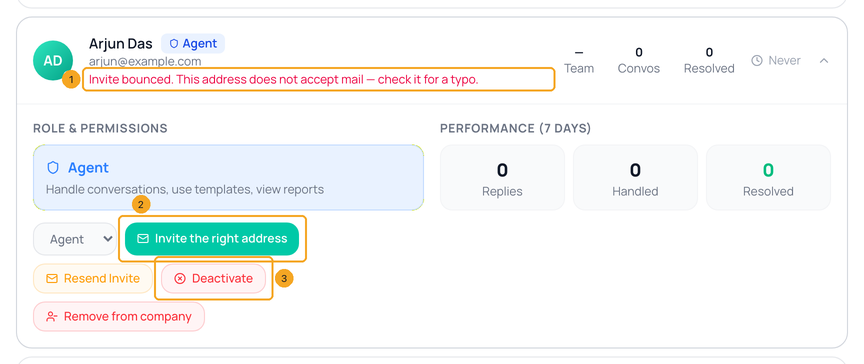
When the line says This address does not accept mail (1), the address is wrong or no longer exists — sending it again would bounce again. Click the card, then Invite the right address (2): the invite form opens with their name, address and role filled in; correct the address and send. Then Deactivate (3) the card with the wrong address.
5Resend an invite
If they cannot find the email (1) — or it bounced because their mailbox was full, or it did not go out — click the card and Resend Invite (2). Flow sends it again to the same address and says so at the top of the screen. Ask them to look in spam too.
6When they join
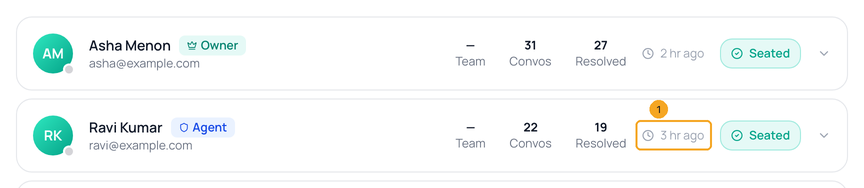
When they sign in through the link, the invite line goes and their card shows when they were last active (1) instead of Never, like everyone else on the team. Now you can put them in a team and send them conversations.
No — only whether their mail server took it (delivered), turned it away (bounced) or reported it as spam. Delivered means it reached their mailbox; it may still be sitting in spam.
It has said “waiting for their mail server to confirm” for a long time
Most mail servers confirm within seconds. If it stays that way for an hour, their server is slow or quietly filtering it: ask them to look in spam, or Resend Invite.
It says they marked the invite as spam
Their mail program reported the invite as spam. Ask them — by phone or chat — before sending another, and ask them to mark it as not spam.
I cannot see Resend Invite or Invite the right address
Only someone allowed to invite teammates sees them; the card says Only an admin can resend or change an invite. Ask your owner or an admin.
Who can see the invite line?
Anyone who can open Users & Teams in your workspace. An invite from one workspace never shows in another.