One picker on the role keeps each team to its own.
In review: written from the product, not yet walked through live.
Part of Control what each person can see and do in SkedX Flow — its video shows the whole feature.
1Open the role
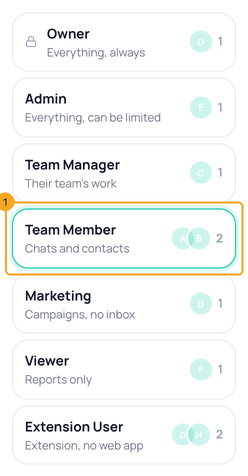
Go to Settings → Users & Teams → Roles & Permissions and pick the role your people have, like Team Member (1).
2Set Inbox reach to Team
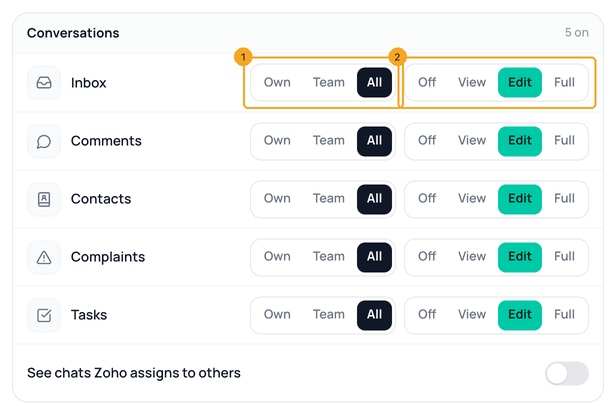
In the Inbox row, choose Team on the reach picker (1). The level beside it (2) stays as it is — Edit lets them reply. Click Save; SkedX asks you to sign in again before a role changes.
3Check what they see
Someone with the role now sees their team’s chats, chats given to them, and unassigned chats with no team — another team’s chats are gone from the list, search, counts and the extension. Owners and admins still see every chat.
© 2026 SkedX · Sample data only · Share and link freely · Copying the product or its design is not allowed · Terms
Common questions
What happens to chats nobody has yet?
A chat with a team stays with that team: only its people see it, and the first to reply takes it. A chat with no team shows to everyone who can see chats, so nothing is lost.
Does this change anything for owners and admins?
No. Owners and admins always see every chat.
Will my team lose chats when the seven roles switch on?
No. Team Member starts with the chats your agents saw before — every chat, unless you had limited them. Choose Own or Team here when you want it narrower.
Someone is in both teams.
They see both teams’ chats.
Can I limit someone to some accounts instead?
Yes — see Choose who can see each account. Both apply: the reach says whose chats, the account says which accounts.
Next in Your teamControl what each person can see and do in SkedX Flow →
Useful links
- Users & Teams in SkedX Flow — Roles & Permissions
Previous: Make new chats take turns between your teams · All Your team guides
Did this guide help?
Still stuck?Chat with support →


