Five controls, one place each: the role, its level per module, whose chats, which accounts, and one person’s exceptions — every one checked by the server.
In review: written from the product, not yet walked through live.
Transcript · 1:17
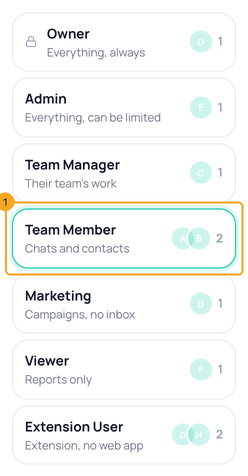
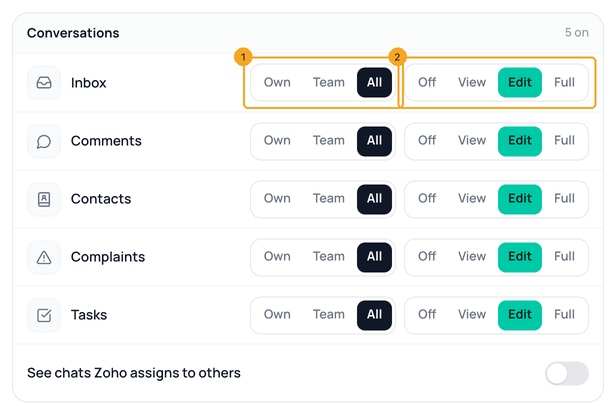
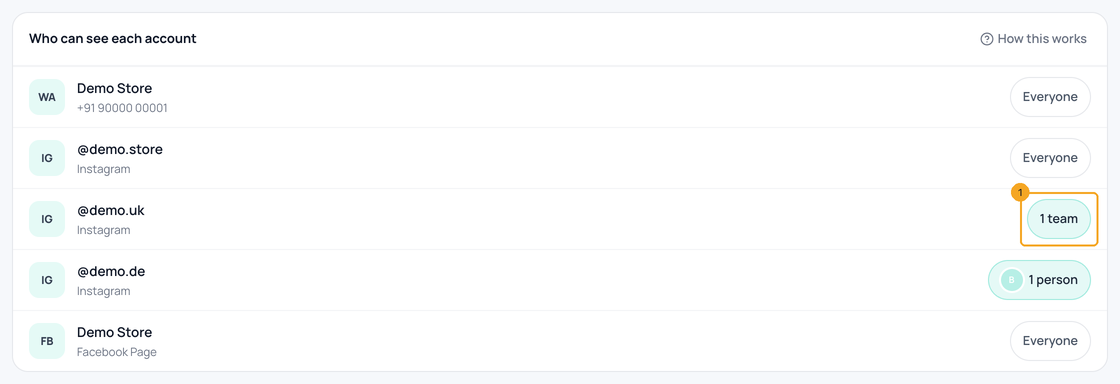
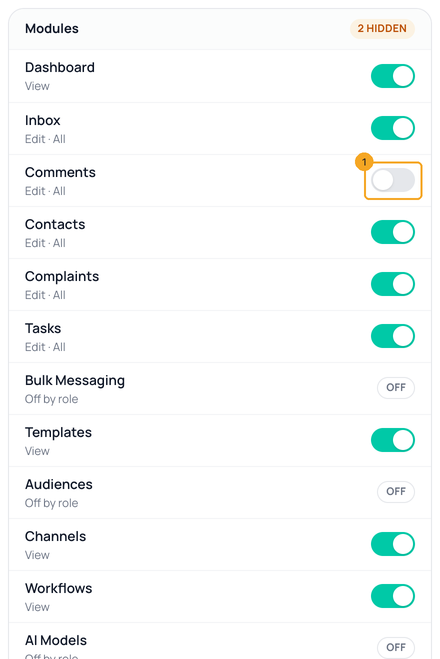
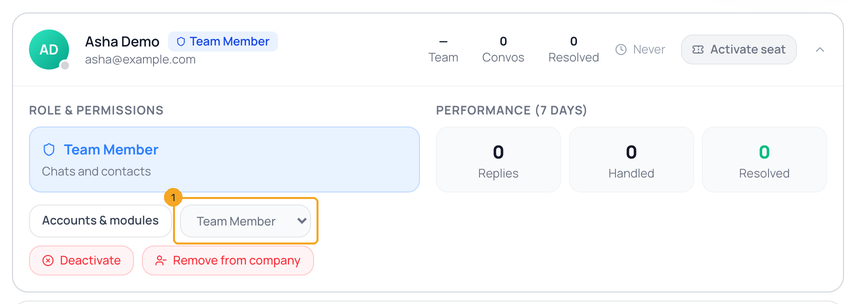
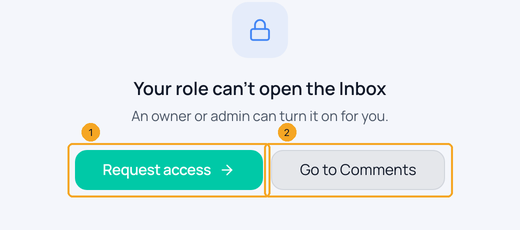
To control what each person can see and do in SkedX Flow, go to Settings, Users and Teams, and open Roles and Permissions. Everyone has one of seven roles, the same as in the SkedX CRM. Pick the role you want to set, like Team Member. Each module gets one level: off, view, edit or full. Off takes it out of their menu, and the server refuses it too. For chats and contacts, choose whose they see: their own, their team's, or everyone's. Save when you're done. In Channels, under Who can see each account, choose which teams or people see each WhatsApp number or Instagram account. To take one module away from one person, open them in Users, click Accounts and modules, and switch it off. Nobody else changes. Someone who should work only from the Chrome extension gets the Extension User role. And when a role can't open a page, that person sees why, and can ask for access in one click.
1Open Roles & Permissions

2Pick a role and set each module
3Choose whose chats they see
4Choose who sees each account
5Take a module away from one person
6Give someone the extension only
7What they see when their role can’t open a page
© 2026 SkedX · Sample data only · Share and link freely · Copying the product or its design is not allowed · Terms
Common questions
Is it only hidden, or really blocked?
Do owners and admins get limited?
Will my team lose chats when I first open this?
Is a person’s role the same in the CRM?
Useful links
- Users & Teams in SkedX Flow — Roles & Permissions
- Channels in SkedX Flow — Who can see each account
Previous: Let each team see only its own chats · All Your team guides


