One person shouldn’t see Comments or Products at all, but the rest of their team should.
Take it away from them alone.
In review: written from the product, not yet walked through live.
Part of Control what each person can see and do in SkedX Flow — its video shows the whole feature.
1Open the person
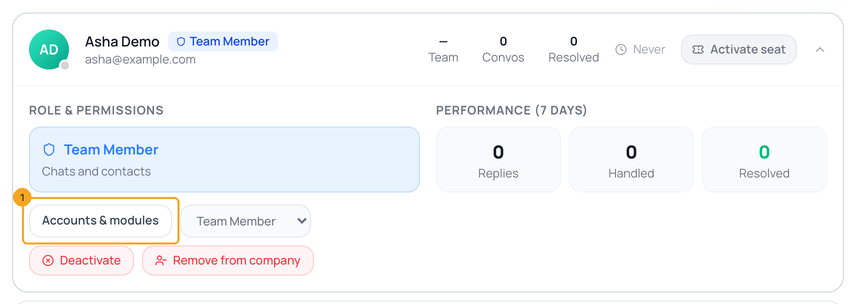
In Settings → Users & Teams → Users, open the person and click Accounts & modules (1).
2Switch the modules off
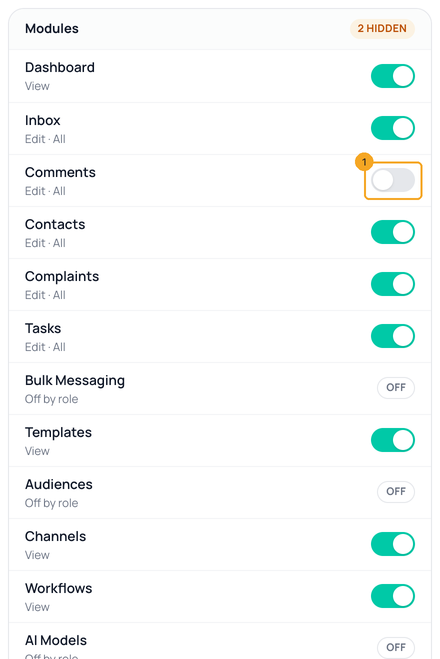
Under Modules, switch off what they shouldn’t see, like Comments (1) — and further down, Products & Services. Each row shows what their role gives underneath; Off by role has no switch.
3Save
Click Save (1). SkedX asks you to sign in again first. The modules leave their sidebar the next time their page loads.

© 2026 SkedX · Sample data only · Share and link freely · Copying the product or its design is not allowed · Terms
Common questions
Can I give one person more than their role?
No — this only takes away. To give more, change their role or the role’s levels.
What do they see if they open the link?
“Your role can’t open …” with Request access, which tells the owners and admins.
Does it change their role for anyone else?
No. Only this person.
Why is Accounts empty?
No WhatsApp number, Facebook Page or Instagram account is connected yet. Tap Connect an account; once one is connected it appears here with a switch.
Next in Your teamGive someone the SkedX Flow extension only →
Useful links
- Users & Teams in SkedX Flow — Users
Previous: Choose who can see each account — two of your three Instagram accounts for one person · All Your team guides
Did this guide help?
Still stuck?Chat with support →


