With dozens of automations, the name is rarely enough — you remember what it <i>says</i>.
Type any word from a message, a button or a card and SkedX Flow shows which automation has it, and where. About two minutes.
In review: written from the product, not yet walked through live.
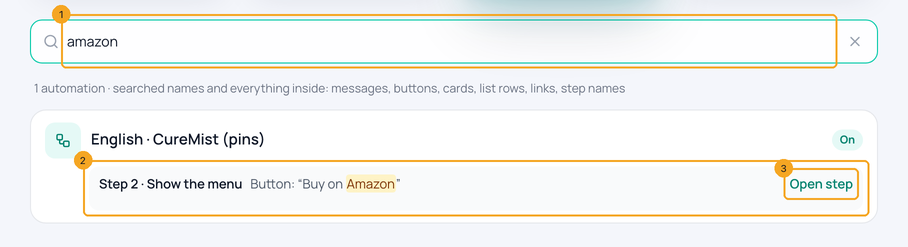
1Search on the Workflows page
Go to Automation → Workflows and type in the search box (1) — a name, or any word from inside an automation. Each automation found names where the words are: the step and the words around them, marked (2). Open step (3) opens the builder with that step open.
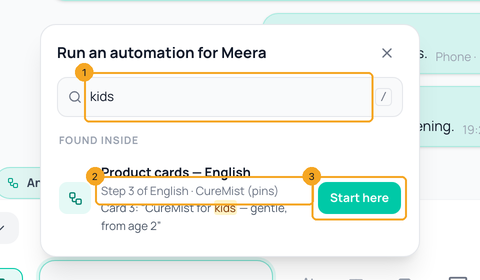
2Search from a chat — and start right there
Where your workspace has Run an automation in chats, click it and type in its search box (1). Steps found inside your automations show under Found inside, with the words marked (2). Start here (3) starts that automation at that step for the customer, in one click.
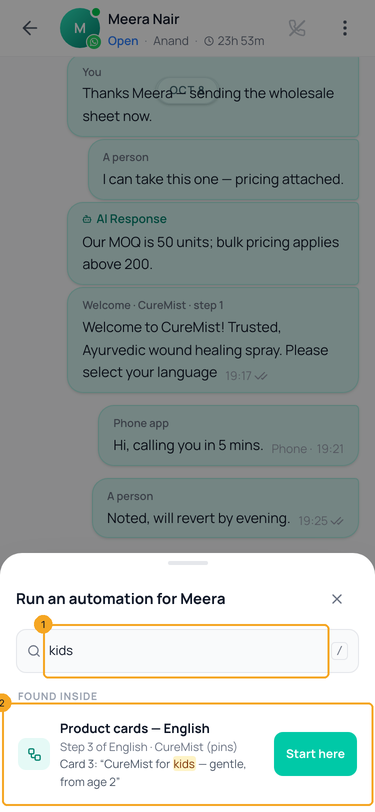
3On a phone
The same search sits at the top of the sheet (1); a found step (2) starts with one tap.
© 2026 SkedX · Sample data only · Share and link freely · Copying the product or its design is not allowed · Terms
Common questions
What does the search look through?
The automation’s name and every word in its steps: message text, buttons, list rows, carousel cards, links, template names, branch words, start words and step names. Any language works — Malayalam and Tamil included.
Why does the chat find fewer automations than the Workflows page?
In a chat, the search looks at automations that are on, as customers get them — only those can be started there. The Workflows page also searches drafts and what you are still editing.
A found step says it cannot start. What now?
It says why — for example it uses an answer from an earlier step, or the chat’s 24-hour window is closed. Click From a step to pick an earlier step, or send a template first.
Can someone find our API keys this way?
No. Passwords, keys, tokens and other secrets saved in steps are never searched or shown; a web-request step is found only by its name and address.
Next in AutomationPause an automation in a chat when someone on your team replies →
Useful links
- Workflows in SkedX Flow — the search box sits above the list
Previous: See every automation on the Workflows page — and what starts each one · All Automation guides
Did this guide help?
Still stuck?Chat with support →


