Connecting a WhatsApp number takes about ten minutes: Flow opens WhatsApp’s own signup window, you sign in to Facebook as your business’s admin, add the number and press Finish.
Flow follows along the whole way — including the minute or two WhatsApp sometimes needs after Finish — and connects the number by itself even if you close the window. Moving a number that is already with another provider? Use one of the two moving guides linked below instead.
In review: written from the product, not yet walked through live.
Transcript · 1:08
To connect your WhatsApp number to SkedX Flow, go to Settings, Channels, WhatsApp, and click Add Number. The Connect WhatsApp window opens. Remember one thing: at the end of Facebook's window, press Finish. Leave this box unticked, unless your number is already on the WhatsApp API with another provider. Then click Connect WhatsApp. WhatsApp's own signup window opens. Sign in to Facebook as an admin of your business, pick the business, add your number, and type the code WhatsApp sends. Then press Finish. Back in Flow, the panel ticks off each step by itself. If the signup window gets hidden, Show the signup window brings back the same one. Once you have pressed Finish, click I've pressed Finish, or just close the signup window. WhatsApp can need a minute or two to make the number live. There is nothing to do. Wait here, or close this, and Flow connects the number by itself. Your number is now connected. Click Send a test message to message your own phone, and watch the reply arrive.
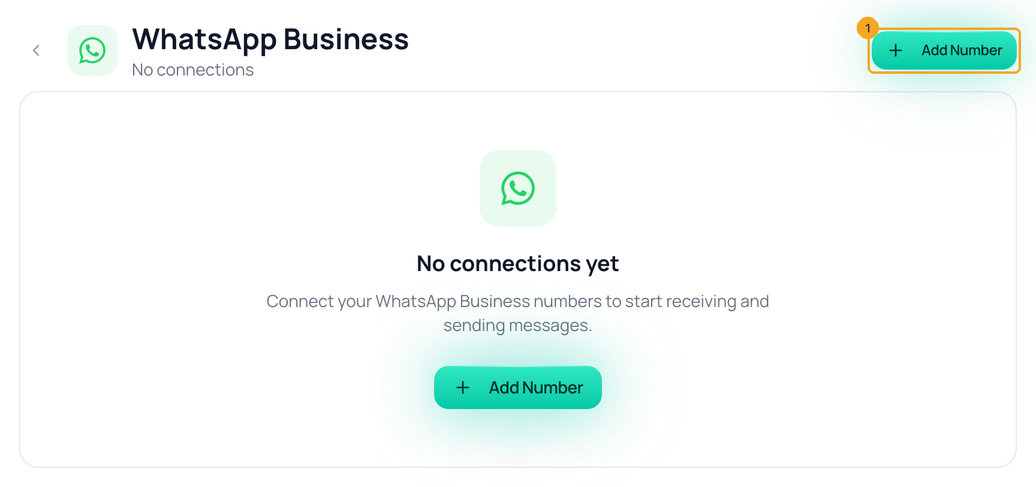
1Open WhatsApp in Settings and click Add Number
Go to Settings → Channels → WhatsApp and click Add Number (1). With no number yet, the same button sits in the middle of the page too.
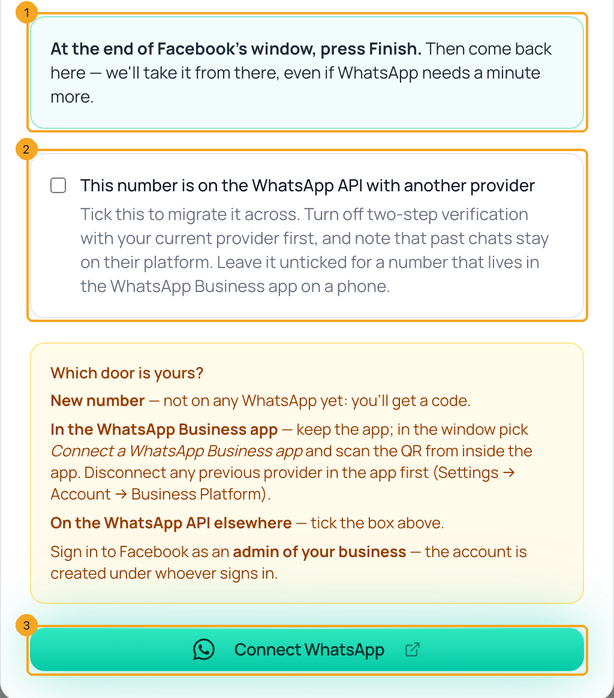
The window reminds you of the one thing that matters most: at the end of Facebook’s window, press Finish (1). Leave This number is on the WhatsApp API with another provider (2) unticked for a new number or one in the WhatsApp Business app — tick it only for a number another provider runs on the API. Then click Connect WhatsApp (3) and allow pop-ups if your browser asks.
3Sign in to Facebook, pick the business and add the number
In the signup window, click Continue with Facebook and sign in as an admin of your business — the WhatsApp account is created under whoever signs in. Pick the business, add the number and type the code WhatsApp sends to it. Then press Finish at the end.
4Flow follows the sign-up while you go
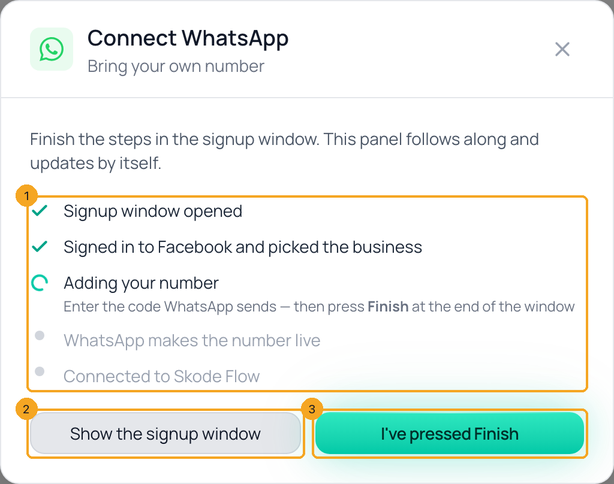
Back in Flow, the panel ticks off each step as WhatsApp reports it (1). Lost the signup window behind another one? Show the signup window (2) brings back the same one. Pressed Finish? Click I’ve pressed Finish (3) — or just close the signup window, which counts the same.
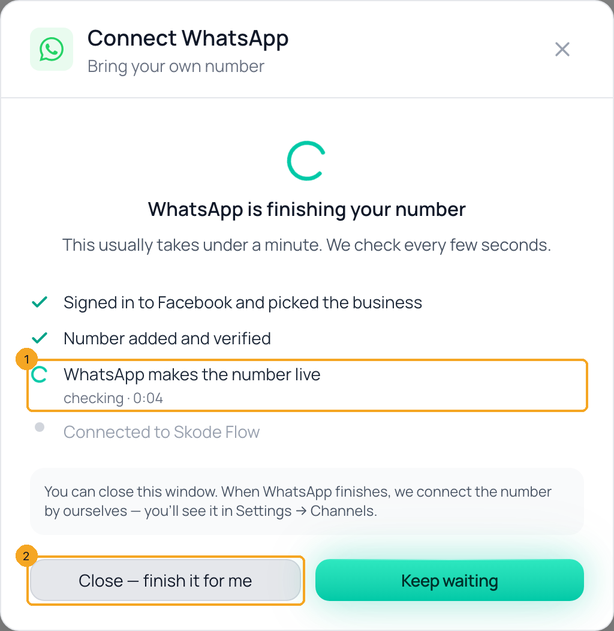
5If WhatsApp needs a minute more
Right after Finish, WhatsApp often needs up to a minute or two to make the number live. The panel says WhatsApp is finishing your number and counts the time it has been checking (1). Nothing to do: wait, or press Close — finish it for me (2) — Flow keeps checking and connects the number by itself.
6Connected — send yourself a test
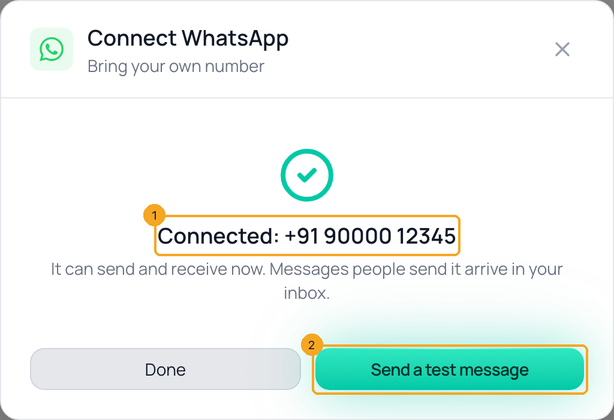
The panel shows Connected with the number (1). Click Send a test message (2): the inbox opens a new chat so you can message your own phone and see the reply arrive.
7If the sign-up stopped
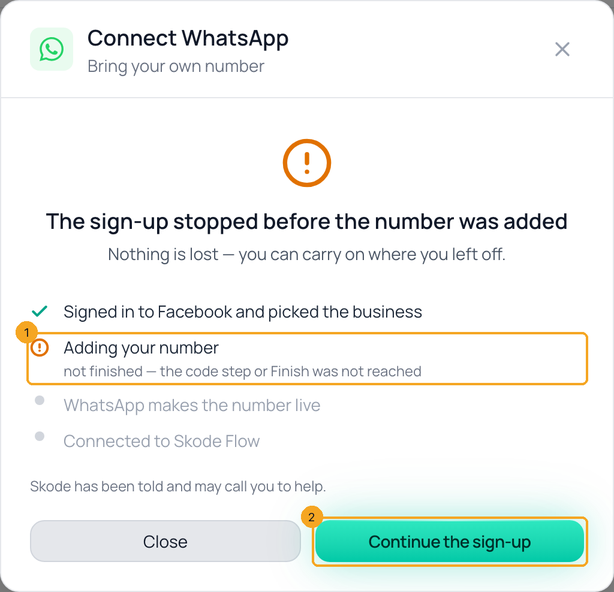
If nothing moves for 15 minutes, the panel names the step where it stopped (1) — most often the code step, or Finish was never pressed. Nothing is lost: Continue the sign-up (2) reopens the same sign-up where you left off; it never starts a new one. SkedX is told at the same moment and may call you to help.
8If you closed everything before it connected
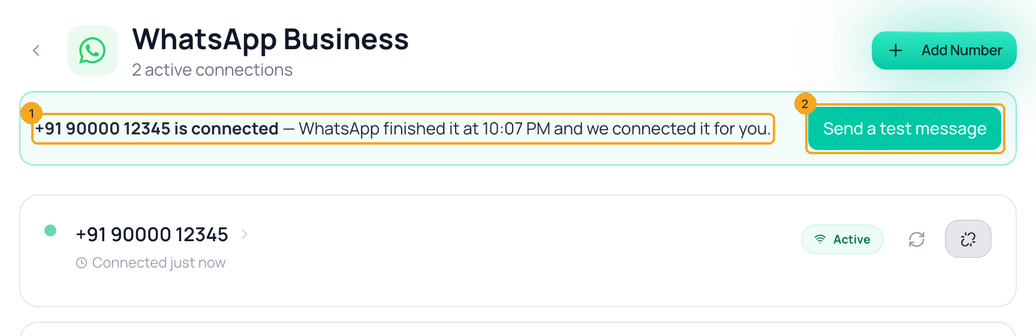
Flow keeps checking for a week after you start. When WhatsApp finishes, Flow connects the number and Settings → Channels → WhatsApp says so (1), with Send a test message (2) as the next step.
Admin access to your business on Facebook — the WhatsApp account is created under whoever signs in — and a number you already own. A new number must not be on WhatsApp yet, not even the personal app. A number in the WhatsApp Business app can come along: see the next question.
Can I keep using the WhatsApp Business app on my phone?
Yes. In the signup window pick Connect a WhatsApp Business app and scan the QR from inside the app. Disconnect any earlier provider in the app first (Settings → Account → Business Platform). A number already on the WhatsApp API with another provider moves instead — see the moving guides below.
Does “Add a new number” mean buying one?
No. It means a number you already own. WhatsApp sends it a six-digit code by text or call, and you type it in the signup window.
It used to say “Couldn’t connect” right after Finish. Why not now?
WhatsApp makes a number live a little after Facebook’s window says it is done — on 13 Oct 2026 one customer’s number went live 46 seconds after they pressed Finish. Flow now keeps checking instead of giving up, and connects it the moment it is live.
Can I close the window while it is finishing?
Yes. Flow keeps checking that sign-up for a week and connects the number by itself; Settings → Channels → WhatsApp then shows a line saying so.
The signup window did not open.
Your browser blocked the pop-up. Allow pop-ups for flow.skode.ai, then click Show the signup window — it opens the same sign-up.
I pressed Try again — did I lose my sign-up?
No. If a sign-up is already running, Try again and Continue the sign-up bring that same one back; a new one is started only from the first screen.
My number is already with another provider.
Follow Move your WhatsApp Business app number if it lives in the WhatsApp Business app on a phone, or tick the box in step 2 and follow the API-number moving guide if another provider runs it on the API.