Move your WhatsApp Business app number from another provider to SkedX Flow
25 min readFor adminsIn review
If your WhatsApp number lives in the WhatsApp Business app on a phone and another provider was using it through their platform, you can bring it to SkedX Flow without giving up the app or your chats.
Meta allows one provider per number, so the old one has to be cut first — on the phone and in Business Manager — before Flow can connect. About 25 minutes with the phone next to you. You need to be an admin of your Meta business portfolio; the number should have been in real use on the WhatsApp Business app for a few months; and the app must have no payment method (card or UPI) attached and its profile photo final — neither can be changed after connecting.
In review: written from the product, not yet walked through live.
1Back up your chats
On the phone, open WhatsApp Business → Settings → Chats → Chat backup and tap Back up. Wait until it says complete. You will probably not need it — it is insurance for step 10.
2Disconnect the old provider on the phone
WhatsApp Business → Settings → Account → Business Platform → Disconnect account. The screen names the provider only while one is connected; afterwards it offers Connect to the Business Platform instead. Do not uninstall the app — it keeps working exactly as before.
3Remove the old provider in Business Manager
Go to business.facebook.com → Settings → Accounts → WhatsApp accounts, open the account that holds your number, click the Partners tab and remove the provider. Then Users → Partners, select the provider and choose Remove partner from the ⋯ menu. Cancel their subscription on their own site so charges stop. Wait ten minutes before the next step.
4Open Connect WhatsApp in SkedX Flow
Go to Channels → WhatsApp and click Connect WhatsApp. Leave This number is on the WhatsApp API with another provider unticked — that box is for numbers that were on the WhatsApp API, not on the app. Allow pop-ups if your browser asks.
In the window that opens, accept the terms and click Continue with Facebook. Use a Facebook account that is an admin of your business portfolio — the new WhatsApp account is created under whoever signs in, so do not let an agency or a helper sign in with theirs.
6Choose “Connect a WhatsApp Business app”
Pick your business, then in the WhatsApp Business account list choose Connect a WhatsApp Business app. Not Create a WhatsApp Business account (that path is for a number that is not on the app) and not any account left over from the old provider. Enter the number and click Next.
7Scan the QR code from inside the app
The window shows a QR code and the phone gets a notification. Tap it → Connect to the Business Platform; the app’s own camera opens — point it at the code on the computer, or use the option to type the code instead. When asked about sharing chat history, choose Share if you want your past chats in Flow — Flow asks WhatsApp for them the moment the number connects.
8Enter the verification code and finish
A code arrives as a WhatsApp message from Facebook Business. Type it into the window and finish every screen until the window closes by itself. Leave SkedX Flow open — it shows the number as connected within a few minutes, and the phone app shows it is connected to the platform.
9If Meta says the account is “already sharing with a partner”
Error #2655093 after steps 2 and 3 means the old provider’s billing — Meta calls it a credit line — is still attached to the old WhatsApp account. Nothing in Business Manager can remove it, not even deleting that account. Two ways out: the old provider revokes it (a support request to them, usually days), or the reset in the next step, which you can do yourself now.
10The reset: move the number out and back
First screenshot your business profile, catalog, labels, quick replies and greeting/away messages — they do not survive this. Install the regular WhatsApp app next to WhatsApp Business, sign in with the number and accept Move chats to WhatsApp. Then open WhatsApp Business again, sign in with the same number and accept the move back. Set up your business profile, wait five minutes, and repeat steps 4–8. Chats, media and contacts come through; the number is offline only for the minutes of the two switches.
11Send a test both ways
From another phone, message the number — it appears in Flow’s inbox. Reply from Flow — the reply shows in the phone app’s chat too. Only now delete anything from the old provider.
12Keep it connected
Open WhatsApp Business on the phone at least every 13 days, or Meta disconnects the platform side. Do not uninstall the app, change the number or re-register it unless you have to — and if you do, read the next two steps. WhatsApp for Windows and WearOS are unlinked (Web and Mac keep working), broadcast lists become read-only, group chats are not shared, and replies typed on the phone show in Flow labelled Phone, so the team can see who answered from where.
13What the phone brings into Flow — and what it does not
Your saved contacts arrive by name within a minute of connecting. Recent chats arrive as history in the background; older chats come only if chat-history sharing is on in the app (WhatsApp Business → Settings → Business tools → Business Platform) — if it is off, the number’s card in Flow says so. From then on, a message typed, edited or deleted on the phone updates in Flow as well, and the AI stays out of any chat a person answered from the phone. Calls stay on the phone. If the number is disconnected on the phone or in Business Manager, Flow marks it Cut off with the reason and emails the account owners — nobody else is ever emailed about the connection. When it comes back, Flow resets the connection by itself: the old warning disappears and the account owners get one “working again” email.
14If WhatsApp is reconnecting your number
When the phone is changed, WhatsApp Business is reinstalled or the number is registered again, WhatsApp takes the number off the platform for a few minutes and reconnects it by itself. Flow shows Waiting for the phone (1) with the time it started (2). During registration on the phone, leave the option to keep your connected products ticked — untick it and the number is cut off instead. While you wait, messages, campaigns and automations from Flow are held and go out once the number is back; after 2 hours they stop and say why. Nothing to do in Flow.
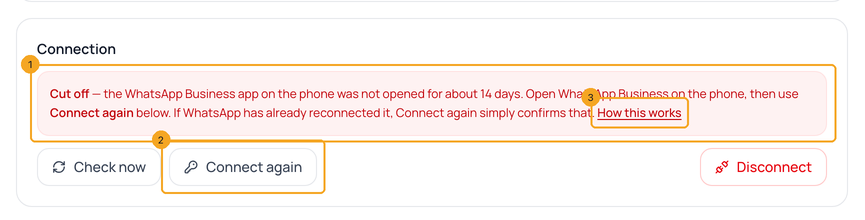
A number cut off on WhatsApp’s side shows Cut off and the reason in plain words (1) — for example, the app was not opened for about 14 days, or SkedX Flow’s access was removed in the app (Settings → Account → Business Platform → Disconnect) or in Meta Business settings. Open WhatsApp Business on the phone, then press Connect again (2): if WhatsApp has already reconnected the number, Flow confirms it and clears the warning; if not, it opens the same signup as step 4. Connecting the same number again keeps its conversations. How this works (3) opens this step.