A campaign sends one approved WhatsApp template to a list of people at once.
Every step says what it still needs, the cost is shown before anything is charged, and if the wallet only covers part of the list you can finish the rest later without messaging anyone twice.
In review: written from the product, not yet walked through live.
Transcript · 0:59
To send a WhatsApp campaign in SkedX Flow, go to Bulk Messaging, click New campaign, and choose WhatsApp. Give the campaign a name, then say where these contacts came from and how recent they are. Under Target Audience, choose All Subscribers, import a file, or pick a saved audience. Then click Proceed. Pick one of your approved templates, and fill in each blank. The preview shows the message as your customer will see it. Before anything is sent, SkedX shows who gets a message, who is left out and why, and the estimated cost. You are charged only for messages that are delivered. If your wallet does not cover it, top up the exact amount, or send to the first people it covers. The rest stay on the campaign for later. Last, choose how to send it: now, a small test batch first, or at a time you pick.
1Start a campaign and name it
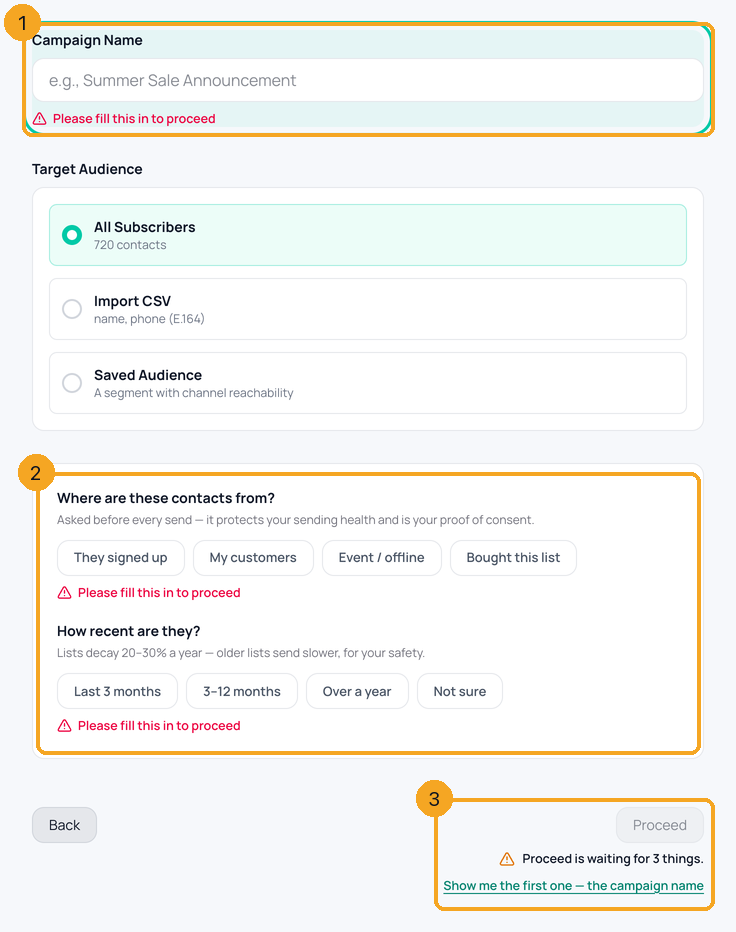
Go to Bulk Messaging, press New campaign and choose WhatsApp. Give the campaign a name (1) and answer Where are these contacts from? and How recent are they? (2). Anything missing shows red text under it — “Please fill this in to proceed”. Proceed (3) says what it is still waiting for, and pressing it takes you straight to the first missing answer.
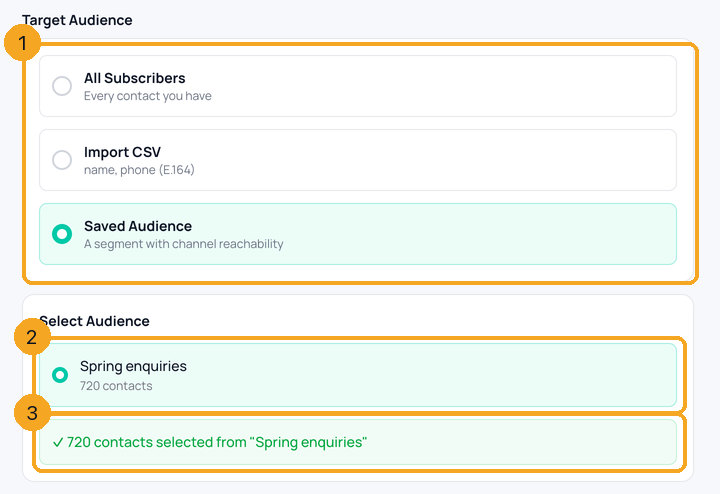
Under Target Audience (1) choose All Subscribers, Import CSV or Saved Audience. For a saved audience, pick it from the list (2); the line under it confirms how many contacts it holds (3). The cost step then shows who will actually get the message — anyone who asked not to get marketing or was already messaged in the last 7 days is held back and not charged, and nobody is counted twice. When most of everyone has not written to you in 90 days, a line under the choices says so with Send to those N instead, which picks Messaged you recently — people who wrote lately get your messages far more often (why).
3Choose an approved template and fill its blanks
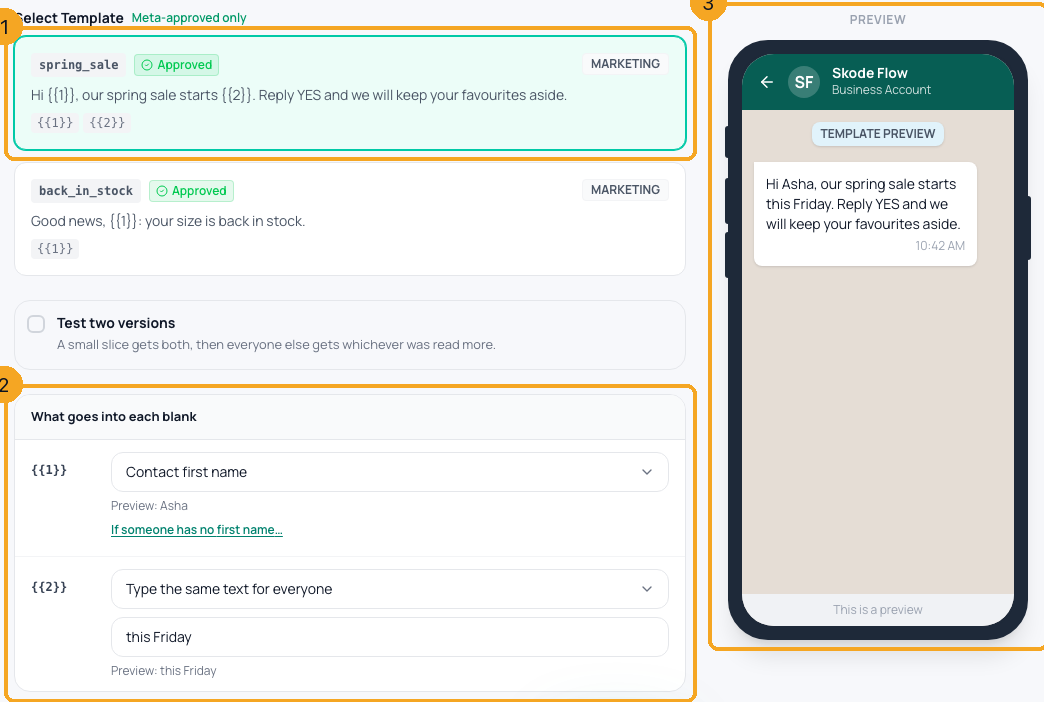
Only templates Meta has approved for this number are listed (1). A picture template says “Picture header · included. It goes out with every message.” Under What goes into each blank (2), choose what fills each blank — a contact field such as the full or first name, or the same text for everyone — and the line under it previews the first contact. The phone preview (3) shows the message as that person will see it, picture included. No approved template yet? See Get a WhatsApp template approved.
4Check the cost
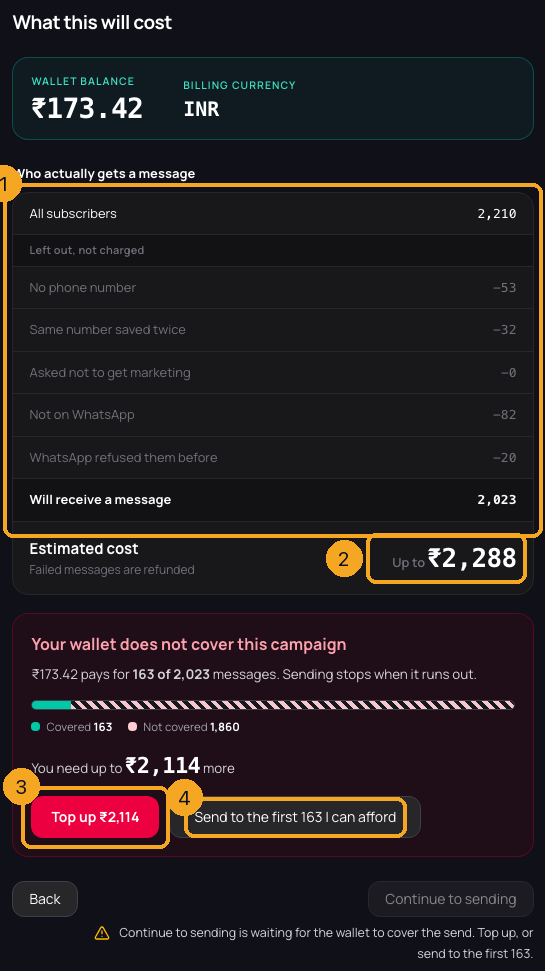
Who actually gets a message (1) starts with everyone in your list, then names who is left out and why: no phone number, the same number saved twice, asked not to get marketing, not on WhatsApp, or refused by WhatsApp before. None of them are charged. An uploaded file is checked the same way. Estimated cost (2) is the most this send can cost, “Up to ₹2,288”, rounded up to the rupee; the real amount is usually lower because failed messages cost nothing. If the wallet does not cover it you see one amount, and Top up ₹2,114 (3) asks for exactly that (it opens your wallet in a new tab; come back and the step reads the price again). Or press Send to the first 163 I can afford (4): the step then says “Sending to the first 163 of 2,023” with Undo, and the others stay on the campaign as not sent yet, never charged.
5Send, schedule or save a draft
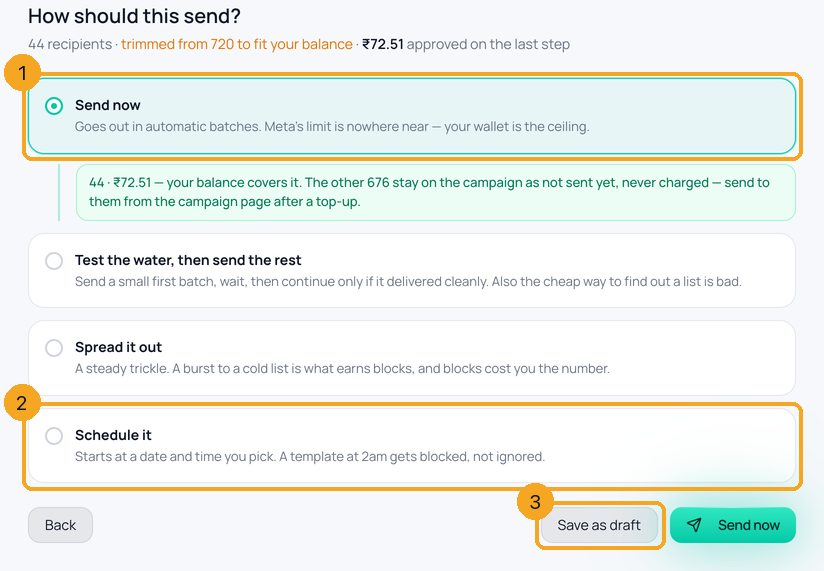
Press Send now (1) and the note under it says what will happen — for a send trimmed to your wallet, “44 · up to ₹72.51 — your balance covers it”. You can also test a small batch first, spread it out, or Schedule it (2) for a time you pick; Save as draft (3) keeps everything without sending. If sending can’t start, you land on the campaign’s own page with the reason and one Start sending button — nothing you set up is lost. Try again tomorrow for anyone WhatsApp holds back for too many marketing messages is ticked for you: Flow tries just those people once more, a day later, charged only for the ones it sends. Untick it to turn it off for this campaign.
6See every person’s result
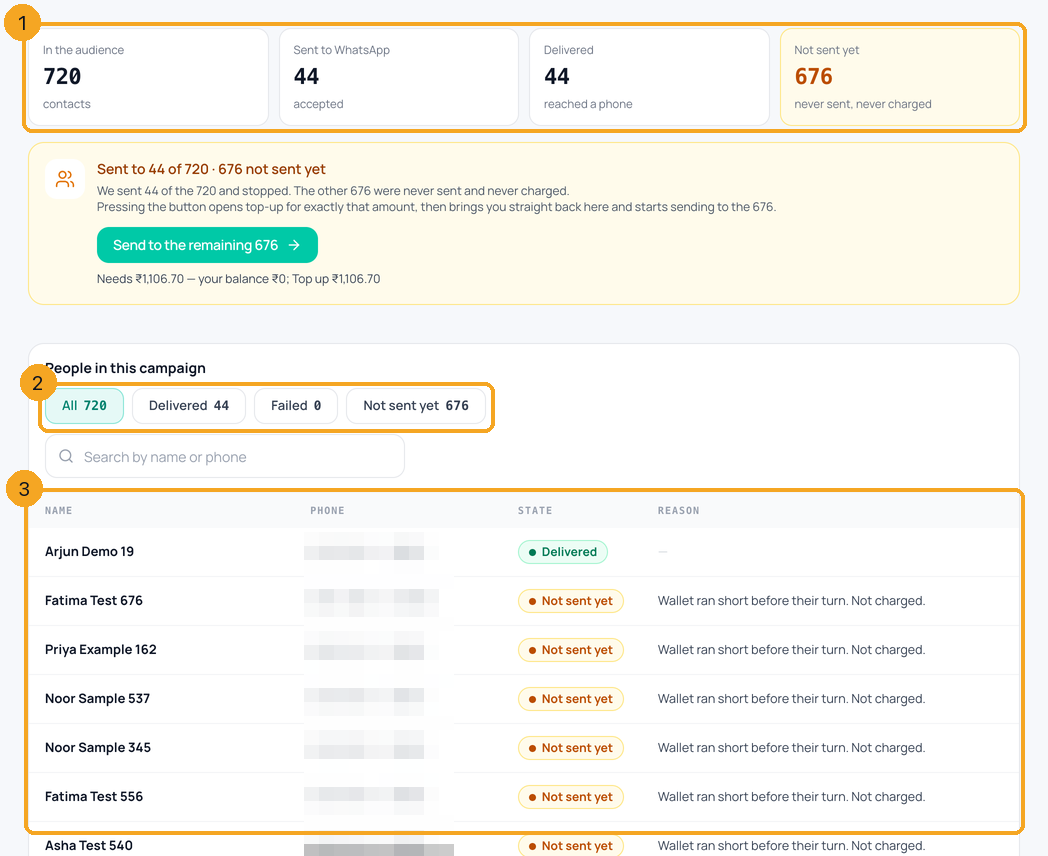
The campaign page counts who is in the audience, who was sent, who it reached and who is not sent yet (1). Filter the people (2) by Delivered, Failed or Not sent yet, or search by name or number. The list (3) shows each person and, for anyone not reached, the reason in plain words — for example “Wallet ran short before their turn. Not charged.”
7Send to the remaining
When the wallet covered only part of the list, the campaign says so — “Sent to 44 of 720 · 676 not sent yet” (1). Send to the remaining 676 (2) sends only to the people who never got it, and the line under it shows what that costs and your balance. Messages WhatsApp refused get Fix and resend instead, which checks the template first. Nobody already sent gets it again.
8Top up and come back
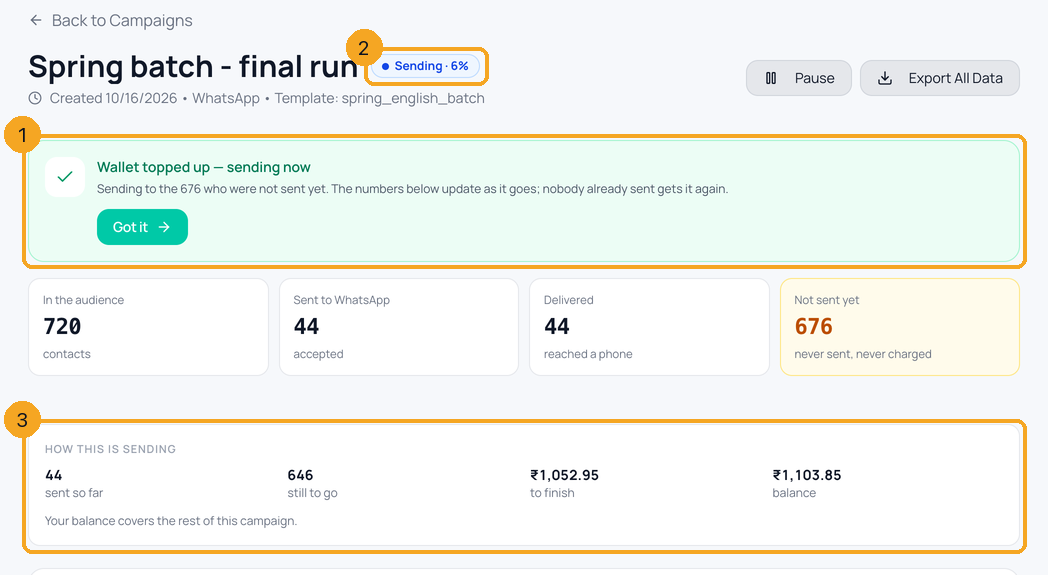
If the wallet is short, pressing Send to the remaining opens your wallet with exactly the amount filled in. Once the payment goes through you come straight back to the campaign, which says “Wallet topped up — sending now” (1) and starts sending to the rest by itself; the status (2) and How this is sending (3) update as it goes. Reloading the page never sends a second time.
Does “messaged you in the last 90 days” count only this workspace?
No. It counts everyone who wrote to any of your company’s WhatsApp numbers in the last 90 days, whichever workspace the chat is in.
Can my other workspaces see this campaign?
No. A campaign belongs to the workspace it was made in, so only that workspace lists it. Campaigns made before 11 Nov 2026 stay visible in every workspace of your company.
Proceed is greyed out. What is missing?
The red text under a field names it, and the line under Proceed says what is still needed. Press Proceed and the page jumps to the first missing field.
The wallet only covered part of my list. What happens to the rest?
They are kept on the campaign as “not sent yet”, never charged. Top up and press Send to the remaining N on the campaign page — nobody already sent gets it twice.
Why did every message fail?
The campaign page says why in plain words — for example, a template WhatsApp no longer accepts. Failed messages are refunded. Fix the cause and press Fix and resend.
My campaign paused part-way with “Mid-send check”. Why?
SkedX pauses a campaign when more than 1 in 5 of its last 500 messages failed — usually a sign the list or the template has a problem. Messages WhatsApp held back by its own rule are not counted: its limit on marketing messages per person (“held back to protect engagement”) and its marketing experiments. Those people are shown on the campaign page with the reason. Check the reasons, fix what is yours, then press Resume.
My campaign paused saying today’s limit for this number is used up. Why?
WhatsApp lets each business message a set number of different people in any 24 hours (250, 2,000, 10,000…, shown as your number’s limit). SkedX counts it the way WhatsApp does: each person once, and only messages that went out — a message WhatsApp refused gives its place back. When the limit is reached the campaign pauses and carries on by itself as soon as there is room again; the campaign page shows when.
Can I send a template with a picture?
Yes. The picture, video or document approved with the template is sent automatically, the same as in automations and the API.