Most rejections come from two things WhatsApp is strict about: how variables are written, and what the samples say.
Flow now checks both before anything is sent, and tells you whose move it is while you wait.
In review: written from the product, not yet walked through live.
Transcript · 1:35
To get a WhatsApp template approved in SkedX Flow, open Templates and click New template. Write the message. Wherever a value changes per person, WhatsApp needs double braces. If you typed it another way, click Make these variables. Beside each variable, choose what fills it when you send. Your SkedX Flow and SkedX CRM fields are in one list. Then give it a made-up sample. WhatsApp's reviewers read every sample, so never use a real customer's details. Under the preview, read what WhatsApp's reviewer sees, the way a stranger would. When it passes all WhatsApp checks, click Submit for approval. While it is in review, Check now checks straight away. After twenty-four hours, ask SkedX to chase it. A rejected template says why, in plain words. Click Edit and resubmit, fix what it names, and submit again. To change an approved template, edit the words and click Submit changes. WhatsApp reviews it again, and it can't be sent until it is approved. If a template stops matching what WhatsApp approved, its card says Needs a fix, and messages still go out as approved. Undo to approved version drops the changes.
1Write variables in double braces
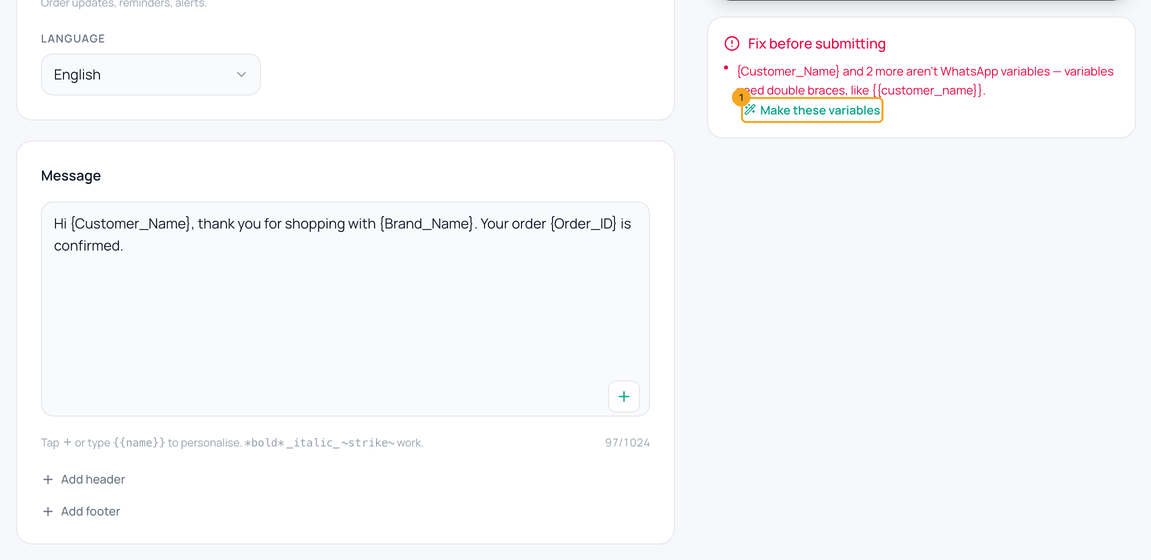
Type {{customer_name}} where a value changes per person, or tap + to insert one. If you wrote {Customer_Name} or {{Customer Name}}, Fix before submitting says so — click Make these variables (1) and Flow rewrites them and takes you to the first sample.
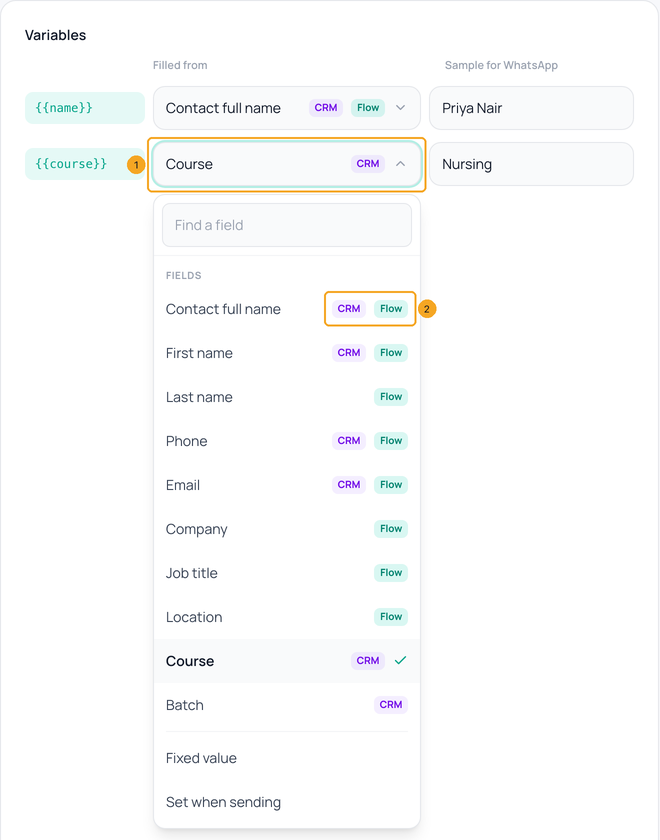
Beside each variable, pick what fills it when you send (1): your SkedX Flow fields and your SkedX CRM fields are one list, each tagged where it is found (2). At the send the person’s CRM record is read first, then their Flow contact — from Flow, the CRM and automations alike. Set when sending leaves it for whoever sends.
3Use made-up samples
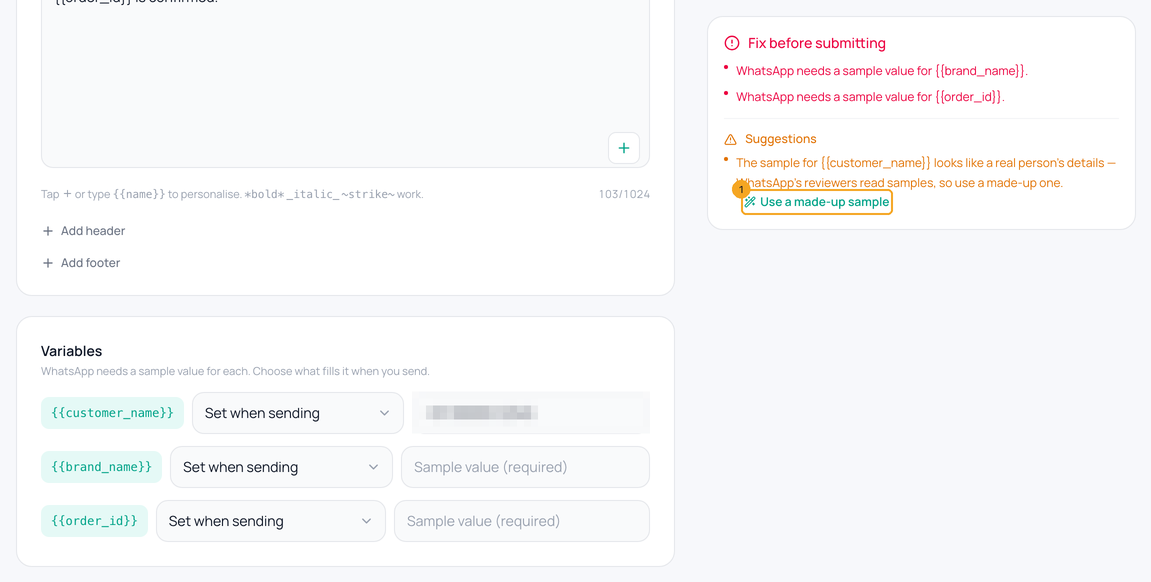
Give each variable a sample value. WhatsApp’s reviewers read every sample, so never paste a real customer’s name, address or phone. If a sample looks real, click Use a made-up sample (1).
4Check what the reviewer sees
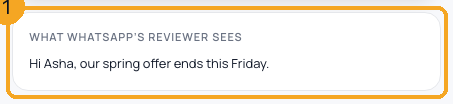
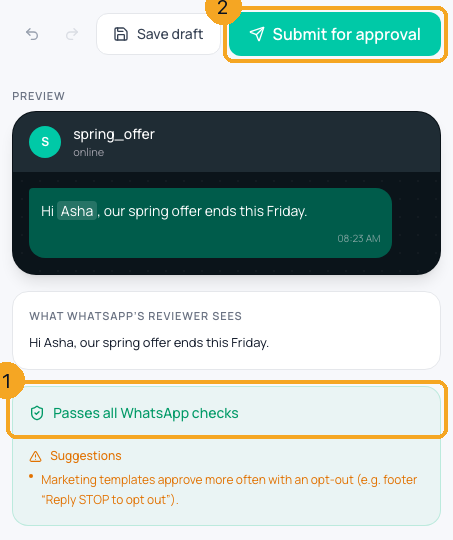
Under the preview, What WhatsApp’s reviewer sees (1) shows the message with your samples filled in. Read it as a stranger would.
5Submit for approval
When the checks say Passes all WhatsApp checks (1), click Submit for approval (2).
6While it is in review
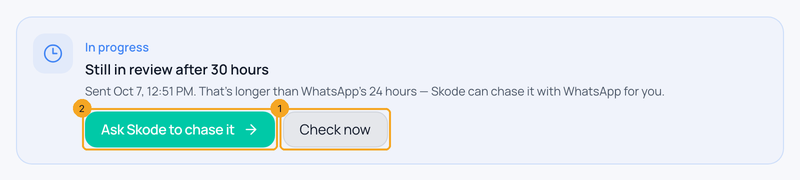
The template shows when it went to WhatsApp. WhatsApp decides most templates within minutes and can take up to 24 hours; Flow checks every 30 minutes, and Check now (1) checks straight away. After 24 hours, click Ask Skode to chase it (2): the Help & Support chat opens with your request already sent — the template’s name, how long it has waited and its id — and SkedX replies there, usually within a working day.
7Fix a rejected template
A rejected template says why in plain words, with WhatsApp’s own words under it. Click Edit & resubmit (1), change what it names, and submit again. Two rejections are not about the template: WhatsApp won’t accept templates from this account is fixed on the WhatsApp account, so the button opens your WhatsApp settings; and a name WhatsApp is still deleting is locked for up to four weeks, so Make a copy saves it under a new name. If WhatsApp gave no reason, the card says so.
8If WhatsApp refuses the name
WhatsApp keeps a name it has already seen. If it refuses yours, click Save as a new template (1): Flow saves it as name_v2 and sends it for review.
9Change an approved template
Open the template and change the words. The note at the top (1) says the change goes to WhatsApp for approval and can’t be sent until it is approved again. Click Submit changes (2). A new picture, video, file or different buttons can’t be an edit: Flow offers Make a new template, and the approved one keeps working. WhatsApp allows one change a day to an approved template.
10If a template needs a fix
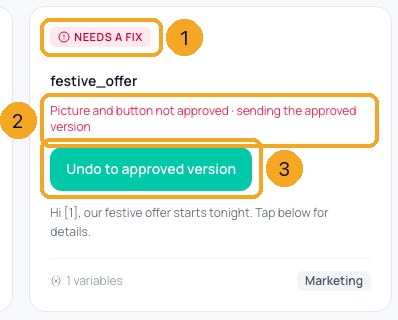
Flow checks your templates against WhatsApp every 30 minutes. If Flow’s copy no longer matches what WhatsApp approved, the card says Needs a fix (1) with the reason (2). Messages keep going out as WhatsApp approved them; the changes are never sent. Click Undo to approved version (3) to drop the changes, or submit them for approval. If WhatsApp rejected an edit you submitted, the card says Your changes were rejected, with the same Undo.
Yes. The changed words go to WhatsApp for approval, and the template can’t be sent until WhatsApp approves them again. A picture, video, file or different buttons need a new template instead; the approved one keeps working.
Why does my template say Needs a fix?
Flow’s copy no longer matches what WhatsApp approved, for example a picture was added after approval. Messages keep going out as WhatsApp approved them, without the changes. Click Undo to approved version to drop the changes, or submit them for approval.
How long does approval take?
WhatsApp says up to 24 hours; most templates are decided within minutes. After 24 hours, use Ask Skode to chase it — your request goes into the Help & Support chat and SkedX answers there.
It says WhatsApp won’t accept templates from this account. What do I do?
That refusal is about the WhatsApp Business account, not the template, so editing it won’t help. Open your WhatsApp settings and check the account’s status; if it looks fine, ask SkedX in Help & Support.
Why does it say the name is locked?
WhatsApp is still deleting an older template with the same name and holds the name for up to four weeks. Click Make a copy and submit the copy under a new name.
Why was my template rejected for “Invalid Format”?
Most often a variable written another way — {Name} instead of {{name}} — or two variables side by side. Flow now stops both before sending.
Should I delete it and submit again?
No. WhatsApp locks a deleted template’s name and can refuse a copy with the same words. Edit it, or save it as a new template.
What happens if I delete a template a campaign or automation still uses?
Flow asks first and names each one — a campaign that has not finished, an active automation, an incoming webhook. Deleting removes the template at WhatsApp too, so they stop sending it: their next send is refused with “the template was deleted”, never charged, and a campaign stops at the first one. Pick another template for them, or keep this one.
A message says the template “is not approved on” my number. Why?
WhatsApp approves templates per number. This one was approved on a different number of yours (or on an older one), so WhatsApp would refuse it from this number. Choose a template approved on this number, or submit this one for it.
Can I use a real customer’s details as the sample?
No. WhatsApp’s reviewers read every sample. Flow refuses a sample holding one of your contacts’ phone numbers or emails, and suggests a made-up one.
Can a variable be filled from SkedX CRM?
Yes. Pick a CRM field beside it, such as Course. When it sends, the person’s CRM record is read first, then their Flow contact; a send with nothing in either stops and names the variable.
Can I put my own business number in a sample?
Yes — your connected WhatsApp number and your brand’s phone are fine in samples.