Your autopay: change the card or UPI, and fix a payment that didn’t go through
3 min readFor adminsUpdated 6 Nov 2026In review
One card on Billing says how your company pays — and gives you the one button you need when something changes.
In review: written from the product, not yet walked through live.
Transcript · 1:52
Your SkedX autopay lives on Billing. The Autopay card shows the card or UPI app it uses, what the bank takes next, and when. To change it, press Change payment method. The payment window opens. Choose a card or UPI, and approve it in your bank's app. Nothing is charged that day. The new autopay starts on your bill date, and the old one stops once the new one is approved. On your bill day, the card says your bank is taking the payment today. Change payment method waits until it clears. If a payment doesn't go through, the card moves to the top of Billing, in red, with the date the bank tries again. Everything keeps working. Press Update payment method, or pay this month now. If the bank's tries run out, the card says Stopped, and how many days are left. Press Pay now to renew everything on one bill. If you stop the autopay from your bank or UPI app, the card says Off. Turn autopay back on approves a new one. If you pay by UPI and your bill goes up, the card says New amount. UPI can't change by itself, so press Approve once. Nothing is charged that day. The new amount starts on your bill date. If your saved card expires before your next bill, the card says so, with the month. Press Change payment method, and choose a new card or UPI before the payment fails. Autopay invoices wait on Billing. To get every one by email, turn on Email every invoice in Invoice details.
1See your autopay
Open Billing. The Autopay card shows the card or UPI app it uses (1), what the bank takes next and when (2), and Change payment method (3).
Press Change payment method (3 above). The payment window opens: choose a card or UPI and approve it in your bank’s app. Nothing is charged for your plans that day — the new autopay starts on your bill date, and the old one stops once the new one is approved.
3On your bill day
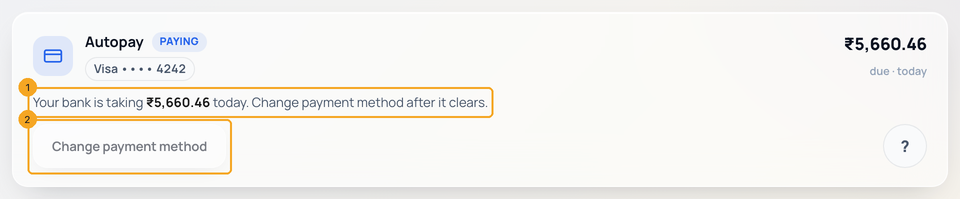
On the day the bank takes the money, the card says so (1). Change payment method waits until the payment clears (2).
4If a payment didn’t go through
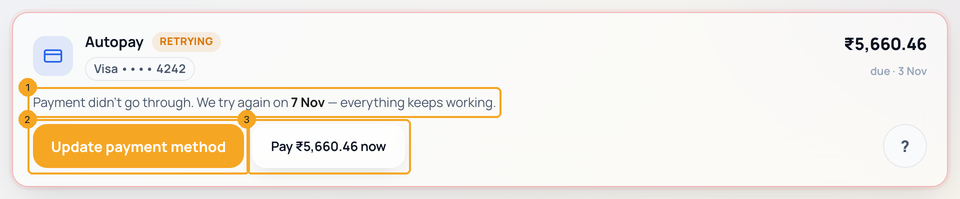
The card moves to the top of Billing, in red. It says when the bank tries again (1); everything keeps working meanwhile. To fix it now, press Update payment method (2) or Pay now (3): you pay this month, and approve the card or UPI to use from then on.
5If the autopay stopped
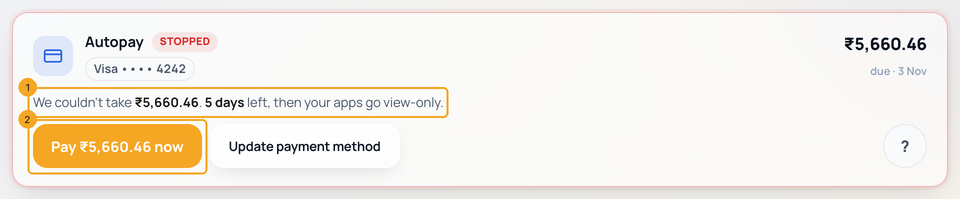
When the bank’s tries run out, the card says Stopped and how many days are left before your apps go view-only (1). Press Pay now (2): it renews everything on one bill and sets up a new autopay.
6If the autopay is off
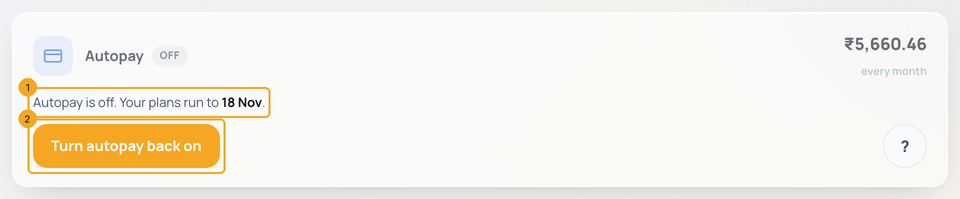
Stopped the autopay from your bank or UPI app? The card says Off and the date your plans run to (1). Press Turn autopay back on (2) to approve a new one.
7If your bill changes on UPI
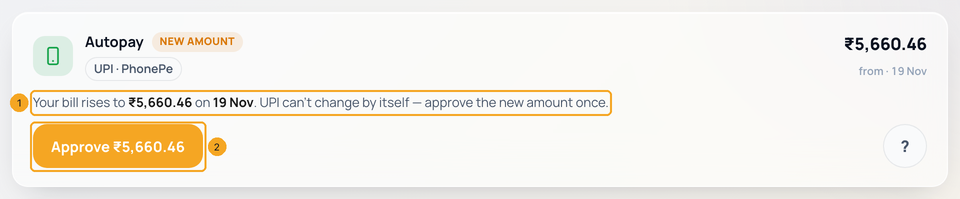
A UPI autopay can’t change its own amount. When your next bill is higher — a deal ending, users added — the card says New amount and why the bill rises (1). Press Approve ₹5,660.46 (2): a new autopay for the new figure from your bill date, nothing charged that day. Three days before, the card turns red and says what your bank takes until then. A lower bill says Lower; until you approve it, we refund the extra after each charge.
8If your card is about to expire
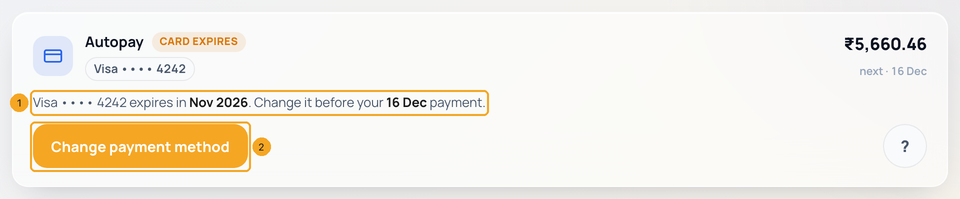
When the saved card expires before your next bill, the card says Card expires with the month and the payment it would miss (1). Press Change payment method (2) and choose a new card or UPI — nothing is charged that day. Every owner and admin, and your invoice email, get one email about it.
9Choose which invoices are emailed
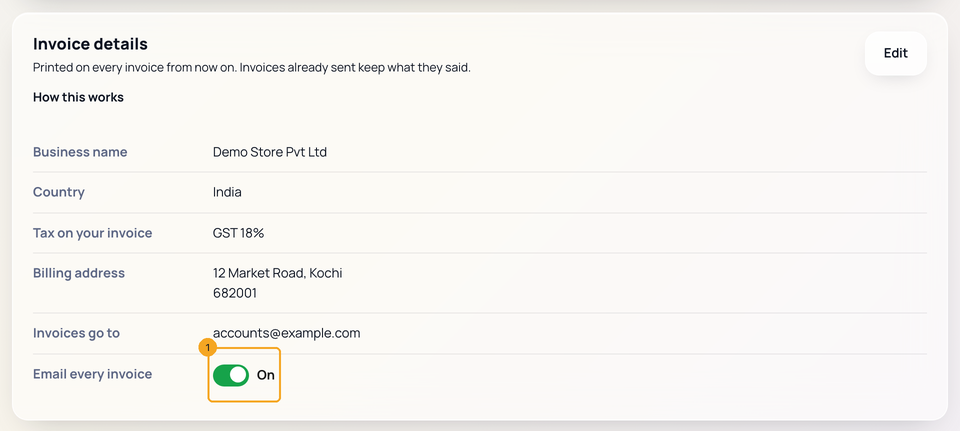
Autopay invoices wait on Billing → Invoices; the first one and every payment made by hand are emailed. To get every invoice by email, find Invoice details on Billing and turn on Email every invoice (1).
10If you are not an owner or admin
You see the same card with Ask an admin, which sends your owners and admins an email and a notification. Only an owner or admin can change how the company pays.
Is anything charged when I change the card or UPI?
Not for your plans. The new autopay starts on your bill date, for the same amount. Your bank may ask you to approve it in its app.
When does the old card stop?
As soon as the new autopay is approved. Until then the old one keeps running, so a bill is never missed — and never taken twice.
Can I use UPI outside India?
No. UPI works only with Indian bank accounts. Outside India, use a card.
My card was declined. Do my apps stop?
No. Everything keeps working while the bank tries again. If its tries run out you still have days to pay — the card on Billing counts them down — before your apps go view-only.
Who is told when a payment fails?
Every owner and admin of the company, and the email your invoices go to — once when it fails, once if it stops, and once when it is paid.
Does a new card pay the month that was declined?
Yes. After a decline, Update payment method takes you to pay this month first; the card or UPI you approve then takes over the autopay. You are never charged twice for one month.
Why can’t I change it today?
Your bank is taking this month’s payment. Change it after the payment clears — the card lets you, usually within two days.
Why does my UPI autopay ask me to approve a new amount?
A UPI autopay can only take the amount you approved. When your bill goes up — a deal ending, users added — press Approve ₹X on the Autopay card once. Nothing is charged that day; the new amount starts on your bill date and the old autopay stops.
What if I don’t approve the new amount in time?
Nothing stops. That month your bank takes the old amount, and the card keeps asking until you approve.
My bill went down but my UPI autopay takes more. Do I lose the difference?
No. Until you approve the lower amount, we refund the extra after each charge, and its credit note appears on Billing → Invoices.
Will you tell me before my card expires?
Yes. When the saved card expires before your next bill, the Autopay card on Billing says so and one email goes to every owner and admin. Change payment method replaces it before the payment fails.
Will you remind me before the autopay takes the payment?
Yes. The person who set up the payment gets an email and a WhatsApp 3 days before the bill date, and again on the day, with the amount. The email says how it is taken — by UPI autopay or your saved card. Above ₹15,000 your bank asks you to confirm each payment: approve it when it asks.
I started autopay but did not approve it. What happens?
Nothing is charged. The approval stays open for 7 days; after that it closes by itself. Start autopay again from Billing whenever you are ready.
If SkedX suspends our account, are we still charged?
No. While your account is suspended, your autopay is paused and no bill reminders are sent. When it is lifted, the same autopay carries on from your next bill date.
What happens to my price when SkedX changes its prices?
You keep your price for at least 30 days. Every owner and admin gets an email with the old price, the new one and the date; nothing changes before then. On that date a card autopay moves by itself, and a UPI autopay asks you to approve the new amount on Billing. New customers pay the new price straight away.
What if the GST rate changes?
GST is set by law, so it changes for everyone on the date it takes effect. You get an email 7 days before. Our prices before GST stay the same.
Do I get an invoice email every month?
Not by default: autopay invoices wait on Billing → Invoices. The first one, and every payment made by hand, is emailed. Turn on Email every invoice in Invoice details on Billing to get each one.