So that every new enquiry gets its owner, its welcome message and its follow-up task the moment it arrives — without anyone remembering to do it.
1Pick what starts it
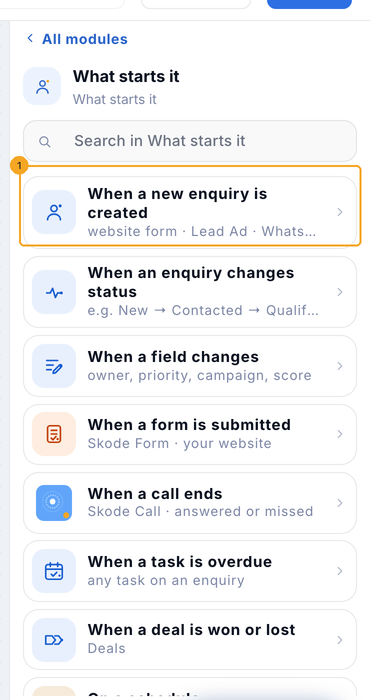
Go to Workflows, click New workflow and then Start from scratch (or pick a template). In the panel, open What starts it and pick the moment — here When a new enquiry is created (1). The others: a status change, a field change, a form, a call that ends, an overdue task, a deal won or lost, or a schedule.
2Read the automation
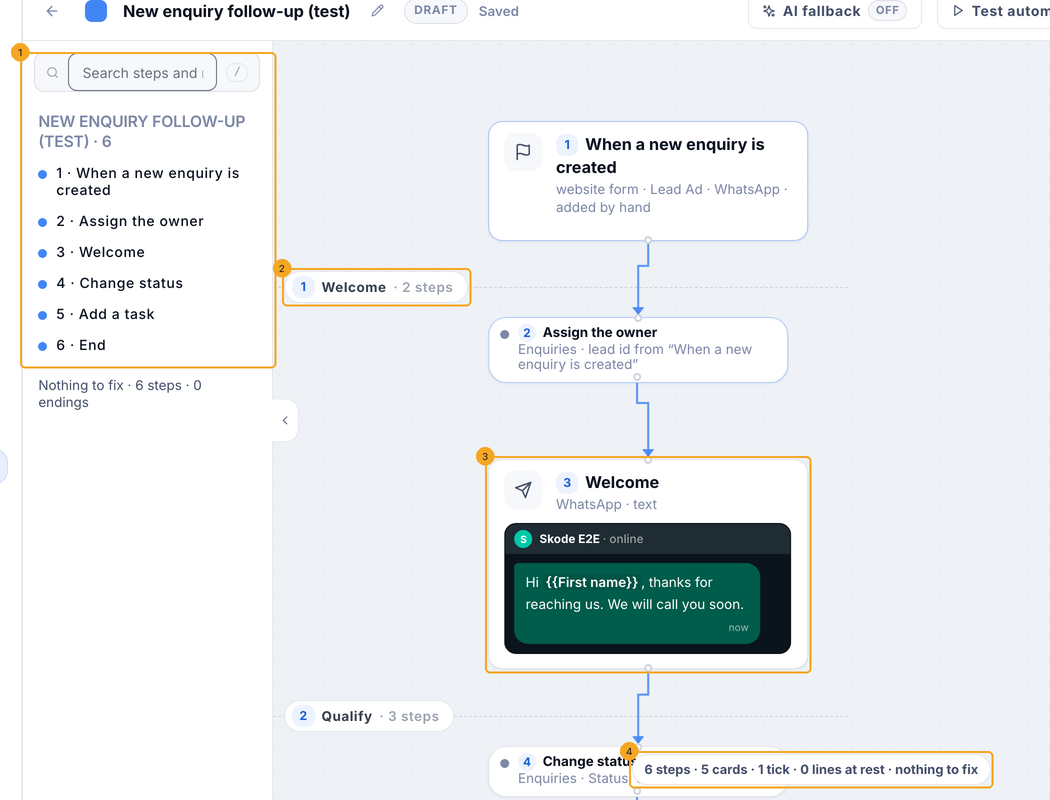
The steps list (1) shows every step in order, numbered. Steps are grouped in stages (2) — click a stage’s name to rename it. A message card shows the message as the person will see it (3). The count line (4) says how many steps there are and what is left to fix.
3Add a step
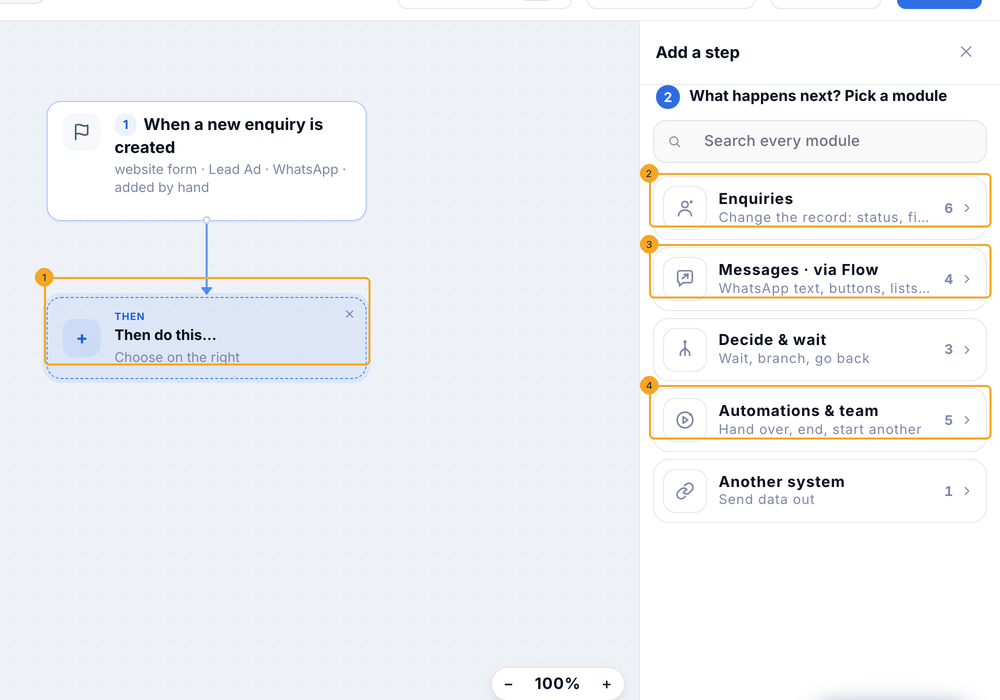
Click Then do this… (1) under the last step. Pick a module: Enquiries (2) changes the record — status, a field, the owner, a task; Messages · via Flow (3) sends WhatsApp, SMS or Email; Automations & team (4) hands it to the owner, marks it lost, or ends it.
4Fill an Enquiries step
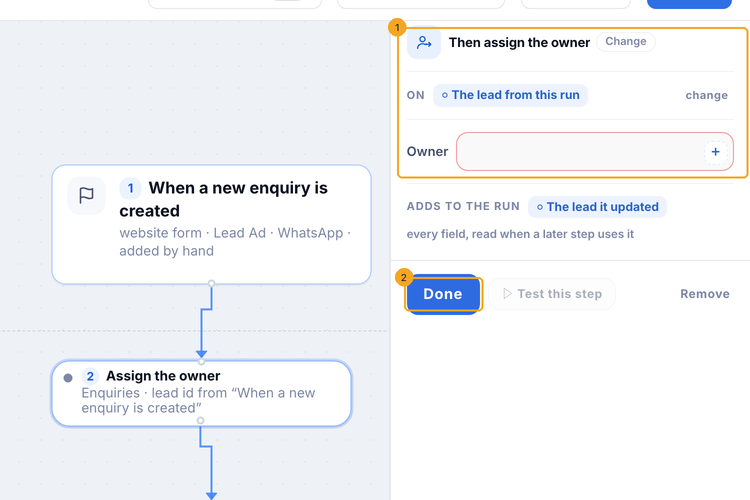
An Enquiries step opens the CRM’s own form (1) — for Assign the owner, the owner to give the enquiry. Click Done (2) when it is filled.
5Send a message
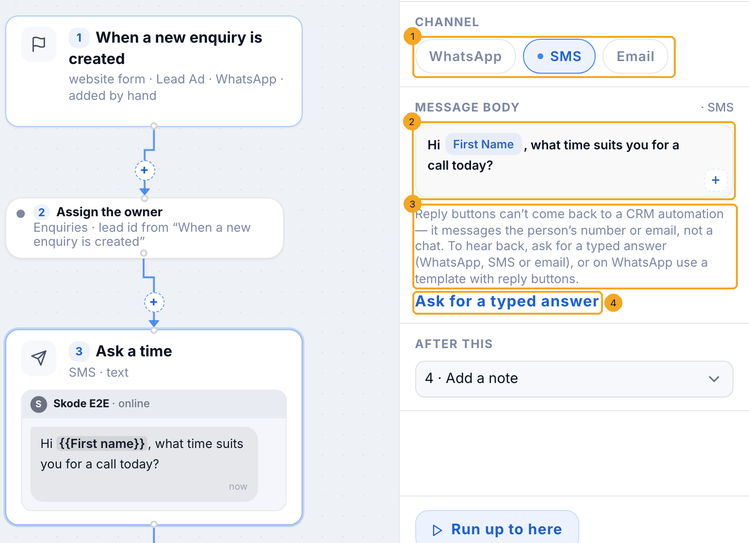
Pick the Channel — WhatsApp, SMS or Email (1) — and write the message (2); the + adds a field such as their first name. Reply buttons on these words cannot come back to a CRM automation (3) — it messages the person’s number or email, not a chat. To hear back, click Ask for a typed answer (4): the message waits for what they write, by WhatsApp, SMS or Email, and under Where next you choose where Their answer goes. On WhatsApp you can instead click Use a template and pick a template with reply buttons. An Email also asks for a Subject.
6Wait for their typed answer
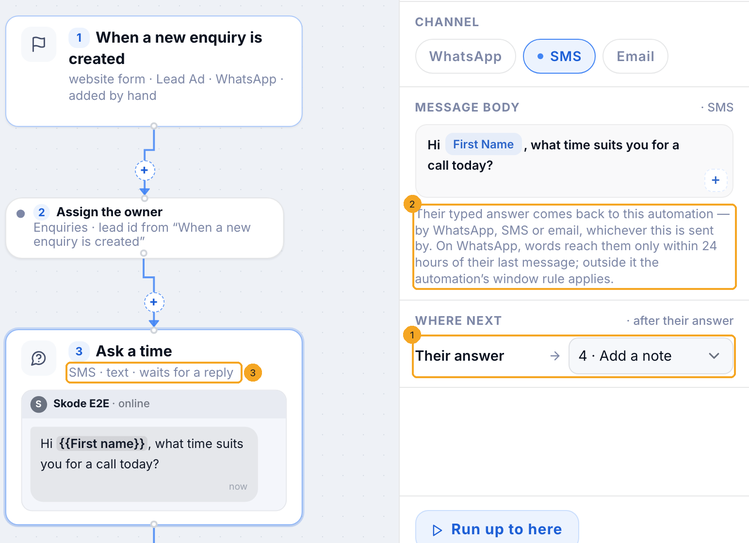
After Ask for a typed answer the message waits for what they write back. Under Where next, pick the step Their answer goes to (1). The note (2) says how it comes back — by WhatsApp, SMS or Email, whichever the message is sent by. The card on the canvas now says it waits for a reply (3). To make it a plain message again, open Change ▾ at the top of the panel: the words stay.
7Turn it on
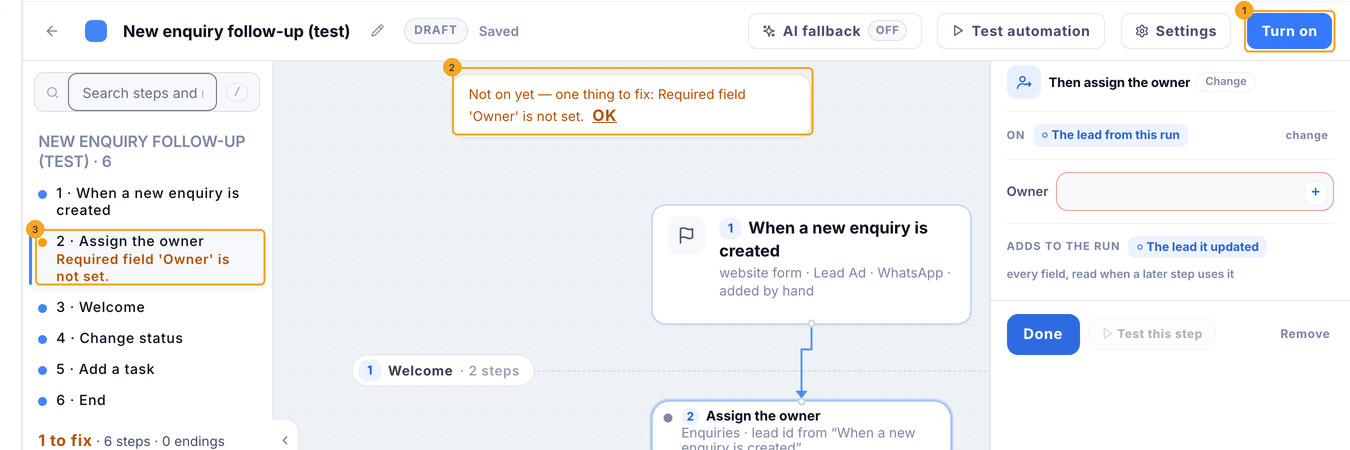
Click Turn on (1). If something is missing it says Not on yet — one thing to fix (2) and opens that step; the list marks it too (3). Fill it and click Turn on again.
8It is live
The button now says Turn off (1) and the status Live (2): the next enquiry that is created gets it.

9Change it while it is live
Change any step: it saves as you go, and the status says Live · changes not published (1). New enquiries keep getting the published version until you click Publish (2).

10Turn it off
Click Turn off: nobody new enters it; those inside finish. The button is Turn on again (1) and the status Draft (2).

© 2026 SkedX · Sample data only · Share and link freely · Copying the product or its design is not allowed · Terms
Common questions
Can a CRM automation wait for their reply?
Yes, two ways. Ask for a typed answer waits for what they write back by WhatsApp, SMS or Email, and their answer goes to the step you point it at. On WhatsApp, an approved template with reply buttons waits for their tap. Reply buttons on an ordinary message cannot come back: it goes to their number or email, not a chat, and a WhatsApp message with buttons reaches someone only within 24 hours of their last message.
Their reply came back by SMS or email — where does it show?
In the same Inbox conversation as the message the automation sent, whichever way their number or address is written (+91 or not, capital letters, their name before the address). The automation takes it from there.
Does it need SkedX Flow?
Messages are sent through SkedX Flow, on the WhatsApp number, SMS sender or mailbox connected there. Enquiries steps work without it.
What is Hand to the owner?
A step that tells the enquiry’s owner to take it from here. Mark as lost sets the status you pick — your Lost status. Add End after either to stop the automation for that enquiry.
Do my changes reach enquiries as I type?
No. While it is live, changes save but run only after you click Publish.
Next in Getting startedSet up a step in a SkedX CRM automation by asking →
Useful links
- Workflows in SkedX CRM — where every CRM automation is built
Previous: Send a WhatsApp template from an automation · All Getting started guides
Did this guide help?
Still stuck?Chat with support →


