Count your enquiries by the stage they stand on — or by their deal’s stage — in the Leads report.
In review: written from the product, not yet walked through live.
1Open the Leads report in Pivot
Open the Leads report and click Pivot (1). Where your company has profiles, pick the profile chip above the report first — its stages are the ones read.

2Add Stage as a row
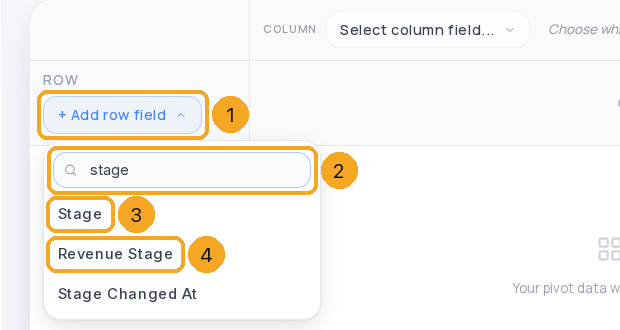
Click + Add row field (1), type stage (2) and pick Stage (3) — or Revenue Stage (4) for the deal’s stage.
3Read the counts
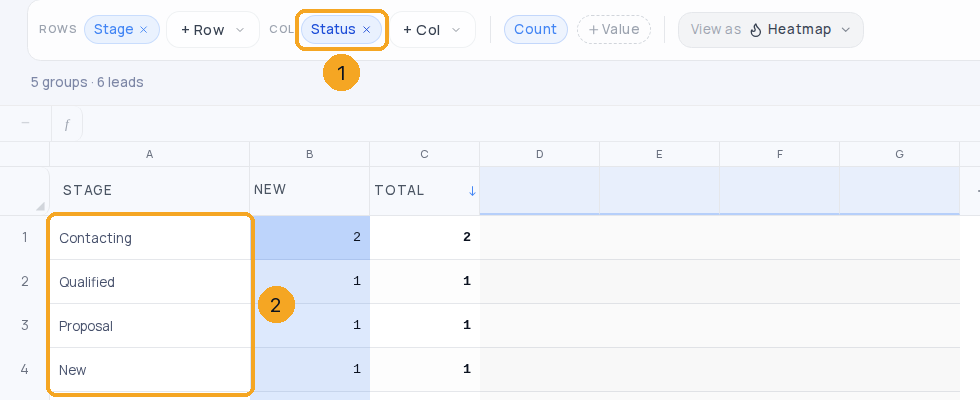
Pick a column field such as Status (1). Each row is a stage (2), in the stages’ own names, with its count under each status.
© 2026 SkedX · Sample data only · Share and link freely · Copying the product or its design is not allowed · Terms
Common questions
I don’t see Stage.
Stage is offered where your company uses stages — two or more on the stage line. An admin sets them in the profile’s Edit layout.
Stage or Revenue Stage — which do I want?
Stage is where the enquiry itself stands on its stage line. Revenue Stage is the stage of its latest deal. An enquiry with no deal has no Revenue Stage.
Why does a profile show different stages?
A profile can have its own stages. The profile chip above the report decides whose are read; All profiles reads Enquiries’ stages.
Does it match the Enquiries list?
Yes. Stage uses the same rule as the list and the record’s stage line, so the counts agree with what each enquiry shows.
How do I see the people behind a number?
Double-click the number: its rows open as a new sheet. A bold row that adds up the rows under it, like a campaign’s own row, opens all of its rows.
How do I open a person from the pivot?
Double-click their name in the row labels. One person opens their enquiry; several people with that name open a sheet of them.
The pivot shows only first names.
Pick Full Name as the row field. It is offered for every company; a company that uses Full Name no longer sees First Name and Last Name.
Next in AnalyticsShare a pinned report on Analytics with your team →
Previous: Choose what someone sees on Analytics · All Analytics guides
Did this guide help?
Still stuck?Chat with support →