2 min readFor all rolesUpdated 6 Nov 2026In review
Split the list into the bands you work in — by any field, or your own rules — and find it grouped the same way on every device.
In review: written from the product, not yet walked through live.
Transcript · 1:24
Group your enquiries by any field — a stage, a date, a budget, your own dropdowns — save your own custom groups, and find the list grouped the same way on every computer. Here is how, in SkedX CRM. Above the list, click Group. The menu lists everything the list can be grouped by, your own fields included. Type a few letters to find one. Pick a date field, like Trial on. The bands are months, newest first. Day, Week, Month or Quarter — choose the period with these chips. Pick a money or number field, like Class fee. The bands are ranges: under, between, over. Set ranges opens the field in the Field Editor, where you type the field's own bounds. A multi-select field puts an enquiry in every band it belongs to, and the band says how many are also elsewhere. Your custom groups are your own rules, with a name, kept on your account. Pick one to group by. Click it again to change its rules, then Save and group. New custom group starts another. Where your company uses stages, pick Stage: one band per stage, and on the Board, one column per stage. Whatever you pick is kept on your account. Open the list on another computer, or sign in again, and it is grouped the same way.
1Open Group by
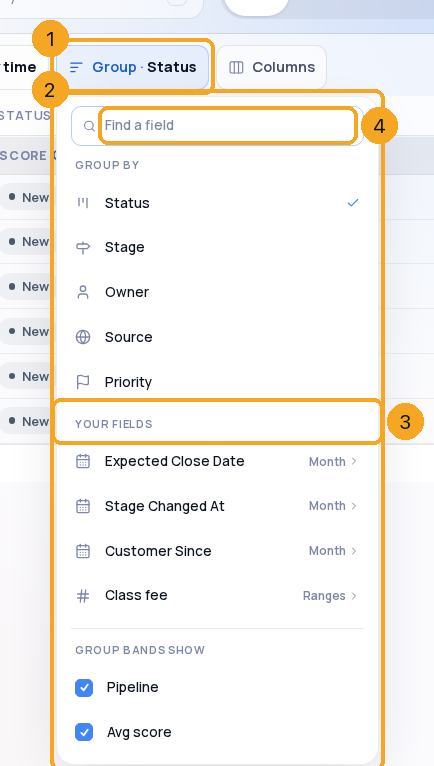
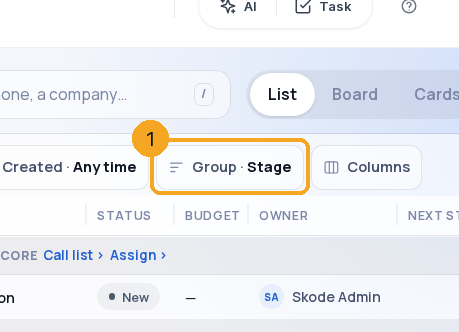
Click Group (1). The menu (2) lists everything the list can be grouped by — your own fields under Your fields (3). Type in Find a field (4) when the list is long.
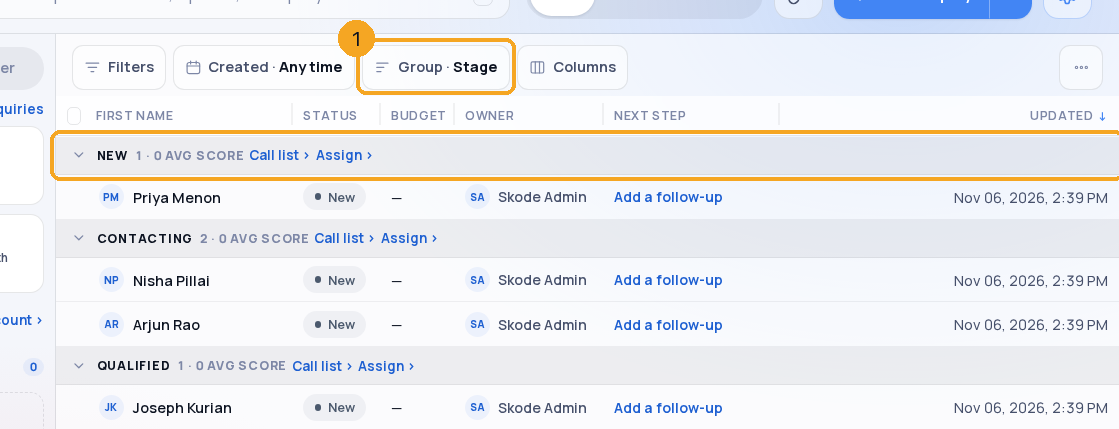
Pick Stage — or Status, Owner, Source, Priority or one of your fields. The chip reads Group · Stage (1) and the list splits into one band per stage (2), in the stages’ own order.
3Group by a date — and pick the period
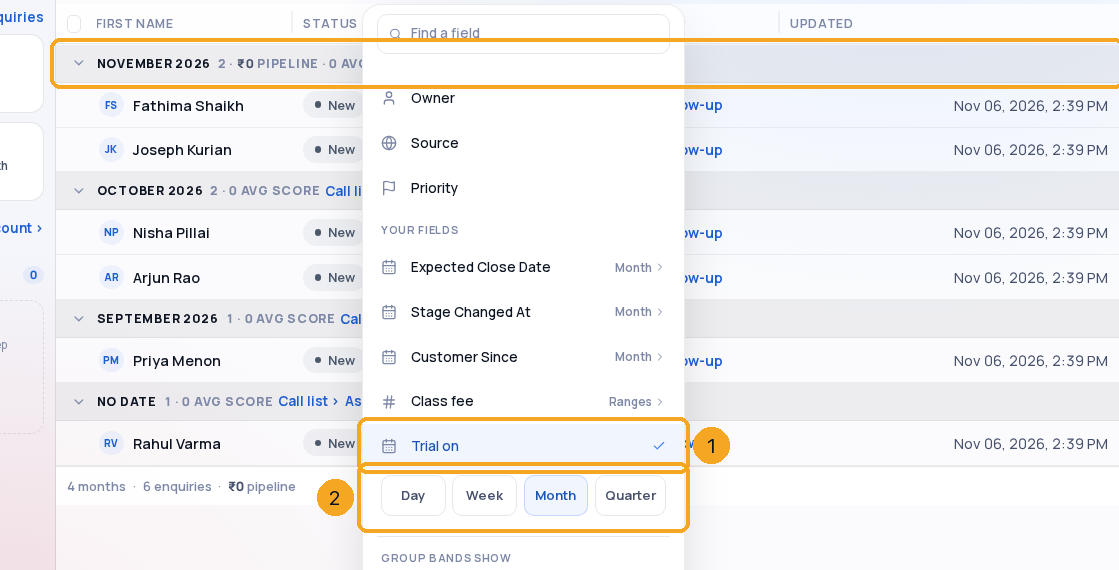
Pick a date field (1), like Trial on: the bands are months, newest first (3). Day · Week · Month · Quarter (2) sets the period.
4Group a number or money field by ranges
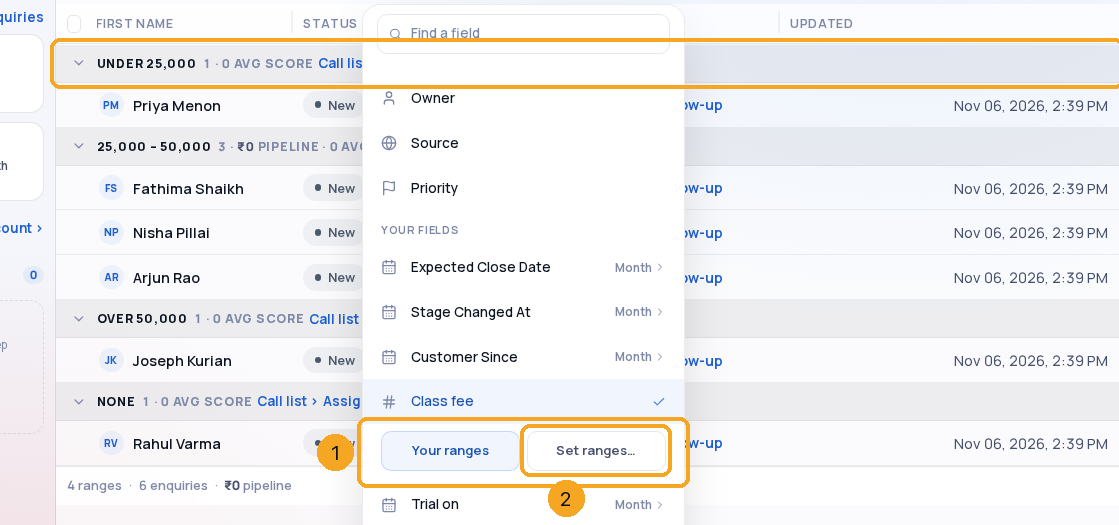
Pick a money or number field: the bands are Under, between and Over (3). The chips (1) say Auto ranges until the field has its own; Set ranges… (2) opens the field.
5Set the field’s own ranges
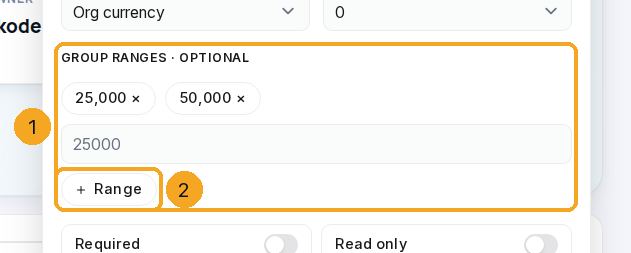
In the Field Editor, the field’s Group ranges (1): type a bound and click Range (2). Each bound is a chip — click it to remove it. No bounds means auto ranges.
6A multi-select field: one record, every band it holds
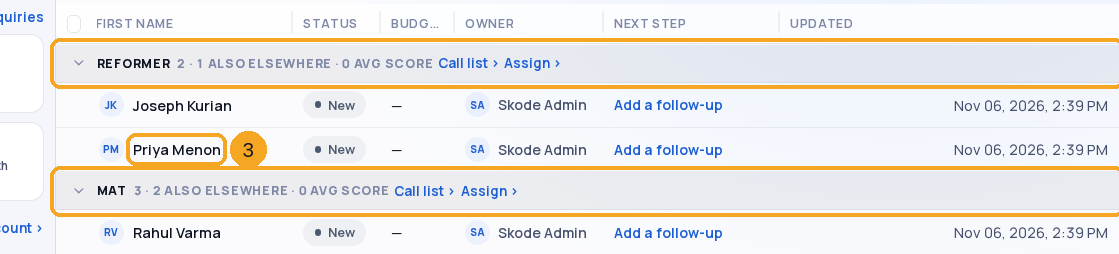
Pick a multi-select field. An enquiry with two values (3) stands in both bands (1) (2), and each band says how many of its records are also elsewhere.
7Save a custom group
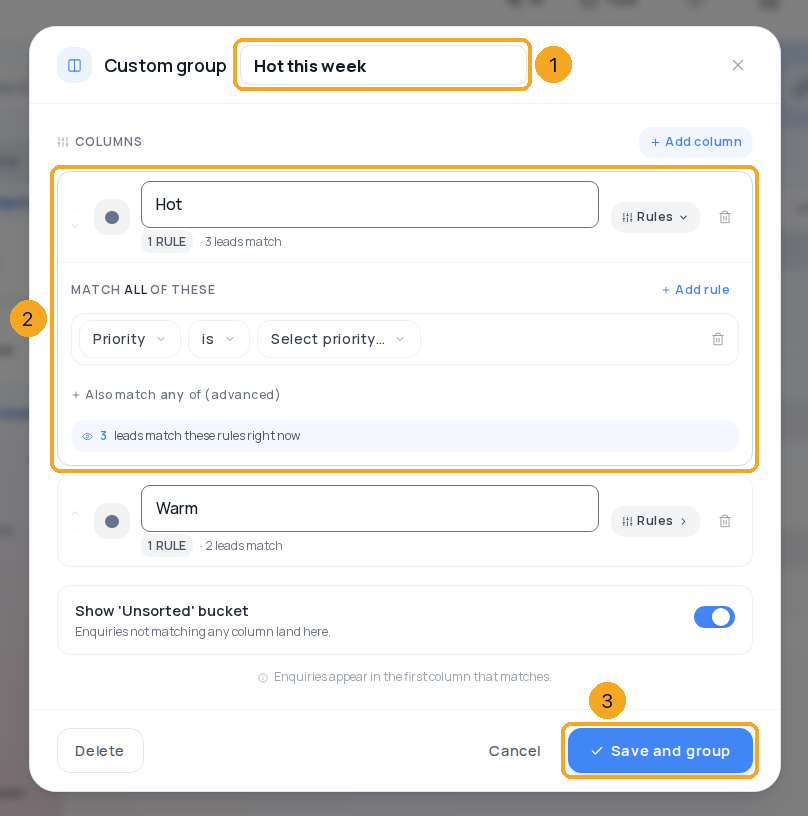
Pick New custom group… to start one, or click the custom group you are grouped by (it says Edit) to change it. Give it a Name (1), set your columns and their rules (2), then Save and group (3). It is kept on your account.
8Find it under Custom groups
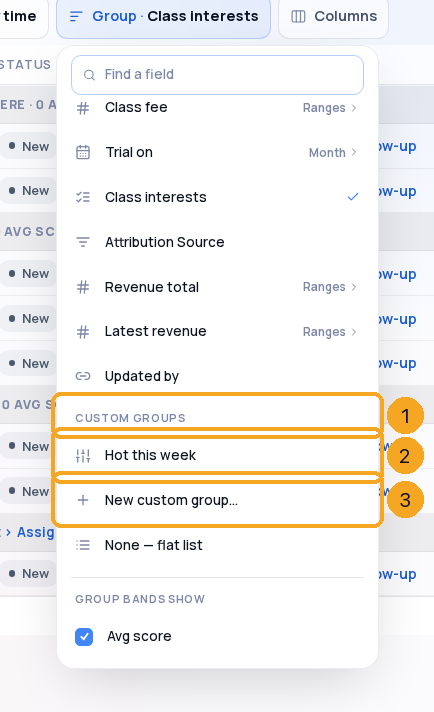
Your five most recently used custom groups wait in the menu under Custom groups (1) — click one (2) to group by it again; click it once more to edit it. New custom group… (3) starts another.
9Use it on the Board
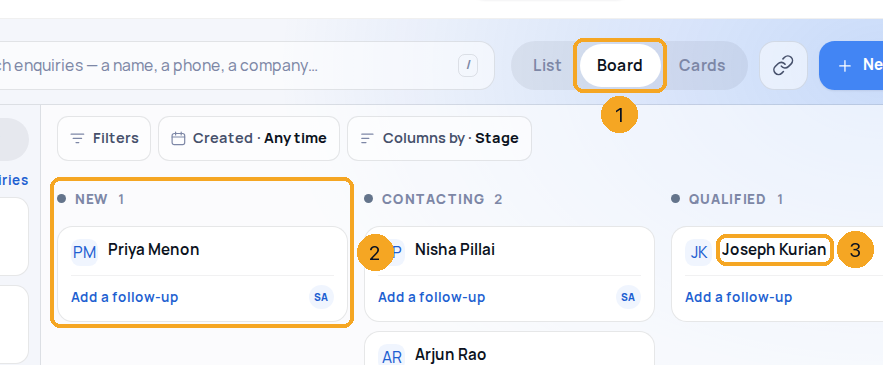
Click Board (1): the columns are the stages (2), and the chip reads Columns by · Stage. Drag a card (3) onto another stage to move the enquiry there.
10It stays on every device
Your choice is kept on your account: open the list on another computer or sign in again, and it shows Group · Stage (1) already.
Text, phone and email fields cannot group a list. Find it in Find a field: the menu says so and offers Make it a dropdown, which opens the field in the Field Editor.
Where do the band counts come from?
From the whole list, on the server, with your filters and search applied — not from the rows loaded so far. A multi-select band also says how many of its records are in another band too.
What is a custom group?
Your own rules that make the bands — for example Hot = priority High. It has a name and is kept on your account; your five most recently used wait under Custom groups, and a sixth pushes the oldest out.
Can my team use my custom group?
Not yet — a custom group is yours, like your Group by. A saved view keeps its own copy of the rules for everyone who opens the view.
Does it group the list on a phone?
Not yet — the phone list shows each enquiry as a card, without bands. Your choice still waits on your account for the computer.
I don’t see Stage.
Stage shows where your company uses stages: two or more, and the stage line not hidden on the record page. An admin sets them in the profile’s Edit layout.
Does my choice change the list for my team?
No. It is yours, for that list. Each person keeps their own.
A saved view opened grouped differently.
A view keeps its own grouping. If you regroup it, Update view saves that in the view. If you don’t, the view stays as saved and your own list keeps the change. Reset discards it.
Can I turn grouping off?
Pick None — flat list. The Board always has columns, so it shows Status there.