3 min readFor all rolesUpdated 11 Nov 2026In review
One page for what you did — and, for a manager, what the team did — with the people behind every number one click away.
In review: written from the product, not yet walked through live.
Transcript · 2:01
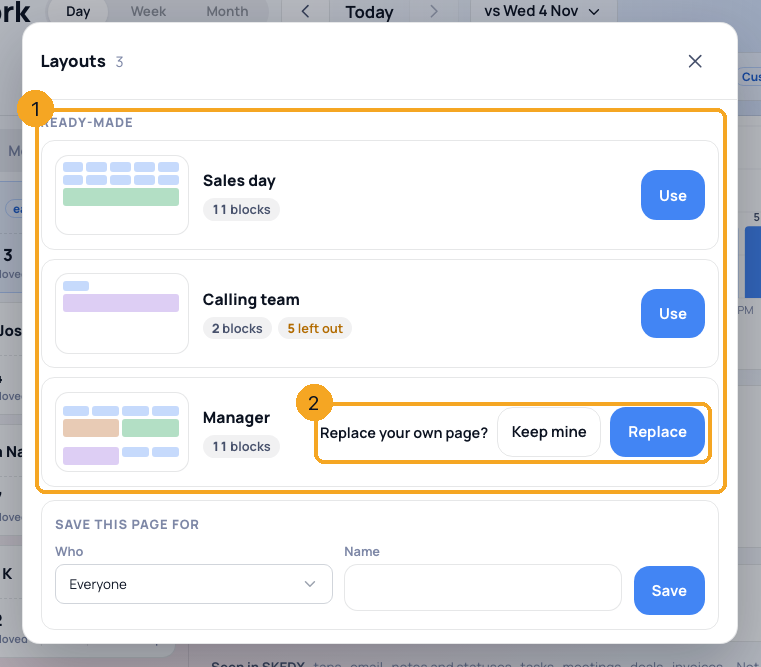
What did you do yesterday, and what moved? My Work answers it in one page, in SkedX CRM. Open My Work. It sits under Dashboard, and opens on today. Pick Day, Week or Month, and step back with the arrows. Compared with sets what every number is measured against. What you did shows each number once: the people you touched, how fast you answered, what moved, what you won, and who has no next step. Point at a tile to see how it splits. The chart shows the day by the hour, against the same day a week before. A chip switches what it shows. Click any number to see the people behind it: what you did, their status, and their next step. Open in the list takes exactly these people to Enquiries. Modules shows one kind of work at a time. Deals, for example, shows each stage move and why a deal was lost. Managers pick Team. Each person is counted once, the Users cards show everyone side by side, and the list groups the people by user. Anyone left with no next step is one click away. Show them, and add a follow-up. Customize makes the page your own. Point at a block to move it, resize it or remove it, and Add a block puts a number, a chart, a list or a breakdown on the page. A block's settings say exactly what it counts. Start from a ready-made number, or build your own: what to show, of which records, and what happened to them. The block behind shows the answer as you go. Or start from a layout: Sales day, Calling team, Manager, or your company's own page. If you already have a page of your own, SkedX asks before it is replaced.
1Open My Work
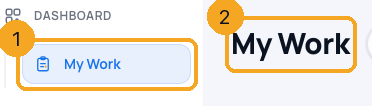
Click My Work (1) under Dashboard in the sidebar. The page (2) opens on today.
Pick Day, Week or Month (1). Step back or forward with the arrows beside the date (2), or click the date to pick any days. vs (3) sets what every number is compared with: the same days before, last year, the company average, the team, or days you pick.
3Read what you did
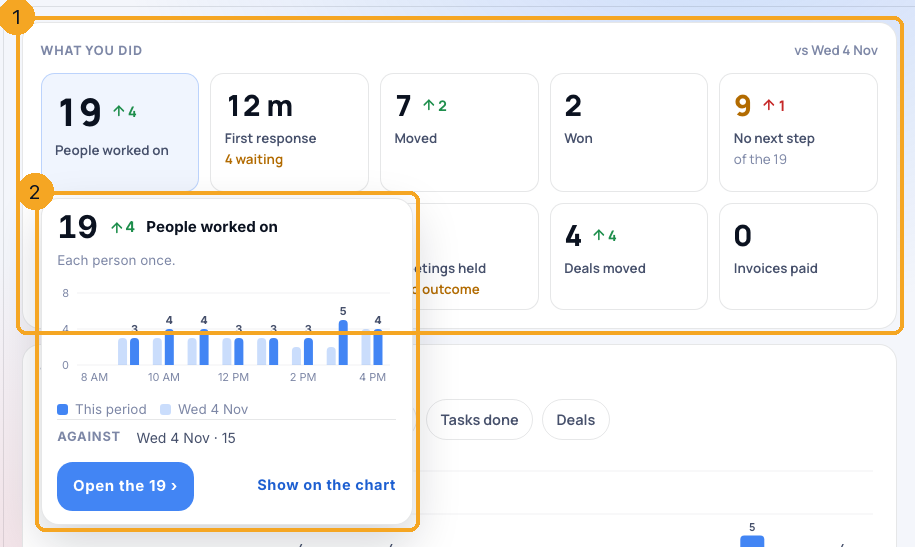
What you did (1) counts each person once: People worked on, First response, Moved, Won and No next step, then a row for replies, calls, tasks, meetings, deals and invoices. An arrow beside a number shows it moved against the day you compare with — green is better, red is worse; no arrow means no change. A line under a number appears only when it matters: 8 waiting is new people nobody has contacted yet. Point at a tile for its card (2) — what it counts, the full split, and a button that opens the people.
4See the day by the hour
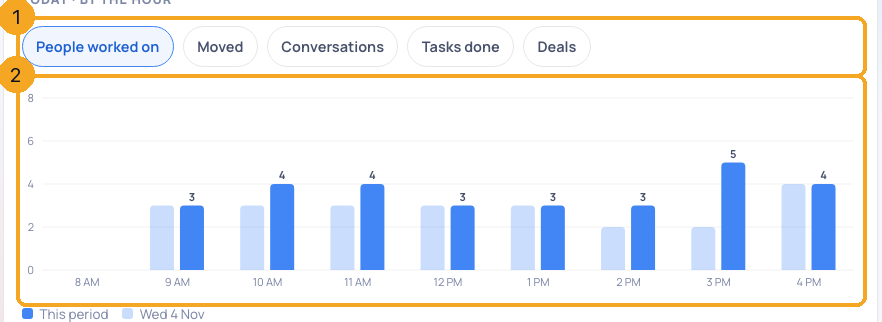
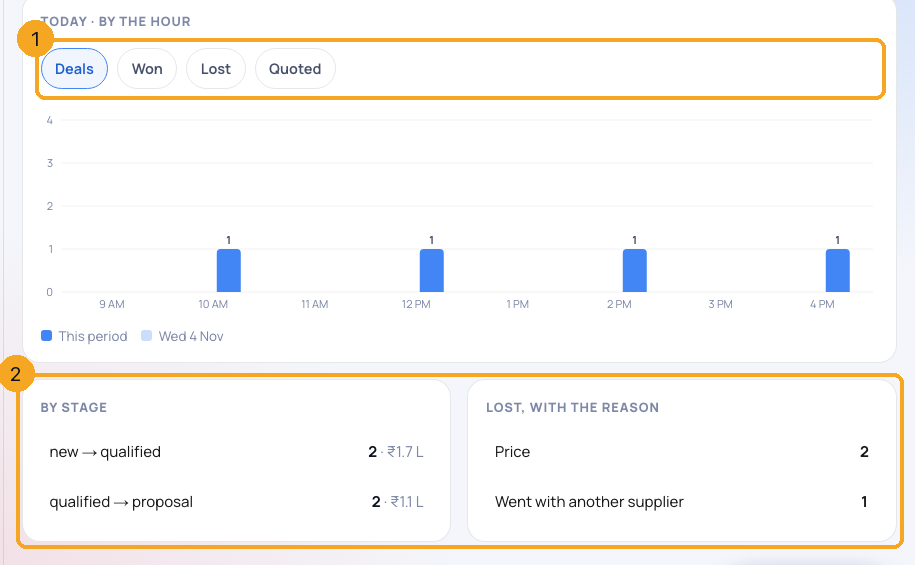
The chart (2) shows the day by the hour, against the same day a week before, zoomed to the hours that have work. A chip (1) switches what it shows; click a column to see that hour’s people.
5Open the people behind a number
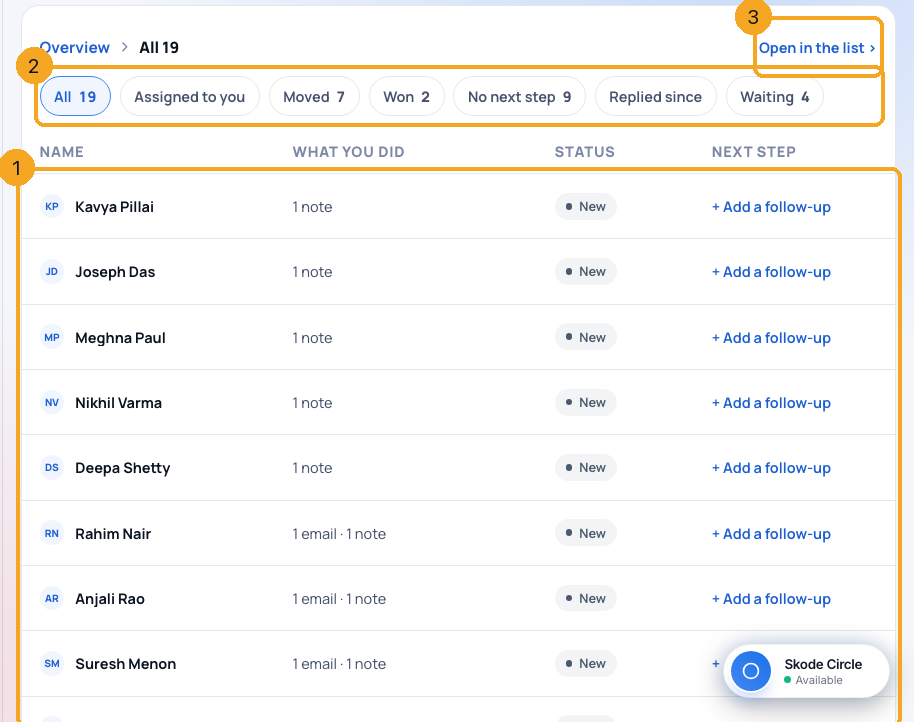
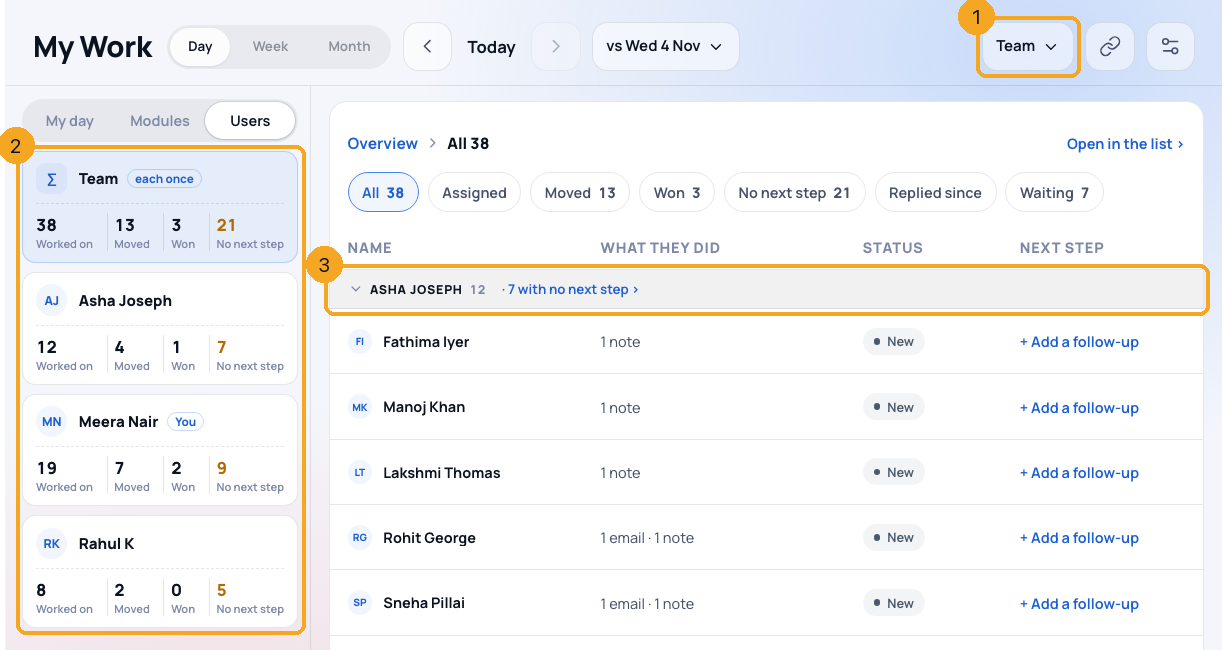
Click a tile. The list (1) shows each person once — what you did, their status and their next step. The chips (2) switch between All, Assigned, Moved, Won, No next step and Replied since — and Waiting, while anyone new is still uncontacted; Open in the list (3) shows exactly these people on Enquiries.
6One kind of work at a time
Under Modules, pick one — Enquiries, Conversations, Tasks, Meetings, Deals or Invoices, and Calls where SkedX Call is sold to your company. It opens on its own, with its own chart (1) and its own detail: Deals, for example, each stage move and why deals were lost (2). Overview takes you back.
7See the team (managers and admins)
Pick Team or one person under Me (1). The Users tab (2) shows everyone side by side, in name order. The list groups the people by user (3), with how many of each user’s people have no next step. A person two users worked counts once for the team.
8Give everyone a next step
No next step (1) counts the people you touched with nothing planned after. Show them opens them; + Add a follow-up on a row adds one in two fields.
9Make the page your own
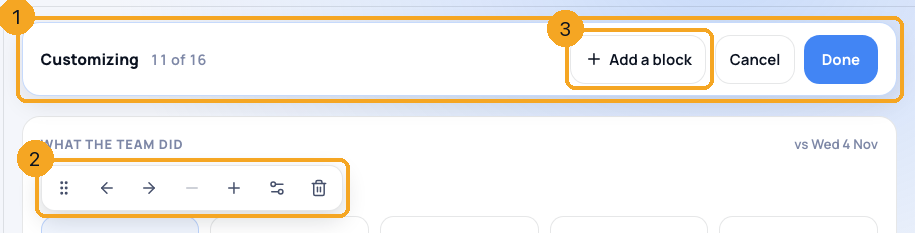
Click Customize; its bar (1) shows how many blocks the page holds. Point at a block: its tools (2) move it, make it wider or narrower, open its settings or remove it — or click a block and use the arrow keys. Add a block (3) adds a number, a target, a chart, a list of people, a breakdown or a heading, up to 16. Done saves the page as yours; Cancel changes nothing.
10Change what a block counts
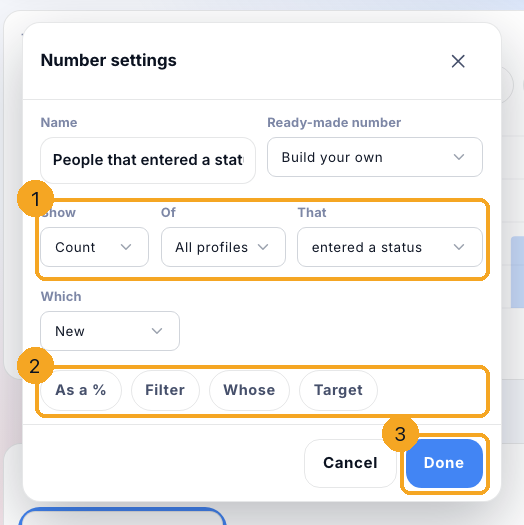
In a block’s settings, start from a Ready-made number or pick Build your own. Choose what to Show, Of which records and That what happened to them (1) — each list is searchable, and each choice keeps only what makes sense for the next. As a %, Filter, Whose and Target (2) add more when you need it. The block behind shows the answer as you go; Done (3) keeps it.
11Start from a layout
Click the page’s name beside Customize. Each layout (1) — Sales day, Calling team, Manager, your company’s page or your role’s — shows its blocks in small; Use makes it your page. If you have a page of your own, it asks first (2). Someone who manages the company’s settings can save the page on screen for everyone or for one role.
Managers see their team; admins and the owner see everyone. Everyone else sees their own work only — Me, Team and the Users tab show only for people who may see other people’s enquiries.
What counts as People worked on?
A person you worked on in the period, in any profile — a call, a message, an email, a WhatsApp tap, a note, a status move, a field change or a task done — each person once, however often. Automations and bulk changes do not count.
How is first response counted?
From a new enquiry arriving to the first time someone contacts them — a call, a message, an email, a tap or a note — on your company’s clock. The tile shows the middle value (the median), so one enquiry left overnight does not swamp it. An automatic email or a status change is not a first response.
What does “8 waiting” mean?
People who came in during the period, are yours to answer, and nobody has contacted yet. They are not in the First response time until someone reaches them. Click the tile to open them.
What do the arrows mean?
Each arrow compares the number with the day or days picked under vs, at the same time of day. Up or down is the direction; green is better and red is worse — for First response and No next step, down is better. A tile with no arrow did not change, or the numbers are too small to compare.
A tile says “Choose Won status”.
Your company has not said which status means Won. Click the tile to choose it in Settings → KPI Settings. If you see “Ask your admin”, only an admin can choose it.
Why does Meetings held say “no outcome”?
Those meetings’ time has passed and nobody has marked them. A meeting counts as held when it is marked Went ahead or ticked done.
Why does the team’s number not add up?
A person two users worked counts once for the team, so Team can be smaller than the users added together.
Why does a tile say “not seen yet”?
SkedX cannot see that work yet — replies typed on the shared WhatsApp phone, for example. It shows a dash, never a zero.
I don’t see Calls.
Calls shows where SkedX Call is sold to your company.
Can I choose which numbers show?
Yes. Customize lets you move, resize, add and remove blocks, and change what each one counts — your page is yours alone.
Can an admin set the page for the whole team?
Yes. Someone who manages the company’s settings opens the page’s name, then Save this page for everyone or one role. Each person can still make their own.
What does “Custom” beside the page’s name mean?
Your page started from a layout and you have changed it since. Use the layout again to go back to it.
A layout says “5 left out”.
Those blocks count something your company does not have — Calls where SkedX Call is not sold, for example — so they are left out.
A block says “Needs fixing”.
What it counts no longer exists — a status that was deleted, for example. Click Change it to pick something else.
Does it work on a phone?
Yes. The ⊞ button opens the panel — My day, Modules and Users — and the list shows each person’s name; open a name for the rest. Customize and layouts are on a computer.