A meeting is a conversation on the record — so it opens like one: what was agreed, who is coming, and the notes around it, all in one place you can change.
In review: written from the product, not yet walked through live.
1Open the meeting
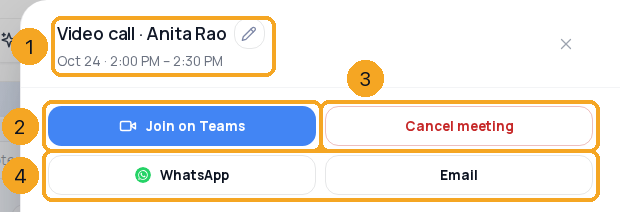
In Calendar, click the meeting. It opens as its own form (1): the title with its pencil to rename it, the time, and at the top Join (2) and Cancel meeting (3). WhatsApp and Email (4) reach the person — each shows only when it works for you.
2Change the time, the length or the place
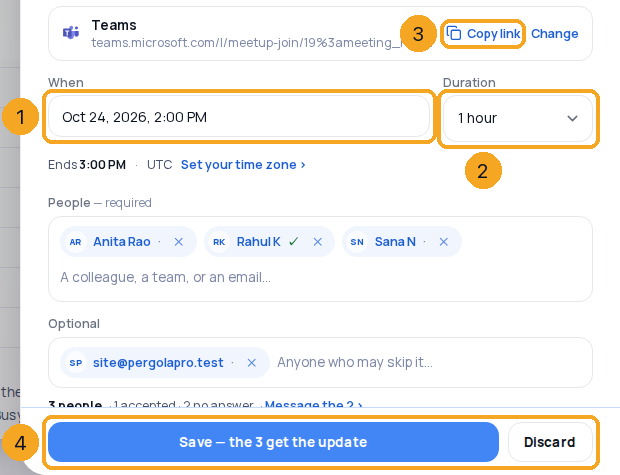
Click When (1) for the date and time picker, change Duration (2), or change How and Where. Copy link (3) puts the join address on your clipboard to send to anyone. A change shows the save bar (4): Save, and everyone on the meeting gets the update; Discard puts it back.
3Add people, and see who is coming
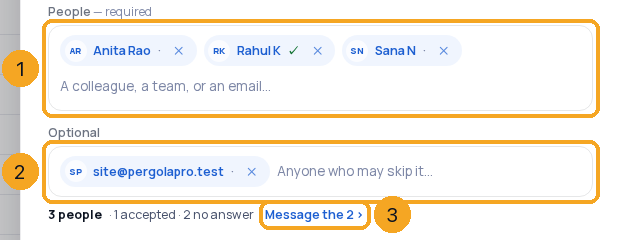
Type in People (1) or Optional (2): a colleague, a whole team (one chip), a record or an email — or paste a list. Each chip shows the answer: ✓ accepted, · no answer yet, struck through declined. Message the n (3) sends the invite again to everyone who has not answered. A meeting never invited says Not invited yet, with Send the invite.
4Keep notes on the meeting
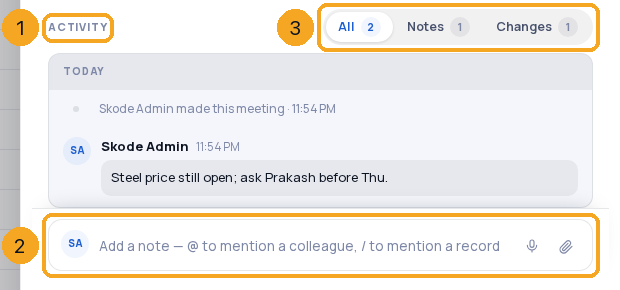
Under the form is Activity (1) — the same as a task's. Write a note in the box (2) — “I'll be 2 minutes late” — and @ a colleague to tell them. Notes and Changes (3) show one kind at a time; changes are booked, people added or removed, rescheduled and answers.
5After the meeting: how did it go?
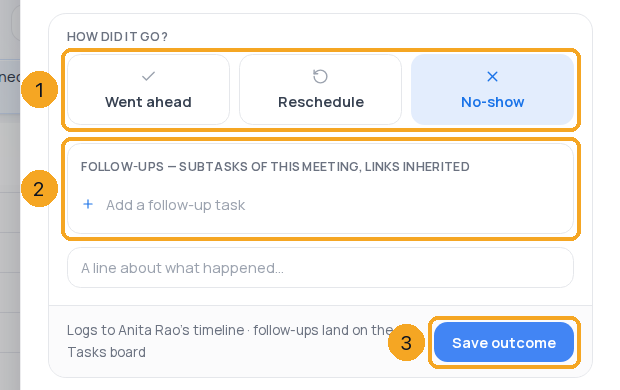
Once the meeting has ended, the panel asks How did it go? (1) — Went ahead, Reschedule (it opens When) or No-show. Add follow-up tasks (2) — they land on the Tasks board with the meeting’s links — and a line about what happened, then Save outcome (3). It goes on the person’s timeline, and Calendar search finds it (“no-shows”).
© 2026 SkedX · Sample data only · Share and link freely · Copying the product or its design is not allowed · Terms
Common questions
Does a change reach the guests straight away?
Only when you press Save. Until then the save bar shows, and Discard puts everything back.
Why do I not see WhatsApp or Email?
Each shows only when it works: WhatsApp needs WhatsApp connected in SkedX Flow and a phone number on the record; Email needs your own Gmail or Outlook, your company's SMTP or your own domain — not SkedX's no-reply address — and an email address.
Is “invite sent” in the activity?
No. The activity records changes to the meeting — booked, people added or removed, rescheduled, answers. The invite line in the form says who it went from.
Which time zone are the times in?
Your own, from Your account — never the company's. A booked visitor gets their own time in their invite.
Why is there no microphone in the note box?
Voice and video notes come with the new Tasks. Until your company has it, notes on a meeting are typed — with files and @ mentions.
Where is what they paid, or Hand over?
At the top, under the time: a booking that was paid says how much and through which provider, and a team link’s round-robin says who it chose and why, with Hand over › to give the meeting to a colleague who is free then.
Can I change someone else's meeting?
You can open it and read it; only the person whose meeting it is can change or cancel it.
Next in CalendarYour reminders, in Calendar: see, tick and add them →
Previous: Invite guests to a meeting and see who is coming · All Calendar guides
Did this guide help?
Still stuck?Chat with support →


