Meetings stay on the record they belong to; Calendar is where you see them all at once.
In review: written from the product, not yet walked through live.
1Open Calendar
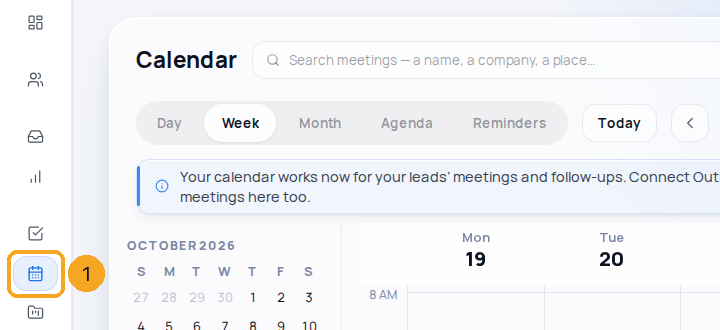
In the sidebar, under Work, choose Calendar (1) — or press G then A. The first time, a short tour shows what it does; Skip ends it.
2Read your week
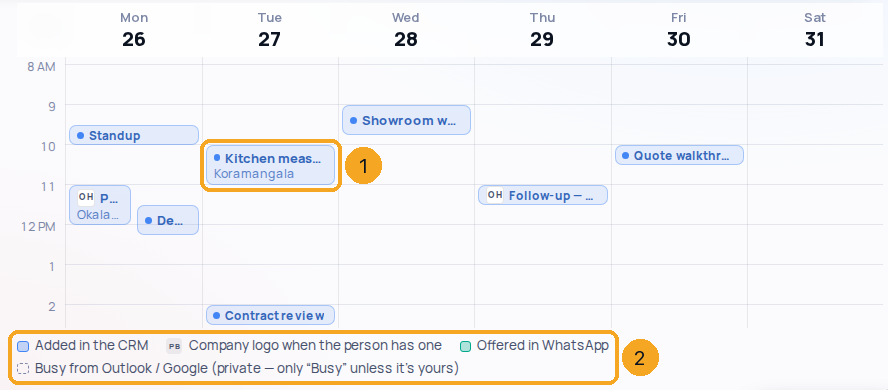
Each meeting is a block (1) in its colour: blue added in the CRM, teal offered in WhatsApp, dashed from Outlook or Google. A company’s initials sit on its meetings. The key under the week (2) says which is which. Today is tinted and the red line is now.
3Add a meeting, a reminder or blocked time
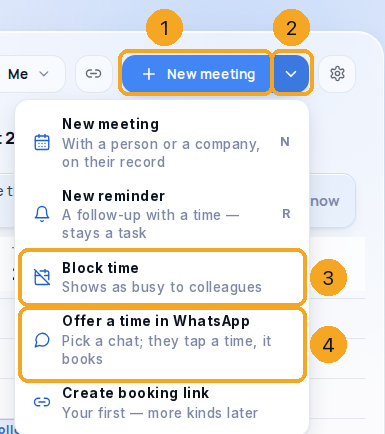
+ New meeting (1) adds a meeting at the next hour — or click an empty hour on the week to start there. Its arrow (2) offers New reminder (a follow-up with a time, kept in Tasks), Block time (3) — an hour marked Busy at once, which you drag to place — and Offer a time in WhatsApp (4). On a computer, N and R do the first two.
4Pick a time you are free
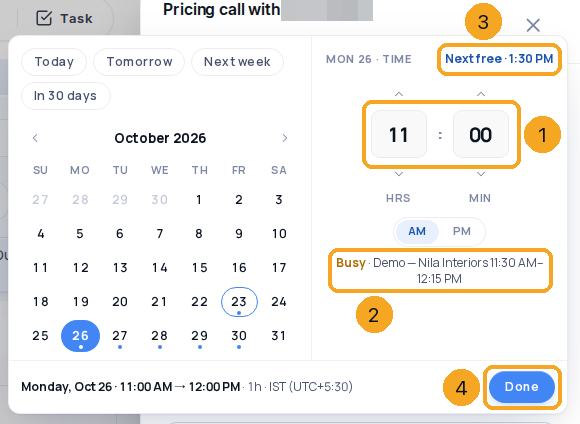
In New meeting, When — or Reschedule on a meeting — opens the month with the time beside it (1). Under the time it says Free until your next meeting, or Busy with what holds that time (2) — and Next free (3) jumps past it, inside your working hours. One Done (4) sets both.
5See a whole meeting
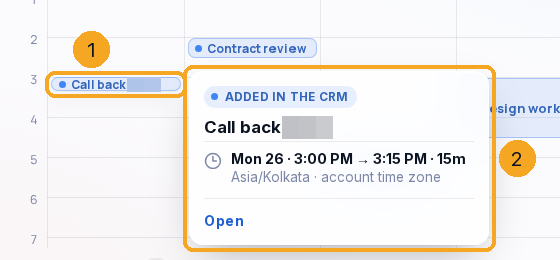
Hover a meeting (1) — or move to it with Tab — and a card shows all of it (2): who, when, where, the record it is on and how they came. A 15-minute meeting keeps one line on the week; the card carries the rest.
6Open a meeting
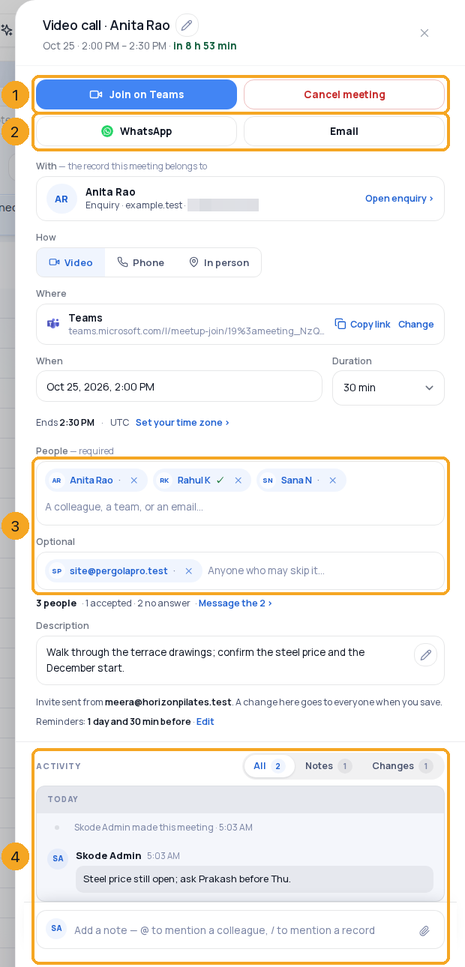
Click a meeting and it opens beside the week as its own form (a sheet on a phone): Join and Cancel meeting (1) — cancel asks once — and WhatsApp and Email (2), each shown only when it works for you. Every field can be changed in place; the people (3) show each answer; and its notes and activity (4) sit under the form, as on a task. After the meeting it asks how it went. Open a meeting, change it, and keep notes on it has all of it.
7Move or stretch a meeting
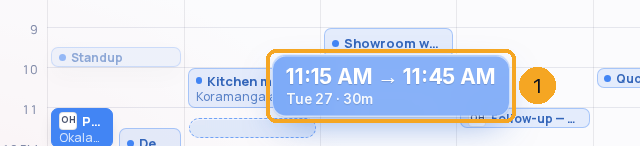
Drag a meeting to a new time, or drag its bottom edge to make it longer. The new time shows beside your pointer (1) and snaps to 15 minutes; it turns amber if it overlaps something. Undo is in the note that follows. An Outlook or Google meeting you organised moves there too and its guests are told; one you were invited to offers Propose a new time.
8Change the view
Switch between Day, Week, Month, Agenda and Reminders (1); Today (2) brings you back and ‹ › (3) move a step.

9Move from the dates
You need not go up to the toolbar: an arrow sits at each end of the dates above the calendar. ‹ (1) goes back and › (2) forward by the view’s step — a week in Week, a month in Month, a day in Day. The Agenda has ‹ the dates › at the top of its list. On a phone, Week, Month and Agenda show the same ‹ the dates › band under the views; the Day strip already moves this way. In a narrow window or at the largest text size, Week and Month leave the arrows out so they never cover a day’s name — ‹ › beside Today move the same way.

10See your team's calendars
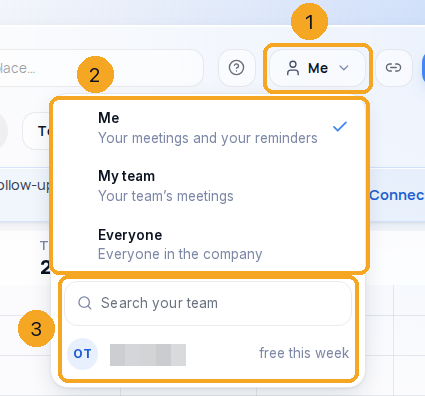
Me ▾ (1) switches between your calendar, your team’s and everyone’s (2) — as far as your role allows. Below them, the people you may open one by one (3): search by name, and each shows a line — meetings this week, free today, on leave. A choice your role does not include says why, with Ask to request it from your admin.
11Search on your phone
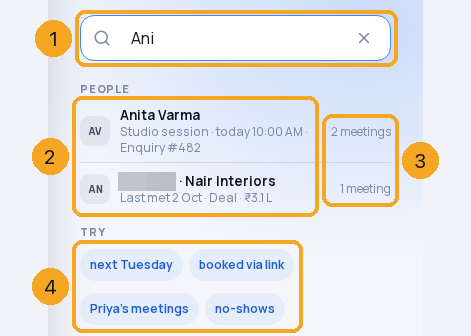
On a phone, tap the search (1) at the top of Calendar and type a few letters of a name or a company. People (2) shows who you meet — their next meeting, or when you last met, with the record it is on — and how many meetings you have together (3). Try (4) fills in a phrase: next Tuesday, booked via link, a colleague’s meetings, no-shows; a date like 20 Oct works too. A word from a meeting’s notes finds it as well — see In the notes below. Tap a result and Calendar opens that meeting, on its day. ✕ closes the search.
12Search from the desktop
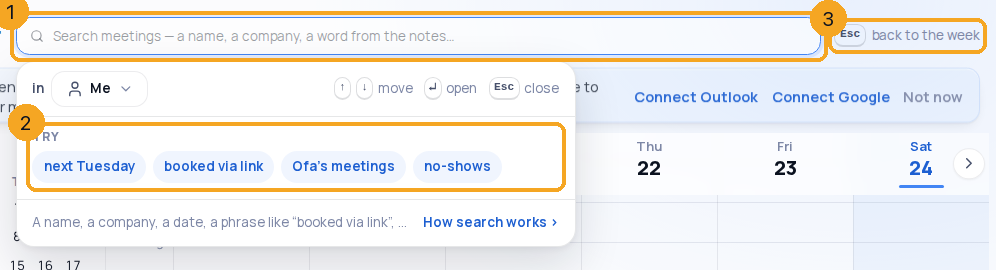
Click the search field (1) at the top of Calendar, or press /. A panel opens under it with Try (2) — phrases you can click: next Tuesday, booked via link, a colleague’s meetings, no-shows. While the panel is open the field has the row to itself; Esc (3) brings the week’s controls back. Type a name, a company, a date or a phrase: People come first, then Meetings. ↑ ↓ move over the results, ↵ opens the one you are on, ⇥ starts a new meeting with that name, and the week behind dims to the results so you can see where they sit.
13Find a meeting by a word in its notes
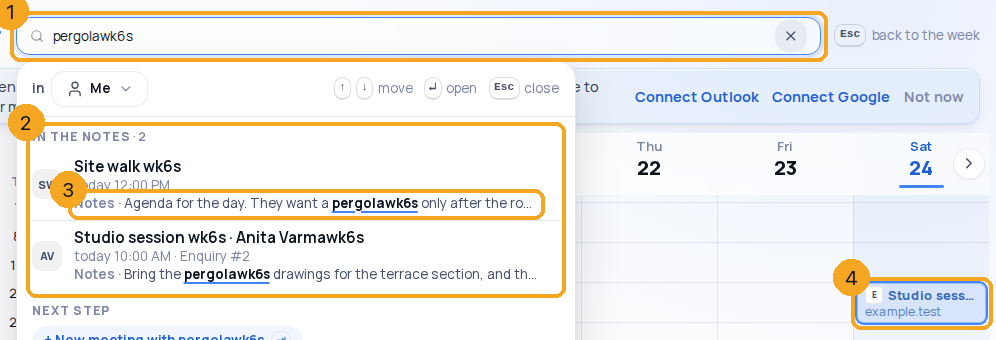
A word that is in a meeting’s notes, its outcome, or what someone wrote when they booked finds that meeting too. Type the word (1) and the results show it under In the notes (2), each with the line it was found in (3) — the word underlined — and where: Notes, Outcome or Booking answer. On the week behind, those meetings stay lit (4) and the rest step back. A meeting whose title or person already matched is listed above, never twice. Only the one line travels; open the meeting for the whole note.
14The same on your phone
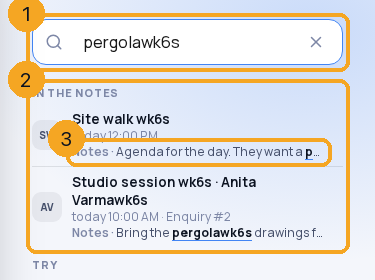
On a phone, the search (1) shows In the notes (2) under People and Meetings, with the same line for each hit (3). Tap a result and Calendar opens that meeting, on its day.
15See what the search understood — and drop a part
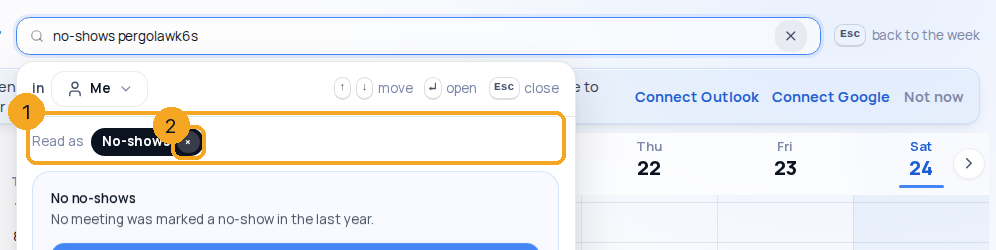
When you type a phrase, the panel shows what it read as dark chips (1): a date, No-shows, Booked via link, a colleague’s name. Each chip has an × (2) that drops exactly that part of what you typed and searches again — so “no-shows pergola” becomes “pergola” in one click. A word the search did not read as a phrase stays plain text and is searched as a word.
© 2026 SkedX · Sample data only · Share and link freely · Copying the product or its design is not allowed · Terms
Common questions
How do I get back from Calendar settings?
Calendar settings is a place of its own — the week’s search, + New meeting and the Day / Week / Month bar step aside while you are there. The header reads ‹ Calendar · Calendar settings; ‹ Calendar brings your week back, on a computer and on a phone.
Can I search inside a meeting’s notes?
Yes. A word in a meeting’s notes, its outcome note, or what the person wrote when they booked finds it — under In the notes, with the line it was found in. Only that one line is shown in the results; the whole note is on the meeting. It searches only the calendars your role may see, and a colleague’s own Outlook or Google meetings stay “Busy”.
Why does the search on my computer hide the view buttons while it is open?
So the field and its results have the row to themselves. Press Esc, or click anywhere outside the panel, and the week and its controls come straight back; the words stay in the field until you clear them with ×.
Where is the + on my phone?
On the Calendar the blue + at the bottom right adds a meeting, a reminder or blocked time. The centre + of the bottom bar is not shown on this page, so there is one + and it always adds to your calendar.
Do I have to connect Outlook or Gmail?
No. Calendar works on its own as your follow-up system for leads — meetings, calls and reminders on each record, your booking link, and times offered in WhatsApp. Connecting Outlook or Google only adds the meetings from that calendar. “Not now” puts the connect notice away.
Why can't I move a meeting from my Outlook?
You can move one you organised — it changes in Outlook too, and Outlook tells the people invited. A meeting someone else organised can only be moved by them, so Calendar offers Propose a new time instead.
What happens when I cancel or delete a meeting someone booked through my link?
Their booking is cancelled with it, wherever you did it — Cancel meeting in Calendar, the task panel, the bin or an automation. The time is free again and their reminders stop. They get a “Cancelled” email from you with Pick another time (and a WhatsApp message, if they ticked it). A paid booking is refunded in full, whatever the link’s refund rule: Razorpay and Stripe refund automatically; with PayPal you refund in PayPal. On a group link, their seat goes to the first person waiting. Moving the meeting instead keeps the booking and tells them the new time.
Which time zone is the calendar in?
Your company's, from its SkedX account. Everyone on the team sees the same times; a visitor booking you sees their own.
Do my personal Outlook meetings show to colleagues?
Only as Busy. Titles, people and places of your synced meetings stay yours.
Do times offered in a WhatsApp chat see my calendar?
Yes. A time offered from a chat — by you or the assistant — is one the chat’s assigned person is free: their working hours, lunch and time off from Calendar settings, minus every meeting and call on their calendar, whether added here, booked through a link or synced from Outlook or Google. The time is checked again the moment the customer taps it, so it is never booked twice, and the meeting lands on that person’s calendar with the chat.
What does search on my phone look through?
The meetings in the calendars your role may see — yours, your team’s or everyone’s, as Me ▾ allows — a year back and a year ahead: the person or company on the meeting’s record and the meeting’s title, never its notes. A colleague’s own Outlook or Google meetings show only as Busy and are never found by their words. A colleague’s meetings outside what your role sees says so and offers Ask your admin. Nothing you type is sent to an AI model — the phrases are read by fixed rules.
My week is empty — what now?
The note above the week says what is next: Jump to that week when you have a meeting later, and Share your booking link — or Create booking link if you have none yet — so people can fill it. + New meeting adds one yourself.
Calendar says “Still loading your calendar”. What do I do?
Press Try again. It shows when your week takes longer than usual to arrive — usually a slow connection — and your meetings are safe. A week you have already seen opens at once from memory, so going back and forth is instant.
Next in CalendarConnect your Outlook or Google calendar →
Did this guide help?
Still stuck?Chat with support →


