Calendar is where a calendar is connected: one step says what SkedX may use, and every other screen sends you here and back.
In review: written from the product, not yet walked through live.
1Connect once
With nothing connected, Calendar works on its own and offers, above your week, Connect Outlook (1) or Connect Google (2) — or Not now (3), which puts the notice away. Calendar settings › Connected accounts has the same Connect on each row.

2Choose what SkedX may use
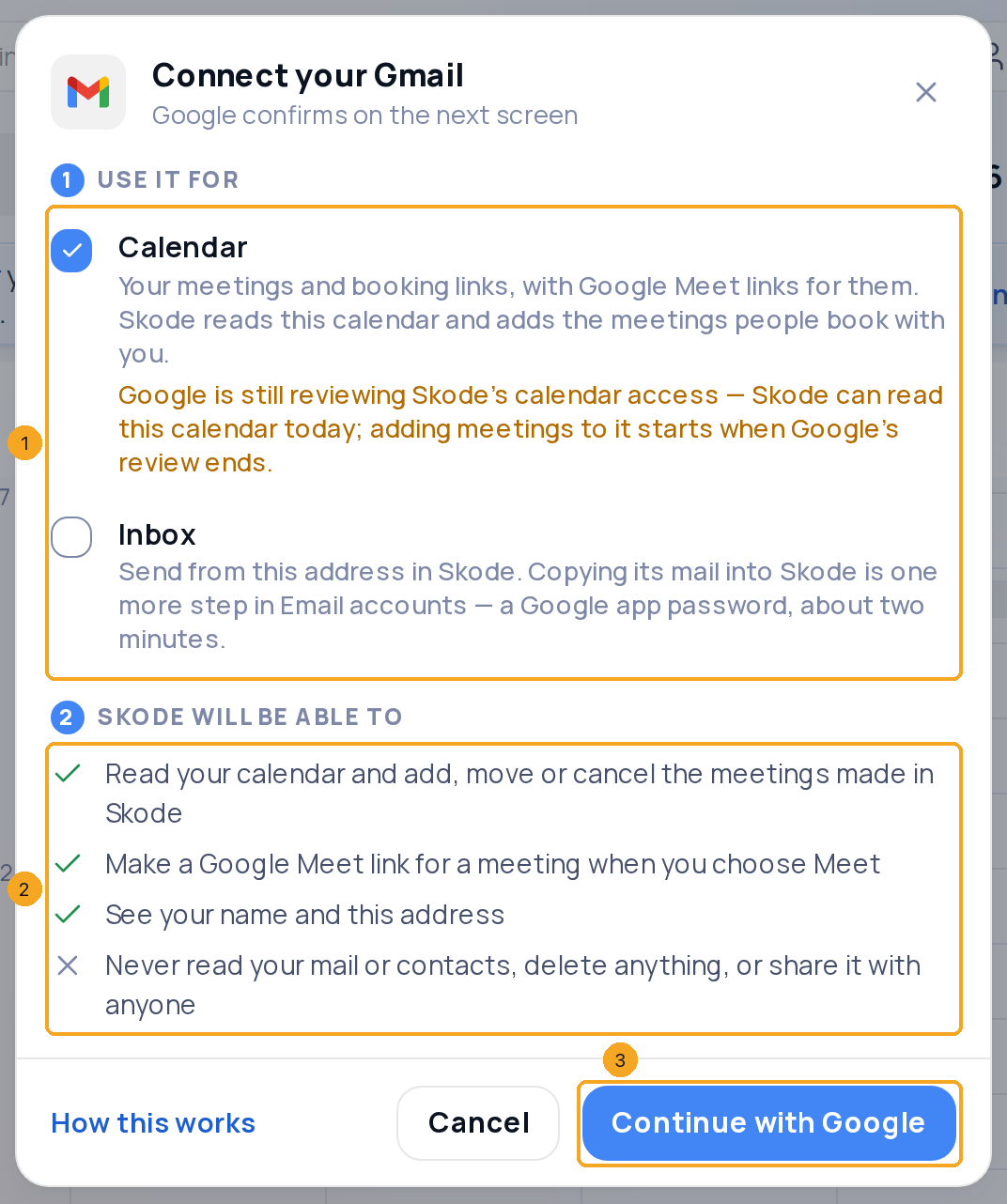
Either button opens one step before Microsoft’s or Google’s own screen. Use it for (1): Calendar is ticked; Inbox is one tap away — tick it to use that mailbox in the Inbox too, and choose who sees it (an Outlook’s mail is copied every 2 minutes; a Gmail sends from SkedX, and copying its mail is one more step in Email accounts, a Google app password). With Google, a line under Calendar says Google is still reviewing SkedX’s calendar access: SkedX can read the calendar today, and adding meetings to it starts when Google’s review ends. Skode will be able to (2) follows your ticks. Continue with Google (3) — or Microsoft — asks for exactly what is ticked. If you left Inbox unticked, Calendar asks once right after: Also copy ‹address›’s mail into your Inbox? (for a Gmail, Also use ‹address› in your Inbox?) — Yes, add my Inbox or Not now.
3Your email is already connected? Allow Calendar to use it
A mailbox connected for email only — an Outlook connected before 2 September 2026, or one connected for the Inbox alone — says Your Outlook is connected for mail. (1) above your week, with one button: Allow Calendar to use your Outlook (2). It opens Microsoft’s (or Google’s) window on that same address and asks only for the calendar; nothing changes in your inbox, and its meetings appear on your week. Not now (3) puts the notice away; Calendar settings › Connected accounts keeps Allow on that row.

4Allow it from any screen
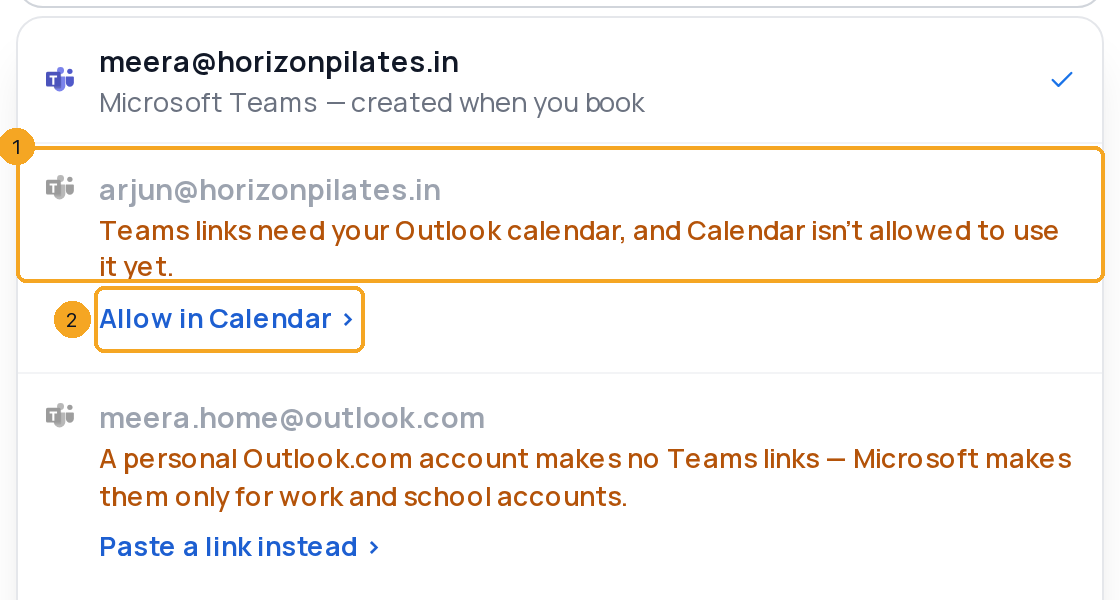
Your calendar is allowed in one place — Calendar settings › Connected accounts. Any other screen that needs it — New meeting’s Video call, a meeting’s link, Settings → Integrations, Settings › Email, SkedX Flow’s Bookings — says why (1), for example “Teams links need your Outlook calendar, and Calendar isn’t allowed to use it yet.”, and offers one link: Allow in Calendar › (2). Under a mailbox in Settings › Email the same link reads Allow Calendar to use it ›.
5Come back by yourself
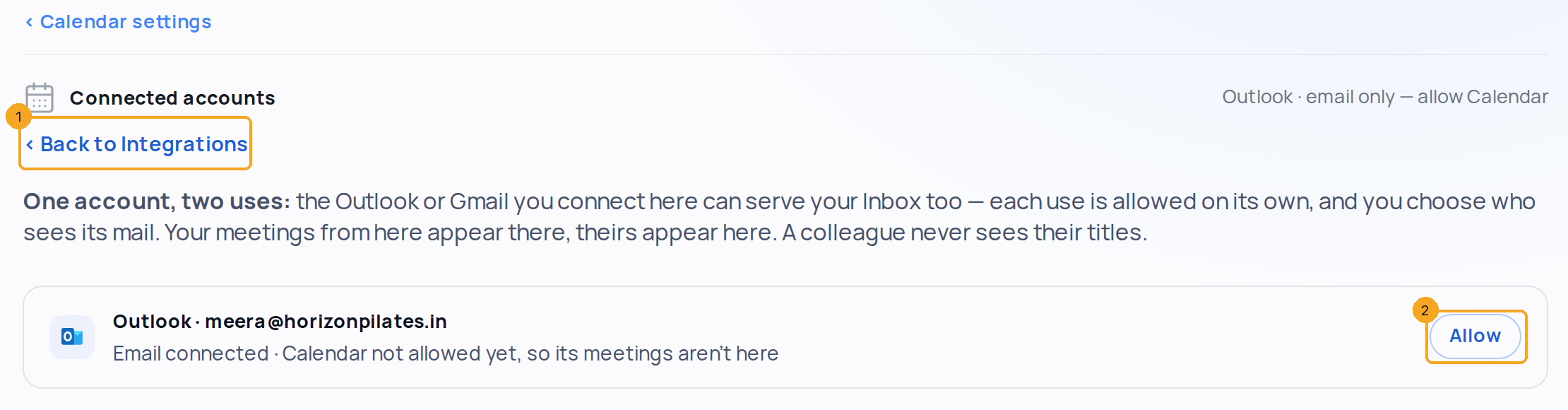
The link opens Connected accounts with ‹ Back to … (1) under its title. Press Allow (2) and sign in to the same account; the moment Calendar may use it, you are taken back to where you were. Changed your mind? ‹ Back to … takes you back without allowing anything.
6See how fast changes arrive
Open Calendar settings › Connected accounts. Under each calendar one line says how its changes reach SkedX: Every 30 min — a meeting added, moved or cancelled in Outlook or Google shows in SkedX within half an hour. Live updates, which bring a change within seconds, are not switched on yet; once they are for your company, the line says Live.
7Sign in again if SkedX asks
When the sign-in itself stops working — a changed password, or access removed in Microsoft — Calendar says Outlook asks you to sign in again above your week, with Sign in to Outlook again. In Calendar settings › Connected accounts (1) its row says Stopped syncing — sign in again to bring its meetings back (2); Reconnect (3) takes you to Settings › Email, where signing in again brings back whatever this account is used for — Calendar, the Inbox, or both.

8What colleagues see
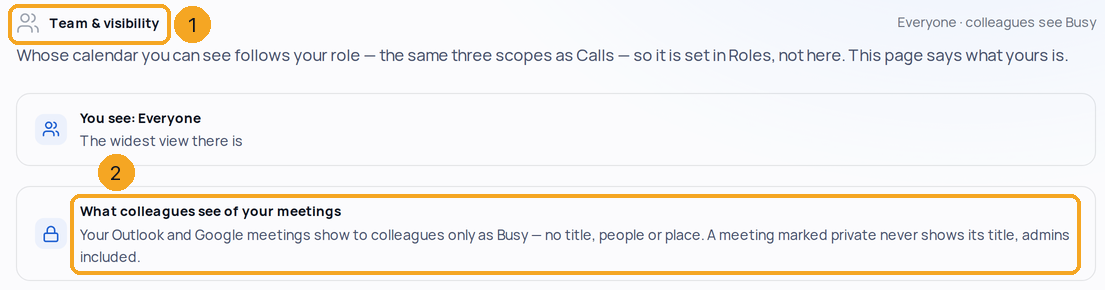
Your synced meetings show to colleagues only as Busy. A meeting marked private in Outlook or Google never shows its title — not even to admins. Calendar settings › Team & visibility (1) says so under What colleagues see of your meetings (2).
9When sync stops
If Outlook stops syncing, Calendar says so above your week (1) — from when, and that meetings since then may be missing — with Reconnect Outlook (2) beside it. Reconnecting brings back whatever the account is used for — Calendar, the Inbox, or both. While one of your booking links is on, the notice also says the link can’t see those meetings as busy, and offers Pause booking links to switch them off until it is back.

© 2026 SkedX · Sample data only · Share and link freely · Copying the product or its design is not allowed · Terms
Common questions
Does connecting my calendar send anything to the people on my meetings?
No. Connecting copies your meetings into SkedX and nothing more: no email to anyone on them, no reminders for meetings that are over or cancelled, no “invited you” notice to colleagues (their own calendar already told them), and a past meeting is never counted as an overdue task. You still get your own reminder before a meeting that is still to come.
Why does Calendar ask again when my email is connected?
Connecting a mailbox for email lets SkedX send and read mail, not use its calendar — an Outlook connected before 2 September 2026 was never asked, and a mailbox connected for the Inbox alone was not either. Allow Calendar to use your Outlook asks once, in Microsoft’s (or Google’s) own window on the same account; your email is not touched. If Microsoft says your organisation needs an admin to approve SkedX, ask them, then press the button again.
What works with Gmail while Google reviews SkedX’s calendar access?
Google may say it is still reviewing SkedX’s calendar access — choose Continue. SkedX can read that calendar today, so its meetings show in Calendar; adding the meetings made in SkedX to it starts when Google’s review ends. If you untick the calendar on Google’s screen, Calendar says so — keep See and edit events ticked and try again.
Do Teams or Meet links need another permission?
No. Allowing Calendar is the permission: a work or school Outlook makes Teams links, and a Gmail makes Meet links. Settings › Email shows it under the mailbox — Calendar · Teams links or Calendar · Meet links.
Why does New meeting say “Teams links need your Outlook calendar”?
Your Outlook is connected for mail, and Calendar isn’t allowed to use its calendar yet — so SkedX cannot make the Teams link. Allow in Calendar › opens Connected accounts; one sign-in on the same account adds the calendar, and you come back.
My outlook.com account makes no Teams link — why?
Microsoft makes Teams links only for work and school accounts. A personal outlook.com (or hotmail.com, live.com) still brings its calendar, and Settings › Email shows it as Calendar alone; for the meeting link choose Paste a link instead › and paste a Meet, Teams or Zoom link.
Do I have to connect Outlook or Gmail?
No. Calendar works on its own as your follow-up system for leads — meetings, calls and reminders on each record, your booking link, and times offered in WhatsApp. Connecting Outlook or Google only adds the meetings from that calendar. “Not now” puts the connect notice away.
How quickly does a meeting from Outlook or Google appear?
Within half an hour — the calendar’s line says Every 30 min. Once live updates are on for your company, the line says Live and a change arrives within seconds.
Why does my calendar say Every 30 min?
Live updates are not switched on for your company yet, or were just switched on — they start within the hour. If it says Live updates stopped, use the step beside it.
Do I need a separate calendar connection?
No — one account serves both. If you connected it for email only, Allow Calendar to use your Outlook adds the calendar to the same connection, in one consent.
Do the people on my Outlook or Google meetings show on their records?
Yes, when the CRM already has them. Each guest’s email is matched to a record in your company — open the meeting and a matched guest has Open record ›; the meeting shows on that record. Nobody new is created from an invite, and a guest the CRM does not know stays an email. A colleague on the meeting is marked as one, and gets the bell once — and again only when its time changes.
Next in CalendarSet your working hours, special days and time off →
Previous: Your calendar: the week, a meeting at a glance, and moving it · All Calendar guides
Did this guide help?
Still stuck?Chat with support →


