A holiday, a Sunday workshop, a half day — change one date without touching your usual week.
In review: written from the product, not yet walked through live.
1Open Working hours
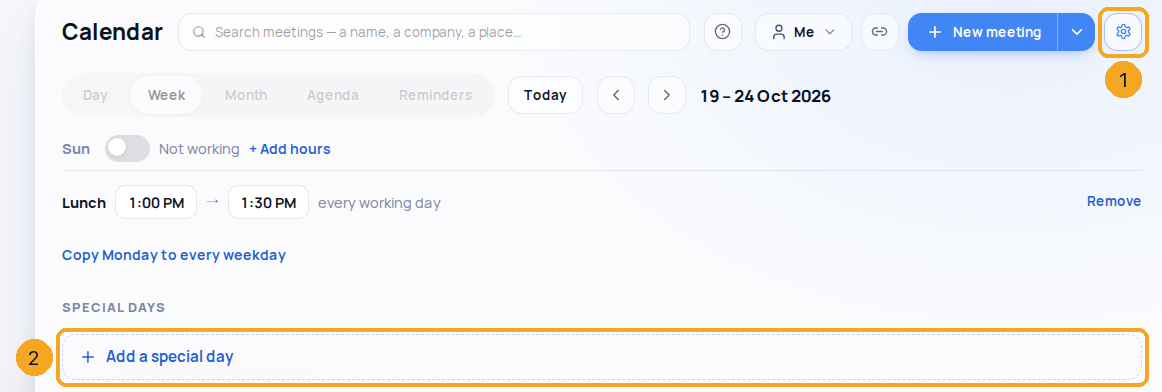
In Calendar, click the settings gear (1), then Working hours & time zone. Under Special days is Add a special day (2).
2Set your usual week
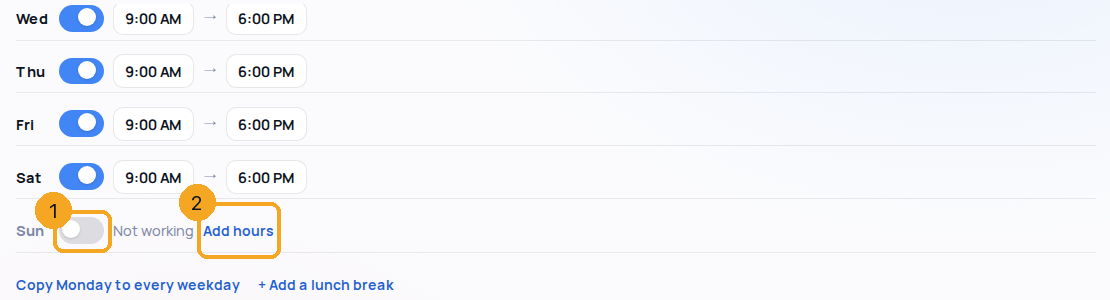
Each weekday has its own switch (1) with its hours beside it. A day off reads Not working with Add hours (2), which opens it at 9:00 AM–6:00 PM to change. Copy Monday to every weekday and + Add a lunch break are underneath.
3Add the day
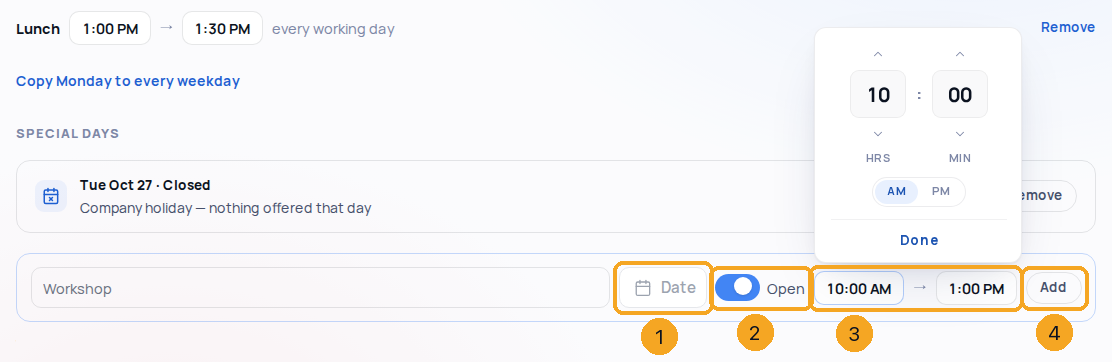
Name it if you like, pick the date (1), keep it Open (2) and set its hours (3) — or switch it off for Closed. Then Add (4).
4Check it
The day is listed with its hours or Closed (1). Your booking links use it on that date. Remove (2) puts the usual hours back.

© 2026 SkedX · Sample data only · Share and link freely · Copying the product or its design is not allowed · Terms
Common questions
What is the difference between a special day and time off?
A special day is one date with different hours, or closed. Time off blocks a whole range of days — a trip or a festival week.
Does lunch still apply on a special day?
Yes, inside the special day’s hours. Remove lunch if that day has none.
Whose time zone is it?
The account’s — every time here is in it. An admin changes it in Accounts; the person booking sees times in their own zone.
Next in CalendarCreate a booking link and share it →
Previous: Connect your Outlook or Google calendar · All Calendar guides
Did this guide help?
Still stuck?Chat with support →


