What people see when they book you — and how they move or cancel
3 min readFor all rolesUpdated 4 Nov 2026In review
The same page on a laptop and a phone: pick a time, say who you are, booked.
Nobody signs in.
In review: written from the product, not yet walked through live.
Transcript · 1:42
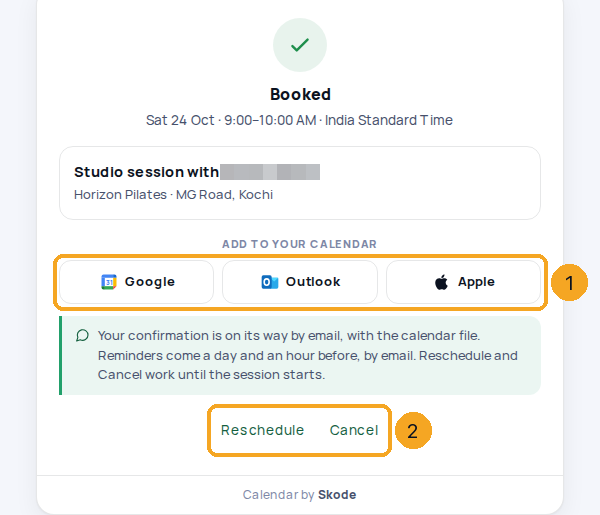
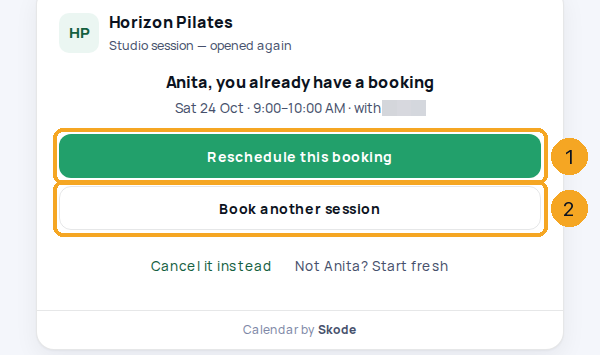
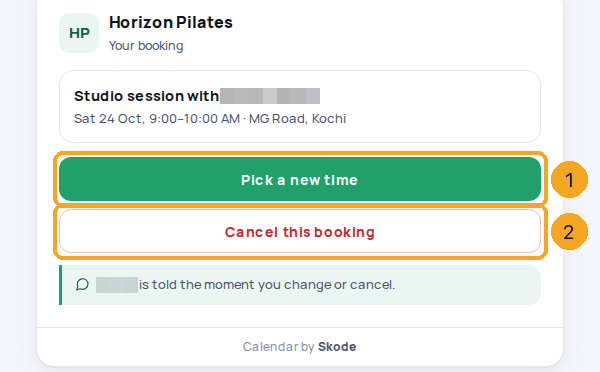
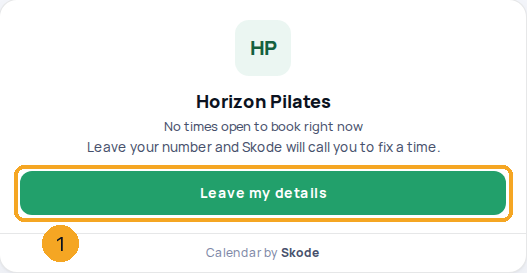
Booked in a few taps, with nothing to sign in to. This is what people see when they open your SkedX booking link, and how they move or cancel it themselves. Your link opens straight on the calendar of that one meeting. Every meeting is its own link, from Copy meeting link on its row in Booking links. There is no page listing them, and no drop-down. The page opens on the month alone, with the free days tinted. They press a day, and that day's times open beside it. Times show in their own time zone, found from their device. Change picks another time zone. For an in person session in another zone, a note names where it meets, and each time shows the venue's time under it. They press a time. The chosen time stays at the top, with Change. They give their name, phone and email, answer your questions, and press Confirm booking. The time is checked against your calendar once more. Then they see Booked, with Google, Outlook and Apple buttons, and Reschedule and Cancel. An email with the calendar file follows, and your bell says who booked. If they open the same link again on that device, it leads with their booking. Reschedule it, or book another session. Never a second booking by accident. From Reschedule or Cancel, their booking opens with Pick a new time, and Cancel this booking. The change reaches your calendar straight away. Both work until the session starts. When nothing of yours is open, the link says so, and offers Leave my details. Their name and phone come to you as a call back, on your list and in your bell.
1They open your link
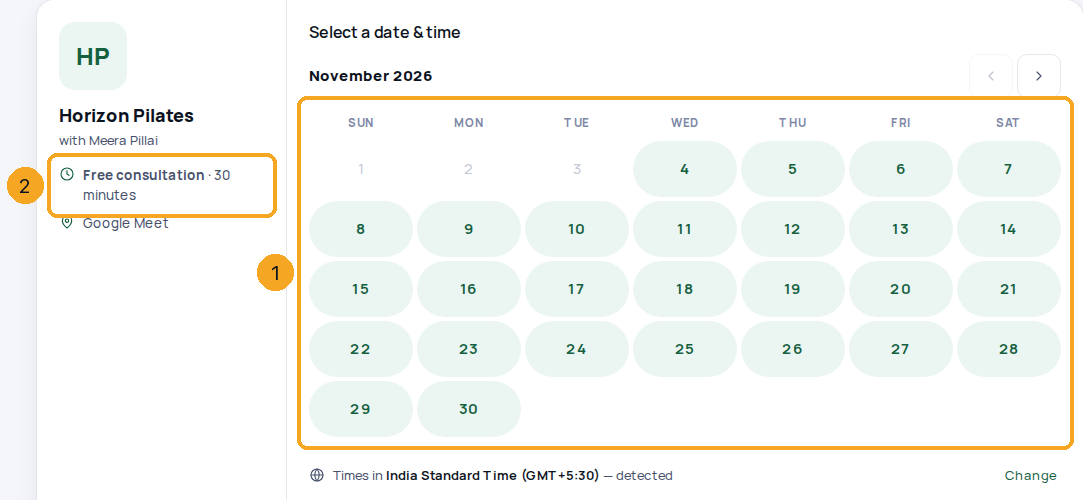
Your link opens straight on the calendar (1) of that one meeting (2). No list and no drop-down: every other meeting is reached by its own link, the one Copy meeting link gives on its row in Booking links. Your shorter address, skode.ai/book//, forwards to your main link — the top one in Booking links.
2They pick a day, then a time
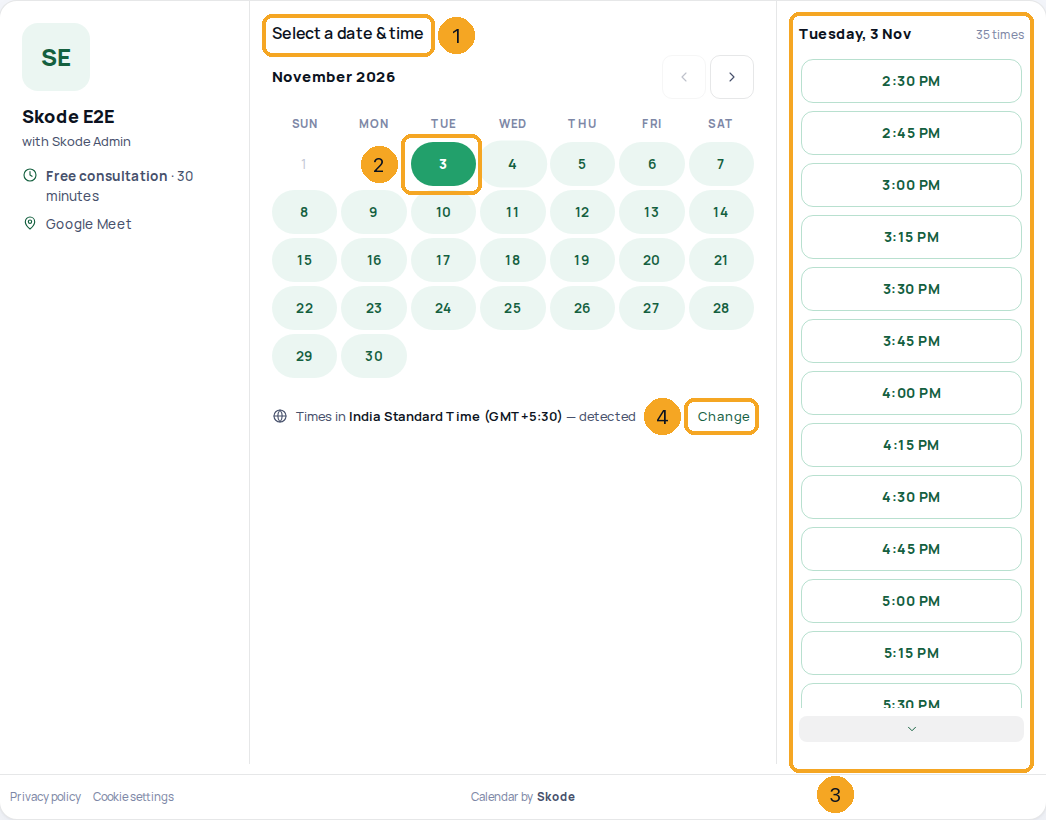
The page opens on the month alone under Select a date & time (1), free days tinted — no times yet. They press a day (2): on a computer the month narrows and that day’s times open beside it (3) in one movement; on a phone the month folds to that week and the times come under it (the month opens again from its title). Times show in their time zone, found from their device — Change (4) picks another; it is never written to your settings. For an in-person session in another zone, each time shows the venue’s time under it (next step).
3From another time zone
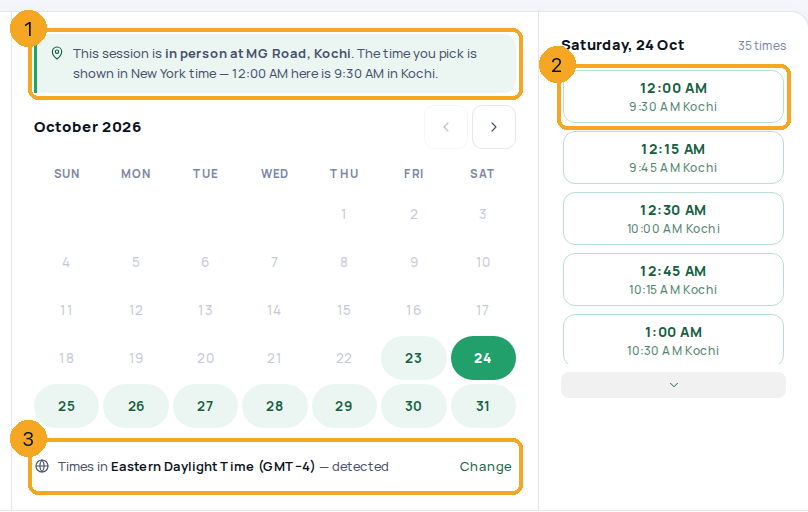
When someone in another time zone books an in-person session, a note names where it meets (1) — “in person at MG Road, Kochi. The time you pick is shown in New York time — 12:00 AM here is 9:30 AM in Kochi” — using the time they picked. Each time shows the venue’s time under it (2), and the time zone they see is at the foot with Change (3).
4They tell you who they are
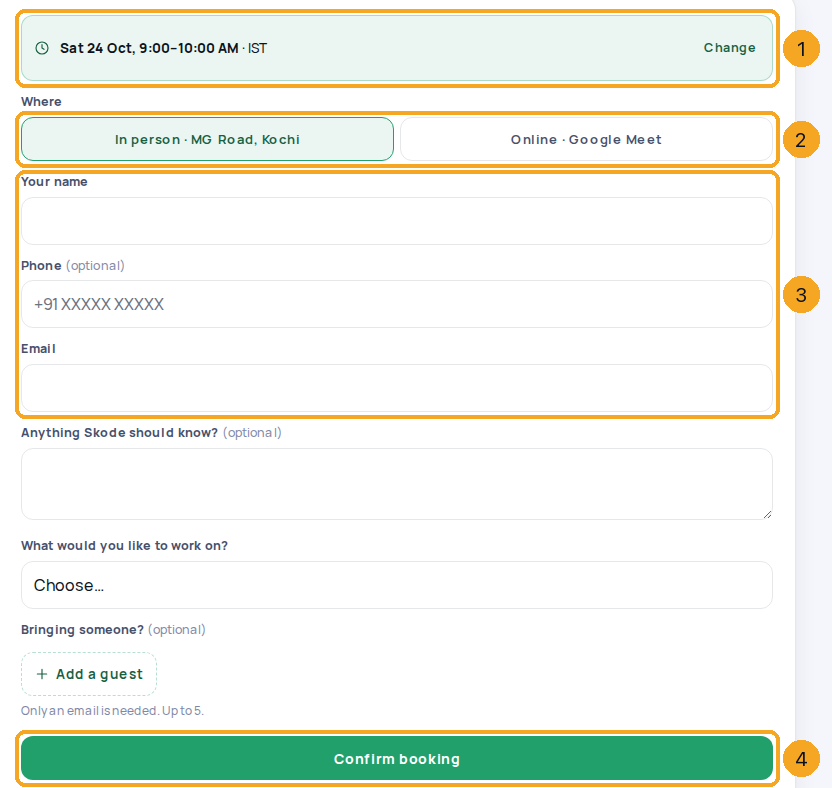
The chosen time stays at the top with Change (1). They choose where, when the link offers a choice (2), give their name, phone and email — each as the link asks, and a work email when the link takes only that (3), answer your questions, can bring up to five guests by email, and Confirm booking (4). A field left wrong is marked with what to type — the button never greys out.
5They are booked
The time is held and checked against your calendar once more, then they see Booked with Google, Outlook and Apple buttons (1) and Reschedule and Cancel (2). An email with the calendar file follows. The meeting is on your calendar and on their record, and your bell says who booked — Open lands on the meeting with their note and answers. If someone took that time a moment earlier, they see the next three free times instead, with their details kept.
6They come back to the same link
On the device they booked from, the link leads with their booking: Reschedule this booking (1) or Book another session (2) — never a second booking by accident. It shows a first name and a time, never a phone number or email.
7They move or cancel it themselves
From Reschedule or Cancel, their booking opens with Pick a new time (1) — the old time is kept until the new one is confirmed — and Cancel this booking (2), with an optional reason for you. The change reaches your calendar straight away. Both work until the session starts.
8When nothing is open
A link that is switched off forwards people to your main meeting’s link, with one line saying that meeting is not open right now. If nothing of yours is on — or the person has left the company — the page reads No times open to book right now with Leave my details (1): their name and phone come to you as a call-back on your list and a bell, linked to the person on your records, with where they came from. Never a page that says it does not exist.
Your company’s Privacy policy and Cookie settings, when an admin has set their addresses in Calendar settings › Booking links › Booking page. Each shows only when set; with neither, the foot carries only the calendar’s own mark.
Can people still see a list of my meetings?
No. Every meeting is its own link and its own page. Your shorter address forwards to your main link — the top one in Booking links — so put the meeting you want most people to book there, and send every other meeting by its own link.
Does a meeting’s own link show my other meetings?
No. A page is always one meeting, never a list or a drop-down. A meeting’s own link is the one Copy meeting link gives you on its row in Booking links; the shorter addresses (skode.ai/book// and skode.ai/book/) only forward to a main meeting.
Why was I asked for an OTP?
Every time, when the link is set to Verify with OTP; otherwise now and then — when many bookings come from one network, or one email books several times within an hour. The page sends a 6-digit OTP to the email typed and asks for it before booking. The time is held for 10 minutes meanwhile; Send it again sends a new one, and Use another email goes back. There is never a captcha.
Why was my email refused?
Throwaway inboxes (mailinator and the like) are refused, because the confirmation, the calendar file and the reminders go there. Use an email you keep; the same goes for each guest.
What if two people pick the same time?
One gets it. The other sees “That time was just taken” with the next three free times, and what they typed is kept.
What if your calendar cannot be checked for a moment?
Today the page reads the meetings in your SkedX calendar, so every booking is checked against it before it is made. If the page is ever told the live check is briefly down, it says so plainly — times may be slightly out of date, the pick is checked again before it is confirmed — and people carry on with Keep picking a time; nothing is booked unchecked.
Do they need an account or a captcha?
No. A quiet spam check runs behind the page instead.
What if I move a booked meeting in my calendar?
The booking follows it. They get the “Moved” email with the new calendar file (and the WhatsApp message, if they ticked it), and their Reschedule-or-cancel link shows the new time. Moving it back to the same time tells no one twice.
What does their link show once the meeting has started?
From the start, “This link has expired — your booking itself is unchanged” with Open the booking page; after it ends, “This booking has passed” with Book again. Neither can move or cancel a meeting that has begun.
What if they open a kind of meeting I switched off?
They are forwarded to your main meeting’s link with “That meeting isn’t open right now — this one is.” — never an error. Switch it back on in Booking links and the same link works again.
What if someone opens a wrong or old booking address?
They see “This booking page doesn’t exist — check the address with whoever sent it” with one button, Go back. Nothing of the CRM is shown to them.
What if the booking page cannot load?
If SkedX cannot answer for a moment, they see “We couldn’t load this booking page — it’s on our side, not yours” with Try again, never “doesn’t exist”, so they know the link is right and can come back to it.
Is anyone tracked on the booking page?
Only by your own SkedX Signal, which records the booking on the person’s record with the ad that brought them. SkedX’s own product analytics and cookie banner never run on booking pages.
Why does the confirmation say “Message … on WhatsApp”?
When the link’s After booking is set to Open a WhatsApp chat with you, the confirmation shows that button: it opens WhatsApp to your company’s number with a message typed for them — your name, the meeting and the time filled in. They press send themselves; nothing is sent for them, and the chat lands in your Flow inbox with the booking beside it. It needs your WhatsApp number in SkedX Flow — without one the confirmation simply stays.
What do they receive?
An email from your business “via SkedX” (from your name alone, with no SkedX line, when Only your name is on) with your logo, the calendar file and one Reschedule-or-cancel link, and reminders by email at the times you chose in Calendar settings › Reminders (a day and an hour before, unless you change it). Replies go to you. On WhatsApp too when your business has a number in Flow with the booking templates approved and they tick “send my confirmation on WhatsApp too” — each message costs from your wallet like any send.