Design a booking link: questions, its own look, and what happens after
Every link is its own page.
5 min readFor all rolesUpdated 7 Nov 2026In review
Change it on the left; the page on the right changes as you type.
In review: written from the product, not yet walked through live.
Transcript · 1:18
Every booking link is its own page, and you shape it on the left while the page on the right changes as you go. Here is how to design one in SkedX CRM. On Questions, each question is a card that opens in place. Type its words, add choices one by one, and say if it is required. Start from a question people often ask, or from a kind of answer. Above them, Who they are has one card each for Name, Email and Phone: Off, Optional or Required. On Email, pick Any email or Work email only, and turn on Verify with OTP to have every booking confirmed by an OTP sent to that email. Email or phone always stays required. On Design, the page wears your company's brand kit, its colour and logo. Give this link its own look sets a cover, logo and colour for this link only. The headline, words and button are the link's own either way. On After booking, write the message they see on the confirmation, and in its email. Then choose what comes next: stay on it, open a WhatsApp chat with you, or go to a web page. Switch the preview between Desktop and Phone to see it as they will. Every change saves as you make it.
1Ask what this booking needs
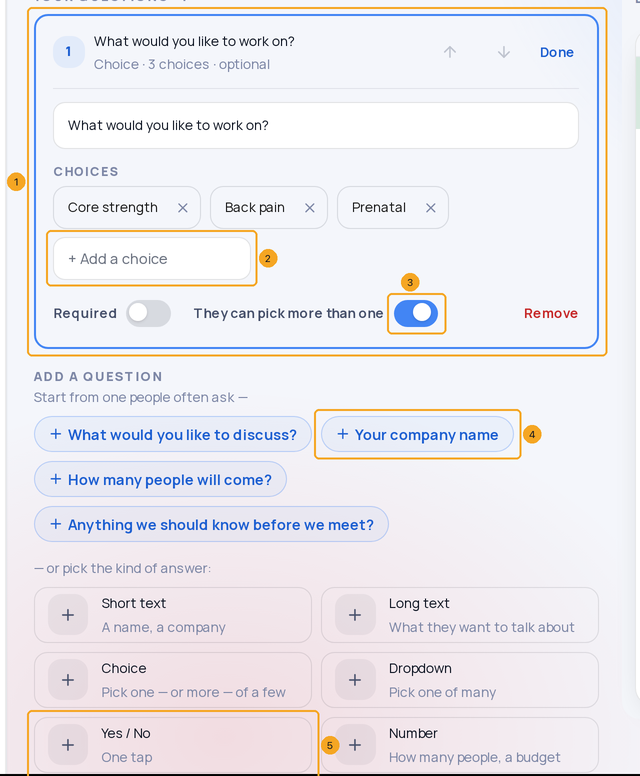
On Questions, each question is a card (1) that opens in place: its words, its choices — type one in Add a choice (2) and press Enter — Required, and They can pick more than one (3). Start a new one from a question people often ask (4) or from a kind of answer (5).
2Choose who they are
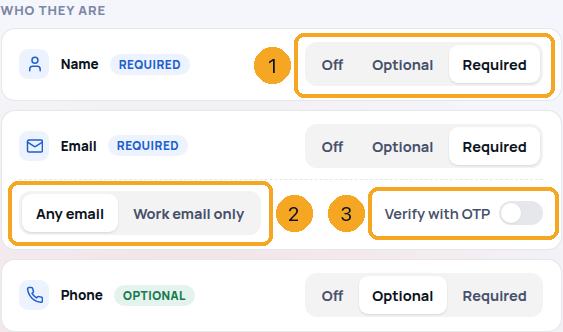
Above your questions, Who they are has one card each for Name, Email and Phone (1) — Off, Optional or Required. On Email, pick Any email or Work email only (2), and turn on Verify with OTP (3) to make every booking wait for a 6-digit OTP sent to that email. Email or phone always stays required — the confirmation goes there; if you pick a choice that would leave neither, the card says so with the one fix.
3Follow your brand kit, or give it its own look
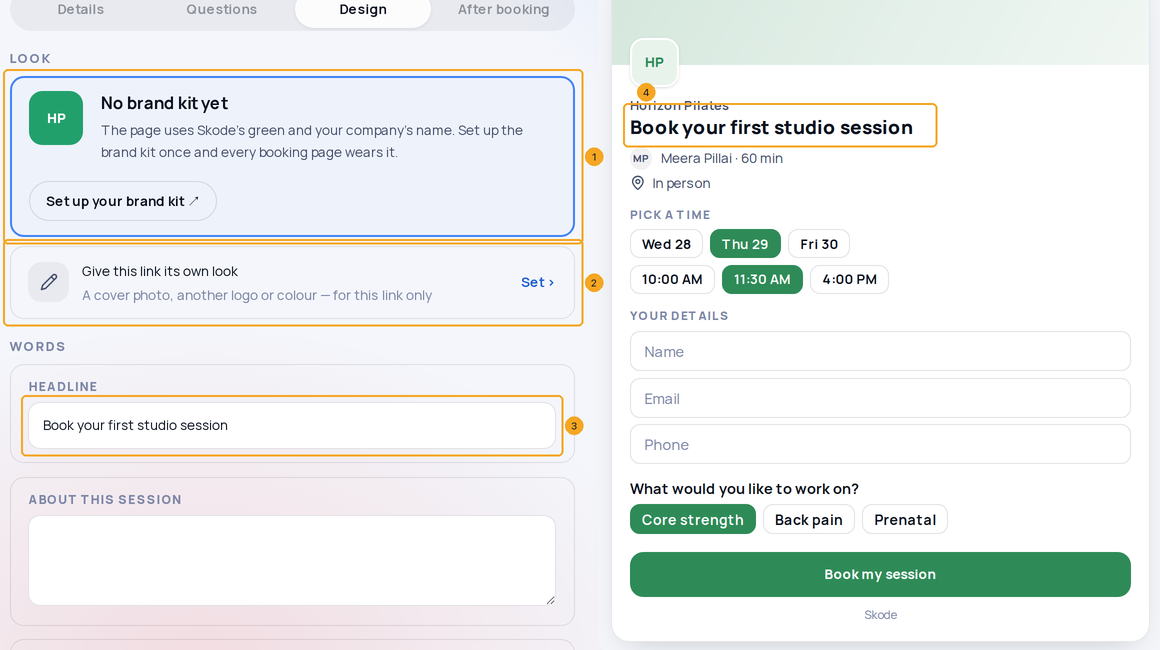
On Design, the page wears your company’s brand kit (1) — its main colour and logo. Give this link its own look (2) sets a cover, logo and colour for this link only. The headline (3), a few words and the button are the link’s own either way, and the preview (4) changes as you type.
4Choose what happens after
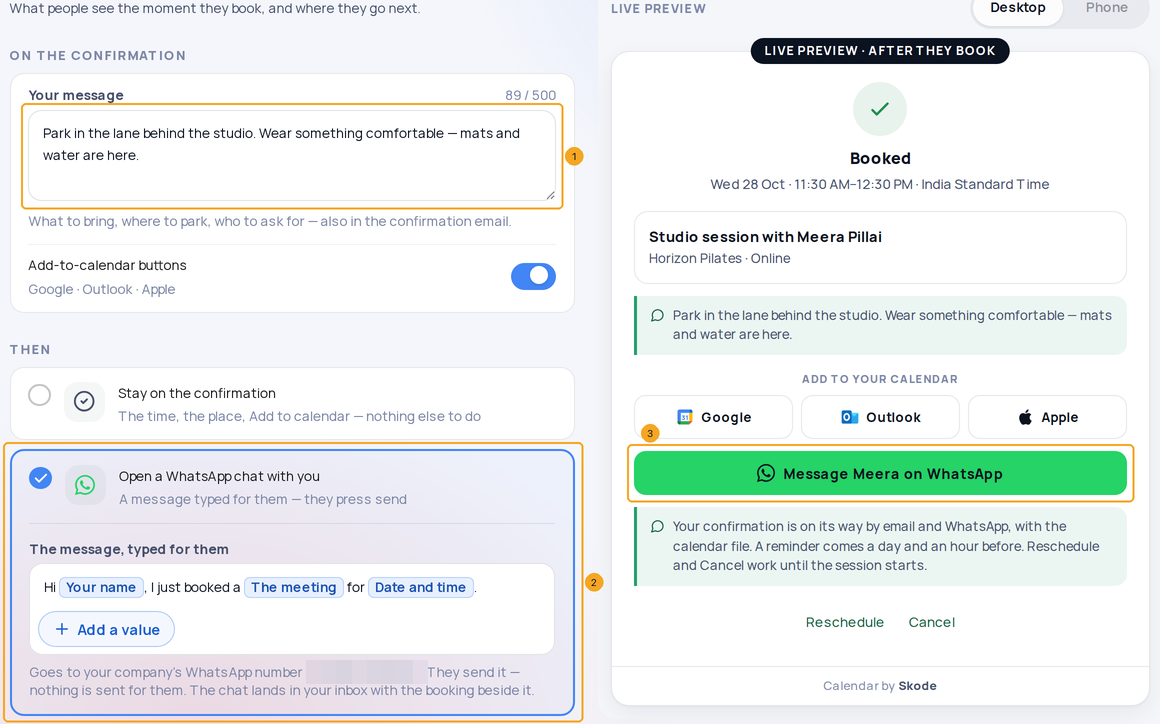
On After booking, write the message on the confirmation (1) — also in the confirmation email — then choose what comes next: stay on it, Open a WhatsApp chat with you (2), or go to a web page. The preview shows the confirmation itself, with Message … on WhatsApp (3) when the chat is chosen.
5Write the WhatsApp message they send
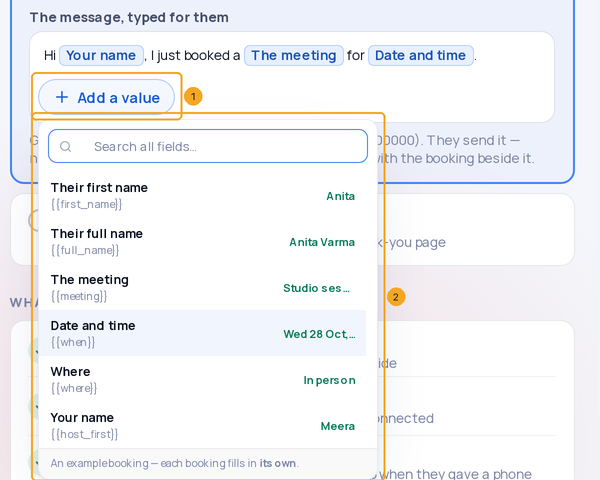
The message is typed for them — they press send, nothing is sent for them. Add a value (1) opens the list of what a booking fills in (2): their first or full name, the meeting, date and time, where, and your name. Each sits in the text as one chip.
6When WhatsApp is not ready
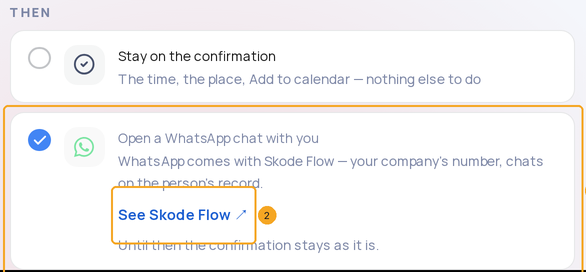
WhatsApp runs through SkedX Flow — your company’s own number. Without Flow the chat card says so (1) with See Skode Flow (2); with Flow but no number it says Connect. While Meta approves your two booking messages, the chat already works and the WhatsApp confirmation waits — Check in Flow; email covers it meanwhile.
7See it as they will
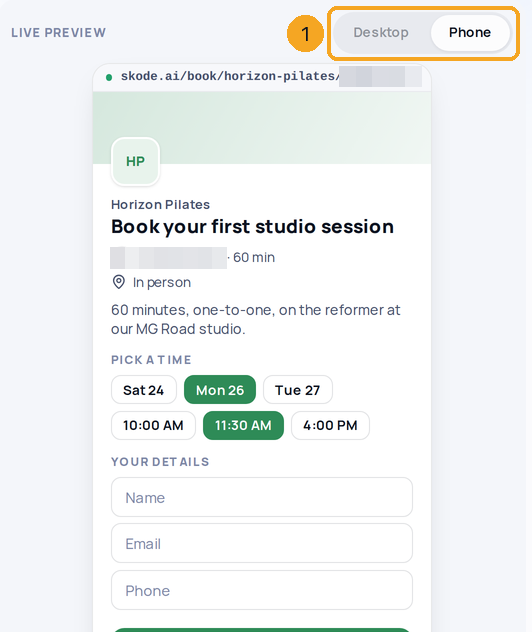
Switch the preview between Desktop and Phone (1). On a phone, Preview opens it as a sheet.
They stay with the booking and show on the meeting when you open it from Calendar. Only name, email, phone and the campaign reach the record; answers never go to Signal or to AI.
Can I take only work emails?
Yes — on Email, pick Work email only. Gmail, Yahoo, Outlook, Hotmail, iCloud, Proton, Rediff and the other free inboxes are refused at the field with “Use your work email.” Throwaway inboxes are refused on every link.
What does Verify with OTP do?
After they press Book, the page asks for the 6-digit OTP we email them and holds their time for 10 minutes; the booking is made when they type it. They can send it again (three at most) or use another email. Turn it off and Book confirms at once.
Can someone book without an email?
Yes — set Email to Off or Optional and Phone to Required. The confirmation and reminders then go on WhatsApp, and guests (who need an email) are not offered.
Why is there no “How did you hear about us?”
The booking already carries the ad, chat or page they came from — SkedX Signal records it on the person’s record, so they never have to tell you.
Does the WhatsApp chat cost anything?
No — they open the chat and send it themselves from their own WhatsApp. Only the WhatsApp confirmation and reminders SkedX sends for you pass through your wallet, like any send.
What if I change the brand kit?
Every link that follows it changes with it. A link with its own look keeps its own cover, logo and colour; Back to the brand kit undoes that.
Can I start a link from another?
Yes — Duplicate on a link’s page makes a copy to change.