Every meeting belongs to someone — so the form asks who it is with first.
In review: written from the product, not yet walked through live.
1Say who it is with, how and when
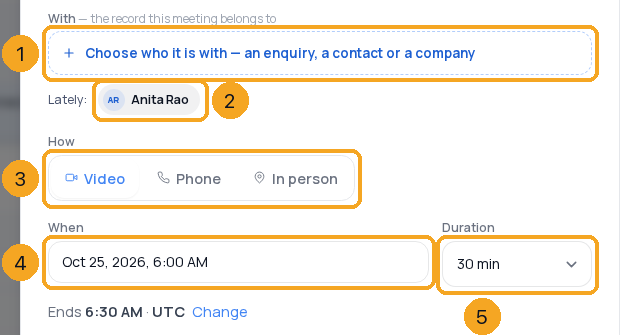
In Calendar, choose + New meeting. Type a title, then pick With (1) — the enquiry, contact or company it belongs to — or one of the people you met lately (2). Choose How (3), then When (4) for the date and time picker and Duration (5) for how long. The line under them says when it ends, in your own time zone; a clash with your calendar is named, with the next free time.
2Add people — the invite goes by itself
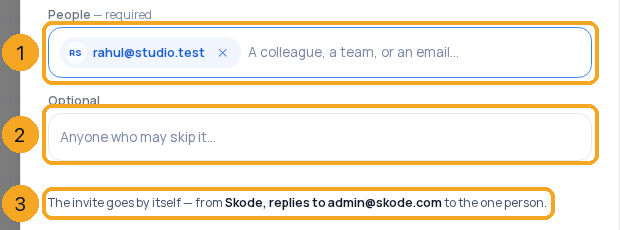
Type in People (1) — a colleague, a whole team (one chip), a record or an email, or paste a list — and in Optional (2) anyone who may skip it. The line under them (3) says the invite goes by itself and who it comes from: your own mailbox, or SkedX with replies to you. Create meeting puts it on your calendar and on the record, and sends the invite.
3Meet in person: the address
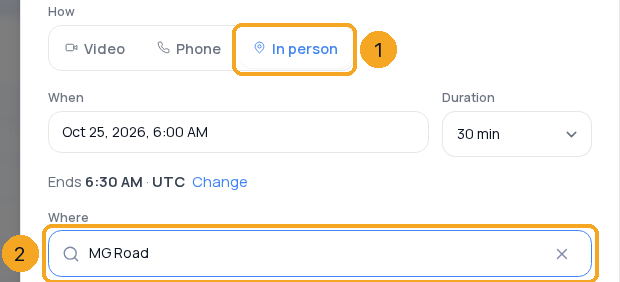
Choose In person (1). Where (2) takes the address — type it, or pick a match as you type when address search is on for your company; your company address is offered as the default. What you type is kept as typed.
4When the link can’t be made for you
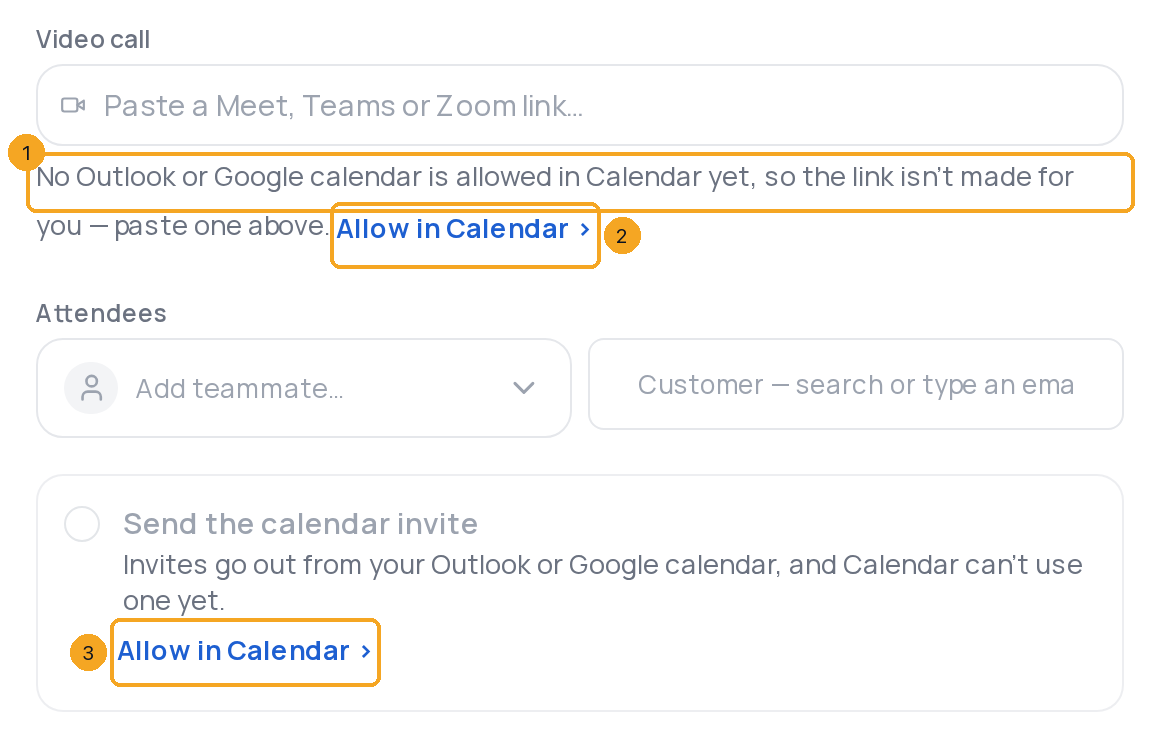
Under Video call, SkedX makes the Teams or Meet link when you book, from an Outlook or Google calendar Calendar may use. When none can, the line under the field says why (1), with Allow in Calendar › (2) — it opens Calendar settings › Connected accounts; if you typed something, the form asks first. Meanwhile paste a Meet, Teams or Zoom link in the field. Send the calendar invite says the same, with its own Allow in Calendar › (3). How allowing works: Connect your Outlook or Google calendar.
5An account that makes no link
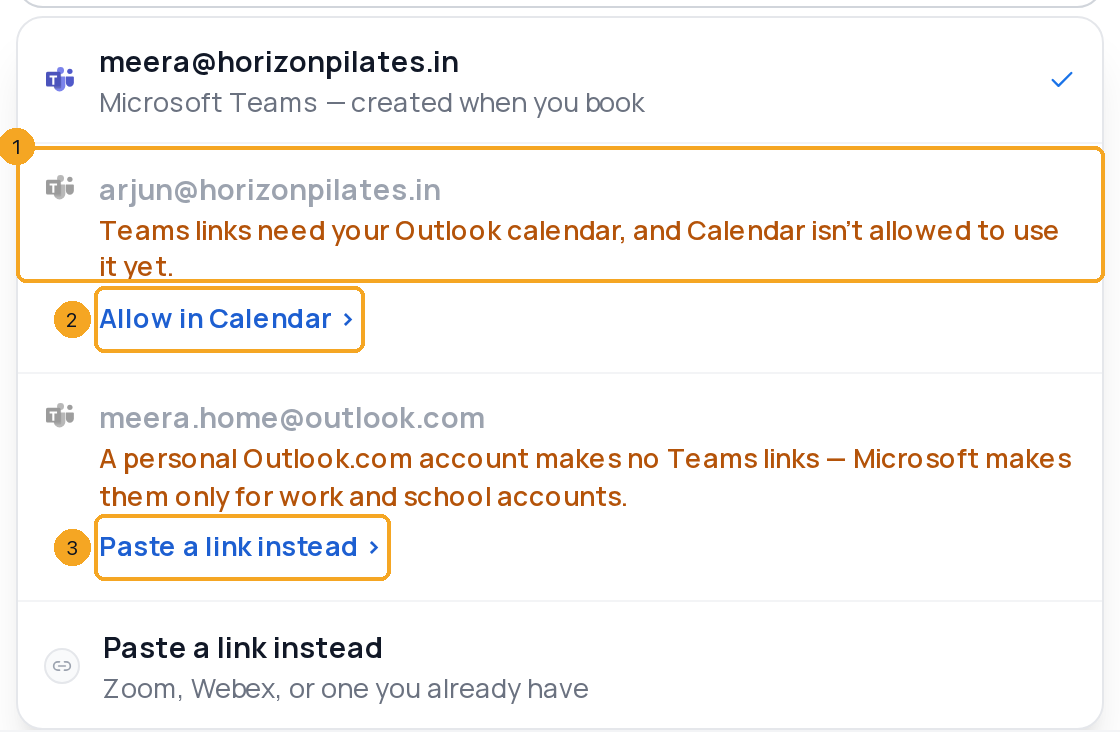
Open the account under Video call. An account that makes no link is greyed with its reason (1), for example “Teams links need your Outlook calendar, and Calendar isn’t allowed to use it yet.”, and one step: Allow in Calendar › (2). A personal outlook.com (or hotmail.com, live.com) makes no Teams links — Microsoft makes them only for work and school accounts — so it offers Paste a link instead › (3).
© 2026 SkedX · Sample data only · Share and link freely · Copying the product or its design is not allowed · Terms
Common questions
Can I create a meeting without a record?
Yes — leave With empty. Picking one puts the meeting on that person’s record, so the next person to open it sees it.
Can I make a meeting without sending the invite?
The invite goes by itself to everyone under People and Optional. Leave both empty for a meeting of your own; add people later from the opened meeting and they are invited when you save.
Why does it say “Teams links need your Outlook calendar”?
Your Outlook is connected for mail, and Calendar isn’t allowed to use its calendar yet — so SkedX cannot make the Teams link. Allow in Calendar › opens Connected accounts; one sign-in on the same account adds the calendar, and you come back. Teams and Meet links need nothing more.
Next in CalendarInvite guests to a meeting and see who is coming →
Previous: Take payment when someone books — into your own payment account · All Calendar guides
Did this guide help?
Still stuck?Chat with support →


