A record page has two places that show who someone is: the top box and Lead Info.
They are one set of fields, never two copies — and you shape both, and the Revenue tab, from Edit layout with a single click.
In review: written from the product, not yet walked through live.
Transcript · 0:45
In SkedX, the top of a record shows its most important fields as cards. Status, Priority, Owner and Updated. To change a card, press Edit layout, then click the card. Here, the Status card. Under Shows, pick Stage, then press Save. Stage is offered when the profile's records follow a stage list. Now the card shows where the record stands. Click it and pick a stage, and the record moves there, as on the stage line. On the Revenue tab, each deal has its own stage. Move the deal back to Proposal. The stage line and the Stage card move back with it. The record's history says, because its deal moved.
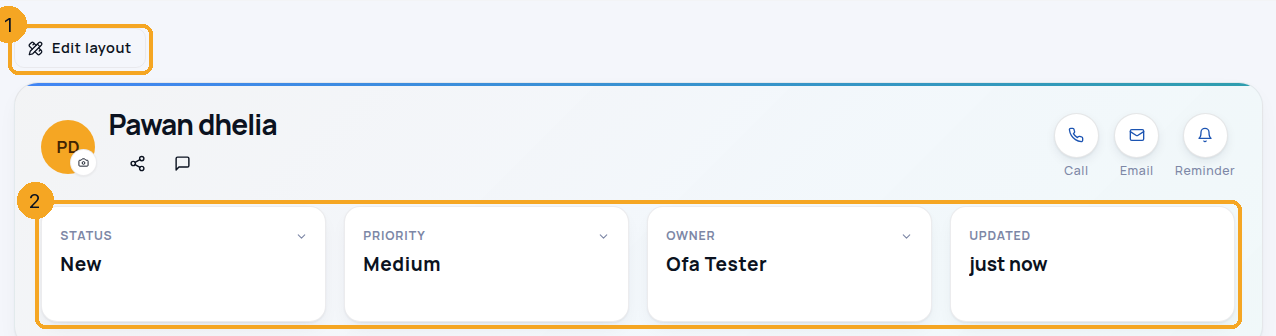
1The top box and Edit layout
Open any record. The top box (2) shows its most important fields as cards — Status, Priority, Owner, Updated; + Card also offers Stage and Created. To change what a record page shows, click Edit layout (1).
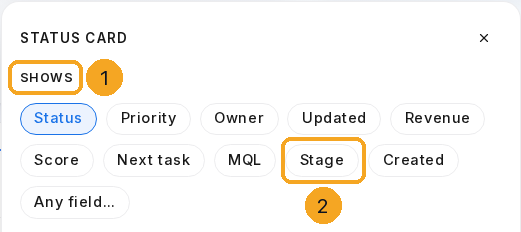
In Edit layout, click a card — here Status. Under Shows (1), pick Stage (2), then Save. Stage is offered when the profile’s records follow a stage list, their own or a shared one.
Any card can show the Stage.
3Move the record from the Stage card
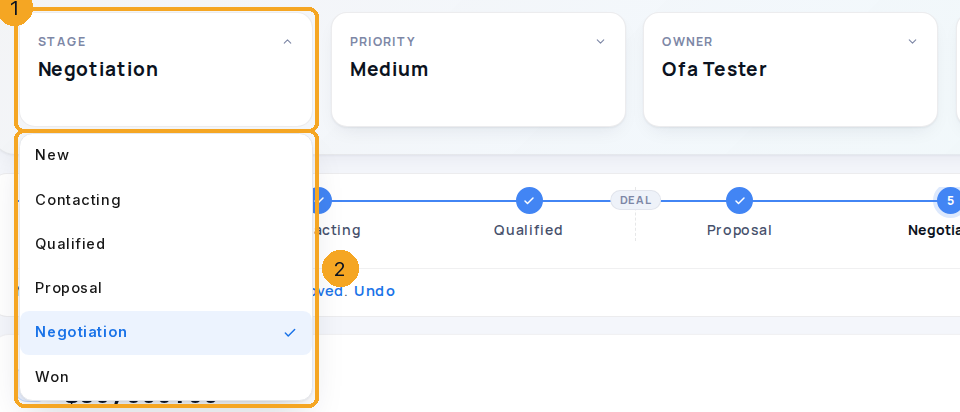
Click the Stage card (1) and pick a stage (2). The record moves there, as on the stage line, and its deal follows.
The Stage card moves the record like the stage line.
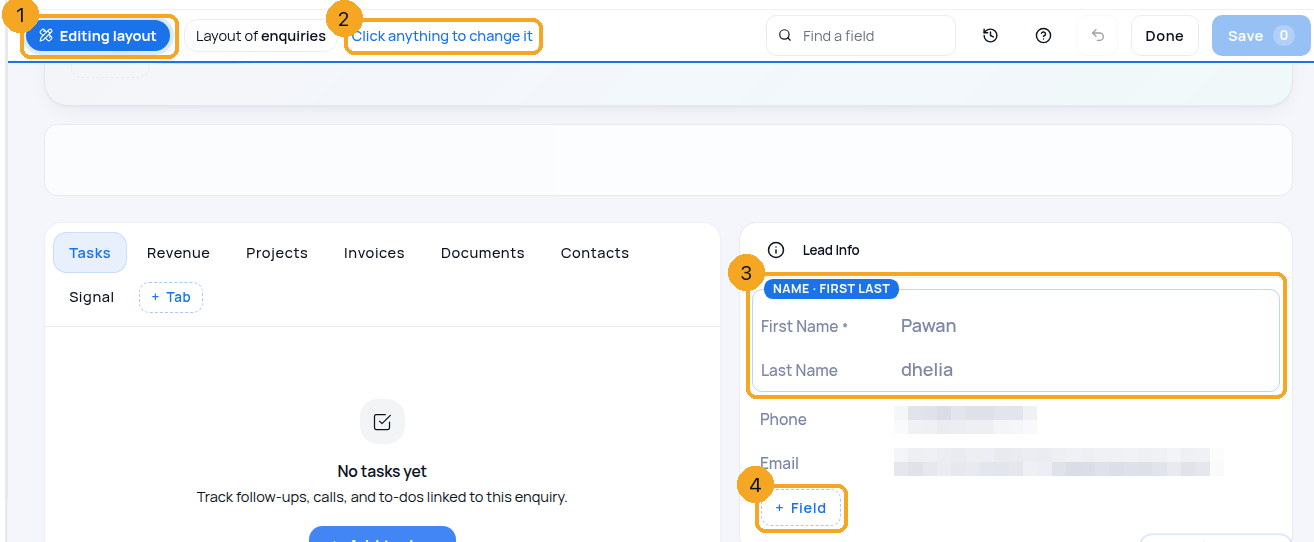
4Click anything to change it
In Edit layout the bar says so (1): Click anything to change it (2). First and last name sit together in one Name box (3) — move or hide them together. + Field (4) adds a row.
5Show Job title or Company under the name
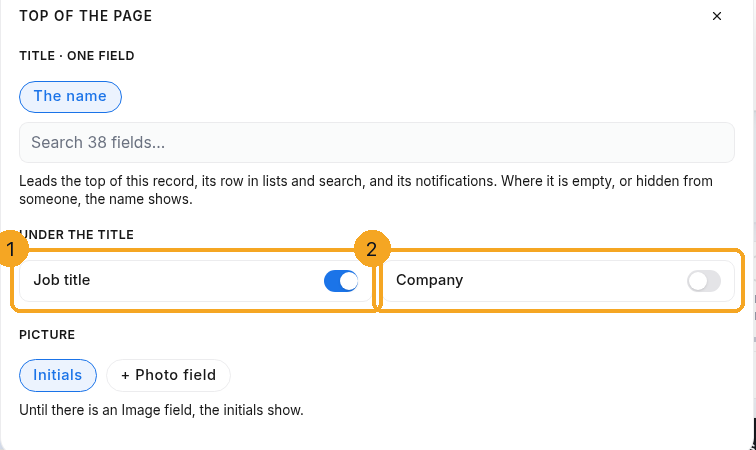
In Edit layout, click the top of the page — the name. Under the title, switch on Job title (1) or Company (2). It shows under the name, and its row comes into Lead Info too: Job title directly above Company, so the two sit together. Switching it off changes only the line under the name — the row stays.
6Job title sits above Company in Lead Info
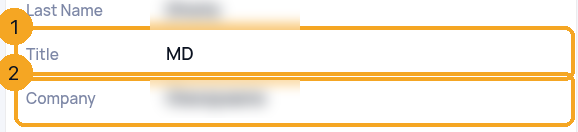
After Save, the record’s Lead Info shows Job title (1) directly above Company (2) — if your Job title row sat in another section, it moves into Lead Info. Lead Info shows your workspace’s own word for the field (here “Title”).
7One click opens a row’s settings
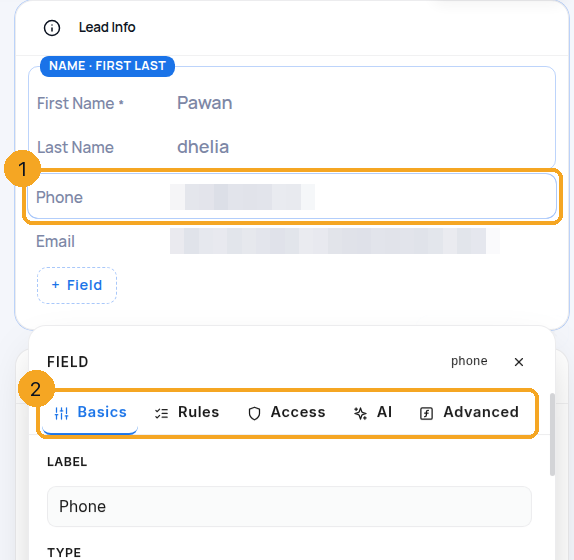
Click a row (1). Its settings open beside it, in tabs (2): Basics (name and type), Rules, Access, AI and Advanced. Nothing is locked: rename, move or delete any row. Deleting takes it off the layout only — the data stays, and + Field brings it back.
8Add a field
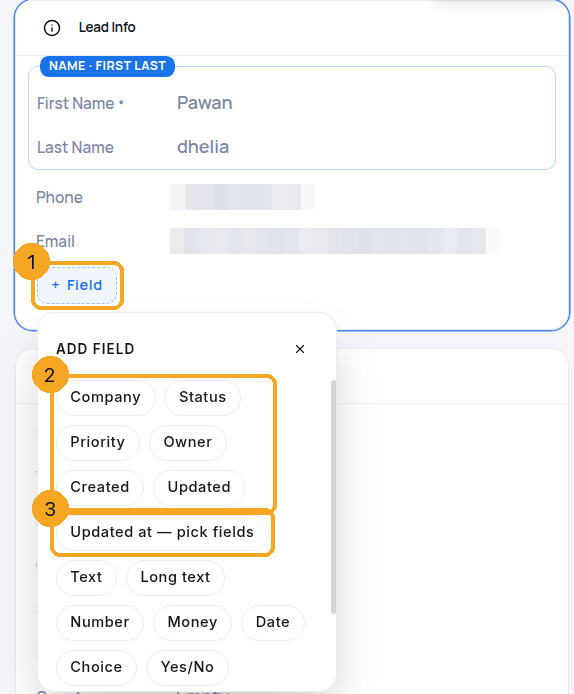
Click + Field (1). The top box’s own fields come first (2) — Company, Status, Priority, Owner, Created, Updated — so Lead Info can show them too, as the same value. Updated at — pick fields (3) adds a field that records when chosen fields last changed. Then any new field type.
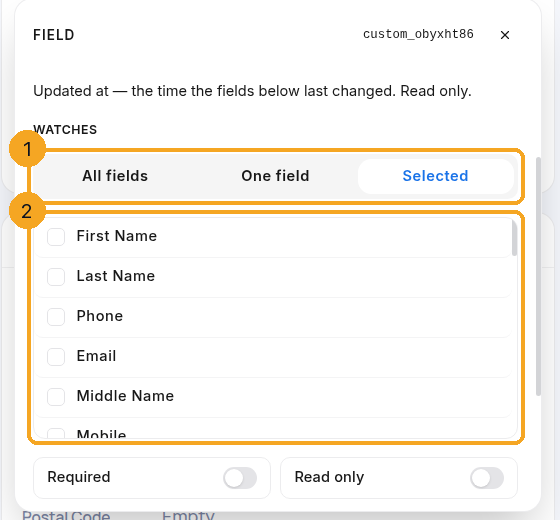
9Choose what “Updated at” watches
Choose what it watches (1): All fields, One field or Selected, then tick the fields (2). Each save that changes one of them stamps the time; a new record says Not changed since added. It is read only.
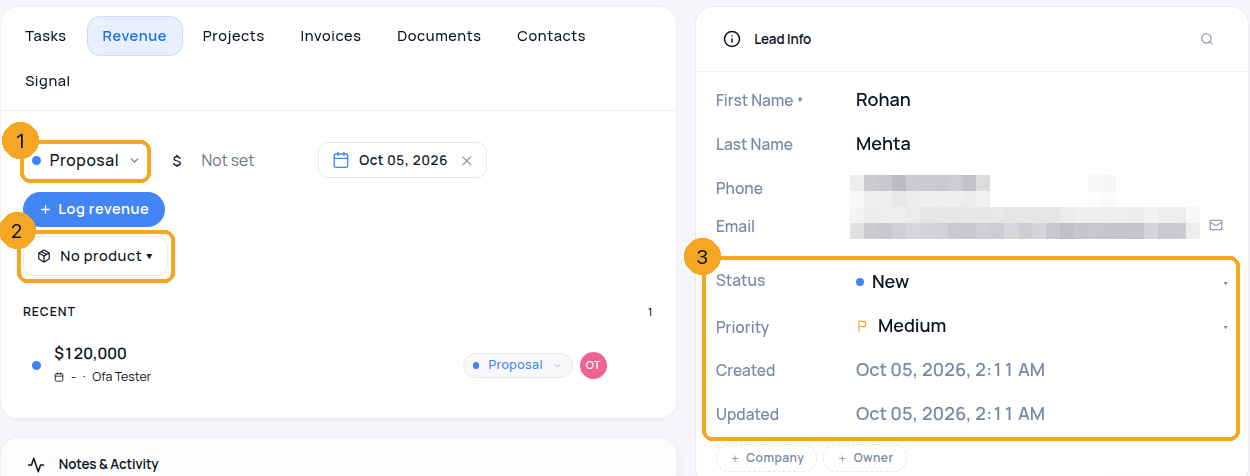
10Log revenue with a stage and products
On the Revenue tab, choose the deal’s stage (1) — it moves the record like the stage rail, back as well as forward, and asks first if that would skip stages or cross the DEAL line. Add products (2), or leave No product and type the amount. Lead Info shows Status, Priority, Created and Updated (3) — the same values as the top box.
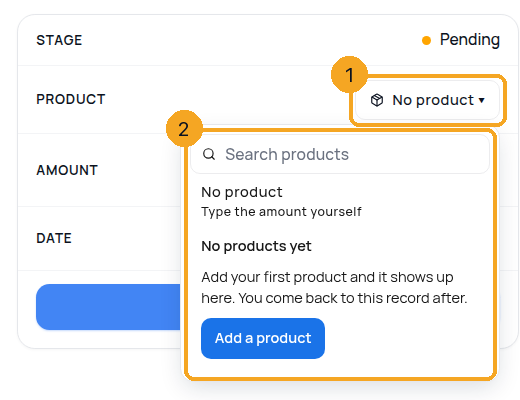
11Pick products from your catalog
Click the product box (1) and search your catalog (2). Several products add up to the amount; each one’s price is copied when it is added. No products yet? Add a product takes you to the catalog and brings you back.
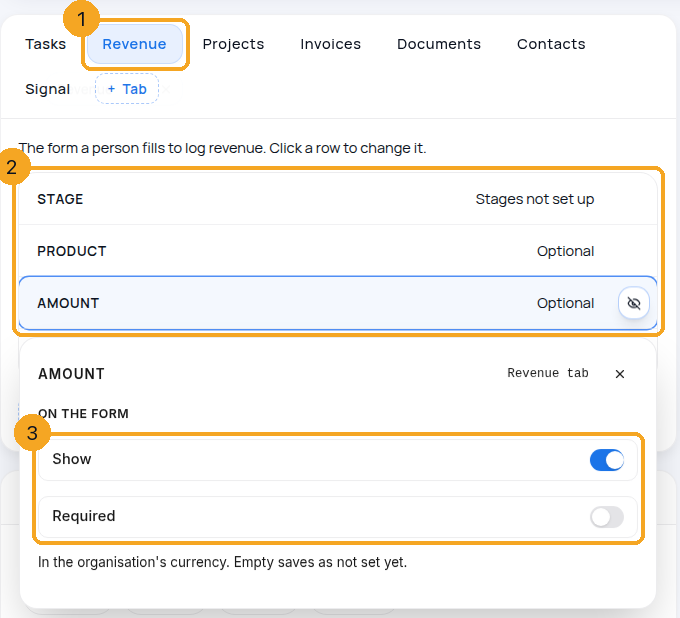
12Shape the Revenue form
In Edit layout, open the Revenue tab (1). Its form rows — Stage, Product, Amount (2) — open with one click: choose Show and Required for each (3). The amount is always in your organisation’s currency, and an empty amount saves as not set yet.
If I change Priority in Lead Info, does the top box change too?
Yes. They are the same field, shown in two places — never a copy.
I deleted a row. Is the data gone?
No. Deleting takes the row off the layout only. + Field brings it back with its value.
Who can change the layout?
Admins and owners with Field Editor access.
Lead Info now shows Status, Priority, Owner, Created and Updated — can I hide them?
Yes. In Edit layout, click the row and hide or delete it. The top box keeps showing what it showed; deleting a row takes it off the layout only, and + Field brings it back.
Is the amount required?
Only if you make it required in Edit layout. An empty amount saves as not set yet, and the deal shows Add amount.
Stage is not under Shows.
The profile’s records follow no stage list yet. Turn on the stage line in Edit layout, or share another profile’s stages — then Stage is offered.
If I move the deal back on the Revenue tab, does the record move back?
Yes, when it is the record’s leading open deal (the one furthest along) and the record is not at Won or Lost. Its history says “because its deal moved”. Moves the system makes only go forward.