People forget to fill in what matters at the moment it happens — the budget when a deal starts, the reason when something is lost, the next task when a status changes.
A pop-up hands them exactly that form, right then, and saves each answer where it belongs.
In review: written from the product, not yet walked through live.
1Open Profile settings › Pop-ups
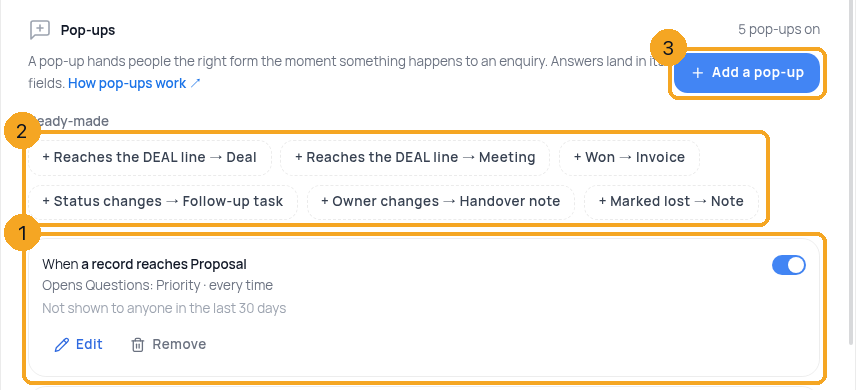
On a profile’s list (for example Enquiries), open ⚙ Profile settings and choose Pop-ups. Every pop-up of that profile is listed as a plain sentence with its own switch (1). Start from a Ready-made one (2), or click Add a pop-up (3).
2Choose when it pops up
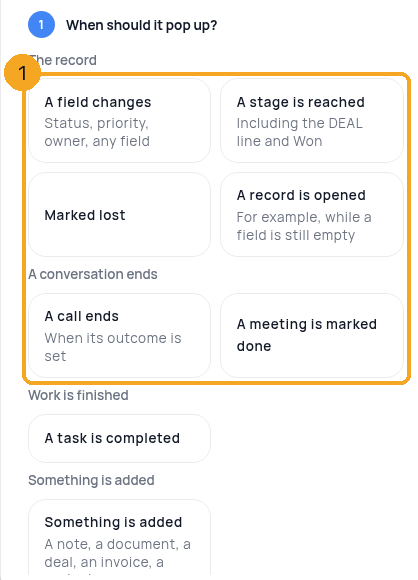
Pick one moment (1). About the record: A field changes, A stage is reached (including the DEAL line), Marked lost, A record is opened. After a conversation: A call ends (choose which calls) or A meeting is marked done. Work: A task is completed. Something is added — a note, a document, a deal, an invoice or a project. Or Something arrives — a WhatsApp, Instagram or Messenger message, or an email; those wait on the record instead of interrupting. The other choices step aside; Back brings them again.
3Narrow it with a condition
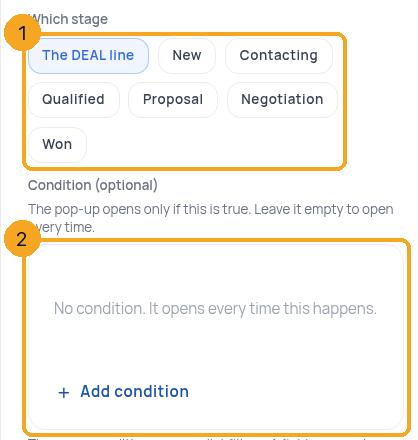
For a stage, choose which one (1). Then add conditions (2) — the same conditions as your list filters, with AND / OR. On A field changes you also get is changed, was and was not, about the change itself. Leave it empty to open every time.
4Choose what opens
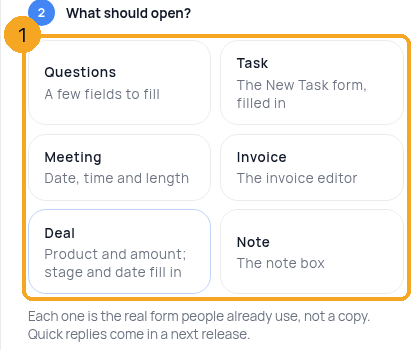
Choose one (1): Questions, a Task (the New Task form, with its title filled in), a Meeting, an Invoice, the Deal form (product and amount; the stage and date fill in, and it fills in the deal the record already has) or a Note. Each is the real form people already use.
5Choose what it asks
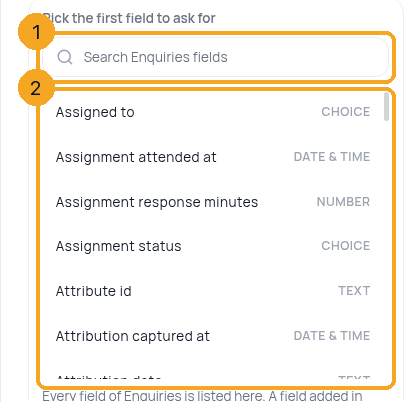
For questions, search the fields (1) and pick one from the list (2); each shows what kind of field it is. When other profiles are built on this one, choose the profile first. Each answer is saved into that field, through that profile. Mark a question Required if it cannot be skipped. On a choice, + Follow-up question asks one more thing when a certain answer is given — for example, if Lost reason is Competitor, also ask Which competitor.
6Choose how often
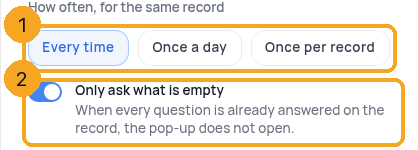
Choose Every time, Once a day or Once per record (1). Keep Only ask what is empty on (2), so a question already answered on the record is left out.
7Check what people see, then save
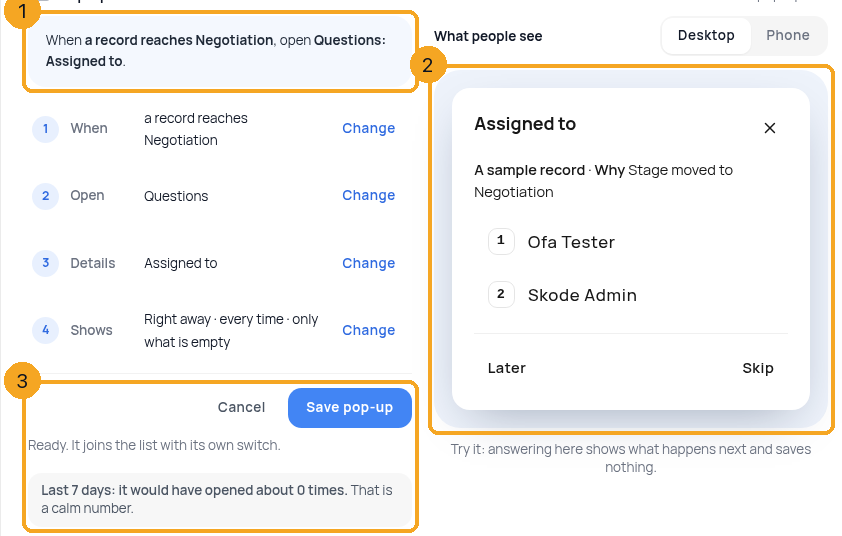
The sentence at the top says what you built (1). Beside it, What people see shows the real pop-up (2) — try it on Desktop or Phone; it saves nothing. Beside Save pop-up (3) you see about how often it would have opened in the last 7 days, and for how many people. It joins the list with its switch on, and later shows how often it was answered or skipped.
8What people see on a record
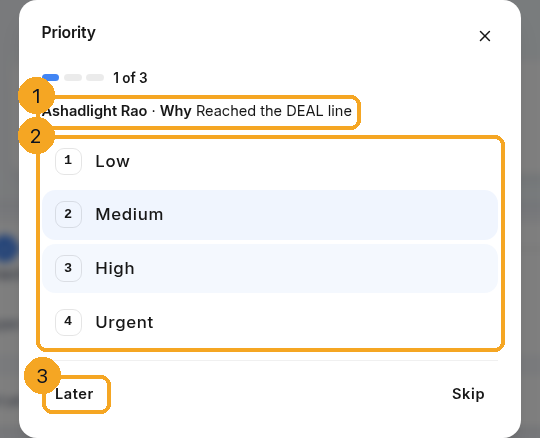
When the moment happens, the pop-up opens for the person who did it. It says why it opened (1). One question is the answer box itself — a tap on a choice saves it (2), with Undo for a few seconds. Several pop-ups come as steps (1 of 3). Later (3) keeps it for them; Skip lets it go.
9Add one from Edit layout
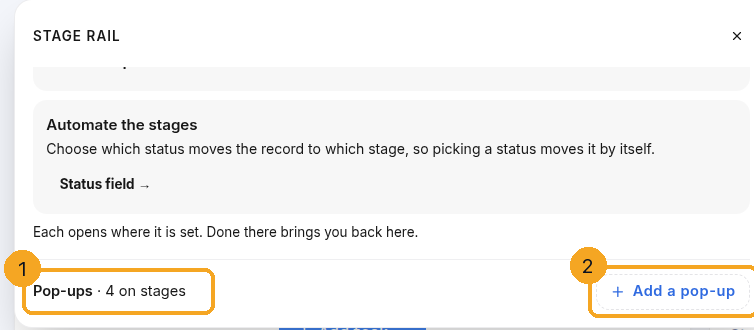
In Edit layout, a field’s pop-up and the stage rail show Pop-ups with how many are on it (1), and Add a pop-up (2), which opens the same builder filled in for that field or stage — your layout edits stay as they are. Mark lost has the same line, just under it, in the stage rail’s pop-up.
© 2026 SkedX · Sample data only · Share and link freely · Copying the product or its design is not allowed · Terms
Common questions
Will a pop-up stop someone from saving?
No. The change is always saved. A required question simply cannot be skipped — closing the window leaves it waiting on the record.
Do workflows, imports or the API open pop-ups?
Never. A pop-up only opens for a person on screen who has just made the change.
Too many pop-ups?
Use Once per record or Once a day, keep Only ask what is empty on, add a condition, or switch the pop-up off from its switch in the list.
What happens when I change many records at once?
The pop-up asks once, says how many records it is for, and saves the answer on all of them.
Who can add pop-ups?
Admins and owners with Field Editor access — the same people who can edit the layout.
Can a pop-up save into another profile’s field?
Yes. Pick that profile first, then the field; the answer is saved through it.
Where do pop-ups wait?
On the record, as N to fill next to its name — one tap opens them — and on your dashboard in To fill, with the ones you put off with Later.
Next in ProfilesFind a field on a record →
Previous: Lead Info, the top box and the Revenue tab · All Profiles guides
Did this guide help?
Still stuck?Chat with support →


