So that you can see which question loses your customers, why, and who they are — and bring them back in one click.
1Open the numbers
Open an automation and click Activity (1) in the top bar. Numbers (2) is open: the automation drawn as in Build, read-only. Pick 7, 30 or 90 days (3).

2Read the cards and the list
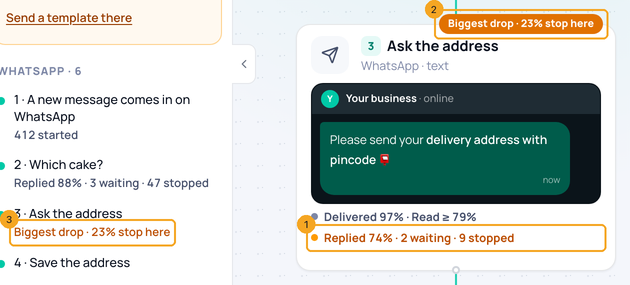
Every card carries its numbers — a question Replied 74% · 2 waiting · 9 stopped (1). The question that loses the largest share wears Biggest drop (2), and the steps list says each step’s number under its name (3).
3See why they stopped
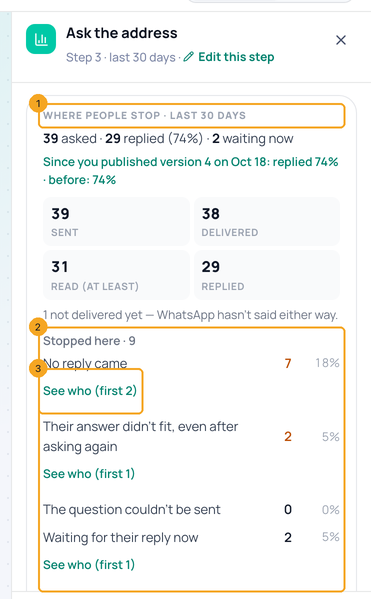
Click the card or its row. Where people stop (1) says how many were asked, replied and are waiting, then Stopped here by reason (2): no reply came, their answer didn’t fit even after asking again, the question couldn’t be sent. See who (3) lists the people.
4Bring them back
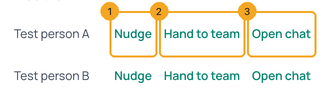
Beside each person: Nudge (1) shows a short message you can change, then sends it — if their 24-hour window has closed it says a template is needed and opens the chat to choose one. Hand to team (2) gives the chat to your team; Open chat (3) opens it.
5See whether a message arrived
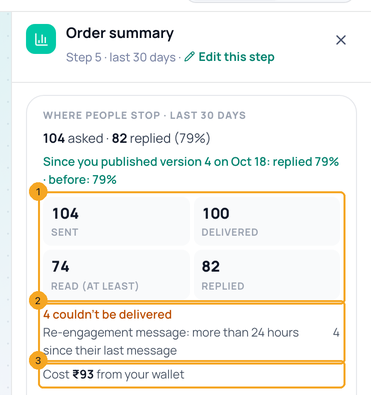
Click a message. Did it arrive shows sent, delivered, read (at least — a customer can turn read receipts off) and replied (1), the messages WhatsApp refused with its own reason (2), and what they cost from your wallet (3).
6Fix what needs attention first
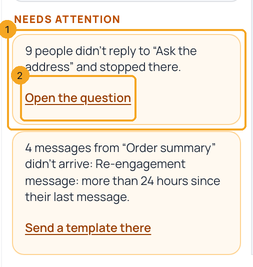
At the top of the steps list, Needs attention shows at most three cards in plain words (1), each with one fix (2): the question that loses most, messages refused because the 24-hour window had closed, an empty wallet, a template WhatsApp paused.
7Change the step, or see every run
Edit this step, in the panel’s header, goes to Build with that step open. Runs (1), beside Numbers, lists every run and what happened in it.

© 2026 SkedX · Sample data only · Share and link freely · Copying the product or its design is not allowed · Terms
Common questions
Does it count people or runs?
Runs. Someone who enters twice counts twice. The panel’s footer says so.
Why is “Read” “at least”?
A customer can turn WhatsApp’s read receipts off, so some read messages are reported as delivered only.
No one reached a question — what now?
Its panel says so and offers Look at the last 90 days.
Can I change a step from here?
Numbers is read-only. Edit this step takes you to Build with that step open.
Previous: Pause an automation in a chat when someone on your team replies · All Automation guides
Did this guide help?
Still stuck?Chat with support →


