2 min readFor all rolesUpdated 16 Nov 2026In review
Put an automation behind a link or a QR code: everyone who writes through it gets that automation, and you can see how many opened it.
About two minutes.
In review: written from the product, not yet walked through live.
Transcript · 0:36
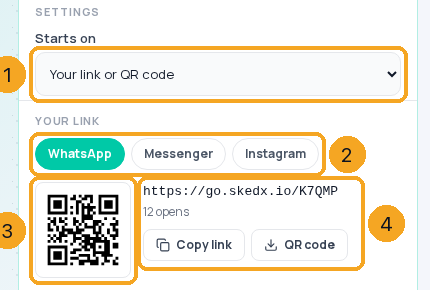
To give an automation its own link and QR code in SkedX Flow, open the automation and click its start: When a new message comes in. Set Starts on to Your link or QR code, and choose where it opens: WhatsApp, Messenger, or Instagram. Then click Make the link. Here is its QR code, and the short link, with how many times it was opened. Copy the link, or download the QR code for a poster, a bio, or a card. Turn the automation on. Everyone who writes to you through this link or QR code gets this automation.
1Make the link
Open the automation in Automation → Workflows and click its start, When a new message comes in. Set Starts on to Your link or QR code (1) and choose where it opens (2): WhatsApp, Messenger or Instagram. Click Make the link: its QR code (3) and the short link with how many opened it (4) appear. Copy link and QR code (4) give you both.
Put the link in your bio, an email or an ad; print the QR on a poster, a menu or a card. Turn the automation on. When someone opens it, they land in a chat with your business — on WhatsApp the message is ready to send, with a short Ref: line that tells SkedX which link it came from. Their first message starts the automation.
No — only for a first message that came through this link (its Ref line on WhatsApp, or the link’s hidden reference on Messenger and Instagram). Everything else is left to your other automations.
Can I see how well a poster works?
Yes. The panel counts how many times the link was opened, and every chat that came through it is recorded with the automation’s name, so your reports show how many chats each link or QR brought.
Can one automation have a WhatsApp and an Instagram link?
Yes — one link per channel. Switch the channel in the panel to make or see each one.
What if I change my WhatsApp number?
The link follows your connected number; nothing to reprint.
Chats from my Instagram link do not start the automation. Why?
Instagram may not pass the link’s hidden reference unless your profile has at least one conversation starter (ice breaker) set — ManyChat and Inrō report this. Add one in Instagram’s settings, then try the link again.
Is anything personal stored when someone opens the link?
No. An open is only counted. The person is known when they write to you, as with any chat.