Start an automation with one tap from a chat (inbox buttons)
3 min readFor all rolesUpdated 16 Nov 2026In review
The things your team does again and again in a chat — sending a payment link, the price list, a booking — become one button above the reply box.
It asks for any details first, then the automation does the rest. About three minutes.
In review: written from the product, not yet walked through live.
Transcript · 0:33
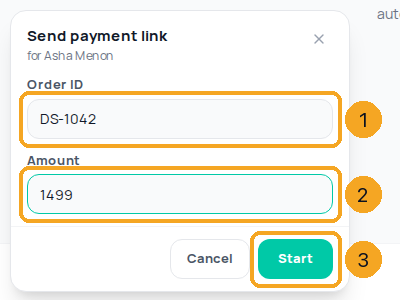
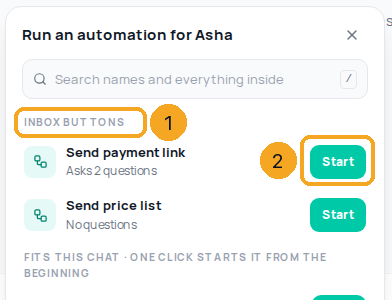
In SkedX Flow, the things your team does again and again become buttons above the reply box. The small number on a button is how many questions it asks first. A button with no questions starts the moment you tap it. Tap Send payment link. A small panel asks for the order ID and the amount. Start works once every question has an answer, and the automation does the rest. Your buttons are also in Run an automation, beside the reply box, in their own group: Inbox buttons.
1Make the button
In Automation → Workflows, start a new automation and choose the start A teammate taps an inbox button. Give the button its name (what your team sees), choose Shown to (people and teams; leave both blank for everyone) and, if you need details first, add up to six questions. Build the steps, then turn it on.
In any chat, the buttons shown to you sit above the reply box (1). A small number on a button (2) is how many questions it asks first. A button with no questions starts the moment you tap it, and the chat shows it running, with Stop.
Tap a button with questions and a small panel asks them: here Order ID (1) and Amount (2). Start (3) works once every question has an answer; the answers reach the automation’s steps as Answer 1, Answer 2…, with your name as the one who tapped.
4In Run an automation too
Your buttons are also in Run an automation (the button beside the reply box), in their own group, Inbox buttons (1). Start (2) works the same way: it asks the questions first when there are any.
5On a phone
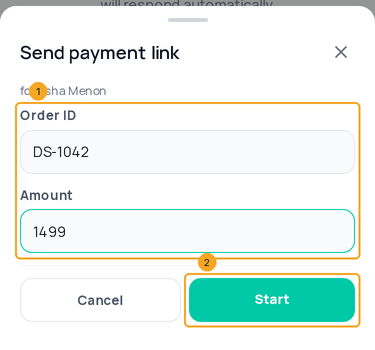
On a phone the same buttons sit above the reply box; the questions open as a sheet (1) with Start (2) at the bottom.
The people and teams in its Shown to; leave both blank and everyone in your workspace sees it. A teammate it is not shown to never sees it — not even greyed — and SkedX refuses a start from them.
Can a button ask for details first?
Yes, up to six questions (for example Order ID, Amount). Start works only when each has an answer, and later steps use them as Answer 1 to Answer 6.
I tapped it by mistake. What now?
Tap Stop on the line in the chat that says the automation is running. It stops at once if it is waiting, otherwise after the step it is on.
Does a button slow the chat down?
No. The buttons come with what the chat already loads, so opening a chat asks the server nothing extra.
Does my customer see the button?
No. Inbox buttons are for your team only, above your reply box. They are not the quick-reply buttons a customer taps inside a WhatsApp message — those are made in a template or a message step.
How is this different from a pinned step?
A pinned step starts an existing automation at that step; a button is its own automation, with its own name, who sees it and questions. See Pin a step.