Every message a booking sends, on one tab — when it goes, by which channel, and in which words.
In review: written from the product, not yet walked through live.
Part of Create a booking link and share it — its video shows the whole feature.
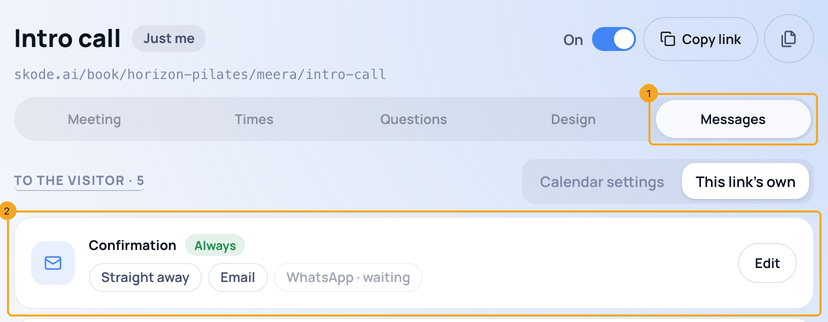
1Open Messages
On a link’s page, open Messages (1). Each message to the person who booked is a card (2): when it goes and by which channel.
2Give the link its own reminders
Pick This link’s own (1). Each reminder is a card (2) with its timing and channels — email, WhatsApp or both. Add a reminder (3) adds another, up to five, from 5 minutes to 30 days before.
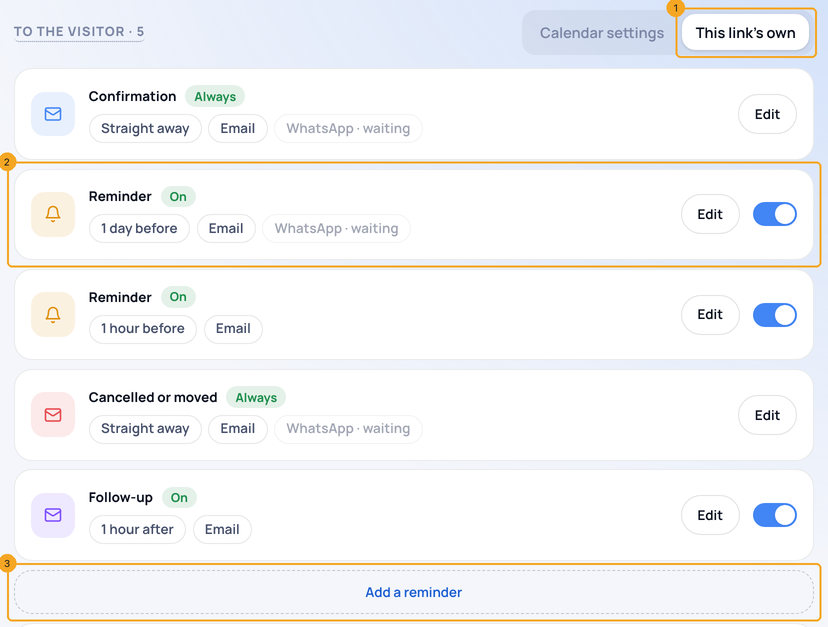
3Thank them after
Turn on Follow-up (1) to send a thank-you after the meeting, with a link to book again. It never goes to someone marked No-show.

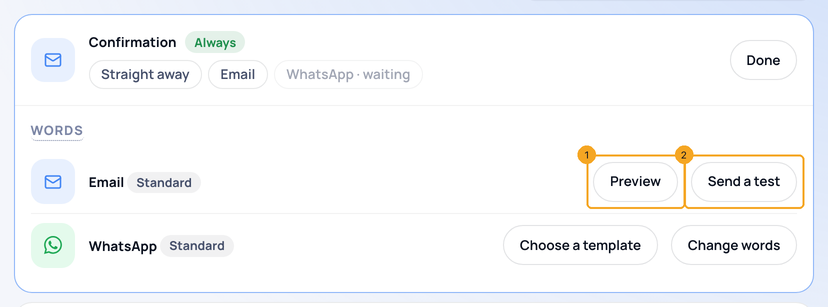
4See the words and send a test
Edit on a card shows its words. Preview (1) shows the email as it will arrive, with a made-up booking; Send a test (2) sends it to you only. For WhatsApp, Change words or Choose a template.
5Get WhatsApp approved
WhatsApp needs SkedX Flow and your number in it. An admin presses Get approved (1) — Meta usually decides within a day; email covers every message meanwhile. Without Flow, WhatsApp is not offered.

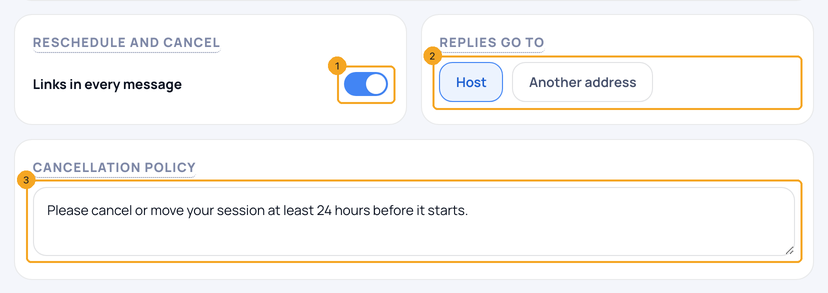
6Set replies, links and policy
Reschedule and cancel (1) puts those links in every message. Replies go to (2) you or another address. Cancellation policy (3) is shown on the page and in each email.
7Choose what happens after they book
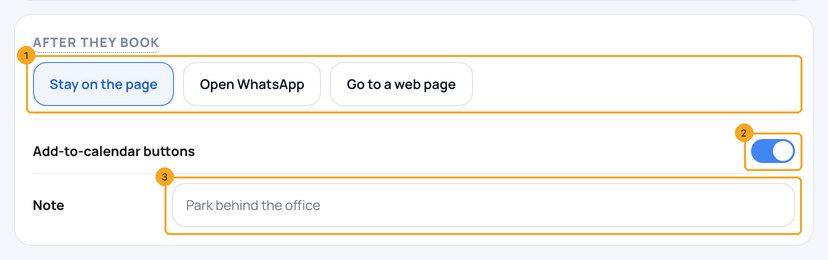
Stay on the page, Open WhatsApp or Go to a web page (1). Add-to-calendar buttons (2) and a Note (3) — where to park, what to bring — show on the confirmation and in its email.
8Add an automation
Add an automation (1) opens SkedX Automate on Meeting Scheduled — for a task, a message to your team or anything else after a booking.

© 2026 SkedX · Sample data only · Share and link freely · Copying the product or its design is not allowed · Terms
Common questions
Do the link’s reminders replace Calendar settings?
Yes, for this link only. Pick Calendar settings again to follow the company’s reminders.
Does WhatsApp cost anything?
Each WhatsApp message passes through your wallet like any send. Email is included.
Can I remove “Calendar by SkedX” from the emails?
No — it is in the footer of every booking email and page. The sender’s name stays your company’s.
Next in CalendarGive your booking page its look — or let the brand kit lead →
Previous: Give a booking link its own hours, special days, breaks and limits · All Calendar guides
Did this guide help?
Still stuck?Chat with support →


